How to Manage Your Router Password: A Step-by-Step Guide
Learn how to manage your router password securely, including changing the admin password, updating the Wi‑Fi key, and best practices to protect your home network. Simple steps from WiFi Router Help.


Learn how to manage your router password by securing admin access, updating the Wi‑Fi key, and keeping credentials safe. You’ll separate admin and wireless passwords, choose strong, unique strings, and use a password manager to store them. The steps below walk you through preparation, changes, verification, and ongoing maintenance for better protection.
Understanding Router Passwords: Admin vs Wireless
Your router password system comprises two distinct credentials: the admin (management) password and the Wi‑Fi network password. The admin password guards access to the router’s settings, firmware upgrades, and network controls. The Wi‑Fi password is what devices use to join your network and access Internet services. Treat admin access like a private door key and the Wi‑Fi password like the network gate key. Keeping them separate minimizes risk: even if someone learns your Wi‑Fi password, they still need the admin password to change settings. According to WiFi Router Help, many households still rely on the default admin password or reuse the same password across services, which dramatically increases exposure to cyber threats. The goal is to have a unique, strong admin password and a separate, robust Wi‑Fi key. Before you start, locate the router’s admin interface address (commonly 192.168.0.1 or 192.168.1.1) and note the current Wi‑Fi network name (SSID) you want to protect. This block sets the foundation for a secure password strategy by clarifying roles and responsibilities for admin vs wireless credentials.
Security Essentials for Passwords
Security starts with strong, unique credentials and a defensible storage plan. For admin access, choose a password that is at least 12–16 characters long and uses a mix of uppercase letters, lowercase letters, numbers, and symbols. For the Wi‑Fi password, aim for a similar length and complexity or use a passphrase—a sequence of random words that’s easy to remember but hard to guess. Do not reuse passwords across admin, Wi‑Fi, or any other service. Using a password manager to generate and store these credentials reduces the risk of reuse and helps you keep track of updates across devices. Enable two-factor authentication on the router if your model supports it, and disable features you don’t need (like WPS) to close common attack vectors. This section emphasizes best practices and practical steps you can apply immediately, drawing on guidance from the WiFi Router Help team to help you build a resilient defense around your home network.
Planning a Password Strategy for Your Home Network
A well-planned strategy makes routine maintenance feasible and less error-prone. Start by deciding how often you will rotate passwords (a common cadence is every 6–12 months, or sooner after a suspected breach). Align changes with other security events (new devices, after a known incident, or following a firmware update). Create a documented plan that specifies which credentials to rotate (admin vs Wi‑Fi), who is authorized to perform changes, and where to store recovery information securely. Consider adopting a policy to disable remote administration unless you truly need it, limit admin access to a few trusted devices on your LAN, and monitor login attempts through the router’s event log. This block provides the strategic backbone you’ll translate into actionable steps in the next sections, helping you move from a reactive to a proactive password management posture.
How to Create and Safely Store Strong Admin Passwords
Creating a strong admin password is the first line of defense against unauthorized changes. Aim for randomness and length; use a password manager to generate and store it. A robust admin password should not resemble a pattern or a common phrase, and it must be different from your Wi‑Fi password. When setting the admin password, avoid information easily associated with you (birthdays, pet names, etc.). Document password changes in a secure location or encrypted note within your password manager. Remember to back up your router configuration if your model supports exporting settings. Enabling two‑factor authentication (2FA) on the admin interface, where available, adds a critical extra barrier against intrusion. The emphasis here is on creating a credential you won’t forget, while ensuring it’s not guessable or easily discovered by someone with physical access to your router.
Managing the Wi‑Fi Password: Strength, Rotation, and Guest Access
The Wi‑Fi password protects every device connected to your network. Use a long, unique password that uses a wide character set and avoids common phrases. If you have a guest network, enable it with its own password and limit access to local resources. Whenever you rotate the Wi‑Fi password, update connected devices promptly to minimize disruption. If your router supports WPA3, enable it for the strongest available wireless security; if not, WPA2‑WPA3 mixed mode is better than legacy WPA. Disable WPS (Wi‑Fi Protected Setup) to avoid a known vulnerability. Consider creating a separate admin-only network for management tasks if your router supports multiple SSIDs. This section walks through practical hardware-friendly configurations you can implement to strengthen wireless protection while keeping daily use convenient.
Keeping Your Network Safe: Settings, Updates, and Backups
Security is ongoing, not a one-time event. Regularly check for firmware updates and apply them promptly, as they often include fixes for vulnerabilities that could expose password data. Review the router’s advanced settings and disable any features you won’t use (remote management, UPnP, etc.). Maintain a current inventory of device names and their access rights to the admin interface. Store passwords in a reputable password manager with strong master access controls and enable biometric unlocking where possible. Create a secure backup of your router configuration after updating passwords, so you can restore settings if something goes wrong. Finally, run quick validation checks: can you access the admin interface from a trusted device? Do all your devices reconnect after you update the Wi‑Fi password? Completing these checks reduces the chance of lockouts and ensures smoother recovery if changes become necessary.
Practical Password Hygiene Checklist
This practical section consolidates the core actions into an actionable checklist you can refer to regularly. Start by separating admin and Wi‑Fi credentials, generating strong, unique passwords, and storing them in a trusted password manager. Verify 2FA is enabled where available, and disable risky features like WPS. Schedule password rotations and update stored credentials on all devices promptly. Finally, document procedures for recovering access and keep a current backup of your router configuration. By following this checklist, you’ll maintain a resilient password management posture across your home network.
Tools & Materials
- Computer or smartphone with a web browser(Used to access the router admin page (typically via http://192.168.0.1 or similar).)
- Router manual or model documentation(Helps locate default IP, credentials, and reset procedures.)
- Password manager app(Generate, store, and autofill strong credentials securely.)
- Backup plan for router settings(Optional but recommended to export or backup configurations after changes.)
- Phone or computer with trusted access(Ensure only trusted devices can access admin interface.)
Steps
Estimated time: 30-40 minutes
- 1
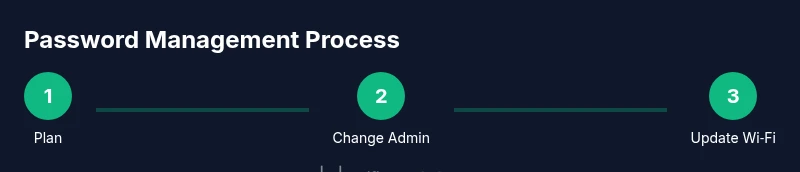
Plan Password Changes
Identify which credentials to update (admin vs Wi‑Fi), decide rotation frequency, and choose a password manager for storage. Create a written plan covering who can make changes and how changes will be documented.
Tip: Clarify ownership: designate one admin for changes to minimize conflicts and ensure accountability. - 2
Open Admin Interface
Connect to the router through a wired or trusted wireless connection and log in to the admin panel using the current admin password. If you can’t remember the password, prepare the documented reset procedure from the manual.
Tip: If you’re unsure of the IP, check your device’s gateway in the network settings. - 3
Change Admin Password
Navigate to the password/administration section, generate or enter a new strong admin password, and save changes. Close the session and verify you can log back in with the new password.
Tip: Use a password manager to generate a long, random string; avoid patterns. - 4
Update Wi‑Fi Password
Go to the wireless or Wi‑Fi settings, replace the existing network key with a new, strong password, and apply changes. Note the SSID remains the same unless you intend to rename the network.
Tip: Use a different password from the admin credential to prevent cross-exposure. - 5
Enable Strong Security and Disable WPS
In security settings, enable WPA3 (or WPA2‑WPA3 mixed mode if WPA3 isn’t available) and turn off WPS to reduce risk. Confirm your settings have been accepted.
Tip: WPS is convenient but known to be exploitable; turning it off significantly improves security. - 6
Store Credentials Securely
Add the new admin password and Wi‑Fi password to your password manager. Consider adding notes for recovery steps and device associations.
Tip: Enable biometric unlock on your password manager for quick yet secure access. - 7
Back Up and Document Changes
Export the router configuration if supported and save a written record of the changes. Keep a secure copy of the new credentials in your password manager and update any device stores.
Tip: Label the backup with date and purpose to simplify future audits. - 8
Test and Schedule Rotation
Reconnect devices with the new Wi‑Fi password and verify admin access from a trusted device. Schedule a reminder for password rotation and review access logs for unusual activity.
Tip: Set a reminder every 6–12 months or after any suspected incident.
People Also Ask
What is the difference between the router admin password and the Wi-Fi password?
The admin password protects access to the router’s settings, while the Wi‑Fi password protects devices from connecting to the network. Keeping them separate minimizes risk because compromising one credential doesn’t automatically give access to the other.
Admin password controls settings; Wi‑Fi password protects network access.
Can I reuse the same password for admin and Wi‑Fi?
It’s not recommended. Use distinct credentials so a breach of one does not expose the other.
No—keep admin and Wi‑Fi passwords separate.
What should I do if I forget the admin password?
Use the router’s reset procedure from the manual to restore access, then immediately set a new admin password and reconfigure settings. If possible, restore from a backup after the reset.
If you forget it, reset the router and set a new password.
Is it safer to use WPA3 and disable WPS?
Yes. WPA3 provides stronger wireless security, and disabling WPS removes a known weakness attackers could exploit.
Yes—enable WPA3 and turn off WPS for better security.
Can a password manager store router credentials?
Yes. Reputable password managers can securely store admin and Wi‑Fi credentials, plus recovery notes and device associations.
Yes—store credentials securely in a password manager.
How often should I rotate router passwords?
A typical best practice is every 6–12 months, or sooner after a suspected breach or device change.
Rotate passwords every 6 to 12 months, or after any security incident.
Watch Video
What to Remember
- Separate admin and Wi‑Fi credentials for better security
- Use strong, unique passwords generated by a password manager
- Disable unnecessary features (WPS) and enable WPA3 where possible
- Document changes and schedule regular rotations