How to Change a Router Password: A Step-by-Step Guide
Learn how to change a router password to secure your home network. This guide covers admin vs Wi-Fi passwords, practical steps, and best practices from WiFi Router Help.


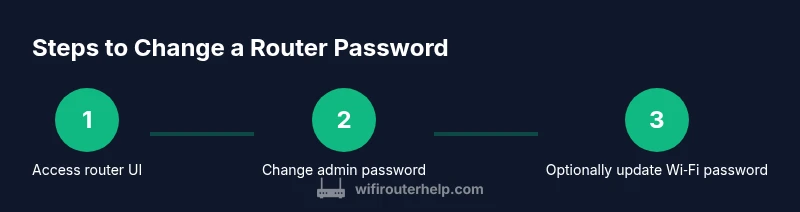
You will learn how to change a router password to protect your home network. This involves logging into your router's admin page, navigating to the security or wireless settings, creating a strong new password, updating credentials, and saving changes. We'll cover different router brands and safety tips.
Why changing your router password matters
Changing your router password is one of the simplest, most effective steps to protect your home network. According to WiFi Router Help, using a unique admin password for your router prevents unauthorized changes to your network settings, and it reduces the risk of attackers gaining access to connected devices. A strong password for the router admin page is different from your Wi‑Fi password and should not be reused across accounts. In practice, this means selecting a password that is long, random, and free of personal information, and storing it securely using a password manager. By making this change, you close a common attack vector and improve overall network resilience. This guidance aligns with general cybersecurity best practices and reflects common vulnerabilities observed in home networks. Regularly updating credentials is a foundational step in maintaining ongoing security hygiene.
How admin vs. Wi‑Fi passwords differ and why both matter
Two layers protect your home network: the router admin password (which controls the router’s settings) and the Wi‑Fi password (which protects traffic on your wireless network). The admin password should be strong, unique, and kept secret because it governs network behavior (like port forwarding, firewall rules, and firmware updates). The Wi‑Fi password should also be robust to prevent unauthorized devices from joining your network. Reusing passwords across these two layers creates a single point of failure; if one password is compromised, the other may be at risk as well. As you implement changes, treat both passwords with equal care and manage them using a trusted password manager.
What you’ll typically see in router settings and where a password lives
Most routers present a split of settings: an admin/login section and a wireless/Wi‑Fi section. The admin area is usually accessed via a local IP like 192.168.0.1 or 192.168.1.1, while the Wi‑Fi settings live in the same or a closely related menu. In some brands, there may be a dedicated "Administration" or "Security" tab for changing the admin password, and a separate "Wireless" or "Wi‑Fi" tab for the network password. If you don’t see a password field in the expected place, consult the manufacturer’s documentation or your router’s help section. Keep in mind that some routers allow you to set a combined password policy that applies to both admin and Wi‑Fi credentials.
Brand-agnostic checklist before you start
Before changing any password, gather your login credentials and ensure you are connected to the router's network (wired or wireless). Make a quick note of the current admin username and password, and have a plan for a strong new password. Determine whether you also want to change the Wi‑Fi password and whether your router supports features like guest networks or remote management. It’s a good idea to check if there is a firmware update available and apply it after you change passwords if required. Finally, decide where you’ll store the new credentials (password manager, secure note) and how you’ll verify devices still connected after changes.
Troubleshooting common issues after changing a password
If you can’t log in after changing the password, verify you are using the correct IP address and username, and ensure you entered the new password precisely. Some routers require a reboot after a password change; others apply changes immediately. If you forget the new admin password, you may need to perform a factory reset, which will erase all custom settings; this should be a last resort. If devices lose connectivity after a password change, you may need to reconnect them using the new Wi‑Fi password or reconfigure their network settings. Always have a backup plan: know how to reset to factory defaults and re-enter essential configurations.
Best practices for maintaining ongoing router security
Maintain ongoing security by enabling firmware updates, using strong, unique passwords, and disabling unnecessary remote management features. Consider enabling a firewall, using a modern encryption standard like WPA3 (or WPA2 at minimum), and creating a separate guest network for visitors. Regularly review the list of connected devices and promptly remove unfamiliar ones. For added resilience, store passwords in a reputable manager and enable alerts if there are critical changes to the router configuration. This approach aligns with standard cybersecurity guidance from national security agencies and helps reduce risk over time.
Tools & Materials
- A device with a web browser (laptop, smartphone, or tablet) connected to the router(Chrome, Edge, Safari, or Firefox are fine; ensure you’re on the router’s network)
- Current admin username and password for the router(You’ll need these to log in before changing settings)
- A new strong password for admin access(Aim for 12+ characters with mixed case, numbers, and symbols)
- A new strong Wi‑Fi password (if updating both)(Optional if you only want to change the admin password)
- Password manager or password generator(Optional but recommended to store and generate strong passwords)
Steps
Estimated time: 15-25 minutes
- 1
Connect to the router admin page
Open a web browser on a device connected to the router. Determine the router’s IP address (commonly 192.168.0.1 or 192.168.1.1) and navigate to it. If these addresses don’t work, check the router’s label or the manufacturer’s guide. You must be on the local network to access the admin interface.
Tip: If the page doesn’t load, disable any VPNs and try a wired connection for reliability. - 2
Log in with current admin credentials
Enter the current admin username and password to access the router’s settings. If you’ve never changed these, use the default credentials from the router label or manual. Once logged in, you’re ready to modify sensitive settings.
Tip: If you don’t know the credentials, check the label on the router’s bottom or the manufacturer’s documentation. - 3
Find the admin password field
Navigate to the Security, Administration, or System tab. Look for an option labeled ‘Change Password’ or ‘Admin Password’. The location varies by brand, but the option is usually under a security-related heading.
Tip: If you see a warning about password complexity, follow the on-screen guidance to meet minimum requirements. - 4
Enter and confirm the new admin password
Type your new strong password in the designated field and confirm it in the second field if required. Use a passphrase or a random mix of characters to increase strength. Avoid reusing passwords from other sites.
Tip: Consider a passphrase consisting of four unrelated words with numbers and symbols for easier recall. - 5
Save changes and wait for the router to apply
Click Save or Apply. The router may reboot automatically; wait until the page reloads and you can log back in with the new password. Do not navigate away during the reboot.
Tip: If the router reboots, do not unplug it—allow it to finish its restart sequence. - 6
Optionally change the Wi‑Fi password
If you want to protect Wi‑Fi access as well, switch to the Wireless or Wi‑Fi settings and update the network password. Use a different password from the admin login to reduce risk if one credential is compromised.
Tip: Store the new Wi‑Fi password securely in a password manager and test device connections afterward. - 7
Re-connect devices and update saved credentials
Reconnect all devices using the new credentials. Update any saved passwords in browsers, apps, or password managers. Verify that you can access the router UI with the new admin password and that devices connect to Wi‑Fi with the new network password.
Tip: Keep a written note of the new credentials in a secure place if you rely on paper-based storage.
People Also Ask
Why should I change my router password?
Changing the router password reduces the risk of unauthorized changes to your network and helps protect connected devices. It is a foundational security practice recommended for all home networks.
Changing your router password reduces the chance of someone secretly configuring your network and helps protect your devices. It's a basic but essential security step.
What is the difference between the admin password and the Wi‑Fi password?
The admin password controls access to the router’s settings, while the Wi‑Fi password protects devices joining your wireless network. Treat both with care, and avoid reuse across accounts.
The admin password protects the router settings, while the Wi‑Fi password protects wireless access. Use different strong passwords for each.
I forgot the new admin password. What should I do?
If you forget the admin password, you may need to reset the router to factory defaults. This will erase custom settings, so use this as a last resort and reconfigure from scratch.
If you forget the admin password, you might need to reset the router to factory settings and then set up again from the beginning.
How often should I change my router password?
Change your router password if you suspect it’s compromised, after a firmware update, or at regular intervals as part of good security hygiene.
Change it if you think it was compromised, after updates, or as part of routine security checks.
Will changing the password disconnect all devices?
Changing the admin password may require you to log back in, but it will not automatically disconnect devices from Wi‑Fi unless you also change the Wi‑Fi password.
You’ll need to log back in to change settings, but devices stay connected unless you change the Wi‑Fi password.
What if I can’t access the router after changing the password?
Double-check the IP, use a tethered device, and ensure you typed the password correctly. If all else fails, perform a reset and reconfigure from scratch.
If you can’t access it, verify the IP and password; if needed, reset and reconfigure the router.
Watch Video
What to Remember
- Choose a strong, unique admin password.
- Consider updating the Wi‑Fi password as well.
- Save changes and verify access immediately.
- Store credentials securely and review connected devices.
- Keep firmware up to date for ongoing protection.