How to Change Your WiFi Password on a Router: Step-by-Step Guide
Learn how to securely change your wifi password on router with a practical, device-agnostic approach. This guide covers login, password strength, reconnecting devices, and best practices to protect your home network.


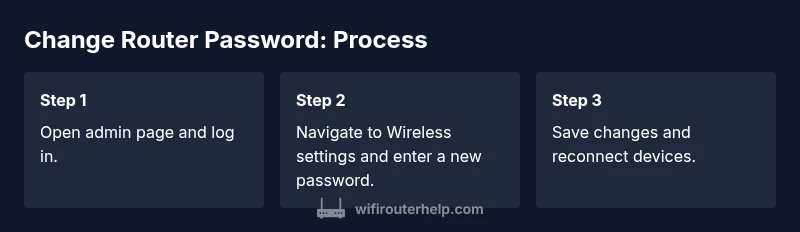
Goal: you will change your wifi password on router by accessing the router’s admin page, selecting the wireless settings, and setting a new passphrase. This boosts network security and keeps intruders out. According to WiFi Router Help, choose a unique, strong password (at least 12 characters, mixing upper/lowercase, numbers, and symbols), then reconnect all devices.
Why changing wifi password on router matters
A home network is only as secure as its weakest link, and the wireless password is often that link. If someone gains access to your password, they can use your bandwidth, monitor traffic, or connect new devices to your network. Regularly updating the wifi password on router is a simple, effective practice that reduces risk, especially after guests have connected, or if a device gets lost or stolen. Treat your router like a gatekeeper: keep credentials private, rotate passwords on a schedule, and enforce a strong password policy that avoids common patterns like predictable phrases or simple sequences.
This guide focuses on practical steps to update your password securely with minimal downtime. You’ll learn how to pick a strong password, locate the correct settings in the admin interface, and reconnect devices without frustration. Remember: the wifi password is separate from the router’s admin password; changing one does not automatically change the other. Keep admin access protected with its own strong password.
Tip: Have a temporary device handy that will stay connected during the change. If you misplace credentials, you may need to reset the router to factory defaults and reconfigure from scratch.
How password strength affects security
Password strength dramatically influences security, especially for home networks with multiple connected devices. Longer passphrases that mix uppercase and lowercase letters, numbers, and symbols are harder to guess or brute-force. The aim is to create a password that is unique to your network, non-repetitive, and not derived from easily discoverable information (like birthdays or pets’ names).
WiFi Router Help analysis shows that longer, more complex passwords significantly improve security. While there’s no one-size-fits-all rule, a strong standard is at least 12 characters with a mix of character types. Avoid common words in sequence and obvious substitutions. If you share access with guests, consider using a guest network with a separate password to avoid frequent changes for your primary network.
In practice, rotate passwords periodically and after any suspected breach. Document the new password in a password manager rather than on sticky notes, and ensure devices reconnect using the new credentials.
Gather your details and prepare your router
Before you touch any settings, gather what you’ll need to complete the change smoothly. Confirm you know the router’s admin username and password, and ensure you have access to a device that can connect to the router’s dashboard. If you’re unsure of the login details, check the router’s underside label or the manufacturer’s support site for default credentials (unless you’ve changed them before). Decide whether you’ll change just the Wi‑Fi password or also the router’s admin password.
Prepare a new password that meets best practices: at least 12 characters, a mix of upper and lower case letters, numbers, and symbols. Consider a passphrase rather than a random jumble for easier recollection. If you manage multiple networks (2.4 GHz and 5 GHz), you can set the same password for both or use distinct passwords for better segmentation. Finally, make sure you have a backup of current settings in case you need to revert.
Login methods and safety considerations
Most routers present their admin interface on a local IP address such as 192.168.0.1 or 192.168.1.1. Open a browser and enter the address, then log in with the admin username and password. If you cannot access the page, ensure your device is connected to the router (either via Wi‑Fi or Ethernet) and that you’re using the correct protocol (http or https as appropriate).
Do not use public Wi‑Fi to access the router admin page. If you suspect the router’s credentials have been compromised, perform a factory reset per the manufacturer’s instructions and reconfigure the device from scratch. For added security, consider enabling features like a guest network, WPA3 if available, and disabling WPS to prevent unauthorized access.
Crafting a password with long-term viability
A password that’s easy to remember but hard to crack normally uses a passphrase or a mix of words and symbols. A recommended approach is to combine unrelated words with numbers and symbols, avoiding personal information. For example, a passphrase like Mountain$River-9Tiger!L|a gives a strong blend without being obvious. When you apply the password to both 2.4 GHz and 5 GHz networks, you simplify management while maintaining protection.
If you prefer unified credentials, use the same strong passphrase for both bands. If you’d rather have separate passwords, assign a unique but equally strong string to each band. After changing the password, document the new credentials in a password manager so you can retrieve them easily without writing them down in insecure locations.
Troubleshooting password changes and reconnecting devices
After saving the new password, you’ll need to reconnect devices to the network using the new credential. On some devices, reconnect may happen automatically if they stored the old password; others will prompt for the new password. If a device fails to reconnect, forget the old network on the device’s settings and re-enter the new password manually. If a device still won’t connect, verify you entered the password correctly and ensure the device is compatible with your security protocol (WPA2/WPA3).
Security best practices after changing the password
Changing the password is a key step, but it’s not the only one. Regular firmware updates help protect against new vulnerabilities. Enable automatic updates if your router supports them, or check the manufacturer’s site for the latest firmware and install it manually when advised. Consider disabling remote administration unless you actively need it, and enable a firewall feature if available. Create separate networks for guests and IoT devices to limit cross-network access and periodically review connected devices to remove any you don’t recognize.
Next steps and ongoing maintenance
Set a reminder to review your wireless password every 6–12 months and after major network changes (new devices, guests, or resets). Keep a secure record of admin credentials in a password manager and ensure all devices are updated when you rotate passwords. If a change becomes too complicated due to multiple devices, you can temporarily limit changes to a single band or device group and scale up later. The key is consistency, documentation, and ongoing vigilance to safeguard your home network.
Tools & Materials
- A computer or smartphone with a web browser(Used to access the router's admin page; connect to the home network during the task)
- Knowledge of router login credentials(Admin username and password; if forgotten, consult the router’s reset procedure)
- An updated, strong password(Minimum 12 characters and a mix of upper/lowercase letters, numbers, and symbols)
- Backup notes of current settings(Helpful if you need to revert or reconfigure later)
- A wired Ethernet connection (optional but recommended)(More stable during the password change and reduces risk of dropped sessions)
Steps
Estimated time: 15-25 minutes
- 1
Open the router admin page
Open a web browser and enter the router’s local IP address (commonly 192.168.0.1 or 192.168.1.1). This loads the login screen where you’ll enter the admin username and password.
Tip: If you’re not sure of the IP, check the underside of the router or the manual, or run a quick network scan from a connected device. - 2
Log in to the admin interface
Enter the admin credentials. If you’ve never changed them, use the default provided by the manufacturer. If you’re unsure, consult the router’s documentation or reset if necessary.
Tip: Do not reuse weak credentials; change them after you access the wireless settings. - 3
Navigate to Wireless/Wi-Fi settings
Find the section labeled Wireless, Wi-Fi, or Wireless Security. Some routers separate 2.4 GHz and 5 GHz networks; note which you’ll update.
Tip: If you don’t see a Wireless section, check under Advanced Settings or Security. - 4
Enter the new password
In the password field for both bands (or single network if you consolidate), type your new strong password. Confirm you’ve entered it exactly as intended.
Tip: Copy-paste the password from a trusted password manager to avoid typos. - 5
Apply/save changes
Click Save or Apply to commit the new settings. The router may reboot automatically.
Tip: If the router reboots, don’t worry—the device will reconnect once the password is accepted. - 6
Reconnect devices to the network
On each device, go to Wi-Fi settings and select the network again, entering the new password.
Tip: If a device has cached credentials, you may need to forget the old network before reconnecting. - 7
Verify network access and features
Test internet access on several devices and confirm that features like guest network still function if you use them.
Tip: Run a quick speed test on a couple of devices to ensure the update didn’t impact performance. - 8
Document changes and consider maintenance
Record the new password in a password manager and set a maintenance plan for future rotations.
Tip: Set a reminder to review passwords every 6–12 months and after security incidents.
People Also Ask
Do I need to reconnect all devices after changing the password?
Yes. After you change the password, you must reconnect each device using the new credential. Some devices may reconnect automatically if they saved the old password.
Yes, you’ll need to reconnect each device with the new password.
Can I reuse an old password after changing it?
You should avoid reusing recently used passwords. Create a fresh, strong password rather than recycling an old one.
It’s better to create a new, strong password rather than reuse an old one.
What if I forgot the admin login after changing the password?
If you forget the admin login, you’ll typically need to reset the router to factory defaults and reconfigure it. This erases all custom settings.
If you forget the admin login, you may need to reset the router to factory defaults.
Is changing the wifi password the same as changing the router password?
No. The wifi password protects wireless access, while the router password protects admin settings. They are separate and should both be strong.
No—wifi password protects network access, router password protects admin settings, and both should be strong.
Will changing the password affect the guest network?
If you use a separate guest network, you’ll need to update its password separately if you want continued access for guests.
Guest networks may require a separate password update if you want to keep guests connected.
Should I enable automatic firmware updates after a password change?
Yes, enabling automatic updates helps protect against vulnerabilities. Check for updates if auto-update isn’t available.
Enable updates to keep the router protected against known vulnerabilities.
Watch Video
What to Remember
- Choose a strong, unique password
- Reauthenticate all devices after change
- Backup admin credentials securely
- Keep router firmware up to date
- Separate guest network for visitors