Change Your WiFi Router Password: A Step-by-Step Guide
Learn how to change the password for your wifi router securely. This educational guide covers prerequisites, step-by-step instructions, safety tips, and troubleshooting to protect your home network in 2026.


You will learn how to change the password for your wifi router to improve security and protect devices. Before you begin, know your router's admin address, admin credentials, and the new password you want to use. This guide covers common steps, brand variations, and quick checks to verify the new password is active across your network.
Why changing your wifi password matters
Keeping your home network secure starts with a strong, unique password for your router. When you change the password, you lock out anyone who previously connected without your explicit permission and close off potential access points that could be exploited by attackers. The WiFi Router Help team emphasizes that the biggest risk isn’t a clever hacker in the next room but the risk of devices that have default or weak credentials remaining connected. According to WiFi Router Help, many households underestimate how long a compromised router can quietly sit in the background, monitoring traffic or launching rogue connections. A strong password also helps when you replace or forget a device’s saved network details. In practice, a password should be long, unpredictable, and not reused across other sites or services. As a rule of thumb, avoid common words, avoid keyboard patterns, and mix uppercase, lowercase, digits, and symbols. In addition to changing the password, consider enabling WPA3 if supported, and disable remote administration unless you need it, to minimize exposure. For households with multiple access points or mesh networks, centralizing password changes can simplify ongoing security management.
Understanding password strength and best practices
A router password should be long, random, and unique. A minimum of 12-16 characters is a good baseline; longer is better. Use a passphrase or a mix of letters, numbers, and symbols to defeat common word attacks. Avoid personal data (names, pets, birthdays) and avoid keyboard sequences like qwerty. If you use a password manager, store the router password securely there and generate a strong candidate that you don’t reuse elsewhere. For home networks with guests, consider implementing a separate guest network and a different password to minimize the exposure of your main network. Also, write down the new password in a secure place for your records before you forget it, but do not leave it taped to the router. Finally, plan for periodic password rotations, such as every 12 months, and consider enabling two-factor authentication on the admin page when supported by your model.
What you need before starting
Before you begin, gather essential items and confirm you have access to the router’s admin interface. You’ll need a connected device (computer, tablet, or phone) with a web browser, the current admin login credentials, and the new password you plan to use. If you’re using a password manager, set up a new entry for the router password. It’s also wise to check whether your router supports two-factor or extra authentication for admin access; if so, enable it during setup. If your current credentials are unknown, locate the sticker on the router or consult the manual. Having a paper backup of the new password in a secure place can prevent lockouts. Finally, verify that your internet service is functioning during the change in case you need to troubleshoot connectivity.
Locating the router's admin page and login
Most routers expose an admin page at a private IP address such as 192.168.0.1 or 192.168.1.1, with a model-specific suffix. Common alternative URLs include router-setup.local or an IP listed on the device label. On Windows, you can find the default gateway by running ipconfig in Command Prompt; on macOS, use ifconfig and look for the gateway. If you’re unsure, check the manual or the manufacturer’s support site. Connect your device directly to the router if you’re having trouble accessing it wirelessly, and ensure you’re on the same local network. Avoid trying to access the admin page from public networks to protect credentials. Once you reach the login screen, enter the admin username and password; if you’ve never changed them, the default values are typically provided by the manufacturer.
Updating the password safely: where to find the field
Within the admin interface, password fields typically live under Wireless, Wireless Security, or Security settings. Look for terms like ‘Wi‑Fi Password’, ‘Passphrase’, ‘WPA-PSK Key’, or ‘Network Key’. Some routers label the field as ‘Router Password’ or put the password in a separate section called ‘Administration’ or ‘Security’. If you’re managing a mesh network, you may need to update the password on the primary hub and ensure the change propagates to satellites. After entering the new password, save or apply changes and allow the router to reboot if required. If your interface prompts for a confirmation code or a reboot confirmation, follow the prompts precisely to avoid misconfigurations.
Verification and maintenance after change
After saving the new password, reconnect your devices to the network using the updated credentials. Revisit each device’s saved networks and remove outdated credentials to prevent automatic attempts with the old password. Check that devices can access the internet and that the router’s admin page remains reachable using the new login. If you use a guest network, consider applying the same strength standards to its password and keeping it separate from the main network. Periodically review your router’s firmware and security settings to stay protected against emerging threats. Recording the changes in a secure system helps maintain long-term control.
Troubleshooting common issues
If you can’t connect after changing the password, double-check that you’re using the correct password and that you didn’t accidentally enable caps lock. If the admin page becomes inaccessible, verify you are on the correct IP address and try a wired connection. Some routers require a quick reboot after a password change; if the page won’t save, try again, and confirm you have the latest firmware. If you forget the new router password, use your password manager or reset the router to factory defaults as a last resort, then reconfigure from scratch. Remember to reassess security after completing a reset—don’t leave the device with factory-default credentials.
Final thoughts: ongoing security and best practices
Regularly updating your router password is part of solid home-network hygiene. Combine password hygiene with firmware updates, disabling unnecessary remote access, and using strong Wi‑Fi encryption (WPA3 where available). For mesh networks, coordinate password changes to minimize outages, and document changes for your household. The WiFi Router Help team emphasizes consistent, deliberate maintenance as the most reliable defense against common threats. By following this guide and staying proactive, you keep your home network resilient against unauthorized access.
Quick recap
Changing your wifi router password is a straightforward security upgrade you should perform on a regular basis. Ensure you have the admin address, credentials, and a strong new password, then verify every connected device after the change. Keeping firmware updated and disabling unnecessary remote access further reduces risk. If you encounter issues, consult your model’s manual and, when needed, seek help to avoid lockouts.
Tools & Materials
- Computer, tablet, or smartphone with a web browser(Used to access the router admin page from the same network)
- Current router admin username and password(If unknown, check the device label or manual)
- New router password(Aim for 12–16+ characters with mixed case, numbers, and symbols)
- Secure storage for credentials(Use a password manager or a written, protected record)
- Router model manual or official support page(Helpful for model-specific steps)
- Optional Ethernet cable(Use for a stable connection during setup)
Steps
Estimated time: 12-20 minutes
- 1
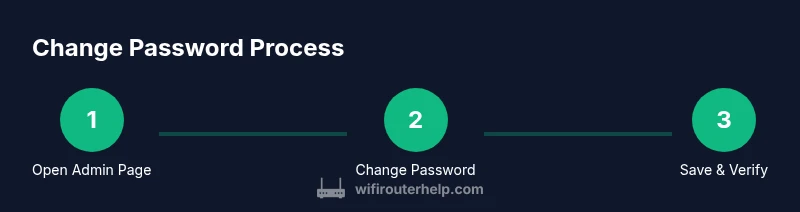
Open the router’s admin page
From a connected device, launch a browser and enter the router’s IP address or domain (e.g., http://192.168.1.1). If you’re unsure, consult the manual or the router label. Ensure you’re on the same local network.
Tip: If the page doesn’t load, try both http and https if supported, and disable any VPNs that might block local addresses. - 2
Log in with admin credentials
Enter your admin username and password. If you never changed them, use the default credentials from the sticker or manual. Update these credentials after changing the password for extra security.
Tip: If you forgot them, use the router’s reset procedure only as a last resort, which will erase all custom settings. - 3
Navigate to Wireless/Security settings
Look for tabs named Wireless, Wireless Security, Security, or Admin. The password field might be labeled as ‘Wi‑Fi Password’, ‘Passphrase’, or ‘WPA-PSK Key’. If you’re managing a mesh system, apply the change on the primary node first.
Tip: Take a screenshot of current settings (if possible) before making changes to reference later. - 4
Enter the new password
Type the new password into the appropriate field, ensuring it meets strength requirements. Do not reuse passwords from other sites. Save variations or notes securely as needed.
Tip: Use a passphrase or a random mix to maximize strength; longer is better. - 5
Apply changes and wait
Click Save or Apply. If prompted, allow the router to reboot. Don’t disconnect during this process to avoid partial configurations.
Tip: If the reboot takes longer than a minute, refresh the page and ensure you can still access the admin interface after reboot. - 6
Reconnect devices and verify
Reconnect each device to the network using the new password. Update saved networks on laptops, phones, and IoT devices. Confirm internet access and test admin page re-login with the new credentials.
Tip: Start with a primary device to validate the connection before moving to guest devices.
People Also Ask
Do I need to change the router password regularly?
Yes. Regularly changing the router password reduces the risk of unauthorized access, especially after sharing credentials or when devices are replaced. It’s part of ongoing network hygiene.
Regularly updating your router password helps keep your home network safer by reducing the chance of unauthorized access.
What if I forget the new password after changing it?
If you forget, try the saved network credentials on your device or use your password manager. If you truly can’t recall it, you may need to reset the router to factory defaults and reconfigure from scratch.
If you forget the new password, check saved networks or your password manager; a factory reset is a last resort.
Can I reuse a password from another site?
Avoid reusing passwords across devices and services. A unique password for your router minimizes risk if another account is compromised.
Don’t reuse passwords. Use a unique password just for your router.
Will changing the password disconnect all my devices?
Most devices will disconnect and then reconnect automatically with the new password. You may need to re-select the network on each device and re-enter the new password.
Yes, you’ll need to reconnect each device with the new password, but most devices will reconnect automatically after you enter it.
What if I can’t find the admin page address?
Check the router label, manual, or the manufacturer’s support site. On Windows, run ipconfig and look for the Default Gateway; on macOS, use Network preferences to find the router address.
If you can’t find the admin page address, check your router label or manual, or look up the default gateway on your device.
Watch Video
What to Remember
- Change your router password regularly for better security.
- Use a strong, unique password and store it securely.
- Reconnect all devices after updating the password and verify internet access.
- Keep router firmware up to date and review admin access settings.