How to Change Your Router Password: Step-by-Step Guide
Learn who to change router password and why it matters. This WiFi Router Help guide walks through a secure, step-by-step process to update credentials and protect your home network.


Goal: Change your router password to protect your home network. You’ll need access to the router’s admin page and a strong new password. This guide shows you how to update the admin credential, secure the Wi‑Fi password, and verify devices stay connected after the change. It's suitable for homeowners and tech enthusiasts seeking a reliable, practical solution.
Why securing your router password matters
Security starts at the router. According to WiFi Router Help, changing your router password is one of the most effective steps homeowners can take to prevent unauthorized access. The WiFi Router Help team emphasizes that the admin password controls who can modify settings and, if compromised, can expose your entire home network. A strong admin password reduces the risk of malicious changes, firmware tampering, or disabling security features. In many homes, the default credentials shipped by manufacturers are well documented and widely known, making them easy targets for attackers who scan for equipment left with factory defaults. Even if you’ve never experienced a breach, taking control of credentials helps you enforce best practices across your devices. Beyond the admin password, securing Wi‑Fi with a unique network key is essential, but the admin password is the gatekeeper. Regular changes, even when no incident is suspected, create an habit of vigilance and reduce risk over time.
Who should change the router password and when
Anyone who uses a home network should consider updating router credentials, especially when devices are shared with guests, new family members move in, or you notice unfamiliar connected devices. If you recently relocated, received a security alert, or suspect someone else may know the admin password, it’s prudent to change it promptly. For small households with multiple devices, prioritizing admin password changes reduces the chance of configuration tampering. Routine changes, paired with a strong Wi‑Fi password, create layered security that makes unauthorized access far more difficult. The WiFi Router Help team advises that relying on default credentials is a common oversight; proactive updates are a simple, effective defense.
What you’ll need before you start
Before you begin, gather the essentials in one place to avoid mid‑process disruption. You’ll need access to the router’s admin page, current admin credentials, and a strong new password that satisfies security guidelines. Have a device with a web browser ready, such as a laptop or smartphone, and consider using a password manager to store the new credentials securely. If you don’t know the current admin password, check the label on the router, consult the manual, or perform a cautious factory reset if you’re prepared to reconfigure your settings from scratch. Keep a backup of essential settings if your router supports exporting a config file. Preparing in advance reduces frustration and speeds up the change.
Understanding password strength and best practices
A strong router password should be long, unique, and hard to guess. Favor a passphrase that combines random words with numbers and symbols, or a mixed‑case pass with at least 14 characters. Avoid common phrases, birthdays, or any data related to your household. Do not reuse passwords from other sites or devices, and store the new credentials in a trusted password manager. Consider enabling two‑factor authentication where supported, and turn off any unnecessary remote management features to reduce exposure. By prioritizing password strength, you build a robust defense that protects both the admin interface and the Wi‑Fi network.
Step-by-step overview
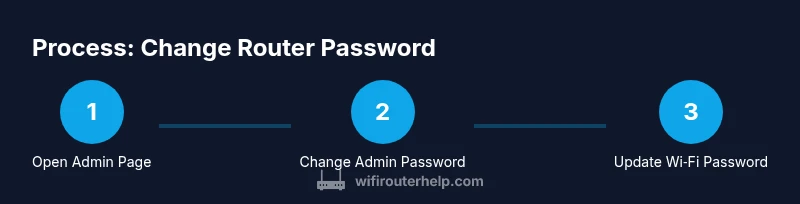
Below is a high‑level map of the actions you’ll perform. Each step is designed to be performed in sequence to minimize confusion and errors. You’ll access the router’s admin page, locate the password fields, set new credentials, and verify connectivity after updating both the admin login and the Wi‑Fi key. You’ll also review optional security options to further harden your setup. This overview helps orient you before you dive into the exact steps.
Accessing the router admin page: common layouts
Most routers expose an admin interface at a local IP address like 192.168.1.1 or 192.168.0.1, accessible from a connected device. Some modern routers use a web portal under the device name, or require you to sign in via a companion app. Interfaces vary by brand, but the password fields and security sections tend to be in predictable areas labeled Admin, Administration, System, or Security. If you cannot locate the login page, check the router’s underside label for the default address, or consult the manual. Some devices require you to connect via Ethernet for initial setup. Regardless of layout, the logout/save/apply workflow remains consistent: you change the password, save, and wait for the router to apply the new credentials.
Changing both admin and Wi‑Fi passwords: best sequencing
To minimize disruption, change the admin password first, then update the Wi‑Fi password. If the admin login is compromised, you cannot update settings until you regain access, so prioritize admin credentials. After saving the admin password, the router may reboot automatically; if so, wait 1–2 minutes for the interface to come back online. Next, update the Wi‑Fi network key (password) under Wireless, Security, or Wi‑Fi settings. Prepare to reconnect all devices with the new network credentials.
Reconnecting devices and validating connectivity
After updating the Wi‑Fi password, you’ll need to reconnect every device previously linked to your network. On mobile devices, forget the old network and reconnect using the new password; on laptops, rejoin networks in the Wi‑Fi settings. Verify internet access on each device and confirm that your browser-based admin page remains reachable with the new admin credentials. If anything fails, recheck the saved password entries, ensure the router reboot completed, and test alternative devices to isolate the issue.
Optional: security hardening and backup reminders
Strengthening security doesn’t stop at changing passwords. If your router supports it, enable features like firewall filtering, guest networks with separate credentials, and disable remote management unless you truly need it. Export a backup of your current configuration if the option exists; this makes restoring a misstep much easier. Regularly review security logs if your router provides them, and set a reminder to audit credentials every 6–12 months. The goal is a repeatable, reliable process you can perform quickly when needed.
Real-world testing and final checks
Once you’ve completed the password changes, perform a quick security audit. Confirm that you can access the admin page with the new credentials from a wired device and that your Wi‑Fi network remains visible and accessible on multiple devices. Check for any firmware updates announced by the manufacturer and apply them if available, as they often address security flaws that could undermine your password protections. Finally, document the changes in a secure location so you can reproduce the process later if required.
Tools & Materials
- Router admin credentials(Current admin username and password; if you don’t know them, use the default or reset)
- A web-connected device(Laptop, smartphone, or tablet with a modern browser)
- A strong new password(At least 14 characters; use a mix of upper/lowercase, numbers, and symbols)
- Password manager or secure notepad(Helpful for storing credentials securely)
- Backup/config export (optional)(If supported by your router, export current settings before changes)
Steps
Estimated time: 20-30 minutes
- 1
Open the router’s admin login page
From a connected device, open a browser and enter the router’s local IP address, such as 192.168.1.1 or 192.168.0.1. If the device uses a different address, check the label on the router or the manual. Use https if supported to encrypt the login process.
Tip: If you can’t reach the page, verify your device is on the same network and try a wired connection or another browser. - 2
Log in with current admin credentials
Enter the current admin username and password. If you don’t remember them, try the default credentials in the manual or on the router’s label. Do not proceed if you cannot verify you own the device.
Tip: If you previously changed these and forgot them, you may need to perform a factory reset (understand you’ll lose settings). - 3
Navigate to Admin/Password settings
Look for sections labeled Admin, Administration, System, or Security. Open the password or credential area that controls the router’s admin login. Some models separate Admin Password from Wi‑Fi password.
Tip: Brand naming varies; if you don’t see it, consult the manual or manufacturer support site. - 4
Enter a strong new admin password
Type your new admin password and confirm it. Use a long passphrase or a strong mixed‑character password. Do not reuse a credential from another service.
Tip: Consider a passphrase with random words and numbers; avoid recognizable personal data. - 5
Save changes and wait for apply
Click Save or Apply. The router may reboot; during this time, the admin page may be temporarily unavailable. Wait until the page reloads and you can log in again with the new password.
Tip: If the page becomes unreachable after a reboot, try reloading or reconnecting your device and clearing browser cache. - 6
Change the Wi‑Fi network password
Navigate to Wireless or Wi‑Fi settings and update the network key. This will disconnect all devices until they reconnect with the new password. Save changes and wait for the router to apply.
Tip: Record the new Wi‑Fi password in a secure location before updating devices. - 7
Reconnect devices to the network
On each device, forget the old network and reconnect with the new password. Verify internet access on multiple devices and ensure the admin page remains reachable with the new credentials.
Tip: For iOS/Android, use 'Forget network' before reconnecting to avoid cached credentials causing issues. - 8
Review optional security settings
If supported, enable features like firewall rules, guest networks, and disable remote management if not required. Create a backup of the router configuration if available.
Tip: Schedule regular security audits and backups to keep your setup resilient.
People Also Ask
Why should I change my router password?
Changing the router password protects the admin interface from unauthorized changes and helps prevent network compromise. It also blocks attackers from reconfiguring settings or disrupting service.
Changing the router password protects the admin interface and helps keep your network secure.
How often should I change my router password?
Change passwords when you suspect a breach, after moving, or as part of a regular security routine. Routine updates reduce the chance of unseen access and help maintain strong controls.
Change passwords when you suspect a breach or as part of routine security practice.
What if I can’t access the admin page?
Verify you are on the correct local network and try a wired connection. If you still can’t access, consult the router manual for default credentials or perform a safe reset if necessary.
Ensure you’re on the correct network; try a wired connection, and consult the manual if access remains blocked.
Can I change the admin username as well as the password?
Some routers permit changing the admin username; many do not. Check your device’s manual or support site to confirm capabilities before attempting.
Some routers allow changing the admin username; check your manual to confirm.
Should I disable remote management after changing the password?
If you don’t need remote access, disable remote management to reduce exposure. If you rely on it, ensure strong authentication and monitor access logs when possible.
Disable remote management if you don't need it, or ensure strong protection if you do.
Is it enough to change the Wi‑Fi password and not the admin password?
Changing the Wi‑Fi password protects wireless access, but the admin password governs the router’s settings. For comprehensive security, update both.
Update both admin and Wi‑Fi passwords for full protection.
Watch Video
What to Remember
- Change admin and Wi‑Fi passwords to unique, strong credentials.
- Back up configuration if possible to simplify recovery.
- Reconnect all devices after updating network keys.
- Disable unnecessary remote features to reduce exposure.
- Regularly review and refresh credentials for ongoing security.