How to Get Your Router Username and Password
Learn how to locate or reset your router’s login credentials safely, including where to find defaults, how to access the admin panel, and what steps to take to secure your network after regaining access. WiFi Router Help guides you through model differences, best practices, and practical tips.


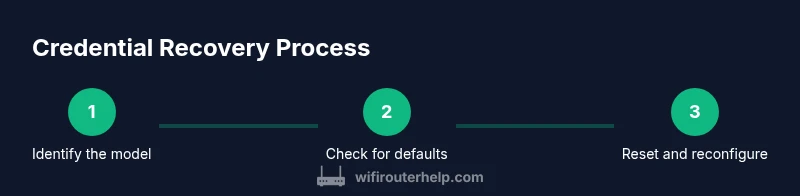
Goal: recover or access your router’s login credentials. You’ll locate the username and password on the device label, in the manual, or via the admin interface; if credentials were changed, use a safe reset. According to WiFi Router Help, defaults are often printed on the router or documented by the manufacturer, but exact values vary by model and firmware. This quick guide covers the essential steps.
Understanding router login basics
Router login credentials control access to the device’s administrative settings, separate from your Wi‑Fi password. The username and password allow you to configure security, update firmware, and customize network behavior. In most homes, a single admin account governs the router, but some models support multiple admin or guest accounts. It’s crucial to treat these credentials as sensitive: sharing them broadly increases risk. Remember that the login details may differ from the Wi‑Fi password, and terminology can vary by brand (Administration, Management, System, or Security settings).
When you first set up a router, you typically receive default credentials. Those defaults are documented in the manual or on a label on the device. If you’ve already changed them, your current credentials may be different. Having a basic understanding of where to look will save you time when you need access to change settings, update firmware, or troubleshoot connectivity issues.
Where to find your credentials
Locating your router login details is usually straightforward, but the exact location depends on the model and firmware. Here are the most common sources:
- Device label: Many routers print the default username and password on a label attached to the back or bottom. This label may also include the router’s default IP address used to access the admin interface.
- User manual or quick start guide: The manual provides model-specific defaults and steps for first-time setup.
- Admin interface: If you already accessed the router, you can view or change credentials within the Administration/Management/System settings.
- Manufacturer website: If you registered your product, you may find model-specific defaults or reset instructions in the support section.
- ISP-provided routers: If your gateway is supplied by an internet service provider, the credentials may be different or limited by the ISP’s management interface.
Tip: If you see a page asking for a login and you’re unsure whether you’re connected to the correct device, confirm your connection to the router’s local network first.
How to check the admin interface safely
Accessing the admin interface should be done from a device connected to the router’s network. Open a web browser and enter the router’s local IP address or a branded URL if provided by the manufacturer. If prompted for credentials and you don’t remember them, check the device label or manual for defaults. If you previously changed the password but forgot it, look for a “Forgot password” option or a reset path in the UI. Do not guess passwords repeatedly, as repeated failed attempts can lock you out or trigger safety locks. After successful login, navigate to sections commonly labeled Administration, System, or Security to view current credentials or set a new password.
Resetting credentials: factory reset vs. password reset
If you cannot recall the login credentials and no other recovery options exist, you may need to reset the router. A password reset via the admin interface is ideal if you remember the admin password but forgot other details. However, a hardware factory reset restores the device to its original state and erases all custom settings, including SSID names, guest networks, and forwarded ports. This is a drastic step and should be a last resort. If you perform a reset, you will need to reconfigure the network from scratch and reapply any security settings, which can take time but ensures you regain access with default credentials shown on the device label.
Securing your router after obtaining access
Once you regain access, implement strong security practices to protect your network. Change the admin username and password to unique, complex values stored in a password manager. Update firmware to the latest version to patch vulnerabilities. Use WPA3 (or WPA2 if WPA3 isn’t available) for Wi‑Fi encryption, disable WPS, and enable a guest network for visitors. Consider enabling firewall features and reviewing port forwarding rules to minimize exposure. Finally, create a separate management device policy so administrative access is restricted to trusted devices only.
Troubleshooting common issues
If you can’t locate credentials, start with the device label and manual. If the admin UI prompts a password and you don’t know it, try the default credentials and then perform a safe reset if allowed. If the reset seems not to work, ensure you’re using the correct device (some homes have multiple routers or access points). If the router is ISP-provided, the administrator credentials or the ability to reset locally may be limited; contact the ISP for assistance. When in doubt, consult the manufacturer’s support resources for model-specific recovery steps.
Tools & Materials
- Router(Model visible; needed to identify default credentials or reset procedure)
- Computer or smartphone with web browser(Used to access the router's admin page)
- Ethernet cable(Useful if wireless access is unstable or unavailable)
- Router documentation/manual(Contains default credentials and reset instructions)
- Pin or paperclip(Needed to press the hardware reset button if required)
- Notepad or password manager(For securely storing new credentials)
Steps
Estimated time: 15-30 minutes
- 1
Identify sources for credentials
Find the model label on the router and locate the manual or quick-start guide. Check the admin interface to see if credentials are already configured. If you registered the router with the manufacturer or ISP, review those accounts for recovery options.
Tip: Take a photo of the label and save it in a secure notes app for quick reference. - 2
Access the admin interface
Connect a device to the router’s network, open a browser, and enter the local IP address or hostname provided by the manufacturer. Enter the current credentials if you know them; if not, proceed to the next step. If you’re unsure of the address, check the label or the manual.
Tip: Use a wired connection if possible to reduce the chance of connection drops during login. - 3
Try default credentials safely
If you haven’t changed the credentials, the default username and password are often printed on the device or documented in the manual. If there’s a ‘Forgot password’ option, use it to recover access without resetting the device.
Tip: Only attempt defaults documented for your exact model to avoid accidental lockout. - 4
Change the admin password
Once you gain access, immediately change the admin password to a strong, unique value. Use a passphrase that is long and combines letters, numbers, and symbols. Store this in a password manager and avoid reusing passwords across devices.
Tip: Document the new credentials securely and consider enabling two-factor authentication if available. - 5
If you’re locked out: reset options
If login is still blocked, you can perform a reset. A hardware factory reset restores default credentials but erases all settings. A software reset in the admin UI preserves settings but clears the login; follow on-screen prompts carefully.
Tip: Before resetting, back up any important network settings if the device supports export. - 6
Reconfigure network settings
After a reset, re-enter network name (SSID), security type, and a new Wi‑Fi password. Re-enable guest networks if you offer visitors, and reapply firewall rules. Connect your devices again and verify access to the internet.
Tip: Keep a separate note of your new admin password and your Wi‑Fi password in a secure manager. - 7
Verify device connectivity
Test that the admin page loads, devices get IP addresses, and internet access works on both 2.4 GHz and 5 GHz bands if supported. Check for firmware updates and apply them if available.
Tip: Reboot the router after updates to ensure settings take effect. - 8
Document and secure
Record the final credentials securely, enable remote management only if necessary, and review connected devices. Maintain regular firmware checks and security reviews to prevent future lockouts.
Tip: Use a trusted password manager and avoid saving credentials in plain text files.
People Also Ask
What should I do if I forget my router password?
If you forget the router password, try the Forgot Password option in the admin panel or reset the device to factory defaults if you cannot recover access. Remember that a reset will erase custom settings, so be prepared to reconfigure.
If you forget, use the Forgot Password feature in the admin panel or reset the router to factory defaults, keeping in mind you’ll need to reconfigure afterward.
Can I recover the password without resetting the router?
Yes, if you still know the admin password or if the admin interface provides a password recovery option. If those aren’t available, a factory reset may be required, after which you use default credentials printed on the device label.
Yes, you can recover without resetting if you remember the admin password or if the UI offers a recovery option; otherwise, you may need a factory reset.
Where can I find the default username and password?
Default credentials are commonly printed on the router’s label or included in the manual. If not visible, check the manufacturer’s support site for model-specific defaults. Do not rely on generic defaults; always verify for your exact model.
Defaults are usually on the device label or in the manual; check the manufacturer’s site for your exact model.
Will resetting erase all my settings?
A factory reset restores the router to its original state and erases all custom settings, including SSIDs and port forwards. A UI reset may preserve some settings but still clears login credentials. Back up important config first if possible.
Yes, factory reset erases settings; a UI reset may clear the login but keep some configs. Back up first.
Is it safe to reset my router?
Resetting is safe when you follow the steps and understand that it will remove custom configurations. Ensure you have the necessary information to reconfigure the network after reset, and perform firmware updates after restoring access.
Resetting is safe if you follow proper steps and are prepared to reconfigure afterward.
What if I can’t access the admin login page at all?
If you cannot access the admin page, try a hardware reset after confirming you’re connected to the router. If that doesn’t work, contact your ISP or router manufacturer for recovery options. Avoid exposing the device to unsafe networks during the process.
If you can’t access the admin page, try a hardware reset or contact the provider for assistance.
Watch Video
What to Remember
- Identify where credentials live: label, manual, or admin UI.
- Avoid guessing; use safe reset options when needed.
- Change and secure admin credentials immediately after regaining access.
- Update firmware and enable strong encryption for Wi‑Fi.
- Document credentials securely and back up settings after changes.