How to Login on Router: A Step-by-Step Guide for 2026
Learn how to login on your router, locate the admin page, enter credentials, reset passwords, and secure your network with a comprehensive 2026 guide from WiFi Router Help.


In this guide, you’ll learn exactly how to log in to your router’s admin page, what credentials you’ll need, and how to recognize common IP addresses. You’ll also learn how to recover or reset a forgotten password and what to do if login attempts fail. The steps cover both web-based interfaces and mobile app login flows, with safety tips. This guide is aligned with WiFi Router Help guidance.
Accessing the Router Admin Page
Logging into the router's admin page is the foundation of your home-network control. The admin page lets you change Wi‑Fi names and passwords, update firmware, configure guest networks, enable advanced security features, and manage parental controls. To reach it, ensure your computer, tablet, or smartphone is connected to the router either via Ethernet or the router’s own Wi‑Fi. This is important because you must be on the local network to access the gateway. Most devices expose the admin interface at a local IP address, commonly 192.168.0.1 or 192.168.1.1; some brands use a different address or a URL like http://router.local. If you’re unsure, check the label on the bottom or back of the device, or consult the manufacturer’s quick-start guide. Once you have the IP, type it into your browser’s address bar and press Enter. If the page loads with a login prompt, you’re in the right place.
Tip: Avoid performing admin actions over public Wi‑Fi where possible, as this can expose credentials to eavesdropping.
Determine the Correct IP Address and Portal
If the address above doesn’t load or you’re unsure of the exact gateway, you have a few reliable methods to locate it. On Windows, open Command Prompt and type ipconfig; look for the Default Gateway value. On
Prepare Your Login Credentials
Your router has a login username and password. In many cases, the default credentials are printed on a label on the router or documented in the manual. If you’ve never changed them, you may still be using the factory login (often admin/admin or admin/password). If you or someone else set a custom credential, use those. For security, don’t reuse the same admin password across services. If you forget the login, check for a reset button on the back. A factory reset returns the device to its original state, but it will erase custom settings, including your Wi‑Fi network name (SSID) and password, so plan to reconfigure afterward.
Web Interface Login Steps
Follow these steps to log into the web interface:
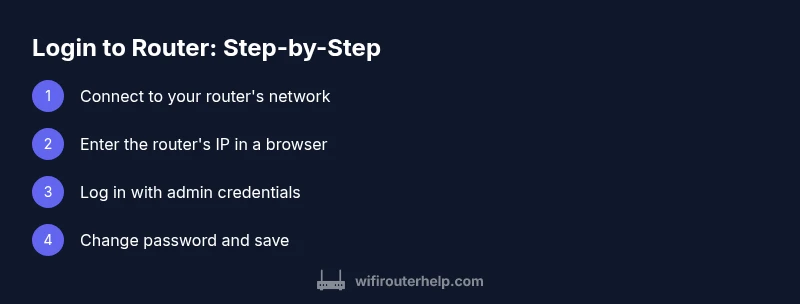
- Connect to the router’s network. 2) Open a browser and enter the router’s IP address. 3) Enter the username and password. 4) If prompted, accept any security warnings. 5) After logging in, change the admin password to a strong, unique one and save. 6) Log out and test the changes by re-opening the login page. If your router uses a nonstandard port or HTTPS, adjust the URL accordingly (for example, https://192.168.1.1).
Mobile App Login (If Supported)
Some manufacturers provide a mobile app to manage settings. Install the app from your device’s app store, then sign in with your router’s cloud account or the same local credentials. Once connected, you can view status, update Wi‑Fi details, and adjust security settings. The advantage is convenience and often faster firmware checks. If you can’t sign in, ensure the app has permission to access your network and that your router supports cloud access. If you’ve enabled two‑factor authentication, follow prompts in the app to complete login.
Troubleshooting Login Issues
Several things can prevent successful login. Double-check you’re on the correct IP address and that you are connected to the router’s network; avoid public networks. Clear your browser cache and cookies if the page loads but credentials fail. Ensure your keyboard layout isn’t causing typos (e.g., capitalization or symbols). If your device uses a VPN or firewall, temporarily disable it. If you still can’t log in, try a factory reset after noting current settings, or contact your manufacturer’s support for exact reset instructions. Never perform a reset during a lightning storm or if the device is in the middle of a firmware update.
Securing Your Router After Login
Once you’re in the admin panel, the next priority is security. Change the default admin password to a unique, long password; avoid common phrases. Enable strong wireless encryption (WPA2‑Personal or WPA3‑Personal). Disable remote management unless you need it from a trusted location, and keep firmware up to date to reduce vulnerability exposure. Create a guest network for visitors and separate it from your main network. Write down the new credentials securely and consider using a password manager. Finally, back up the router’s configuration after you finish changes; this makes it easier to restore in case of a misconfiguration later.
Special Cases: ISP Gateways and Mesh Networks
If your ISP provides a gateway with a built‑in router, the login page may be for the gateway rather than a traditional home router. In these setups, you might login at an address given by the provider and authenticate with a customer account or device credentials. For mesh networks, log into the main router first and then manage node settings as needed; some mesh systems expose node-level admin pages, while others share a single admin portal. If a node requires separate login, refer to the manufacturer’s app or manual. When in doubt, ensure firmware is updated on all devices to avoid mismatched security configurations.
Regular Maintenance After Access
Maintain good login hygiene with regular checks. Periodically verify that you still know the admin password and that you are able to log in from a trusted device. Back up current configuration after any major change, such as a password update or a firewall adjustment. Stay informed about firmware updates and apply them after backing up settings. Document any network changes, including SSID names and password changes, so you can restore service quickly if someone forgets them. Finally, consider enabling security features like intrusion prevention or parental controls if needed. With consistent maintenance, logging into your router stays fast, secure, and straightforward.
Authoritative Sources
- FCC: https://www.fcc.gov/
- CISA: https://www.cisa.gov/
- NIST: https://www.nist.gov/
Tools & Materials
- Laptop, smartphone, or tablet(Any device with a web browser connected to your router's network)
- Web browser(Chrome/Firefox/Safari/Edge)
- Router IP address or model URL(Common defaults: 192.168.0.1, 192.168.1.1, or router.local)
- Login credentials(If you forgot them, plan for a reset)
- Ethernet cable (optional but recommended)(Use for stable connection during config)
Steps
Estimated time: 15-25 minutes
- 1
Prepare and connect to the router
Verify you are connected to the router's network, preferably via Ethernet for stability. This ensures your login attempts reach the device directly without interference from external networks.
Tip: If possible, use a wired connection during the initial setup to avoid dropouts. - 2
Find the router's IP address
Identify the local gateway IP using your computer or device's network settings. Common addresses are 192.168.0.1 or 192.168.1.1; the exact address is printed on the router label or in the manual.
Tip: If unsure, check both 192.168.0.1 and 192.168.1.1 before moving on. - 3
Open the login page
Enter the IP address into your browser’s address bar and press Enter. If the page loads with a login prompt, you’ve reached the correct place. Some routers may require http instead of https or a nonstandard port.
Tip: Be cautious with certificates; this is a local page, not a public site. - 4
Enter credentials
Input the username and password. If you haven’t changed them, look for the defaults on the router label or in the manual. If you’ve changed them, use the updated credentials.
Tip: If you suspect you typed the wrong credentials, wait a minute and try again to avoid lockouts. - 5
Change the admin password
On first login, change the admin password to a strong, unique combination. This reduces the risk of unauthorized access.
Tip: Use a password manager to store the new credential securely. - 6
Save changes
Apply and save your changes, then log out and attempt to log back in to verify the new credentials work.
Tip: Back up your configuration after saving major changes. - 7
Test on another device
If possible, try logging in from another device to ensure the credentials and IP are correct.
Tip: This helps confirm the problem isn’t device-specific.
People Also Ask
What is the simplest way to access my router’s login page?
Connect to the router’s network, enter the local IP (like 192.168.0.1) into a browser, and log in with the admin credentials.
Connect to your router, type the local IP into a browser, and sign in with the admin credentials.
I can’t find the login page. What should I do?
Verify you are on the correct network, try common addresses (192.168.0.1, 192.168.1.1), and check the router label/manual. If needed, reset to factory settings.
Make sure you are connected to your router and try 192.168.0.1 or 192.168.1.1; if still stuck, reset as a last resort.
What if I forgot the admin password?
Use the router’s reset button to restore factory settings, then log in with the default credentials and reconfigure. Note this erases custom settings like Wi‑Fi name and password.
If you forgot it, reset the router to factory settings and set new credentials.
Is it safe to use a mobile app for login?
Yes, if you use the vendor’s official app and keep firmware updated. Avoid third‑party apps that request router access. Use cloud login only if you trust the provider.
Mobile apps are safe when you use the official app and keep everything updated.
How often should I check for router firmware updates?
Check for updates monthly or enable auto‑update if available. Firmware updates fix security flaws and improve stability.
Check monthly or enable auto-updates to keep your router secure.
Should I enable remote management?
Only enable remote management if you have a trusted, secure need and you’re accessing it from a safe location. Otherwise, keep it off to reduce exposure.
Disable remote management unless you have a specific, secure reason to use it.
What if I have a mesh network or ISP gateway?
For mesh networks, log into the main router first, then manage nodes as needed. ISP gateways may use a provider‑specific login page. Always follow vendor guidance.
Log into the main router for mesh systems; ISP gateways may differ.
What to Remember
- Log in to the router admin page to manage settings
- Use the correct IP address and credentials
- Change the default password immediately
- Enable strong wireless security
- Back up configuration after changes