How to log in to your router: a step-by-step guide
Learn how to log in to your router securely, locate the correct IP address, and navigate admin settings to optimize performance and security. Follow our clear steps to fix access problems and protect your home network.


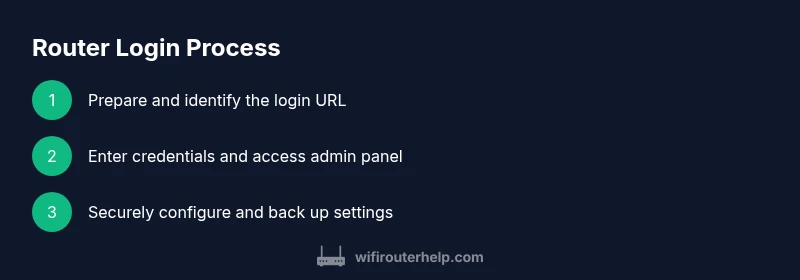
In this guide you will learn exactly how to log in to your router, locate the correct IP address, and enter the admin panel. We will cover common default credentials, how to reset if you are locked out, and best practices for securing your network before making changes. Whether you are a homeowner or tech enthusiast, these steps minimize risk and speed up troubleshooting.
What log in router access accomplishes and prerequisites Accessing the router's admin interface is the first step to customizing your home network. When you log in, you can change the Wi Fi password, set guest networks, update firmware, and review security settings. According to WiFi Router Help, most login issues stem from incorrect IP addresses or credentials, so start with the basics. To prepare, have a device with a browser, a nearby power source, and a moment to write down credentials. You should also ensure you are connected to your network either via Ethernet or via the correct Wi Fi channel. The device you use to log in should be on the same network as the router to access the admin page. This minimal setup keeps the task straightforward and reduces the chance of being blocked by a misconnected client.
Understand router IP addresses and default credentials Most router admin pages live at a local IP address such as 192.168.x.1 or 10.0.0.1. The exact address depends on the brand and model. If you cannot locate the address, check the router label, your device’s network settings, or run a quick command in your operating system to discover the gateway. Credentials vary by model; many devices use a default admin name and password printed on the label. If you do not see these, consult the manual or the manufacturer's support site. If you had previously changed the credentials, use those new values. The key is to distinguish the login page URL from the internet login page in your browser.
How to safely access your router's admin page To reach the login screen, connect your computer or phone to the router network and open a web browser. Type the IP address exactly as shown on the device label or in your network settings. Do not type the address into a search engine. If your router prompts for HTTPS, accept the security exception if you trust the device; otherwise, use HTTP only for local access. Enter the admin username and password, then click Login. If the login fails, double check the address and credentials, restart the router if needed, and try again. Avoid using a shared public device for router changes.
Common login methods across brands While brands differ in interface color and organization, most routers share a similar login flow. The address is usually a private IP like 192.168.0.1 or 192.168.1.1. The login screen will ask for an admin user and password, sometimes with a security question or a captcha. Some brands allow you to sign in via a manufacturer app; others require the browser based page. If your device uses a guest network, log in to the main network to reach the admin panel. Always log out after making changes and close the browser.
Troubleshooting login issues If you cannot access the admin page, start with the basics: verify the device is on the same network, check the IP address, and ensure the browser is not forcing a remote IP. Power cycle the router and device, then retry. If you still cannot log in, try a factory reset—note that this will erase your settings. Clear browser cache, disable VPNs, and ensure there are no firewall blocks blocking local address access. Recording the exact error message helps identify the cause.
Security best practices after login Once you are in, change the default admin password to a strong, unique one. Enable a robust Wi Fi encryption standard (WPA3 or WPA2), disable remote admin unless needed, and create a separate guest network for visitors. Update the firmware to patch vulnerabilities and back up your configuration. These steps reduce risk and improve overall security as you manage the router.
What to do if you are locked out If you forget the admin password or cannot access the login page, you may need to reset the router to factory defaults. Use the reset button and hold it for the recommended time until indicator lights show. After reset, the router will revert to its default IP and credentials listed on the device. You can then set a fresh admin password and reconfigure your network.
Quick tasks after login With access restored, verify that your Wi Fi network name (SSID) and password are strong and unique. Consider enabling a guest network, configuring a basic firewall, and setting up a DHCP reservation for devices that require consistent IPs. Save your changes and export a configuration backup if the option exists. Regular checks keep your setup secure and stable.
Documenting and backing up your changes Keep a simple log of changes you make during router administration. Note the date, the actions taken, and the new credentials if applicable. Export or back up the router configuration after key changes to simplify recovery if needed. Store copies securely to prevent unauthorized access.
Tools & Materials
- Laptop, tablet, or smartphone(Connected to the router network)
- Ethernet cable(Optional for stable admin access)
- Paper and pen or password manager(Record credentials securely)
- Router manual or model info(Helpful for brand specific steps)
Steps
Estimated time: 15-25 minutes
- 1
Prepare device and network
Connect your device to the router via Wi Fi or Ethernet and ensure you can reach the login page. Confirm you are on the same network and have power.
Tip: If possible, use a wired connection for reliability during admin tasks. - 2
Find the router IP address
Identify the local IP used to access the admin panel by checking the label or your device's network settings. On Windows, run ipconfig; on macOS, run ifconfig or netstat to locate the gateway IP.
Tip: Common addresses are 192.168.0.1 or 192.168.1.1, but always verify for your model. - 3
Open the login page
Open a browser and type the IP address exactly; do not paste into a search engine. If HTTPS is offered, accept only if the certificate is valid for a local page.
Tip: Avoid using a public computer to perform router changes. - 4
Enter credentials
Enter the admin username and password shown on the device label or in the manual. If you have changed them before, use your updated values.
Tip: If you cannot remember, check password managers or reset to factory defaults. - 5
Change credentials if needed
If you are logging in for the first time or after a reset, set a strong, unique admin password. Update the password securely.
Tip: Do not reuse passwords across sites or devices. - 6
Apply essential security changes
Enable WPA3 or WPA2 encryption, disable remote admin if not required, and create a guest network for visitors.
Tip: Make a note of the new wifi password in a secure location. - 7
Save and back up configuration
Save any changes, then back up the router configuration if the option exists. This helps restore settings after a reset or hardware change.
Tip: Store backups securely offline or in a trusted password manager. - 8
Log out and verify
Close the session by logging out and closing the browser. Reopen and test login again to confirm ongoing access.
Tip: Always log out on shared devices.
People Also Ask
Why can't I log in to my router?
Common reasons include wrong IP address, wrong credentials, or being on a guest network with restricted access. Verify you are on the same network and try the exact URL. If problems persist, check for a reset.
Check the IP and credentials on the router label, then try again. If still blocked, reset the device.
What if I forget the admin password?
If you cannot recover, you will need to reset the router to factory defaults using the reset button. After reset, login with the default credentials shown on the device.
If you forget it, reset the router to restore access.
Is it safe to log in on public networks?
Logging in on public networks is not recommended. Use a trusted private network and consider a VPN if you must access the router remotely.
Avoid admin login on public Wi Fi; use a secure network or VPN.
How do I reset my router?
Press and hold the reset button for 10-15 seconds until lights flash. This restores factory defaults, so you will need to reconfigure settings.
Hold the reset button briefly until you see the indication lights.
What should I do after logging in?
Change the admin password, enable proper encryption, create a guest network, and back up current settings after making changes.
Update password, enable encryption, and back up your config.
Watch Video
What to Remember
- Identify the correct login URL and IP address
- Change the admin password and enable encryption
- Disable remote admin and keep firmware updated
- Document changes and back up configuration
- The WiFi Router Help team recommends secure login practices