How to Access Your Router: A Clear Step-by-Step Guide
Learn how to access your router’s admin interface safely with a step-by-step guide covering login details, methods to use, troubleshooting, and essential security tips for home networks in 2026.


According to WiFi Router Help, you can access your router by opening a web browser or its mobile app and entering the router’s IP address or default domain. You’ll typically log in with a username and password, then verify the correct network and firmware status. This guide covers steps, common pitfalls, and quick security checks.
What accessing your router means
Accessing your router means reaching the device's admin interface to view and adjust settings that control your home network. This interface is usually served locally on your home network and is accessed through a web browser or a manufacturer's mobile app. The goal is to manage Wi-Fi names (SSIDs), passwords, security modes, firmware updates, and connected devices. According to WiFi Router Help, most home routers place the admin page behind a login to prevent unauthorized changes, and many devices default to a common IP address or domain that you must enter in a browser. If you’re new to this, take a calm, methodical approach: confirm you’re on the correct network, have the right login credentials, and avoid changing settings you don’t understand. This helps maintain stability and security while you adjust setup or troubleshoot performance issues.
Local web interface vs mobile app
Most routers offer two primary access paths: a local web interface you reach by typing an IP address into a browser, and a manufacturer’s mobile app that connects to the same device over Wi-Fi. The web interface tends to expose more advanced options, while the app emphasizes quick setup and simple status checks. Choose based on your goal: quick changes can be done in the app, but for firmware updates or advanced settings, the web page is usually more robust. Regardless of path, ensure you are securely connected to your home network before proceeding. WiFi Router Help emphasizes that familiarity with both methods makes you more versatile in everyday home networking tasks.
Finding the router address and login credentials
To access the admin page, you first need the router’s address and valid credentials. Start by checking the sticker on the router itself for the default IP address and login name. If the sticker isn’t readable, consult the model’s manual or the manufacturer’s website. You can also determine the address from a connected device: on Windows run a quick network query to reveal the gateway address, on macOS use Network settings, and on mobile devices check the Wi‑Fi details. If the credentials were changed previously and you don’t remember them, plan to reset the device through the hardware reset button as a last resort. Always backup current settings if you can before a reset.
Logging in safely and establishing trust
Open your browser or the router’s app and enter the address you found. Log in with the admin username and password. If you’re using the first-time setup, your credentials may be the defaults that came with the device. Do not save or share your login, and avoid using the same password across other sites. If you’re unsure about the security of the login page, enable HTTPS if offered and verify the server certificate when prompted. If you forgot credentials, use the device’s reset procedure to restore factory defaults and set a new password immediately after.
Troubleshooting common access issues
If the login page won’t load, check that your device is connected to the router’s network and that you are using the correct address. Ensure there is no IP address conflict on your network and that the router isn’t in bridge mode from another device. Disable VPNs or firewall rules that might block local pages, and try a different browser or device. If you still cannot reach the admin page, reboot the router and retry, or consult the model’s support site for device-specific recovery steps.
Security basics after you gain access
Once you’re in, take a moment to strengthen security. Change default credentials to a unique, hard-to-guess password, enable the recommended encryption, keep firmware up to date, and disable remote administration if you don’t need it. Create a backup of your current settings before making major changes, and document any modifications you make. These steps reduce risk and help maintain a stable home network.
Tools & Materials
- Device with a web browser or router manufacturer app(Phone, tablet, or computer; ensure you can access the browser or app.)
- Active network connection to the router(Wi‑Fi connection or a direct Ethernet link.)
- Router login credentials(Have existing credentials or plan to reset if forgotten.)
- Router model information/manual(Helpful for model-specific steps and defaults.)
- Reset tool (paperclip) for hardware reset(Use only if you must restore factory defaults.)
- Notebook or digital note space(Record changes or new credentials for future reference.)
Steps
Estimated time: Total time: 20-30 minutes
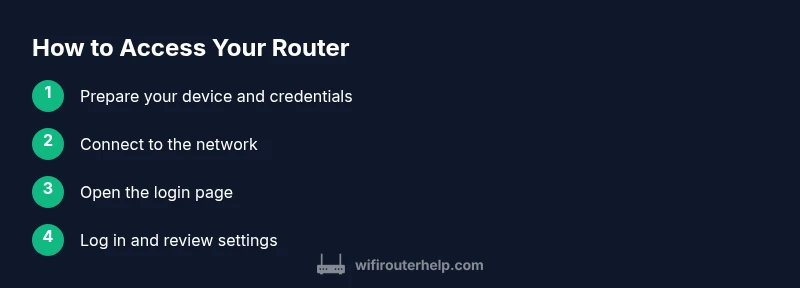
- 1
Prepare your device and credentials
Gather the device you’ll use (phone, tablet, or computer) and locate or reset your router’s login credentials. Make sure the device has a working browser or the manufacturer’s app. Having model information handy saves time if you encounter vendor-specific steps.
Tip: Note down the current login details if you plan to change them later. - 2
Connect to the network
Turn on Wi‑Fi or connect an Ethernet cable from your device to the router. Confirm you’re connected to the router’s network by checking the network name on your device. A stable connection prevents mid‑process drops when loading the admin page.
Tip: Move closer to the router if the signal is weak during the login process. - 3
Find the router’s address
Identify the admin address by checking the router’s label, the manual, or the manufacturer’s website. If you’re on a connected device, run a quick network check to reveal the gateway address. This address is what you’ll enter into the browser or app to reach the login screen.
Tip: On a computer, using a quick command can reveal the gateway without guessing. - 4
Open the login page
Enter the router address into a web browser or launch the official app and navigate to the login page. If HTTPS is available, prefer it for encryption. If the page loads slowly, refresh or try another device to rule out local issues.
Tip: Avoid entering credentials on public computers or networks. - 5
Enter credentials and log in
Type the admin username and password. If you haven’t changed defaults, use the documented defaults for your model. If the password has been forgotten, prepare to reset after confirming a backup plan for your current settings.
Tip: If you suspect credential compromise, reset and immediately set a strong new password. - 6
Verify access and review settings
Once logged in, verify network status, firmware version, and security options. Save any adjustments and log out when finished. Consider backing up the configuration so you can restore it if you later make unintended changes.
Tip: Take screenshots of key pages before changing settings.
People Also Ask
What is the easiest way to access my router for the first time?
The easiest path is to connect a device to your home network, locate the router’s IP address or domain, and open the login page in a browser or the manufacturer app. Use the default credentials if you haven’t changed them yet, then follow the on-screen prompts to secure your setup.
Connect a device to your network, open the login page, and follow prompts to secure your setup.
Can I access my router from outside my home network?
Yes, but it requires enabling remote management, which increases exposure to potential threats. If you must enable it, use strong passwords, restrict IP access, and monitor logs regularly.
Remote access is possible but risky; enable cautiously with strong security measures.
What if I forgot the admin password?
If you’ve forgotten the admin password, use the router’s reset procedure to restore factory defaults. After resetting, set a fresh, strong password and back up the new configuration.
Forgot password? Reset the router to factory defaults, then set a new password.
Why can’t I access the admin page after a firmware update?
Firmware updates can alter settings or require a new login. Ensure you’re on the correct URL, clear browser cache, and verify that the network connection is stable. If problems persist, check the manufacturer’s support site for known post‑update steps.
Post‑update login issues can happen; verify URL, clear cache, and check for post‑update guidance.
Is there a difference between accessing via web and via app?
Yes. The web interface often provides deeper configuration options, while the app tends to offer quick status checks and easier setup. Use the web interface for advanced settings and the app for day-to-day quick adjustments.
Web gives deeper control; apps are for quick checks and setup.
How do I change the router’s IP address or DNS settings?
Access the appropriate section in the admin interface, usually under LAN or DHCP settings for IPs and under WAN or DNS for DNS entries. Save changes and reboot if required. Back up current settings before making changes.
Change IP or DNS in the admin panel, then save and reboot if needed.
Watch Video
What to Remember
- Know the right login path (web or app) and credentials.
- Identify the correct router address from a connected device.
- Back up settings before making changes.
- Prioritize security: update firmware and disable unnecessary remote access.
- If stuck, reset as a last resort with a plan to reconfigure.