How Do I Log In to My Router
Learn how to log in to your router securely. This comprehensive guide covers locating the login page, managing credentials, troubleshooting issues, and applying best practices to protect your home network.


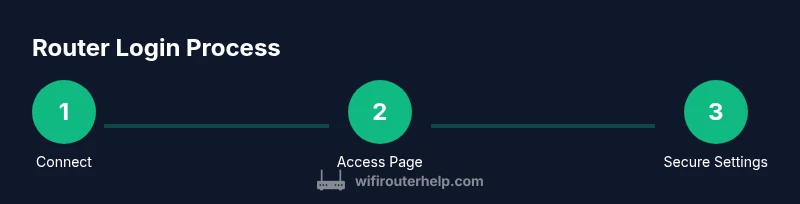
To log in to your router, connect your device to the router’s network, open a web browser, and enter the router’s admin IP (commonly 192.168.1.1 or 192.168.0.1). Enter the username and password shown on the device label or in the manual. If you can’t login, locate or reset credentials, then immediately change the default password to secure your network. WiFi Router Help recommends reviewing security settings after logging in.
Why logging in to your router matters
Logging in to your router gives you control over key security settings, network name, password, firewall rules, parental controls, and firmware updates. Without access, you cannot secure or optimize the network. Leaving default credentials or enabling remote management can expose devices to attackers. According to WiFi Router Help, logging in to the admin interface is the essential first step to strengthening your home network. The WiFi Router Help team found that many users miss this critical step, leading to avoidable risks. In this guide, you’ll learn how to locate the login page, identify the right credentials, and choose strong passwords that resist common attacks. If you’re new to home networking, keep a note of your device model and current firmware version as you begin. While steps vary by brand, the login process follows a familiar pattern and you’ll perform a few universal actions that apply across most routers.
Common login IPs and how to confirm yours
Most routers use private IP addresses like 192.168.1.1 or 192.168.0.1 as the login page. Some devices use 10.0.0.1 or 192.168.2.1. If you don’t recall the address, check the router label on the bottom or back, or consult the manual. You can also determine the gateway address from a connected device:
- Windows: open Command Prompt, type ipconfig, and look for the Default Gateway.
- macOS: open System Preferences > Network > Advanced > TCP/IP and note Router.
If your browser shows a connection error, verify you are connected to the router’s network (not a guest network) and try again. If access remains blocked, a careful reset can recover access, but be aware this will erase custom settings.
Finding or resetting admin credentials
The admin username is frequently admin, and the password is often printed on a label on the router or in the manual. Some models require you to use a different default pair, so always verify with the device label. If credentials were changed and you forgot them, look for a password reset option in the interface or perform a factory reset as a last resort. After resetting, you will use the default login again and should immediately set a new, strong password. Always document the new credentials and store them securely.
How to log in securely: best practices
When you log in, aim for security-first configuration:
- Change the admin password to a long, unique passphrase.
- Disable remote management unless you truly need it; if enabled, require HTTPS and a strong password.
- Enable WPA3 (or WPA2 at minimum) on your Wi-Fi and set a strong, unique SSID and passphrase.
- Keep firmware updated to patch vulnerabilities.
- Consider creating a separate guest network for visitors to keep your main network protected.
These steps reduce exposure and improve overall network hygiene. The goal is to make it harder for attackers to access your router’s admin interface while keeping your home network fast and reliable.
Troubleshooting login problems
If you can’t reach the login page, verify you are on the correct network and try a different device or browser. Clear your browser cache, disable VPNs or proxies temporarily, and ensure the router is powered on. If you still cannot access the login page, check for a misconfigured IP or a failed network cable (for wired connections). Finally, avoid repeated resets; a reset should be a last resort after confirming you do not have the credentials or the IP address.
Post-login essentials: quick configuration tasks
Once you log in, focus on essential hardening and usability tasks:
- Change the administrator password and store it securely.
- Update the router firmware to the latest version.
- Update the Wi‑Fi network name (SSID) and password to something unique.
- Enable guest networking if you have frequent visitors.
- Review Parental Controls and firewall settings to align with your household needs.
These actions help maintain both security and performance with minimal ongoing effort.
Authority sources
For further reading on router security and best practices, consult authoritative sources:
- https://www.cisa.gov/
- https://www.nist.gov/
- https://www.ftc.gov/
Quick maintenance checklist
- Verify you are using a non-default admin password and enable two-factor authentication if available.
- Route all admin access through a secure network (avoid public Wi-Fi for login).
- Regularly check for firmware updates and apply them promptly.
- Periodically review connected devices and disable any services you do not use.
Tools & Materials
- Computer, smartphone, or tablet(Needed to access the router’s admin page)
- Web browser (Chrome, Edge, Safari, etc.)(No special plugins required)
- Router login credentials(If unknown, check the router label or manual)
- Router label or manual(Helpful for confirming default IP and credentials)
- Password manager (optional)(For secure storage of credentials)
Steps
Estimated time: 15-25 minutes
- 1
Connect to the router network
Ensure your device is connected to the router's Wi‑Fi network or connected via Ethernet. This establishes a direct path to the admin interface. If you are on a different network (like a guest network), disconnect and reconnect to the main network.
Tip: Confirm you’re connected to the correct network by testing an internet-enabled action, such as loading a page. - 2
Open the router login page
Open a web browser and enter the router’s IP address into the address bar. Press Enter to load the login screen. If the page doesn’t load, try an alternative common IP (e.g., 192.168.0.1 vs 192.168.1.1) or check the label.
Tip: If you cannot reach the page, ensure there are no VPNs or proxies interfering with local network access. - 3
Enter the admin credentials
Type the username and password as shown on the router label or in the manual. If you can’t recall them, look for a reset procedure in the manual or on the device. Do not guess multiple times; incorrect attempts can trigger lockouts.
Tip: If you have never changed the default credentials, perform a reset only after you have tried standard recovery options. - 4
Change the default password
Immediately set a new, strong password for the administrator account. Use a long passphrase that blends upper and lower case letters, numbers, and symbols. Store this password securely.
Tip: Consider using a password manager to keep the credentials safe and accessible. - 5
Secure login settings
If available, enable HTTPS for the admin interface and disable remote management unless you truly need it. Review any additional security options such as two-factor authentication if your router supports them.
Tip: Disable UPnP if you don’t rely on it for devices like game consoles or media players. - 6
Save changes and log out
Apply any changes you made, then log out of the admin interface. Reopen the login page to confirm your new credentials work. If something seems off, revert changes or restore from a backup.
Tip: Clear browser cache if the login screen behaves unexpectedly after changes.
People Also Ask
What is the default router login IP?
Many routers use 192.168.1.1 or 192.168.0.1 as the login page. If these don’t work, check the device label or manual for the correct address.
Most routers use 192.168.1.1 or 192.168.0.1; if unsure, check the router label.
Why can't I access the login page?
Ensure your device is on the same network, confirm the IP address, and try a different browser or device. Check for VPNs or guest network restrictions.
Make sure you’re on the same network and try another browser; VPNs can block local access.
How do I reset my router if I forgot credentials?
Perform a factory reset by holding the reset button, then use the default login and set a new password immediately after.
If you forget the credentials, reset the router to factory settings and set a new password.
Is it safe to log in over public Wi-Fi?
Logging in over public Wi-Fi is not recommended. Use a secure network or a VPN when managing router settings.
It's not safe; avoid admin login on public networks and use a VPN if needed.
Should I enable remote management?
Only enable remote management if you truly need it. If enabled, require HTTPS and use a strong password, and limit access by IP when possible.
Only keep remote management on if you need it; otherwise, keep it off.
What should I do after logging in?
Change the admin password, configure Wi-Fi settings, enable automatic firmware updates, and review security options.
After logging in, update the password and security settings.
Watch Video
What to Remember
- Identify the correct login IP and credentials before starting.
- Change default admin passwords immediately after login.
- Secure the router by disabling unnecessary remote access and enabling encryption.
- Regularly update firmware and review security settings.
- Store credentials securely and document any configuration changes.