What’s My Router Login: Access, Secure, and Troubleshoot
Learn what the router login is, where to find it, how to access the admin panel, and best practices to secure your home network. A step-by-step guide for homeowners and tech enthusiasts from WiFi Router Help.


According to WiFi Router Help, what's my router login refers to the administrator page for your wireless router where you manage settings like your Wi‑Fi password and security. You reach it by entering the router’s IP address in a browser; common defaults are 192.168.0.1 or 192.168.1.1, with credentials often printed on the device sticker. If you’ve changed them, use the new login.
What is the router login and why it matters
The router login is the gateway to your router’s administrative interface. This is where you configure essential settings that affect every device on your network, including the Wi‑Fi name (SSID), the password, guest networks, parental controls, firewall rules, and firmware updates. A secure login page helps prevent unauthorized changes that could expose your home network to risk. For homeowners and tech enthusiasts, understanding the login process is the first step toward a stable, reliable, and safer home network. As the WiFi Router Help team explains, keeping this page protected and knowing how to access it quickly saves time and reduces frustration during setup or troubleshooting. By mastering the login, you gain control without sacrificing convenience.
Why you may need to log in regularly
Router login isn’t just for first-time setup. Regular access is often required for routine maintenance—changing Wi‑Fi passwords after a suspected breach, updating firmware to patch vulnerabilities, adjusting security features, or enabling features like guest networks. The login page also hosts important settings like UPnP, NAT, and port forwarding that affect how devices inside your network connect to services on the internet. Consistent access helps you keep pace with evolving security needs and network performance demands. WiFi Router Help emphasizes that a proactive approach to login management reduces longer-term risk and keeps your home network running smoothly.
Where to find the login URL and what if I can’t remember it
Most routers use a default gateway IP address as the login URL. Typical entries are 192.168.0.1 or 192.168.1.1, but some brands use different addresses. If you’re unsure, you can locate the login URL by checking your router’s label, user manual, or the manufacturer’s support site. On Windows, open Command Prompt and type ipconfig, then read the Default Gateway; on macOS, go to System Preferences > Network and click Advanced to view the router address; iOS and Android users can check their connected network details in Settings. If your router is part of a mesh system or a modern single-unit gateway, the login URL may be a local hostname (like http://router) or a specific app-based path.
Default credentials: what to expect and why you should change them
Many routers ship with a factory username and password such as admin/admin or admin/password. Some devices leave the password blank, which is another risk factor. Default credentials are widely exploited by attackers, so you should change them immediately after setting up the router. If you’ve already changed the credentials but forgot them, use the recovery options provided by the manufacturer, or perform a factory reset as a last resort. The WiFi Router Help approach is to replace default credentials with a unique, strong password and to store it securely using a password manager.
How to log in: step-by-step access and first-time setup
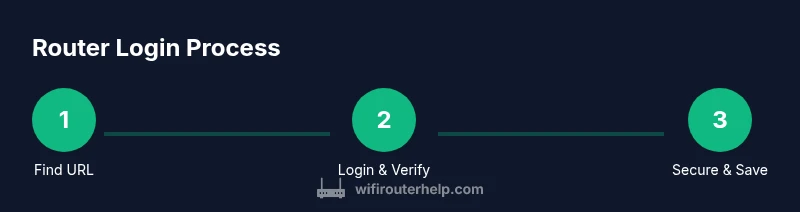
To log in, you’ll need a device connected to your home network. Enter the login URL in a browser, and use the credentials from the device sticker or your own chosen ones. If you can log in but your page looks unfamiliar, double-check you’re on the correct device and not a captive portal from a cafe or neighbor’s network. If the page loads but credentials are rejected, ensure your keyboard language is correct (some keyboards map characters differently) and verify that Caps Lock is off. When you succeed, save the configuration and log out when you’re done to minimize exposure to accidental changes.
Securing the login: best practices to reduce risk
Security starts with strong authentication and up-to-date firmware. Always disable remote administration unless you truly need it, use a strong, unique password, enable WPA3 (or at least WPA2) for Wi‑Fi encryption, and consider enabling a firewall within the router. Regular firmware updates fix known vulnerabilities; enable automatic updates if possible. If your router supports two-factor authentication for the admin interface, enable it. Finally, create a separate guest network to segregate devices from your main network and review connected devices periodically for unknown clients.
Troubleshooting login issues: common causes and fixes
If you can’t reach the login page, verify you’re connected to the correct network and try a wired connection for stability. Clear browser cache, try a different browser, and disable VPNs or proxies that might interfere. If the login page loads but credentials fail, reset the password using the manufacturer’s procedure, or perform a factory reset if you cannot recover the credentials. If you’ve changed settings that block access (e.g., a stringent firewall rule), you may need to reset to default or rollback settings via a temporary recovery mode.
Regular maintenance and backups: keep your login healthy
Treat the router login like a critical service. Document the current admin credentials, save a backup of your configuration when available, and store this information securely. Periodically review security settings, update firmware, and audit connected devices. If you have a network with multiple access points, maintain a centralized login process or a documented procedure for changing credentials across devices to avoid inconsistency and potential gaps in security.
Tools & Materials
- Smartphone, tablet, or computer with a web browser(Needed to access the login page.)
- Router label or manual(Contains default IP, username, and password references.)
- Ethernet cable (optional but recommended)(Helpful for stable access during login or reset.)
- Password manager (recommended)(Stores and generates strong credentials securely.)
Steps
Estimated time: 15-25 minutes
- 1
Connect to the router
Ensure your device is directly connected to the router via Wi‑Fi or a wired Ethernet connection. A stable connection reduces login dropouts and avoids captive portal redirects from nearby networks.
Tip: Wired connections tend to be more reliable for entering login credentials. - 2
Identify the login URL
Look for the gateway address on the router label, in the manual, or on the manufacturer’s support page. If unsure, run ipconfig (Windows) or check Network Preferences (macOS) to locate the Default Gateway.
Tip: If you own a mesh system, login may be via the primary unit’s address rather than every node. - 3
Open the login page
Enter the router’s IP address into a browser’s address bar. If the page loads, you’re ready to enter credentials. If a security warning appears, proceed only if you trust the device.
Tip: Use http if https is not supported by your device; upgrade firmware if https becomes available. - 4
Enter credentials
Type the username and password from the device sticker or your saved credentials. If the login fails after a few attempts, avoid guessing; reset or recover credentials via official methods.
Tip: If you forgot them, look for a reset pinhole on the back and perform a safe reset following the manufacturer guide. - 5
Change default credentials immediately
Once logged in, update the admin username if possible and set a unique, strong password. This reduces the risk of unauthorized access.
Tip: Use a passphrase-style password with a mix of upper/lowercase letters, numbers, and symbols. - 6
Save and verify changes
Apply changes and return to the login page to verify you can log back in with the new credentials. If your changes disrupt connectivity, recheck settings and revert if needed.
Tip: Take a screenshot or export a backup of your configuration if the option exists.
People Also Ask
What is the router login for?
The router login is the admin interface for configuring your network, including Wi‑Fi settings, security options, and firmware updates. It’s the control panel that governs how your home network operates.
The router login is the admin interface where you adjust network settings and security.
Where can I find my router login URL?
The login URL is typically the gateway address printed on the router label or in the manual. Common addresses include 192.168.0.1 or 192.168.1.1. If unsure, check your device’s network settings or manufacturer's support site.
Look for the gateway address on the router or its manual, usually 192.168.x.x.
What should I do if I forget my login password?
Use the router’s password recovery options if available or perform a factory reset to restore default credentials, then reconfigure securely. After resetting, change the default credentials immediately.
If you forget it, use recovery options or reset the router, then set up a new password.
Is it safe to use the default credentials?
No. Default credentials are a common target for attackers. Always change them during initial setup and keep the admin interface private.
No—always change default credentials to keep your network secure.
Can I enable remote access to the login page?
You can enable remote admin on some devices, but it increases exposure. Disable it unless you have a specific, secure need and strong authentication in place.
Only enable remote admin if you have a strong security plan and need it.
What if the login page won’t load even though I’m connected?
Try a wired connection, reboot the router, clear browser cache, and ensure you’re using the correct URL. If needed, reset to factory defaults following the manufacturer’s instructions.
Check your connection, URL, and try rebooting; reset if necessary.
Watch Video
What to Remember
- Identify your login URL before attempting access.
- Change default credentials to a strong, unique password.
- Secure the admin interface to prevent remote access abuse.
- Regularly update firmware to maintain security and performance.