How to login to my router: A practical, step-by-step guide
Learn how to securely login to my router, access the admin interface, change credentials, and safeguard your home network with clear, practical steps and troubleshooting tips.


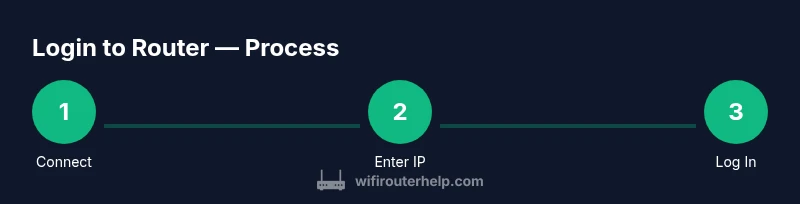
You will login to your router’s admin interface to manage settings, update firmware, and secure your network. Before you begin, connect a device to the router via Wi‑Fi or Ethernet and locate the router’s IP address (commonly 192.168.0.1 or 192.168.1.1). Then enter the admin username and password to access the dashboard.
Why logging in to your router matters
Logging in to my router is the gateway to your home network’s security and performance. The admin interface lets you change wireless settings, set up guest networks, update firmware, and enforce firewall rules. Without a secure login, neighbors or malicious actors could access settings or monitor traffic. According to WiFi Router Help, most users underestimate how often weak credentials and outdated firmware contribute to network risk. The WiFi Router Help team found that even households with modern hardware often skip essential security steps after setup. If you need to login to my router, use the steps below to do it safely. Taking a few minutes to login and review basics pays dividends in reliability and privacy. Treat the login page as the central control panel for all network decisions, not a one-off step you forget after purchase. Document credentials securely and limit access.
How to locate the router's login page
Finding the correct login page is the first hurdle when you login to my router. Most home routers use a private IP like 192.168.1.1 or 192.168.0.1. Check the router’s underside or back label for the exact address and default login details. If you’re already connected, you can discover the address from a computer: on Windows, run ipconfig; on macOS, open Network Preferences; on iOS/Android, check the Wi‑Fi network details. Enter the IP address into your browser’s address bar to load the login page. If you still can’t load it, try connecting via Ethernet or disable any VPN that might block local addresses.
Typical login credentials and admin interfaces
The admin interface is accessed through a web browser after locating the correct IP. Default usernames and passwords vary by brand—often seen as admin/admin or admin/password—and are sometimes printed on a sticker. If you’ve previously changed them, use your updated credentials. Some brands use a different URL like http://router.local or a different IP, so always refer to the manual. Regardless of the interface, treat the login as the gateway to all important security settings and network configurations.
Step-by-step login process
This section expands on the quick path to login to my router with practical actions. You’ll prepare your device, open the login page, enter credentials, review essential settings, secure your admin login, and verify the changes by re-accessing the page. Following these steps helps prevent misconfigurations and keeps your network safer from emerging threats. If you’re unsure about any step, pause and verify before proceeding to avoid locking yourself out.
Troubleshooting common login problems
If you encounter problems while attempting to login to my router, start with the basics: confirm your device is connected to the router’s network, verify the IP address, and ensure there’s no VPN or captive portal interfering. If the login page loads but credentials fail, recheck the username and password for case sensitivity and trailing spaces, then try again. A factory reset may be necessary if you absolutely cannot recover the credentials, but this will erase all custom settings. Always document credentials securely to avoid future issues.
Secure your router after login
Once you have authenticated, the next priority is security. Change the admin password to a strong, unique one, enable automatic firmware updates, and choose WPA3/WPA2 encryption for wireless networks. Disable WPS if it’s not needed and review port forwarding or UPnP settings. Regularly monitor connected devices and logs to spot unfamiliar activity. This practice makes login to my router more resilient against common attacks.
Resetting the router: when and how
Resetting should be a last resort. If you cannot recover the login credentials, use the reset button to restore factory settings, typically holding it for 10–15 seconds. This clears all custom configurations, including the admin password. After a reset, you’ll need to reconfigure your router and re-create a new login. Remember to re-update firmware and re-enable security features as part of the setup.
Quick-start checklist and common pitfalls
Before you start working with any router admin page, verify you can access the login page, know the IP address, and have the correct credentials. Avoid using default credentials for longer than necessary; always change them right after the first login. Pitfalls include typing mistakes, confusing IP with a web URL, and forgetting to save changes. A deliberate, methodical approach helps you login to my router with confidence.
Authority references and best practices
For best practices on network security, consult government and university guidance on router safety and cybersecurity. This guide reflects widely recommended steps for securely logging in to your router and maintaining a protected home network. See the sources in the Authority section for additional depth on general device hardening and privacy.
Tools & Materials
- Device with a modern web browser (phone, tablet, or computer)(Must be connected to the router's network)
- Active connection to the router (Wi‑Fi or Ethernet)(Stable link prevents login timeouts)
- Router IP address (commonly 192.168.1.1 or 192.168.0.1)(Check label/manual for exact address)
- Admin username and password(From router label or previous configuration; reset if forgotten)
- Optional: Ethernet cable for a stable direct connection(Useful for desktops or when Wi‑Fi is unreliable)
Steps
Estimated time: 10-15 minutes
- 1
Connect your device to the router
Ensure your device is linked to the router via Wi‑Fi or a wired Ethernet connection. This creates a stable path to the admin page and prevents login interruptions during the process.
Tip: If you recently changed networks, reconnect to ensure your device communicates with the router. - 2
Open the login page
In your browser’s address bar, enter the router’s IP address (e.g., 192.168.1.1 or 192.168.0.1) and press Enter to load the login screen.
Tip: Type the IP address directly; avoid clicking links that might bring you to a generic dashboard. - 3
Enter admin credentials
Provide the admin username and password offered by the router’s label or your own saved credentials. If you entered the wrong details multiple times, the device may temporarily lock you out.
Tip: Ensure you respect case sensitivity and check for any keyboard layout differences. - 4
Review and update security basics
After login, verify the SSID, encryption type (prefer WPA3/WPA2), and ensure the admin password is strong and unique. Document the changes for future reference.
Tip: Enable auto firmware upgrades if available to keep the device secure. - 5
Change the admin password
If you’re using defaults, replace them with a long, unique password that mixes letters, numbers, and symbols. This is a critical step in protecting your network from unauthorized access.
Tip: Use a password manager to securely store the new credentials. - 6
Logout and test
Sign out, then attempt to log back in to ensure the changes took effect and you can reaccess the admin panel.
Tip: If you can’t re-login, revisit credentials and IP address, and consider a browser cache clear.
People Also Ask
What should I do if I can't access the login page?
First confirm your device is connected to the router's network and that you’re using the correct IP address. Temporarily disable VPNs or firewalls that may block local addresses, then try again. If it still fails, a factory reset may be needed after other recovery steps.
If you can't reach the login page, check your connection, verify the IP, and disable VPNs that might block local addresses. Try again, and if issues persist, consider resetting the router.
Are default credentials safe to use?
Default credentials are convenient for initial setup but should be changed immediately to prevent unauthorized access. Always replace with a strong, unique password after you gain access.
Default credentials are not safe for long. Change them right after your first login.
Why do I get 'Incorrect username or password' even when I’m sure I’m correct?
Double-check the exact username and password, including case sensitivity and any special characters. Try resetting credentials if you have documentation or labels that verify the defaults.
Make sure you’re using the right case and characters; if unsure, check the label or reset the credentials.
What should I do if I forgot the router password?
If you forgot the password, you may need to reset the router to factory defaults. This erases custom settings, so be ready to reconfigure the network afterward.
If you forgot it, reset to factory settings, then set up again from scratch.
Is it safe to login from a public network?
Avoid performing router login over public Wi‑Fi. Use a trusted network or a VPN when managing sensitive settings to prevent interception of credentials.
Only login over trusted networks or a VPN; avoid public Wi‑Fi for router admin tasks.
Watch Video
What to Remember
- Login to your router unlocks full control of network settings.
- Change default credentials immediately after first login.
- Keep firmware updated and review security options.
- If login fails, verify IP and credentials before resetting.