How to Log In to My Router Settings: A Practical Guide
Learn how to securely log in to your router settings with a clear, step-by-step approach. Find your router IP, enter admin credentials, and adjust password, Wi‑Fi, and security settings safely.


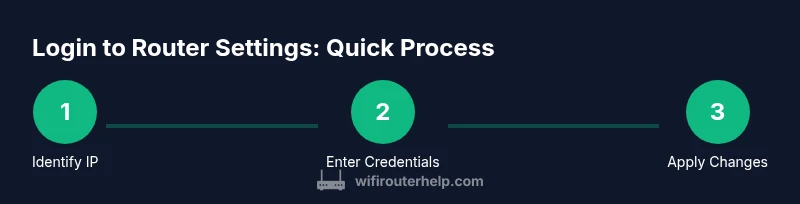
Log in to your router settings to manage your network securely. To begin, locate your router’s IP address (commonly 192.168.1.1 or 192.168.0.1) and prepare the admin username and password. According to WiFi Router Help, use a wired or trusted device, and avoid using public networks when logging in to protect credentials.
Why Accessing Router Settings Matters\n\nAccessing your router settings is essential for keeping your home network secure and performing routine maintenance. The admin interface lets you change the Wi‑Fi name (SSID), update the password, enable security features (like WPA3 when available), monitor connected devices, and configure guest access. For households with kids or multiple smart devices, a secure login helps prevent unauthorized changes that could expose data or slow performance. The WiFi Router Help team emphasizes that routinely reviewing settings—especially after new devices join your network—helps sustain reliable coverage and privacy.\n\nKeep in mind that the router is the central point of control for your home network. If you don’t log in and fail to secure it, you risk weak passwords, exposed open networks, and default configurations that hackers can exploit. A deliberate, informed login process reduces risk and improves overall experience.\n\nFrom a practical standpoint, plan to set aside 15–25 minutes for this session if you are updating multiple settings. If you’re troubleshooting connectivity, you may need more time, but most tasks can be completed in a focused 20–30 minute window. Always ensure you complete the session by logging out and, if possible, enabling automatic logout after a period of inactivity.
Quick Security Mindset for Router Logins\n- Never use public Wi‑Fi when entering login credentials.\n- Change default credentials to a strong, unique password.\n- Prefer WPA3 (or WPA2‑PSK) encryption where available.\n- Disable remote management unless you need it, and use a strong admin password.\n- Update firmware after login if updates are available, following manufacturer instructions.\n\nThese steps reduce risk and build a safer home network from the moment you access the router interface.
Tools & Materials
- Device with a web browser(PC, laptop, or mobile device connected to the router via Ethernet or Wi‑Fi.)
- Router IP address reference(Common defaults are 192.168.1.1 or 192.168.0.1; check your router label or manual for exact address.)
- Admin username and password(If not changed, look on the router label or manufacturer documentation to locate defaults.)
- Web browser(Any modern browser (Chrome, Edge, Safari, Firefox) is fine.)
- Optional: Ethernet cable(Useful if you want a stable connection while changing settings.)
Steps
Estimated time: 15-25 minutes
- 1
Identify the router’s IP address
Open a device connected to your network and check the default gateway in your network settings to determine the router’s IP address. If you already know the IP, you can skip to the next step.
Tip: If you’re unsure where to find it, on Windows run 'ipconfig' and look for the Default Gateway; on macOS, check System Preferences > Network > Advanced. - 2
Prepare admin credentials
Locate the admin username and password. If you never changed them, they’ll often be printed on the router label or included in the manual. Do not proceed until you have valid credentials to avoid getting locked out.
Tip: If you’ve forgotten them, use the official recovery or reset procedure from the manufacturer rather than guessing. - 3
Open the login page in a trusted browser
Enter the router’s IP address into the browser’s address bar and press Enter. The login screen should appear with fields for username and password. Do not click through any suspicious prompts or popups.
Tip: Use a private/incognito window if you’re troubleshooting to avoid cached credentials interfering. - 4
Log in with admin credentials
Type the admin username and password exactly as stored. If correct, you’ll reach the router’s admin interface. If you see an error, re-check the credentials or try the reset procedure if you’re authorized.
Tip: If two-factor authentication is enabled, follow the prompts to complete verification. - 5
Navigate to security or wireless settings
Once logged in, look for sections labeled Wireless, Wi‑Fi, Security, or Administration. These are the core areas for changing passwords, SSID, encryption, and access controls.
Tip: Use the left-hand menu often labeled with icons to minimize confusion. - 6
Make desired changes and save
Update settings such as SSID, password, and encryption. Be sure to click Save or Apply for changes to take effect. Some routers require a reboot for changes to apply.
Tip: After saving, test your devices to confirm the new credentials work. - 7
Log out and verify security
Exit the admin interface, then re-log in to verify the session closed properly and security is intact. Confirm you can reconnect to Wi‑Fi with the new password.
Tip: If you enabled remote management, disable it unless you have a specific need and strong authentication in place. - 8
Document changes and maintain firmware
Record what you changed and keep a note of the new credentials. Check for firmware updates in the admin interface to keep security current.
Tip: Regular firmware checks help protect against known vulnerabilities.
People Also Ask
What is the typical router login address?
Most routers use 192.168.1.1 or 192.168.0.1 as the login address, but some models use different addresses. Check the label on your router or its manual to confirm the correct IP.
Most routers use a common address like 192.168.1.1, but always confirm with your device's label or manual.
What should I do if I forgot my admin password?
If you can’t remember the admin password, use the manufacturer’s password recovery process or perform a factory reset following the device’s documentation. Note that a reset will restore default settings.
If you forget the login, use the router’s recovery steps or reset it following the manual, but expect to reconfigure your settings afterward.
Is it safe to log in from a mobile device on public Wi‑Fi?
Logging in over public Wi‑Fi can expose credentials to attackers. Always use a trusted network or a VPN when logging into router settings from mobile devices.
Avoid router logins on public Wi‑Fi; use a secure network or VPN instead.
How do I reset router settings to factory defaults?
Locate the reset button on the router and hold it for about 10–15 seconds (exact time varies by model). This restores default credentials and settings, so you’ll need to reconfigure afterward.
If a reset is needed, press the reset button as described in the manual and then set up the router from scratch.
What if the login page won’t load after entering the IP address?
Try a different browser or device, clear the browser cache, ensure the device is connected to the router, and verify you’re using the correct IP. If issues persist, reboot the router.
If the page won’t load, switch devices or clear cache, then retry the login with the right address.
Should I enable remote management for convenience?
Remote management can be convenient but increases exposure risk. Disable it unless you have a specific need and strong authentication in place.
Only enable remote management if you understand the security risks and have strong protections.
What to Remember
- Log in with correct admin credentials to access settings
- Change default credentials to a strong, unique password
- Secure the connection by using a private network and up-to-date encryption
- Document changes and keep firmware up to date
- Logout after changes and test connectivity