Access Router: A Practical Step-by-Step Home Guide
Learn how to access your router's admin page, secure settings, and manage network access. This detailed guide from WiFi Router Help walks homeowners through login, security hardening, and ongoing maintenance for a safer home network.


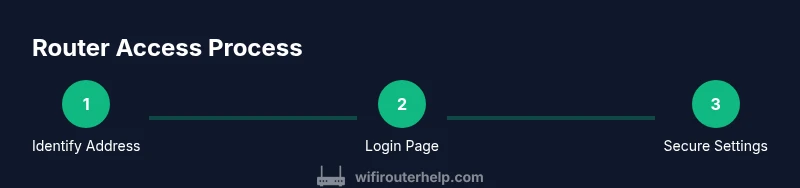
Accessing your router’s admin interface is the first step to securing and optimizing a home network. You’ll identify the login address, connect a device, sign in with credentials, and then adjust settings like Wi‑Fi passwords, guest networks, and security features. This quick guide outlines the essential steps and safeguards to protect connected devices.
Why Access Router Matters
Access to the router's admin interface is the control center for your home network. When you can reach the router, you can enforce strong security, set up a separate guest network for visitors, manage connected devices, and optimize performance. According to WiFi Router Help, many households overlook these management steps, leaving devices exposed to risk and networks running with unnecessary conflicts. Gaining proper access empowers you to tailor your network to your household’s needs, from streaming and gaming to remote work and smart-home automation. This section explains the core reasons to access your router and how it translates into practical benefits for everyday life.
- Safety: Change default credentials and enable encryption to reduce the chance of unauthorized access.
- Performance: Separate networks for guests and IoT devices help isolate traffic and improve reliability.
- Visibility: See what devices are connected and how much bandwidth they consume, guiding smarter usage.
By understanding these fundamentals, you’ll approach router access with a plan rather than trial and error, saving time and reducing risk.
The WiFi Router Help team found that most home networks can gain measurable stability and security by establishing clear access routines and documented settings. This post uses plain language, practical steps, and safety notes so homeowners can confidently access their router without confusion.
Access Methods You Can Use
Routers expose multiple entry points for administration. The most common method is the web-based admin page accessed through a browser on a computer or mobile device. Many modern routers also offer a companion mobile app that provides a streamlined, on-the-go interface. For advanced users, certain models support SSH or other console access, typically used for troubleshooting or advanced configuration. Start with the web UI or official mobile app, then consider console-based access only if you have solid networking knowledge and a clear recovery plan. When choosing an access method, prioritize security—avoid public devices and networks when logging in—and always log out after making changes. The goal is reliable, repeatable access, not ad-hoc tinkering.
Finding the Admin Address and Credentials
To reach the router’s admin interface, you need its local address (gateway). Common defaults include 192.168.0.1, 192.168.1.1, or 192.168.2.1, but your specific model may differ. If you can’t locate the address, check the router label on the bottom or rear, consult the user manual, or look up the model online. Likewise, the login credentials may be a default like admin/admin or admin/password; many brands require you to change these during setup. If you previously changed them and can’t recall, you’ll need to reset to factory settings.
Preparing Your Device for Access
Before you begin, ensure your device is connected to the router’s network—prefer a wired Ethernet connection when possible for stability, especially during configuration. Close other apps that may cause network interruptions, and have a pen and paper handy to record your new settings. If you rely on a shared household network, schedule a maintenance window or notify others in advance to minimize disruptions. It’s also wise to back up current settings if your router offers that option, so you can revert if something goes wrong during changes.
The Login Screen: What You’ll See
The login screen typically asks for a username and password. Some newer devices consolidate credentials into a single field or use a token-based login; others still rely on classic admin/password fields. Expect a homepage with tabs for Settings, Wireless, Security, and Administration. If you don’t see these options, your login may be limited by parental controls, guest access, or a more locked-down interface. If your browser warns about insecure pages, ensure you’re on the router’s local address (not a remote site) and that you’re using a secure connection.
Securing Your Router Before Making Changes
Security should guide every adjustment. Start by changing the default admin password to a strong, unique one. Enable WPA3 (or WPA2 if WPA3 isn’t available) and set a robust Wi‑Fi password. Disable remote management unless you have a controlled, auditable need for it. Update the firmware if newer versions exist, and review the firewall settings to ensure they align with your home network’s needs. Document changes so you can track what was modified and when.
Common Settings You’ll Review After Access
Post-login, focus on a few high-impact areas: (1) Wireless settings: rename the network (SSID) responsibly, set a strong password, and enable the latest security protocol. (2) Guest network: restrict access to your primary network yet provide Internet access for visitors. (3) Device management: enable or review QoS to prioritize essential devices, and set up parental controls if needed. (4) Network password hygiene: avoid shared passwords; rotate them every 6–12 months. (5) DNS and firewall: consider switching to a reputable DNS service and confirm firewall rules are appropriate for your devices.
Remote Access: Risks and Safe Practices
Remote access lets you manage your router from outside your home network, but it introduces risk. If you enable it, require a strong password, disable SSH/Telnet unless necessary, and limit access by IP address if your router supports it. Consider using a VPN for remote management instead of exposing the router directly to the Internet. If you don’t need it, disabling remote management is a safer default.
Troubleshooting Access Issues
If you can’t access the admin page, verify you’re connected to the correct network and try the most common gateway addresses. Clear browser cache, try a different browser, or reboot the router and your device. If login fails after multiple attempts, you may need to reset the router to factory settings, then reconfigure from scratch. Document the reset steps and ensure you have the necessary credentials before proceeding.
When to Reset to Factory Settings
Factory resetting wipes custom configurations and returns the device to its original state. You should consider a reset if you cannot recover login credentials, if the device is unresponsive, or if you suspect compromise that cannot be resolved by other means. After a reset, reapply a strong admin password, update firmware, and reconfigure essential settings from scratch to reduce residual risk.
Best Practices for Ongoing Access and Maintenance
Create a routine for checking access health: confirm firmware updates quarterly, rotate passwords, and keep a secure record of your configurations. Maintain a separate guest network for visitors, monitor connected devices, and use device-level protections like firewalls and network segmentation where possible. By treating router access as an ongoing practice rather than a one-off task, you’ll sustain performance and security over time.
Tools & Materials
- Device with internet access(Laptop, smartphone, or tablet to access the router's admin page)
- Web browser or mobile app(Chrome/Firefox/Safari or the official router app for login)
- Active router connection(Ensure your device is connected via Wi‑Fi or Ethernet)
- Power and cables(Power supply and optional Ethernet cable for wired setup)
- Reset tool (pin or paperclip)(Use only if performing a factory reset)
- Notepad to document settings(Record changes for future reference)
Steps
Estimated time: 15-25 minutes
- 1
Identify the admin address
Locate the router’s admin URL or IP address. Look for common gateways like 192.168.0.1 or 192.168.1.1 on the device label or in the manual. If uncertain, search the model’s official guide online or check your device’s network settings for the gateway value.
Tip: If multiple addresses exist, start with 192.168.1.1 and try the others if needed. - 2
Connect your device to the router
Make sure the device you’ll use to log in is connected to the router either wirelessly or via an Ethernet cable. A stable connection helps avoid login timeouts during changes.
Tip: Wired connection is more reliable for configuration. - 3
Open the login page
Enter the admin address into a web browser or open the router’s official app. If you’re prompted with a certificate warning, verify you’re on the local network and proceed carefully.
Tip: Use HTTPS if the option is available for encryption. - 4
Enter credentials
Type the username and password. If you don’t know them, try the common defaults first, then proceed to reset if needed. Do not reuse passwords from other sites for router access.
Tip: If you forgot credentials and there’s no reset available, capture the device label to identify the model’s reset procedure. - 5
Change the admin password
Immediately update the admin password to a strong, unique combination. This is the single most effective security step you can take after access.
Tip: Use a passphrase-style password with 12+ characters. - 6
Update firmware (if available)
Check for firmware updates in the Admin panel and apply any that are available. Updates can fix security flaws and improve performance.
Tip: Back up settings before updating. - 7
Review essential settings
Tighten security settings, enable modern encryption (e.g., WPA3), disable unused remote management, and verify your Wi‑Fi network name and password.
Tip: Document the new configuration for future reference. - 8
Test connectivity and log out
Reconnect devices, ensure internet access remains stable, and verify that you can log out securely to end the session.
Tip: Always sign out when finished.
People Also Ask
What is the purpose of accessing the router admin page?
The router admin page lets you configure security, manage connected devices, set Wi‑Fi credentials, and control features like guest networks. Access is essential for maintaining a safe and efficient home network.
The router admin page lets you configure security and network settings for your home network.
What should I do if I forget my router login password?
Try the default credentials listed on the router label or manual. If that fails, you’ll typically need to reset the router to factory settings and reconfigure from scratch.
If you forget the login, you’ll usually need to reset the router to factory settings and set up again.
Why can’t I access the router’s admin page when connected locally?
Possible causes include incorrect gateway address, a device not on the same network, browser caching issues, or a stale session. Recheck the gateway, restart devices, and clear the browser cache.
If you can’t access it, double-check the gateway address and try restarting your devices.
Is remote management safe to enable?
Remote management adds risk by exposing the router to the internet. If you enable it, limit access by IP, use a strong password, and consider VPN-based approaches for remote changes.
Remote management is risky; only enable it with strict controls or use VPN for remote work.
How often should firmware be updated?
Check for updates regularly and apply them when available. Updates can address security vulnerabilities and improve features but back up settings first.
Check for updates regularly and apply them when available, after backing up settings.
Can I access router settings from my phone?
Yes. Many routers provide mobile apps that mirror the web interface, offering a convenient way to manage settings on the go. Ensure the app is from the router’s official vendor.
Yes, you can manage your router with a vendor-approved mobile app.
Watch Video
What to Remember
- Access the router admin page to control your home network
- Use strong passwords and current encryption to protect devices
- Back up settings and document changes for easy recovery
- Disable unnecessary remote access to reduce risk
- Regular firmware updates improve security and reliability