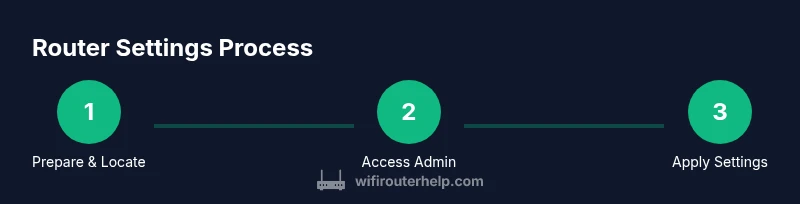
How to Manage Router Settings: A Step-by-Step Guide
A practical, education-focused guide to safely accessing your router's admin panel, securing Wi-Fi, configuring DHCP, and backing up configurations for a robust home network.


By following this guide, you will learn how to manage router settings to strengthen security and performance. You’ll safely access the router’s admin page, identify the essential controls for Wi‑Fi, security, and network behavior, and apply practical, reversible changes. To begin, ensure you have a device on the network and the router’s admin credentials ready.
Understanding Router Settings: A Practical Overview
When you embark on how to manage router settings, you’re taking control of the core parameters that shape your home network. The options you encounter determine how devices connect, how traffic flows, and how secure your data is as it travels through your router. Key areas include Wi‑Fi name (SSID), Wi‑Fi password, encryption method, firmware version, firewall rules, and advanced features such as UPnP and QoS. By learning what each switch does, you can tailor performance to your home’s layout and protect against common threats. This guide breaks the topic into clear steps and practical actions. For context, the WiFi Router Help team emphasizes that understanding these settings is the first step to a reliable home network.
Accessing the Admin Interface Safely
To begin changing any router setting, connect a device you trust to your network. If possible, use a wired Ethernet connection during the login to avoid interruptions. Open a browser and enter the router’s IP address or hostname (the label on the device often lists this, commonly something like 192.168.1.1). You’ll be prompted for credentials; if you never changed them, consult the manual or the device label for the default username and password. Once you have access, do not rush changes—document what you modify. If you suspect a wrong credential, you can reset to factory defaults; but this will erase your current configuration, so back up first. The WiFi Router Help team recommends confirming you’re on the official admin page to prevent phishing or spoofed interfaces.
Key Settings You Should Review Right Away
Inside the admin panel, prioritize these settings. Change the admin password to a strong, unique passphrase and store it securely. Set the Wi‑Fi network name (SSID) to a descriptive but non-identifying name, and choose an encryption method that is modern and strong (prefer WPA3 if available; otherwise WPA2). Create or verify a dedicated guest network to keep visitors segmented from your main devices. Review firewall rules to ensure inbound connections aren’t unintentionally allowed, and disable UPnP unless you truly need it. Finally, confirm the router’s time zone and automatic updates are enabled so logs and events align with real time. These steps lay a solid foundation for how to manage router settings and improve overall security.
Updating Firmware and Why It Matters
Firmware updates fix bugs, close security gaps, and sometimes add new features. Before updating, back up your current configuration so you can restore if something goes wrong. Check the router’s status page or the manufacturer’s site for the latest firmware version and release notes. Apply updates through the admin interface and avoid power interruptions; if you lose power mid-update, you may brick the device. After the update, re-login to verify settings are intact and the new version is active. Regular checks for updates are a simple yet effective practice to keep your home network resilient.
Securing Your Wireless Network (SSID, Password, and Encryption)
The wireless section is where most users interact daily. Keep your SSID descriptive but not tied to your identity; do not broadcast revealing information about your residence. Use a strong password, ideally 12–16 characters with a mix of letters, numbers, and symbols. Prefer the latest standard available on your router, typically WPA3 or at least WPA2‑AES. If you have devices not yet compatible with WPA3, consider a mixed mode that supports both. Disable WPS as it introduces risks. Use a separate guest network for visitors and IoT devices whenever possible. These steps help you lock down access while preserving convenience for you and family members.
Configuring DHCP, NAT, and Local IPs
DHCP manages the assignment of local IP addresses to devices on your network. Ensure the DHCP server is enabled on the router and that the address pool does not conflict with any static IP reservations. Consider reserving IPs for critical devices (workstations, printers) to maintain stable network access. Review NAT settings and ensure they are appropriate for your internet plan; most home networks use one public IP address with private addresses inside. If you need to segment networks, a second router in bridge mode can help. Document any changes to avoid confusion later.
Advanced Options: Guest Networks, QoS, and Parental Controls
If supported, enable a guest network to segregate visitors from your main devices. Enable QoS to prioritize bandwidth for critical tasks such as video calls or online gaming, but avoid over-tight rules that harm general network performance. Parental controls can help manage what content is accessible on family devices; configure schedules and filters as needed. Regularly monitor connected devices to spot unfamiliar clients and revoke access when necessary. Advanced features should be tested carefully to avoid inadvertently blocking legitimate traffic.
Backups, Restore, and Audit Trail
Before making large changes, export or back up the current router configuration to a file or cloud storage if supported. Store backups with a clear date and a label that indicates the router model and firmware version. Keep a separate copy of essential settings (like Wi‑Fi password and admin credentials) in a secure password manager. If you later need to revert to a previous state, use the restore option in the admin panel and re-verify connectivity. An audit trail—logs of logins and changes—helps you track who adjusted what and when.
Tools & Materials
- Computer or smartphone with a web browser(Used to access the router's admin interface)
- Ethernet cable (optional but recommended)(Wired connection improves login reliability)
- Router admin credentials (username and password)(Usually printed on router label or in manual)
- Router IP address or hostname(Often 192.168.0.1 or 192.168.1.1; check label)
- Firmware update file or internet access to download(Needed for firmware updates)
- Backup medium (optional)(USB drive or cloud storage for config export)
Steps
Estimated time: 45-75 minutes
- 1
Prepare equipment and locate router
Gather a trusted device, power on the router, and locate its IP address from the label or manual. Decide whether you will use a wired connection for reliability. This step ensures you can access the admin interface safely.
Tip: Having the manual handy reduces guesswork during login. - 2
Access the admin interface
Connect to the network and enter the router’s IP into your browser. Log in with current credentials, or the default if never changed. Confirm you are on the official page to avoid phishing. Do not edit settings you don’t understand.
Tip: If login fails, try a wired connection and verify the IP address. - 3
Change admin credentials
Update the administrative username and password to a strong, unique passphrase. Record them securely in a password manager. This prevents unauthorized access after you configure other settings.
Tip: Avoid common passwords and reuse across devices. - 4
Update firmware
Check for the latest firmware and apply updates. Back up current settings first. Ensure the update completes without power loss, then re-login to verify changes.
Tip: Only download firmware from the manufacturer’s site or the official update tool. - 5
Configure Wi‑Fi name and security
Choose a non-identifying SSID and enable modern encryption (prefer WPA3; otherwise WPA2). Set a strong Wi‑Fi password and consider disabling WPS.
Tip: Use a passphrase that is unique to your network. - 6
Review DHCP and local IPs
Enable DHCP if needed and set a clear IP range. Reserve static IPs for essential devices to avoid address changes. Document any reservations.
Tip: Reserve IPs for printers, NAS, and work devices. - 7
Configure NAT, UPnP, and port forwarding
Keep NAT as appropriate for your setup. Disable UPnP unless required by devices; forward only necessary ports with careful mapping.
Tip: Restrict port forwarding to known services. - 8
Enable a guest network and parental controls
Create a guest network to isolate visitors. Configure parental controls if needed and set schedules to align with family use.
Tip: Keep guest credentials separate from main network. - 9
Back up and test
Export the configuration to a safe location and test connectivity after each major change. If something breaks, restore from backup and re-test.
Tip: Label backups clearly by date and firmware version.
People Also Ask
What should I do before changing router settings?
Back up the current configuration, note existing values, and test changes on a single setting at a time.
Back up first and test one change at a time.
How can I find my router's IP address?
Check the router label, consult the manual, or view the gateway in your device's network settings.
Look up the default gateway on your device.
Is it safe to disable remote management?
Disabling remote management generally reduces risk; use only local access on trusted networks.
Disable remote management to stay safer.
Should I enable UPnP?
Only enable UPnP if you need it for specific devices; otherwise disable to minimize exposure.
Avoid UPnP unless required.
How often should I update firmware?
Check for updates regularly and apply them when available to keep security current.
Check for updates periodically and install when available.
What is the best way to reset my router?
If needed, perform a factory reset using the button or web interface, after backing up settings.
If necessary, reset and reconfigure from scratch.
Watch Video
What to Remember
- Back up configurations before changes.
- Use strong admin and Wi‑Fi passwords.
- Keep firmware up to date.
- Isolate guest networks from main devices.