How to Configure Your Router: A Practical Home Guide
Learn to configure your home router: access the admin page, set a strong password, name your networks, manage DHCP, enable a guest network, and keep firmware updated with best practices.


Learn how to configure a home router from login to security: access the admin page, set a strong admin password, name your networks, configure DHCP, enable a guest network, and keep firmware updated. This step-by-step guide covers essential options, best practices, and common pitfalls to avoid. By following these actions you improve privacy, reliability, and wireless performance across devices everywhere.
The purpose and scope of router configuration
According to WiFi Router Help, configuring a router properly is the foundation of a secure and reliable home network. A well-planned setup reduces exposure to common threats, improves Wi‑Fi performance, and simplifies ongoing maintenance. In this section we explore what configuration actually involves, from basic access to advanced features, and why each choice matters for everyday use across phones, laptops, and smart devices.
Planning your network layout
Before you touch any settings, sketch a simple map of where devices live and where you'd like the signal strongest. Decide on a unique SSID for each band (2.4 GHz and 5 GHz if supported), and pick two separate, strong passwords. Consider future growth: guests, smart home devices, and potential mesh extensions. Document the default gateway address and login credentials so you don’t get locked out later.
Security-first configuration principles
Security should guide every choice in router setup. Use WPA2‑AES or WPA3 if available, disable WPS unless you need it, and change default admin credentials immediately. Enable the firewall and consider enabling UPNP only if you need it for specific devices or services. Regular firmware updates close known gaps and improve stability. A secure baseline reduces risk across all devices connected to your network.
Choosing SSID and passwords (security and usability)
Select a unique, non-identifying SSID and create a long, complex passphrase. Avoid incorporating your name, address, or easily guessed details. For guests, enable a separate guest network with its own password. Store credentials in a password manager so you don’t reuse weak passwords across devices.
Wireless settings explained: 2.4 GHz vs 5 GHz
The 2.4 GHz band travels farther but is more prone to interference, while the 5 GHz band offers higher speeds with shorter range. If your router supports both, enable both bands and name them distinctly (e.g., MyHome-2G and MyHome-5G). Use 802.11ax (Wi‑Fi 6) where possible for better efficiency in dense environments.
DHCP, NAT, and IP addressing: the basics
DHCP lets the router assign IPs to devices automatically. NAT translates private addresses to a public address for Internet access. Typically, keep DHCP enabled and leave the router’s LAN IP in a private range (for example, 192.168.1.1) while reserving static IPs for critical devices if needed. Document your IP plan for future changes.
Firewall, UPnP, and parental controls
Configure firewall settings to block unsolicited traffic from the Internet. If you rely on UPnP for certain devices, review what is exposed and consider turning it off when not needed. Parental controls can help manage access for kids and guests, but test them to ensure they don’t block essential services.
Firmware updates and backup strategies
Check for firmware updates regularly and apply them when downtime is acceptable. Backup your current settings before applying updates in case you need to revert. Many routers offer factory reset and backup/restore options; keeping a local copy of settings speeds recovery after a misconfiguration.
Documentation and ongoing maintenance
Keep a simple change log that records major updates and any changes to network names, passwords, or firewall rules. Schedule periodic reviews (every 3–6 months) to ensure settings still match your needs and security best practices.
Tools & Materials
- Computer or mobile device with web browser(To access the router admin interface at the default IP (e.g., 192.168.0.1 or 192.168.1.1).)
- Stable internet connection(Needed to download firmware updates and verify online services.)
- Ethernet cable (optional for initial setup)(Preferred for stability during first login; can use Wi-Fi if necessary.)
- Router login credentials(Admin username and password; change from defaults.)
- Notepad or password manager(Record credentials securely and avoid reuse.)
- Paper labels or digital note(Use to organize credentials for multiple devices.)
Steps
Estimated time: 25-40 minutes
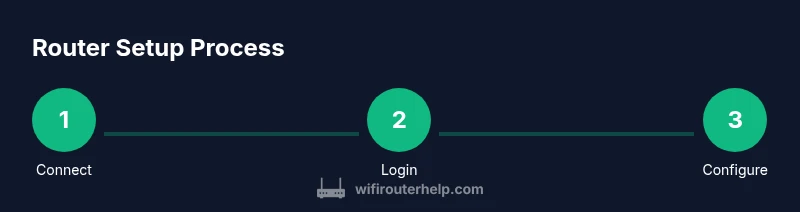
- 1
Connect to the router for initial access
Use a computer or mobile device connected via Ethernet or the router’s Wi‑Fi. A wired connection helps avoid signal loss during setup. This ensures a stable base before changing any settings.
Tip: If you must use Wi‑Fi, minimize distance and interference by moving closer to the router. - 2
Open the admin interface in a browser
Enter the router’s default IP address (such as 192.168.1.1 or 192.168.0.1) in your browser bar. If you don’t know the IP, check the manual or the router label. This step grants access to configuration options.
Tip: If the page doesn’t load, try incognito mode or clearing cache; ensure you’re connected to the router. - 3
Log in and change the default password
Log in with the default credentials or a temporary one provided by the installer. Immediately replace it with a strong, unique password.
Tip: Use a passphrase rather than a single word; consider a password manager for storage. - 4
Set admin and mobile user accounts
Configure an admin account with strong privileges and a limited user account if offered by the firmware. Disable unnecessary accounts to reduce attack surface.
Tip: Keep admin access focused on a primary device when possible. - 5
Configure network names (SSIDs) and security
Create distinct SSIDs for 2.4 GHz and 5 GHz bands. Enable WPA2‑AES or WPA3 if available, and choose a strong passphrase.
Tip: Avoid personal details in SSIDs; use a long, random passphrase for each network. - 6
Set DHCP and IP addressing
Ensure DHCP is enabled so devices obtain IPs automatically. Keep the LAN IP in a private range and consider reserving static IPs for key devices.
Tip: Document your IP plan to prevent conflicts during future changes. - 7
Apply firmware updates and backup settings
Check for updates in the firmware section and install them. Back up current settings before applying changes so you can restore if needed.
Tip: If the router reboots, wait for the process to complete before reconnecting. - 8
Test connectivity and enable extras
Test device connectivity across bands, verify guest network works, and review firewall/UPnP and parental controls as needed.
Tip: Test with a mix of devices to ensure coverage and reliability.
People Also Ask
Do I need to reset my router before configuring it?
A factory reset is useful if you cannot access the current admin page or you want to wipe all custom settings. After reset, re‑run the setup steps from scratch to ensure a clean baseline.
If you can’t access the admin page, start with a factory reset and then proceed with the setup steps.
Can I configure my router without Ethernet?
Yes, you can configure over Wi‑Fi, but a wired connection is more reliable during setup and reduces the chance of interference or dropped pages.
You can configure over Wi‑Fi, but a wired connection is steadier.
How do I change the admin password?
Log in to the admin interface, navigate to admin settings or security, and replace the default password with a strong passphrase. Save changes and test login.
Go to admin settings, change the password, save, and test.
What if I forget the admin password?
If you forget it, you may need to perform a factory reset to regain access. After reset, reconfigure your router from scratch and securely store the new credentials.
If forgotten, reset to factory settings and reconfigure.
How often should I update firmware?
Check for updates monthly or when security advisories are released. Apply updates during a maintenance window to minimize disruption.
Update firmware when available, preferably during a maintenance window.
Should I enable a guest network by default?
Enabling a guest network is typically recommended for visitors to keep your main network secure. Disable it if you don’t need guest access.
Guest networks are usually good for visitors, but disable when not needed.
Watch Video
What to Remember
- Plan network layout before touching settings
- Use strong passwords and modern encryption
- Keep firmware updated and backup configurations
- Document IP plan and login credentials