Router Settings: A Comprehensive How-To Guide
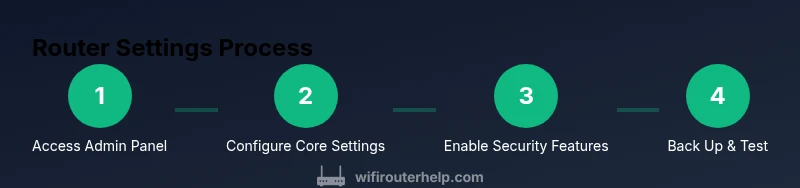
Master router settings to secure and optimize your home network. This step-by-step guide covers accessing the admin panel, essential changes, security best practices, performance tips, and troubleshooting for common issues. From WiFi Router Help.


Learn how to adjust your router settings to boost security and improve home-network performance. This guide covers accessing the admin panel, configuring basic and advanced options, and best practices for updates, passwords, and guest networks. According to WiFi Router Help, starting with a reset and updating firmware lays a solid foundation for a stable network.
Why Router Settings Matter
Router settings determine who can access your network, how fast it runs, and how safe it is from intruders. In modern homes, the term router settings covers encryption level, password strength, guest networks, firewall rules, and QoS configurations. Getting these right reduces exposure to common threats and minimizes interference as more devices join your network. The core idea is to tailor defaults to your home, rather than letting factory settings run everything. When you adjust router settings, you gain visibility into who uses your bandwidth and how your devices are protected. For homeowners and tech enthusiasts, the payoff is a more stable, faster, and safer network daily. The focus here is practical, actionable, and based on current best practices for router settings.
Accessing the Admin Panel Safely
To begin, connect to the router's admin panel using a web browser or the vendor's app. Enter the router's IP address (commonly 192.168.0.1 or 192.168.1.1) or scan the QR code on the router to locate the app. Log in with the admin username and password. If you haven't changed them, use the label on the device or the manual to locate defaults. Important: do not expose admin credentials; enable HTTPS if available; disable remote management unless you need it. If you can’t access the panel, check your device is on the same network and try a wired connection for stability. Consider resetting to factory defaults only as a last resort and after you’ve saved a backup of existing settings.
Core Settings You Should Change First
The first set of changes focuses on access control and network identity. Change the admin password to a long, unique passphrase and avoid common defaults. Rename the SSID to something identifiable but not personally revealing, and configure the network to use WPA3 if available (or at least WPA2 with AES). Disable broadcasting the admin interface over the internet (remote management) unless you truly need it, and keep the router’s firmware up to date. Ensure the DHCP range accommodates your devices and reserve static IPs for critical gear like printers or hubs. Document these settings so you can reproduce them on future hardware.
Security-Focused Settings to Review
Security should be the guiding principle for router settings. Use WPA3 as encryption when possible; if not, WPA2 with AES is acceptable. Disable WPS if your router supports it, as it can be exploited. Turn off UPnP unless you need it for printer or media devices, and restrict remote management to trusted IPs if you must enable it. Enable the router’s built-in firewall and consider enabling device-level firewalls as well. Create a strong, unique admin password and consider two-factor authentication if the option exists. Regularly review connected devices and block unknown ones.
Performance Tuning: Channels, Bandwidth, and QoS
Performance tuning starts with choosing the right wireless channel. Use 2.4 GHz for longer range and better wall penetration, and 5 GHz for higher speeds on nearby devices. Set the channel width to 20 MHz on the 2.4 GHz band; for 5 GHz, 40 or 80 MHz can improve throughput on fast links. Allow the router to auto-select channels if you’re not in a highly congested area, but consider manual selection in a dense apartment. Enable basic QoS to prioritize critical devices (work laptop, video calls) over less urgent traffic (smart home devices). If your router supports beamforming or band steering, enable them to improve coverage.
Guest Network and Device Management
A guest network isolates visitors from your main network, reducing risk to file shares and connected printers. Create a separate SSID and password for guests, and limit guest bandwidth if possible. Use MAC filtering sparingly; it can provide a quick stopgap, but it’s not foolproof. Enable client isolation on the guest network so devices can’t see each other. For home users with many devices, enable device priority or QoS rules to ensure videoconferencing and work apps maintain bandwidth during peak times.
Firmware Updates and Backups
Firmware updates fix security vulnerabilities and improve stability. Check for updates regularly and apply them, preferably during off-hours. Before making major changes, export a full configuration backup if the router offers it, so you can restore quickly if something goes wrong. Keep a note of your current settings (SSID, password, DHCP range) in a text file. After updating, re-check connectivity and re-apply any custom rules or port forwards that you had previously configured.
Troubleshooting Common Configuration Problems
If you can’t access the admin panel, verify you’re connected to the correct network and that you’re using the right IP address. Clear browser cache or try a different browser if login fails. If you’re locked out after a change, reset to factory settings and restore from your backup. Watch for common symptoms: dropped Wi‑Fi, Ethernet non‑responsive devices, or slow speeds. In many cases, a simple reboot after a setting change can restore stability. If problems persist, consult the router’s logs and online documentation for model-specific guidance.
Real-World Example: A Typical Home Setup
Consider a small household with five devices: two laptops, two smartphones, and a smart speaker. Recommended settings include a unique WPA3 password, separate 2.4 GHz and 5 GHz SSIDs, guest network enabled for visitors, and QoS rules prioritizing video calls and work apps. Ensure the admin password is strong and not shared with anyone else. Regularly schedule firmware checks and backups, and keep a spare Ethernet cable handy for wired setup if wireless links falter. This example demonstrates how thoughtful router settings translate into reliable everyday performance.
Tools & Materials
- Device with a web browser(Any computer, smartphone, or tablet connected to the router (via Wi-Fi or Ethernet).)
- Router admin credentials(Know the login username and password; if you don’t know, check the label on the device or the manual.)
- Model information or manual(Model number, firmware version, and default IP address help you locate the admin panel.)
- Ethernet cable (optional)(Wired connection during setup can prevent dropouts.)
- Stable power supply(Keep the router plugged in during changes to avoid interruptions.)
Steps
Estimated time: 45-60 minutes
- 1
Connect to the router admin panel
Open a web browser and enter the router’s IP address (often 192.168.0.1 or 192.168.1.1) or use the vendor’s mobile app. If you’re using a wired connection, you’ll reduce interference during setup. This step establishes a trusted session for making configuration changes.
Tip: If you can’t access the panel, verify you’re on the same network and try a wired connection. - 2
Log in securely
Enter the admin username and password. If you haven’t changed defaults, update them now and store them in a secure manager. Use HTTPS if the option is available to protect credentials in transit.
Tip: Never reuse passwords from other sites; enable two-factor authentication if your router supports it. - 3
Backup current configuration
Export or save the current router configuration before making changes. This creates a restore point if you need to revert settings.
Tip: Save the backup to a safe location and name it with the date and model number. - 4
Rename SSID and set strong password
Change the network name to something identifiable but not personally revealing. Use a strong, unique passphrase and select WPA3 (or WPA2-AES if WPA3 is unavailable).
Tip: Avoid common names and avoid including personal information in the SSID. - 5
Configure admin access and remote options
Disable remote management to reduce exposure to the internet. If remote access is needed, restrict it to trusted IPs and ensure HTTPS is enabled.
Tip: Review and disable any unnecessary services exposed on the WAN side. - 6
Set security features and firewall rules
Enable the router firewall and use the strongest encryption. Disable WPS if possible, and consider turning off UPnP unless required for a specific device.
Tip: Regularly review connected devices for unfamiliar entries. - 7
Tune wireless settings for performance
For 2.4 GHz, choose a stable channel and 20 MHz width; for 5 GHz, consider 40 or 80 MHz. Enable features like QoS or beamforming if available to optimize traffic.
Tip: Periodic channel checks can help avoid interference from neighbors. - 8
Set up guest network and device management
Create a separate guest SSID with its own password and apply client isolation. Enable QoS rules to protect essential devices during busy periods.
Tip: Provide guests with a time-limited password and limit access to local network resources. - 9
Backup, test, and monitor
Export a fresh backup after changes. Run speed tests and check device connectivity. Review logs for anomalies and schedule periodic checks.
Tip: Keep a change log to track what was modified and when.
People Also Ask
What are the essential router settings to update first?
Start with changing the admin password, enabling strong encryption (WPA3 if available), and updating the firmware. Then configure a strong guest network and disable unnecessary remote access.
Change the admin password, enable strong encryption, update firmware, and configure a guest network. Disable unnecessary remote access.
How do I access the router admin panel safely?
Connect to the router via a trusted network and enter the router’s IP in your browser or use the manufacturer’s app. Ensure you log in with a strong admin password and enable HTTPS if available.
Access the admin panel by connecting to your network, using the router IP in a browser, and logging in with a strong password over HTTPS when possible.
Should I enable UPnP or disable it?
UPnP simplifies device configuration but can introduce security risks. Disable UPnP if you don’t need it and configure port forwarding manually for any services you run.
UPnP makes things easier but can be risky. Disable it unless you truly need it and set up manual port forwarding for any services.
How often should firmware be updated?
Check for firmware updates regularly—at least every few months. Apply updates promptly when they address security or stability issues.
Check for updates periodically and install them when available to improve security and reliability.
What is the best way to back up settings?
Use the router’s built-in backup/export feature to save the configuration file. Store it in a safe location and annotate it with the model and date.
Export the current config and keep a dated copy in a safe place.
What should I do if I lock myself out after changing settings?
If you can’t login, perform a factory reset from the reset pinhole (hold for 10-15 seconds) and reconfigure from backup or defaults.
Use the reset button to restore defaults if you’re locked out, then reconfigure from backup.
Watch Video
What to Remember
- Identify and secure router access points
- Choose strong encryption and unique passwords
- Document changes and back up config
- Isolate guests and manage device access
- Regularly update firmware