How to login in router: A step-by-step guide for secure admin access
Learn how to login in router securely, locate the admin panel, and protect your home network with a step-by-step approach from WiFi Router Help. Includes practical tips, firmware updates, and common troubleshooting.


By design, logging in to your router’s admin panel lets you control Wi‑Fi settings, security rules, and firmware updates. In this guide you will login in router, verify the IP address, enter admin credentials, and apply essential security changes. Expect practical steps, safety tips, and a quick password refresh to protect your home network.
What is router login and why it matters
The router login is the gateway to your home's network management. Accessing the admin interface allows you to change the network name (SSID), set encryption, update firmware, configure guest networks, and apply parental controls. For homeowners, the security of this interface is critical: a weak password or outdated firmware can expose devices to risk. According to WiFi Router Help, the login process is the first line of defense against intrusion, and a clean, documented setup reduces troubleshooting later. In this section, we explore what to expect when you attempt login in router and how to plan a secure session that minimizes disruption for everyone in the house. Whether the router sits behind a modem in a dedicated workspace or shares space with a printer, the steps to reach the admin page remain consistent: identify the IP, prepare credentials, connect a device, and begin with a secure password reset.
This section also highlights why a poor login experience can lead to broader network issues, such as misconfigured security settings or disabled Internet access for family devices. By understanding the purpose of the login, you’ll be better prepared to perform changes without compromising connectivity. Remember: every change in the admin panel can affect all connected devices, so proceed with deliberate, well-documented steps.
Find your router IP address and admin URL
To reach the admin interface, you must know the router's IP address and the correct login URL or port. Most consumer routers expose a default gateway address like 192.168.1.1 or 192.168.0.1; some models use a different subnet such as 10.0.0.1. If you cannot recall the address, there are reliable quick checks: look at a label on the bottom or back of the router, consult the user manual, or check the network settings on a connected device. On Windows, you can run ipconfig in Command Prompt and look for the Default Gateway; on macOS, use System Preferences > Network > Advanced > TCP/IP to identify the router's IP. Once you have the IP, paste it into a browser’s address bar and press Enter to open the login page. If the page fails to load, verify you are on the same local network and temporarily disable VPNs or firewalls that might block the connection.
Common mistakes include attempting to login from a public network, using a bookmarked URL from years past, or typing the IP with extra characters. Keeping a small record of the correct address for each home router reduces repeated errors and makes future login tasks faster.
Know your credentials: default vs custom
When you first set up a router, the manufacturer assigns a default username and password. These credentials are often printed on a label on the device or documented in the manual. For security, you should assume the default will change with the model and may be removed after a reset. If you still have the original credentials, log in and immediately create a strong, unique admin password. If you have forgotten the login details, you will likely need to perform a factory reset, which restores the default credentials but also erases all custom settings. After resetting, log in with the default credentials and reconfigure the network from scratch. As a precaution, avoid writing passwords on sticky notes attached to the router or in easily accessible locations.
To minimize downstream problems, plan credential storage in a password manager and clearly document the router model and firmware version for future maintenance.
Prepare for a secure login session
Before you attempt login in router, make sure your device is up-to-date and the browser you use is current. If possible, perform the login over a wired connection to prevent interruptions caused by signal dropouts during the update process. Disable auto-fill on the login page to prevent accidental exposure of credentials in shared devices. If you share the router with others, consider setting up a dedicated administrator account with strong permissions, rather than sharing the primary login. Finally, enable logging on the admin interface so you can review changes later if something goes wrong.
Having these precautions in place makes the login process smoother and reduces the chance of misconfigurations.
Step-by-step login in router: a safe session
This section provides actionable steps you can follow to complete a secure login and establish a solid baseline configuration.
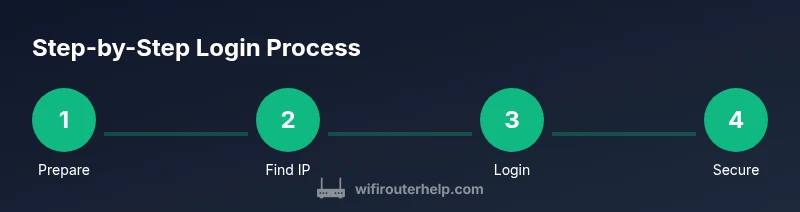
- Prepare your device and physical connection. Ensure you are on the same network and have a current browser session. 2) Locate the correct IP address and admin URL. 3) Open the login page in a secure browser and enter the administrator username and password. 4) Change the default or weak password to a long, unique one stored in a password manager. 5) Review security settings (encryption, WPS, guest networks). 6) Update firmware to the latest version from the vendor’s site or admin panel. 7) Save changes and log out.
Pro tip: Take screenshots of your settings as you go to aid future maintenance. Warning: Do not reuse the same password across multiple devices, and avoid enabling remote management unless necessary.
Post-login security improvements
After you successfully log in, strengthen the network against common threats. Replace weak or default passwords with a long passphrase that includes numbers and symbols. Ensure the router is using the latest firmware and automatic update options if your device supports them. Disable remote administration unless you need it, and enable a guest network for visitors to keep your main network isolated. Use WPA3 or, if unavailable, WPA2 with a strong passphrase. Consider enabling firewall features and enabling network segmentation for smart devices. Documenting changes—especially firmware versions and password updates—helps you troubleshoot later and maintain a secure configuration.
Troubleshooting common login issues
If you cannot reach the login page, verify you are connected to the router's network and that you entered the correct IP. If the page loads but login fails, double-check your username and password, clear browser caches, and try a different browser or device. If you still cannot authenticate, you may need to reset the router to factory defaults (noting that this will erase all settings). If the reset resolves access, reconfigure the device promptly and update credentials. If the login page is accessible but requests a CAPTCHA or displays an error about blocked attempts, ensure there are no automated security features triggering lockouts and verify that your device is not blocked by IP filtering. Always back up current settings before performing significant changes.
Remember: frequent misconfigurations during login can disrupt family devices; proceed calmly and validate each change.
Authority Sources
- authoritative: NIST Digital Identity Guidelines, SP 800-63B, https://pages.nist.gov/800-63-3/sp800-63b.html
- government: CISA Cyber Hygiene for Home Networks, https://www.cisa.gov/cybersecurity
- consumer tips: FCC Wireless Network Security Tips, https://www.fcc.gov/consumers/guides/wireless-network-security-tips
Tools & Materials
- Device with a web browser (phone, tablet, or computer)(Must be on the same local network as the router)
- Wired Ethernet or stable Wi‑Fi connection(Wired is preferred for the initial login to prevent dropouts)
- Router model name and manual or label on device(Helps verify default IP and credentials)
- New admin password (use a password manager)(Long, unique, and difficult to guess)
- Notebook or password manager entry(For recording credentials and changes)
Steps
Estimated time: 25-40 minutes
- 1
Prepare device and network
Verify you’re on the same network as the router and have the latest browser. If possible, connect via Ethernet to reduce dropout risk during login.
Tip: Close other apps that might update settings in the background. - 2
Find the correct router IP
Check the label on the router or consult the manual to confirm the IP (common ones are 192.168.1.1 or 192.168.0.1). If unsure, run a quick gateway scan from a connected device.
Tip: Document the IP with a screenshot or note for future logins. - 3
Open the admin login page
Enter the router IP into a browser address bar and press Enter. If the page does not load, verify the network connection and disable VPNs temporarily.
Tip: Use a secure browser and avoid bookmarks from old sessions. - 4
Authenticate with credentials
Enter the router’s admin username and password. If you don’t remember them, you may need to reset the device to factory defaults.
Tip: Do not reuse personal accounts from other devices. - 5
Change the admin password
Immediately replace any default or weak password with a long passphrase. Save it in a password manager.
Tip: Create a password that includes at least 12-16 characters with mixed types. - 6
Review security settings
Ensure WPA3 or WPA2 is enabled, disable WPS, and review guest network settings. Confirm remote management is disabled unless needed.
Tip: Enable a firewall feature if your router offers it. - 7
Update firmware
Check for firmware updates and apply them. Updated firmware closes known vulnerabilities and improves performance.
Tip: Back up current settings before updating. - 8
Test and document
Logout, reconnect to test the login process again, and ensure all devices can connect. Document the new password, firmware version, and any changes.
Tip: Keep a concise changelog for future reference.
People Also Ask
What is the default IP address to access the router admin page?
Default IP addresses vary by model, commonly 192.168.1.1 or 192.168.0.1. Check the router label or manual to confirm the exact address. If you cannot locate it, consult the manufacturer’s website or your manual.
Common router admin IPs are often 192.168.1.1 or 192.168.0.1, but verify with the label or manual.
What should I do if I forget the admin password?
If you forget the password, you may need to reset the router to factory defaults. This erases custom settings, so be prepared to reconfigure. After reset, log in with the default credentials and immediately change them.
If you forget the password, reset the router to factory defaults and reconfigure.
Why can’t I access the login page even though I’m on the network?
Ensure you are connected to the router’s local network, verify the IP address, and disable VPNs or firewall rules that might block access. Try a wired connection if wireless access is unstable.
Make sure you’re on the home network and the IP is correct; try wired access if needed.
Is it safe to enable remote management for the router?
Remote management is convenient but poses security risks. If you enable it, restrict access by IP, require a strong password, and monitor login activity. For most homes, it’s safer to keep it disabled.
Remote management can be risky; use it only with strong protections or keep it off.
How often should I check for router firmware updates?
Check for updates regularly and apply them when available. If automatic updates are offered by your device, enable them to maintain security.
Check for updates regularly and enable automatic updates if possible.
What’s the difference between logging in and logging into the modem?
Router login gives access to router settings; modem login typically isn’t user-facing and the two devices can be separate. If you have a combo device, use the router’s admin interface for network settings and the modem’s status page for internet connectivity.
Router login manages network settings; modem login is usually different and sometimes not needed.
Watch Video
What to Remember
- Identify the correct router IP before login
- Change default credentials immediately
- Keep firmware updated for security
- Disable remote management unless necessary
- Document changes for future maintenance