How to Router Login: A Step-by-Step Guide
Learn how to safely log into your router, identify the admin interface, and implement essential security. This guide explains login IPs, credentials, and practical troubleshooting for reliable home networking.


By the end of this guide you will confidently access your router's admin interface, verify your login IP, and secure the device by updating credentials. You will need a networked device (phone, tablet, or computer), the router’s IP address (often 192.168.0.1 or 192.168.1.1), and the admin password or a reset option if you’ve never changed it.
Why Accessing Your Router's Admin Interface Matters
The router’s admin interface is the nervous system of your home network. From this single page you can change your Wi‑Fi name (SSID), strengthen security, set up guest access, and install firmware updates that patch known vulnerabilities. Access to this page allows you to configure firewall rules, restrict devices, and manage parental controls. According to WiFi Router Help, starting with the router login is a key step to securing any home network. If you skip this step, devices may remain exposed to common attacks or misconfigurations. In practice, you’ll typically need a web browser on a connected device and the router’s IP address to reach the login screen. Use a trusted device and network, and log out after you’re done to reduce the risk of session hijacking. For mesh systems, some units use a companion app, but the underlying login credentials still govern the main router.
This section sets the stage for safe, informed access and helps you understand why the login step is foundational.
Prerequisites and Security Best Practices
Before you begin, gather the essentials and set expectations for security. You will need a device with a browser, the router’s IP address, and the admin username and password. If you’ve never changed the default password, plan to do so immediately after login. For security, avoid logging in over public Wi‑Fi; use a trusted network or a wired connection for reliability. If you can’t locate the IP, check the router label or base for the default Gateway address. It’s also wise to disable remote management unless you need it, because exposing the login to the internet increases risk. Consider enabling the router’s built-in firewall and updating firmware to patch vulnerabilities. Finally, back up credentials in a secure password manager so you can recover access if you forget. This preparation reduces friction and strengthens your security posture.
Common Login Methods and Credentials (What to Expect)
Routers typically present a web-based login page accessible via a private IP address (commonly 192.168.0.1 or 192.168.1.1); some devices use a different address, especially in mesh setups. The login screen asks for an admin username and password. If you’ve never changed them, look for defaults on the router label or in the manual. Do not rely on the SKU password printed on the box if the device has already been set up elsewhere. If the login page loads but rejects credentials, you might be using the wrong IP, or the router is in a different mode (guest networks sometimes redirect to a login page). On modern routers, a quick setup wizard after login guides you through essential security settings. Choose a long, unique password and store it securely. If you can’t log in after multiple attempts, you may need to reset the device to factory defaults and reconfigure from scratch. The exact steps vary by brand, so consult the manual for brand-specific details.
This section helps you recognize typical login flows and avoid common missteps.
Troubleshooting Common Login Issues
If you cannot access the login page, first verify you’re connected to the correct network and that the device is reachable on the router’s IP. Try a different browser or clear cache, and disable VPNs that might redirect your connection. If the IP is unknown, use your device’s network settings to reveal the gateway address. When credentials fail, confirm you’re using the right username (often “admin”) and the current password; some devices require a password reset. For forgotten credentials, use the reset button on the back of the router and reconfigure from scratch. If the page loads but the session keeps dropping, check for firmware updates and consider rebooting the router. The WiFi Router Help team recommends reviewing model-specific instructions before resetting, and only performing a factory reset as a last resort.
Tools & Materials
- Router (powered on and within reach)(Have the device nearby for quick access)
- Device with a web browser(Phone, tablet, or laptop on the same network)
- Ethernet cable (optional)(Use a wired connection if Wi‑Fi is unstable)
- Web browser (recommended)(Chrome/Edge/Safari; avoid insecure browsers)
- Notepad and pen(Record IP, usernames, and changed credentials)
Steps
Estimated time: 5-15 minutes
- 1
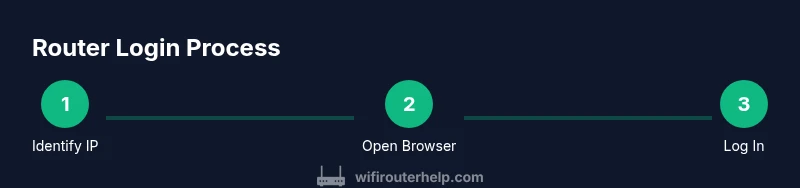
Identify the router's IP address
Check the router label or base for the default gateway address. If you’re using a device already connected to the network, you can also view the gateway in your network settings. This address is what you’ll enter into your browser to reach the login page.
Tip: If you’re unsure, try common defaults like 192.168.0.1 or 192.168.1.1. - 2
Open a browser and enter the IP
In the address bar, type the IP address and press Enter. If the page doesn’t load, verify your connection to the correct network and ensure you’re not using a VPN that redirects traffic.
Tip: Use a wired connection for best reliability during the login process. - 3
Enter admin credentials
On the login page, enter the admin username and password. If you never changed them, look on the router’s label or in the manual to find defaults. If you can’t recall them, proceed to reset as a last resort.
Tip: Never reuse simple passwords; consider a password manager for long-term security. - 4
Change the default password
After logging in, immediately update the administrator password to a strong, unique one. This prevents unauthorized access if someone used default credentials. Save changes and log out.
Tip: Create a passphrase with a mix of letters, numbers, and symbols. - 5
Review/enable security settings
Configure WPA3 or WPA2‑AES on the wireless network, change the SSID to something unique, and disable remote management if not needed. Enable firewall rules and check for firmware updates.
Tip: Turn on automatic firmware updates if available. - 6
Test login and backup
Log back in to confirm access works, verify you can reconnect devices, and back up the router’s configuration if the option exists. Document the new credentials securely.
Tip: Store a recovery method in a password manager or a securely written note.
People Also Ask
What is the default router login IP?
Many routers use 192.168.0.1 or 192.168.1.1 as the login address; always check the device label or manual for the exact value.
Most routers use a common default IP like 192.168.1.1, but always verify with your device label or manual.
What if I forgot my admin password?
Use the router’s reset button to restore factory credentials, then reconfigure from scratch. If available, use password recovery options offered by the manufacturer.
Use the reset button to restore credentials, then reconfigure. If recovery is available, follow the manufacturer’s steps.
How do I know I’m on the right IP?
Confirm you’re connected to the correct network and verify the gateway address in your device’s network settings.
Make sure you’re connected to the right network and check the gateway address in settings.
Should I change the default password and username?
Yes. Use a long, unique password and avoid common phrases. Change both the username and password if the device allows.
Yes—use a strong, unique password and consider changing the username if possible.
What should I do if the login page won’t load?
Check network connection, disable VPNs, try a different browser, and ensure you’re using the correct IP. If needed, reboot the router.
Check connection, disable VPN, try another browser, and reboot if needed.
What security settings should I enable after login?
Enable WPA3 or WPA2‑AES, rename the network, disable remote management if not needed, and keep firmware current.
Enable strong encryption, rename SSID, disable remote access, and update firmware.
What to Remember
- Identify the correct login IP address.
- Change default credentials immediately after login.
- Enable strong encryption and update firmware.
- Back up your router configuration for quick recovery.