Router Login: Access, Secure, and Manage Your Home Network
Learn how to access your routerlogin admin panel, locate the login page, secure credentials, update firmware, and harden your home network with practical, step-by-step guidance from WiFi Router Help.


Learn how to access and secure your home router by locating the login page, identifying the device IP, and using strong credentials. This guide walks you through common IPs (like 192.168.1.1), typical default usernames, and practical steps to change passwords, update firmware, and enable essential security features. It covers routerlogin procedures, from finding the URL to securing admin access and your Wi‑Fi network.
What routerlogin means and why it matters
routerlogin refers to the process of loading your router's admin interface so you can configure settings that affect your entire home network. Accessing this panel is the first step toward securing your Wi‑Fi, managing connected devices, and applying firmware updates. A strong, well‑protected login helps prevent unauthorized changes that could expose your data. According to WiFi Router Help, understanding routerlogin is foundational for a resilient home network in 2026. The admin interface is your control center for everything from SSID names to firewall rules, so investing a little time here pays off in better performance and security. If you own a modern router, the login page is often secure by default, but you still should review credentials and enable protective features. This knowledge is essential for homeowners and tech enthusiasts who want reliable, practical guidance.
Finding the login page: common IPs and domains
Most home routers expose a web-based login at a private IP address called the default gateway. Common addresses include 192.168.0.1, 192.168.1.1, and 10.0.0.1, but your device may use a different value. To locate it, check the router label on the bottom or back of the device, consult the user manual, or open your computer’s network settings and look for the Default Gateway. On Windows, run ipconfig in Command Prompt; on
Default credentials: what to expect and how to reset
Many routers ship with a default username and password printed on the device label or in the manual. Common defaults are something like admin/admin or admin/password, but there is no universal standard. If you don’t find credentials there, visit the manufacturer’s support site with your model number. If you cannot access the admin panel because credentials were changed and forgotten, perform a factory reset—this erases all custom settings and returns the device to defaults. Note that a reset will also reset your Wi‑Fi name (SSID) and password, so you’ll need to reconfigure everything afterward. For security, always replace default credentials as soon as you regain access.
Step-by-step: how to access your router's admin interface
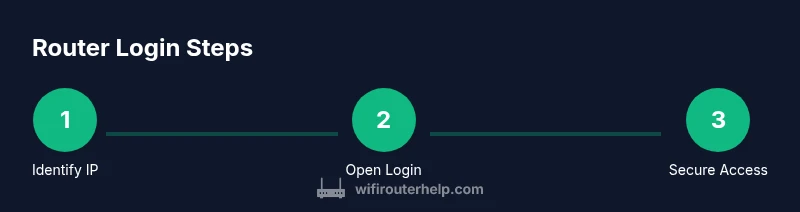
- Identify the router IP address using the methods above. 2) Open a web browser and type the IP address into the address bar, then press Enter. 3) If prompted, accept any security warnings and proceed to the login page. 4) Enter the admin username and password from the label or manual. 5) If the credentials work, you’ve reached the admin panel; if not, double‑check the IP and model, or perform a reset if needed. 6) After login, save or apply settings if prompted and log out when finished. This sequence is central to routerlogin workflows and helps you regain control quickly.
Secure login: best practices for password and encryption
Security starts with a strong admin password that you don’t reuse elsewhere. Use a long passphrase, mix upper and lower case letters, numbers, and symbols, and store it in a password manager. If available, enable HTTPS for the admin interface to encrypt traffic between your browser and the router. Disable password hints and avoid leaving the login page open on shared devices. Wherever possible, enable two‑factor authentication if your router supports it, and review who has access to the admin interface regularly. These practices reduce the risk of unauthorized changes through routerlogin.
Configuring essential settings after login
Once you’re in the admin panel, prioritize changing the router login credentials, updating firmware, and configuring Wi‑Fi basics. Change the SSID to something unique (avoid personally identifiable information) and set a strong Wi‑Fi password with WPA2‑AES or WPA3 if available. Review the router’s firewall settings and enable automatic firmware updates. If your router supports guest networks, consider enabling one for visitors to keep your main network private. Turn off features you don’t use, such as UPnP if you don’t need it, and restrict remote management to devices you control. These steps comprise the practical core of routerlogin optimization.
Troubleshooting login issues
If you can’t reach the login page, verify the device is connected to the network and the correct IP is used. Disable VPNs that might route traffic away from the router, and try a wired connection to rule out wireless hiccups. Clear browser cache or try a different browser, in case of session conflicts. If you’re locked out after multiple failed attempts, you may need to restart the router or perform a controlled reset. Always ensure you’re using the official firmware, as third‑party firmware can alter the login process. For persistent problems, contact the router’s support line and reference the model number when describing routerlogin issues.
Advanced topics: guest networks, parental controls, and QoS
Routerlogin isn’t only about access—it’s the gateway to advanced features that improve your experience. A guest network keeps visitors off your main network, reducing risk to your devices. Parental controls let you manage screen time and content for family members. Quality of Service (QoS) prioritizes traffic for gaming or video calls, improving perceived performance. When configuring these, start with small, incremental changes to avoid inadvertently breaking connectivity. Always log out after changes and test from multiple devices to confirm the new settings work as intended.
Security hardening and update cadence
Security is ongoing. Set automatic firmware updates if your device supports them, and periodically check for new releases. Disable remote management unless you truly need it, and consider changing the admin URL if supported. Review connected devices and remove anything you don’t recognize. Keep L2/L7 protections in place, and consider password hygiene revisited on a quarterly basis. With consistent routerlogin maintenance, you reduce vulnerabilities and extend the life of your home network.
Maintenance and monitoring after setup
Regular maintenance ensures routerlogin remains effective. Schedule a monthly check to review firmware status, connected devices, and the admin password. Keep a simple changelog of configuration updates so you know what changed and when. If you notice sluggish performance, run speed tests and verify QoS rules or parental controls. Finally, back up your configuration after significant changes; this makes it easy to restore settings if anything goes wrong.
Tools & Materials
- Laptop or smartphone(Used to access the login page via a web browser)
- Web browser(Chrome, Safari, Edge, or Firefox)
- Router documentation or label(Contains default IP, username, and password)
- Ethernet cable(Useful if Wi‑Fi access is unreliable during setup)
- Notebook or password manager(Record credentials securely after changing them)
Steps
Estimated time: 15-25 minutes
- 1
Identify the router IP address
Determine the private IP that serves as the gateway to the admin panel. Use the device label or run ipconfig (Windows) or ifconfig (macOS/Linux) to locate the Default Gateway. This IP is the address you’ll enter into your browser to reach the login page.
Tip: If you see multiple gateways, choose the one labeled as Default Gateway or the first private IP in your subnet. - 2
Open the login page in a browser
Enter the router IP in the browser’s address bar and press Enter. If a certificate warning appears, proceed if you trust the device. You should see a login screen asking for a username and password.
Tip: Use a wired connection for stability during login attempts. - 3
Enter credentials
Input the administrator username and password from the label or manual. If credentials have been changed and you don’t remember them, you may need to reset the router to factory defaults.
Tip: If you’re unsure of the credentials, consult the official support page for your model before attempting reset. - 4
Change default credentials
Navigate to Administration or System settings and replace the default username and password with a strong, unique pair. Save changes and log out, then log back in with the new credentials to confirm they work.
Tip: Use a passphrase of 12+ characters with a mix of letters, numbers, and symbols. - 5
Apply and verify changes
Apply all changes and check that you can re‑access the admin panel. If required, reboot the router and re‑test. Confirm that the Wi‑Fi name and password still broadcast correctly if you changed these during setup.
Tip: Keep the new credentials in a secure password manager. - 6
Lock down admin access
Disable remote management if you don’t need it, enable HTTPS if available, and ensure firmware updates are configured. Review firewall rules and disable features you don’t use to reduce exposure.
Tip: Record the new settings and test remote attempts only after you’ve secured access locally.
People Also Ask
How do I know my router's IP address?
Check the device label or manual, or look up the Default Gateway in your computer’s network settings. If you’re unsure, try the common IPs 192.168.0.1 or 192.168.1.1 first.
Find the router's IP by checking the label or your network settings, or try 192.168.0.1 or 192.168.1.1.
What if I forgot my admin password?
Use the router’s reset procedure to restore factory defaults, then set a new admin password. Note that this will reset Wi‑Fi names and other custom settings.
If you forget the password, restore factory defaults and reconfigure.
Is it safe to access the router from the internet?
Remote access is typically risky. Disable remote management unless you have a specific need, or use a secured VPN if you must access the admin panel remotely.
Remote access can be risky; disable it unless you truly need it or use a VPN.
Can I revert to factory defaults if login is lost?
Yes. Hold the reset button for about 10–15 seconds to restore defaults. Afterward, log in with the default credentials and reconfigure your security settings.
Yes. A factory reset restores defaults and you’ll reconfigure security afterward.
Should I enable UPnP or QoS via routerlogin?
UPnP offers convenience for devices, but can pose security risks. Enable QoS only if you need traffic shaping for specific use cases.
UPnP can be convenient but has security risks; use QoS only if you have a clear need.
Watch Video
What to Remember
- Identify the router login URL quickly.
- Always change default credentials immediately.
- Enable firmware updates and HTTPS when possible.
- Disable unnecessary remote admin features.
- Test access after every configuration change.