How to Reach Your Router: A Clear Step-by-Step Guide
Learn how to reach your router's admin page quickly and securely. This guide covers IP discovery, browser access, login credentials, troubleshooting, and best practices for a safer home network from WiFi Router Help.


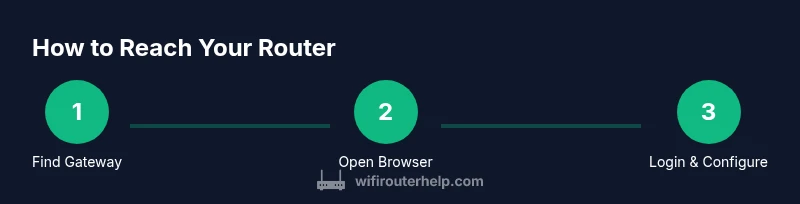
To reach your router, identify the gateway address on your device, open a web browser, and log in to the router’s admin page. Make sure you’re on the home network and connected to the router (via Wi‑Fi or Ethernet). Enter the admin username and password, then explore settings such as LAN, Wi‑Fi, and security. If you can’t access it, reset credentials or reboot the router.
Accessing your router: what it means to reach the admin page
Reaching your router means opening the router's web-based management interface so you can view status, change settings, and manage security. This access point is usually hosted locally on your home network, not on the wider internet. According to WiFi Router Help, knowing how to reach the router is foundational for diagnosing connection problems, improving performance, and safeguarding your devices. Start by confirming you’re on the same network as the router and have a device with a working browser. This section lays the groundwork for reliable access, regardless of whether you’re on Wi‑Fi or a wired connection.
Identify the gateway: your router's local address
Every device on your home network has an IP address, but the router has a special address known as the gateway or default gateway. This is the address you need to reach the admin panel. On Windows, you can find it by running ipconfig and looking for the Default Gateway line. On
How to reach the router using a browser: steps to load the admin page
With the gateway address in hand, open any modern web browser and type the address into the URL bar. Use http:// or https:// if the device prompts a certificate warning; many routers support both, but some require http for the initial login. Press Enter to load the login page. If nothing loads, verify you’re connected to the router’s network, try another browser, or temporarily disable VPNs that might intercept local traffic.
Login credentials: what you need to access the admin panel
Most routers use a default username and password printed on the device or in the manual. If you’ve never changed these, use the defaults to log in. If you previously changed them and forgot, you may need to reset the router to factory settings, which will erase custom configurations. After logging in, immediately update the admin password and account for better security. Remember: never share admin credentials and avoid using the same password across sites.
Troubleshooting common reach issues: quick fixes you can try
If you can’t reach the admin page, verify that your device is on the same network as the router. Check cables for wired connections and ensure the router’s lights indicate activity. Disable VPNs or firewall rules that might block local addresses, and attempt a reboot of the router and modem in the correct sequence. If IP conflicts occur, release and renew your device’s IP address. For persistent problems, consider performing a factory reset after backing up important settings.
Mobile vs desktop access: do you reach the router differently on phones?
Access methods are the same, but navigation can differ due to screen size. On mobile, you may access the admin page via a browser or a dedicated app provided by the router manufacturer. When using a smartphone, ensure you’re connected to the router’s network rather than a guest network with restricted access. If you rely on a 2.4 GHz band, confirm you’re not connected to a neighbor’s network by mistake. Tablet and desktop experiences are typically similar, with slightly larger controls on desktop interfaces.
Security and best practices after you reach the router
Once inside the admin interface, set a strong, unique admin password and enable router firewall protections. Disable remote management if you don’t need it, update the firmware to the latest version, and review connected devices to spot unfamiliar clients. Turn on WPA3 or at least WPA2 security for Wi‑Fi, and consider enabling guest networks to isolate IoT devices. Regularly back up configurations and document any changes you make for future reference.
Quick checks and next steps: a practical closing checklist
Confirm you can reach the router from multiple devices on the same network. Change a foundational setting like the admin password to strengthen security, then verify you can re‑access. If you rely on phone hotspots or public networks, avoid performing sensitive changes there. The WiFi Router Help team recommends keeping a reminder of your gateway address in a secure note for future access and periodic firmware refreshes.
Tools & Materials
- Device on the same network (phone, laptop, or tablet)(Wi‑Fi or Ethernet connection to the router)
- Web browser(Chrome, Edge, Safari, or Firefox)
- Router documentation or sticker(Contains default IP and credentials if you haven’t changed them)
- Factory reset pin or button(Use only if you forgot credentials and cannot recover them)
- Pen and paper(Record IPs, credentials, and changes for future reference)
Steps
Estimated time: 15-25 minutes
- 1
Find the gateway address
Check the device's network settings to identify the router's local IP. On Windows, run ipconfig and note Default Gateway. On macOS or iOS/Android, look in Network settings for the router address. This address is your ticket to the admin page.
Tip: If you see multiple gateways, choose the one labeled as the router or gateway for the active network. - 2
Open the admin login page
Open a web browser and type the gateway address into the URL bar, using http:// or https:// as appropriate for your device. Press Enter to load the login page. If a certificate warning appears, you can proceed if you trust the network.
Tip: Use a wired connection for maximum reliability during initial login if you’re troubleshooting connectivity. - 3
Enter credentials
Log in with the router’s admin username and password. If you haven’t changed them, check the sticker on the router or its manual for defaults. If login fails, you may need to reset the password or the device.
Tip: Update the admin password immediately after first login to improve security. - 4
Navigate to the desired settings
Once logged in, locate sections like Wireless, LAN, and Security. Adjust settings carefully, taking notes of changes. Apply changes and wait for the router to reboot if required.
Tip: Avoid changing multiple security settings at once; change one setting, test, then proceed. - 5
If you can’t access the page
Check if the device is on the correct network, disable VPNs, and ensure no firewall rules block local traffic. Reboot the router and the modem in the correct order (modem first, then router).
Tip: If the IP address is wrong, perform an IP Release/Renew or forget the network and reconnect. - 6
Consider a factory reset (as a last resort)
If credentials are lost and you cannot recover them, perform a factory reset using the reset pin. This restores defaults but erases custom settings. Back up configurations if possible.
Tip: Only reset after exhausting recovery options; otherwise you may lose personalized configurations.
People Also Ask
What is the easiest way to find my router's IP address?
Check the network settings on your device for the gateway or default router address. On Windows use ipconfig, on macOS check Network preferences, and on mobile inspect the Wi‑Fi details for the gateway.
You can find your router's IP by looking in your device's network settings for the gateway or default router address.
Why won't the login page load after I enter the IP?
Possible causes include a wrong IP, being on the wrong network, or a firewall blocking local traffic. Confirm you are connected to the router, try a different browser, or reboot the router.
If the login page won’t load, make sure you're connected to the router's network and try rebooting the router or trying another browser.
What if I forgot the router admin password?
Use the router's reset procedure from the device or manual to restore factory credentials, then log in and set a new password. Back up your configuration if possible.
If you forgot the admin password, reset the router to factory defaults and set a new password after login.
Can I reach the router admin page from outside my home network?
Remote access is possible if you enable it in the router settings, but it introduces security risks. Use strong authentication and consider VPN alternatives for remote management.
Remote access is possible but risky; enable it only if you understand the security implications or use a VPN.
What should I do after successfully reaching the router?
Update the admin password, review connected devices, enable firewall features, and ensure firmware is current. Document changes and back up settings.
After reaching the router, update credentials and firmware, review devices, and back up your settings.
Is it necessary to reset my router for minor issues?
Most minor issues can be fixed by rebooting or adjusting settings without a reset. Reserve factory reset for when credentials are lost or the device is malfunctioning.
Only reset if you can't recover credentials or the device is malfunctioning; otherwise reboot or adjust settings.
Watch Video
What to Remember
- Identify the router's local IP address first
- Use a trusted device on the same network to access the admin page
- Change default credentials and secure the network
- If login fails, use reset options carefully
- Regularly update firmware to maintain security and performance