How to Get Router Settings: Access, Review, and Save
Learn to locate your router's IP, log into the admin page, review essential settings, and verify connectivity after changes. A practical, step-by-step guide for homeowners.


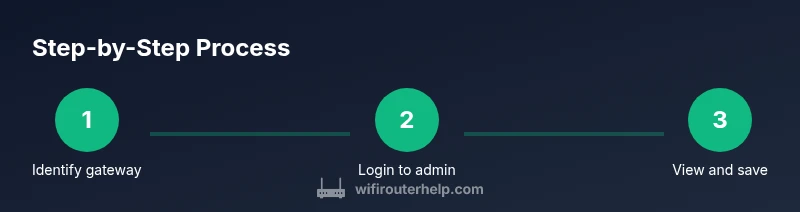
Learn how to access router settings by logging into the admin interface and reviewing key configuration pages. You’ll need a device on your network, the router’s IP address (gateway), and the admin credentials. According to WiFi Router Help, follow these steps to view and adjust settings safely, from login to saving changes and confirming connectivity.
Why Getting Router Settings Matters
Understanding and managing router settings improves security, performance, and reliability. If you’ve ever struggled with weak Wi‑Fi or flaky devices, the root cause is often misconfigured options that you can fix by reviewing the router’s settings. Access to these settings lets you switch from factory defaults to customized protections, prioritize devices, and identify issues quickly. The WiFi Router Help team notes that many homeowners succeed by learning a small set of core pages: status, wireless, DHCP, and security. By knowing what each page does, you can diagnose connectivity problems, block unwanted access, and tailor your network to your household. This knowledge also makes it easier to apply firmware updates safely and back up configurations before making changes. In short, having a clear map of your router settings helps you maintain a fast, secure home network and reduces the time spent troubleshooting.
Key Terms You'll Encounter
Before you start, familiarize yourself with a few core terms that appear on router admin pages. The gateway IP is the address you enter in a browser to access the interface. The SSID is your wireless network name, and the password protects access. DHCP assigns IP addresses to devices on your network, while NAT translates those addresses for the internet. The admin username and password control access to the settings. Encryption standards like WPA2/WPA3 protect wireless traffic. Knowing these terms helps you navigate pages like Status, Wireless, LAN, DHCP, and Security with confidence. WiFi Router Help emphasizes using current security standards and clear labeling to avoid confusion later.
How to Locate Your Router IP Address
Your router's IP address is the gateway you type into a browser to reach the login page. There are several reliable methods:
- Check the router label for the default gateway address and the default login information.
- On Windows, open Command Prompt and run ipconfig to find the Default Gateway.
- On
How to Access the Admin Interface
With the gateway IP in hand, open a modern web browser and enter http://<gateway-ip> or https://<gateway-ip> if the router supports a secure login. You’ll be prompted for a username and password. If you don’t remember your credentials, try the default ones listed on the router label, or consult the manufacturer’s support site. Important: avoid using remote management unless you explicitly enable it and understand the security implications. WiFi Router Help recommends performing changes from a trusted device on your home network and ensuring your browser is up to date.
The Main Settings Pages You’ll See
Within the admin panel you’ll typically encounter several key sections. Status shows current connections and uptime. Wireless controls enable you to change SSID, security mode, and password. LAN/DHCP pages manage local IP addressing and address assignment. NAT/Firewall settings control how traffic moves between your network and the internet. Each page serves a purpose: confirm current values, consider optimizations, and avoid changing options you don’t understand. Take your time to read page descriptions and use hover tooltips if available.
Securing Access: Changing Passwords and Admin Username
To protect your network, update the admin password regularly and avoid default credentials. Create a strong, unique password that uses a mix of letters, numbers, and symbols. If your device supports changing the admin username, do so to further reduce the risk of unauthorized access. After saving changes, log out and log back in with the new credentials to confirm the update took effect. Keep a secure record of credentials in a password manager.
Exploring Wireless Settings: SSID, Password, and Security
Wireless settings determine who can join your network and how data is protected. Change the SSID to something recognizable but not exposing your address or personal info. Use at least WPA2 or WPA3 security, and set a long, strong network password. If you enable guest networks, isolate them from your main network to protect devices like smart assistants and IoT gear. Save changes and test connectivity from a phone or laptop to confirm all devices reconnect smoothly.
Managing IP Settings: DHCP, Static IP, Gateway
DHCP automatically assigns IP addresses to devices, simplifying management. If you need devices to use fixed addresses (for gaming consoles or servers), switch to Static IP in the LAN settings and configure the corresponding DHCP reservation. Ensure the gateway remains the same, and avoid overlapping IP ranges with other networks. After adjustments, save and reboot the router if required to apply the new addressing scheme.
Saving Changes and Verifying Connectivity
Always save changes before leaving the admin interface. After saving, recheck the login page and re-open the admin panel to ensure changes persisted. Verify network connectivity by testing several devices: a computer, a phone, and a smart device. Run a quick speed or ping test to confirm performance remains stable. If devices show intermittent connections, recheck wireless settings and the DHCP scope.
Common Problems and Quick Fixes
If you can’t reach the login page, double-check the gateway IP, network connection, and browser. If login fails, try the correct username and password, and consider a factory reset as a last resort if credentials were lost. Your changes may not take effect immediately on all devices; reboot the router and affected clients. For persistent issues, check for firmware updates and confirm you’re not using remote management unintentionally.
Backing Up and Restoring Router Configs
Before making large changes, back up the current configuration if your router offers an export option. This creates a restore point you can return to if something goes wrong. Store the backup file in a secure location. If you need to restore later, use the import or restore function in the admin panel to apply saved settings without reconfiguring everything by hand.
Authority Sources and Further Reading
For broader guidance on network security and home router best practices, see resources from government and major publications. This includes guidance from the CISA and NIST on cybersecurity basics, as well as federal consumer protection tips from the FTC. These trusted sources help you frame safe, effective router management within a wider security context.
Authority Sources (Government and Educational) - Additional Reading
- https://www.cisa.gov/stopransomware-cybersecurity-tips
- https://www.nist.gov/topics/cybersecurity-framework
- https://www.ftc.gov/tips-advice/business-center/guides
- https://www.ntia.gov
Tools & Materials
- A computer, tablet, or smartphone(Must be on the same network as the router during login)
- Working network connection(Wired (Ethernet) or wireless is fine)
- Router admin credentials(Username and password; consider password manager for storage)
- Web browser(Modern browser (Chrome, Edge, Firefox, Safari))
- Pen and paper or digital note tool(Jot down current settings before changing anything)
Steps
Estimated time: 20-40 minutes
- 1
Identify the gateway IP
Find the router’s IP address, which serves as the login URL. Use the device’s network settings, or check the router label for the default gateway. This address is required to access the admin interface and begin reviewing settings.
Tip: If you’re unsure, print or save the label from the router for quick reference. - 2
Collect login credentials
Locate the admin username and password. If you changed them previously, use the updated credentials. If not, refer to the label or manufacturer support pages to determine the default login.
Tip: If you forget the credentials, prepare to reset through the physical reset button as a last resort. - 3
Open a browser and navigate to the login page
Enter http://<gateway-ip> in your browser’s address bar. If the router supports secure login, use https:// as well. You should see a login prompt asking for your username and password.
Tip: Use a trusted device and avoid public Wi‑Fi during login to protect credentials. - 4
Log in to the admin interface
Enter the admin credentials and access the router’s dashboard. If you’re unable to log in, double-check the IP and credentials, or try a reset if necessary.
Tip: If two-factor options exist, disable them only temporarily while you perform changes. - 5
Navigate to the main settings area
Go to sections such as Status, Wireless, LAN/DHCP, NAT, and Security. This provides quick visibility into current values and where to make changes.
Tip: Don’t rush; take screenshots of important pages before changing anything. - 6
Review and adjust essential settings
Check security, wireless, and IP settings. Change weak passwords, enable WPA2/WPA3, update SSID names if needed, and adjust DHCP scope to fit your devices.
Tip: Only modify options you understand; minor changes can have wide effects on connectivity. - 7
Save changes and exit
Apply the changes and allow the router a moment to reboot if required. Ensure you can re‑log in with updated credentials.
Tip: Confirm you can access the admin page again after saving. - 8
Test connectivity
From multiple devices, connect to the network and verify internet access. Run a quick speed test and ping common services to confirm stability.
Tip: If devices don’t reconnect, reboot the router and client devices. - 9
Back up current configuration
Export or save the router’s configuration to a secure location. This provides a restore point if something goes wrong later.
Tip: Label backups clearly with date and the changes made.
People Also Ask
What is the best way to find my router's IP address?
Use the gateway address shown on the router label or check your device's network settings. If needed, run commands on your computer to reveal the Default Gateway. This IP is what you enter in your browser to access the admin interface.
To find your router IP, check the label or your device's network settings, then enter that address in your browser to log in.
What if I forget the admin password?
Try the default credentials listed on the router label or the manufacturer’s site. If those don’t work, use the router’s reset procedure as a last resort, knowing you’ll lose custom settings.
If you forgot the password, check the label or manufacturer site for defaults, or reset as a last option, which will erase current settings.
Can I access router settings from a mobile device?
Yes. As long as your mobile device is connected to the router's network, open a browser and log into the admin page using the gateway IP. Some routers also offer a companion app for easier navigation.
Absolutely. If you’re on the same network, you can log in from your phone or tablet using the gateway IP or the router’s app.
Why won't the login page load?
First, verify the device is on the correct network and that you’re using the right gateway IP. Clear browser cache, try a different browser, and ensure no firewall blocks access. If problems persist, check for a reset option or firmware issues.
If the login page won’t load, check the IP, clear cache, try another browser, and ensure no firewall blocks it.
Should I change the router password and admin username?
Yes. Change default credentials to strong, unique ones. If the device supports changing the username, do so for extra security, and store the new details securely.
Yes, change defaults to strong, unique credentials and store them securely.
What should I do after changing settings to verify connectivity?
Reboot the router if prompted, then re-check login access and test internet on multiple devices. Run a quick speed test and ping common services to confirm stable connectivity.
After changes, reboot if needed and test connectivity on several devices to ensure everything works smoothly.
What to Remember
- Identify gateway IP and credentials before editing
- Back up settings to a safe location
- Use strong, unique admin passwords
- Verify connectivity after changes