What’s My Router Settings? A Comprehensive Step-by-Step Guide to View and Verify
Learn how to locate, log in to, and review your router settings—from admin access to wireless security. This guide helps homeowners keep networks safe, private, and reliable with practical, step-by-step instructions.


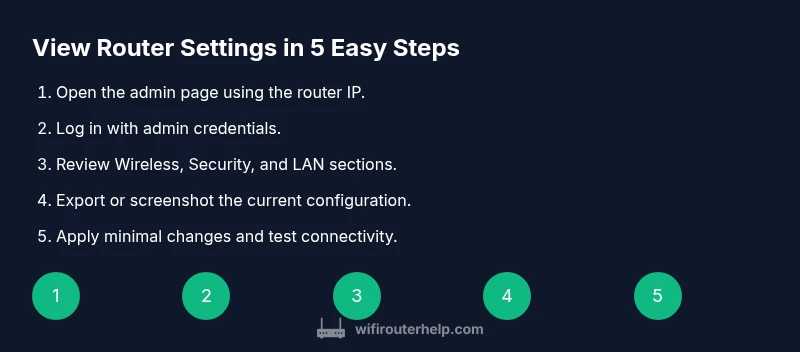
What’s my router settings? To view them: connect a device to your network, open a browser, and enter your router’s IP address (most routers use 192.168.1.1 or 192.168.0.1). Log in with the admin username and password, then explore sections like Wireless, LAN, and Security to see your SSID, password, firewall, and connected devices.
What "What’s my router settings" really means
In practical terms, router settings are the controls that define how your home network behaves. They cover security, wireless details, connected devices, and how your devices obtain an IP address. For homeowners, understanding these settings helps you protect privacy, improve reliability, and diagnose connectivity issues. According to WiFi Router Help, the core concept is that every home network has a console you can access to review and adjust those controls. The WiFi Router Help team found that most issues start with a weak admin password, outdated firmware, or misconfigured wireless security. The goal isn't to tinker blindly but to verify that the essentials—admin access, Wi‑Fi name, password, security mode, and firmware status—are correct. If you’re unsure, proceed step by step, backing up before making changes, and only altering settings you understand.
How to locate the login page and credentials
Every router has a web-based interface you access through a browser. Start by identifying the device that provides your connection—this can be a standalone router or a gateway device from a ISP. Then, determine the IP address to reach the admin page (common options are 192.168.1.1, 192.168.0.1, or sometimes 10.0.0.1). If you don’t know the address, check the underside of the router for a sticker with the default gateway and credentials. Use a web browser on a device connected to the network and type the IP address in the address bar. When prompted, enter the default username and password found on the label or in the manual. If the credentials were changed previously, use the current ones; otherwise, you may need to reset to regain access.
What you’ll typically see in the admin interface
The router’s admin page is organized into sections that reflect different aspects of the network. Common sections include Wireless (for SSID and security), LAN (IP range and DHCP), WAN/Internet (modem connection and type), Security (firewall and remote access), and Device List (connected clients). You’ll also see firmware version and last update status. Understanding where each setting lives helps you quickly review critical values like your SSID, Wi‑Fi password, encryption (WPA2/WPA3), and whether guest networks are enabled. If you use multiple bands (2.4 GHz and 5 GHz), expect separate sections for each band’s name and password.
Backing up and documenting your current settings
Before making changes, create a backup copy of the current configuration. Many routers offer a backup or export option in the System or Administration area. If a backup export isn’t available, take screenshots of each page with the important fields (SSID, password, encryption, DHCP range, and firewall rules) and store them in a secure location. Document the exact steps you took to reach each setting, so you can revert if something doesn’t work after edits. This practice saves time and reduces risk when experimenting with QoS, port forwarding, or guest networks.
Safe first changes you can make
Start with non-disruptive updates. Change the admin password to a strong, unique one and consider enabling two-factor authentication if supported. Rename your network (SSID) only if you need to improve clarity or privacy, and ensure you keep the original password or update it across all devices. Verify the security mode; favor WPA3 or WPA2‑PSK with AES. Disable WPS if it’s enabled, as it can be a weak link. Do not turn off the firewall or disable security features unless you fully understand the impact.
Firmware updates and security best practices
Firmware updates fix bugs, add features, and improve security. Check whether your router is up to date by visiting the Firmware Update or Maintenance section of the admin interface. If your ISP provides automatic updates, you may see this controlled by the device. Always back up before updating, and do not interrupt the process. After updating, recheck your wireless settings, including SSID and password, because some updates revert values to defaults.
If things go wrong: reset and recovery
If you forget the admin password or the interface becomes inaccessible, a factory reset may be necessary. Locate the reset button on the back of the device, press and hold for 10–15 seconds with a paperclip, and release when the lights flash. After a reset, use the default credentials from the router label and reconfigure from scratch. Remember to re-create a strong admin password and back up the new configuration to avoid future lockouts.
How to verify your changes: testing and monitoring
After applying changes, verify you can reconnect all devices and that the internet is functional. Test Wi‑Fi on multiple devices, check for reliable speed, and confirm that security features (encryption, firewall) are active. If you enabled a guest network, ensure it can access the internet but is isolated from the main network. Periodically review connected devices and performance to catch rogue clients or outdated firmware.
Advanced tips for power users
Power users can explore advanced features like QoS rules to prioritize gaming or work devices, port forwarding for specific applications, or setting up a static DHCP lease for a critical device. If you enable bridge mode, understand how it changes your network topology. Always maintain a documented change log and test after each adjustment to prevent conflicts with other network devices.
Tools & Materials
- Web-enabled device (computer, smartphone, or tablet)(Ensure a modern browser is available and connected to the router’s network)
- Router login credentials (admin username and password)(Check the device label or manual if you don’t recall them)
- Router network connection (Wi‑Fi or Ethernet)(Keep the device connected during the session)
- Ethernet cable (optional)(Useful for a stable wired setup during configuration)
- Notebook or digital note app(Record changes, default credentials, and backup details)
- Device that can capture screenshots(Helpful for backing up settings if export isn’t available)
Steps
Estimated time: 60-90 minutes
- 1
Connect and prepare
Power on the router and join the network with a device. Ensure the device has a stable connection to the router, preferably via Ethernet for initial access to minimize dropouts. This prepares you for a smooth login session.
Tip: If your signal is weak, move closer to the router or temporarily use a wired connection. - 2
Open the admin page by IP
Open a web browser and type the router’s IP address (common options are 192.168.1.1, 192.168.0.1, or 10.0.0.1). Press Enter to load the login screen. If you don’t know the address, check the sticker on the router or your manual.
Tip: If nothing loads, try both 192.168.1.1 and 192.168.0.1 before contacting support. - 3
Log in with admin credentials
Enter the admin username and password. If you’ve never changed them, use the defaults from the router label. If you can’t log in, you may need to reset the device.
Tip: If you forgot the credentials, first look for a reset option rather than guessing. - 4
Navigate to Wireless or Security sections
Find sections labeled Wireless, Security, or Network. Review the SSID, password, encryption mode, and any guest network settings. These are the core pieces of your home network identity.
Tip: Note whether you’re adjusting the 2.4 GHz or 5 GHz network as they may have separate passwords. - 5
Review LAN/DHCP and WAN status
Check the DHCP range, LAN IP, and WAN/Internet status to ensure devices receive proper addresses and that the internet connection is active.
Tip: If you see an unexpected IP range, a misconfigured DHCP server may be the cause. - 6
Back up current settings
Export a configuration file if your router supports it, or take clear screenshots of key pages. This backs you up in case you need to revert.
Tip: Backups prevent loss of custom rules after edits. - 7
Make a safe first change
Change the admin password to a strong, unique value and enable WPA3 if available. Rename the SSID only if you must, keeping a note of the original values.
Tip: Avoid changing multiple settings at once to isolate issues. - 8
Apply changes and reboot if needed
Save or apply the changes. Some routers require a reboot to finalize updates. Confirm that all devices reconnect automatically after the reboot.
Tip: If devices don’t reconnect, forget and rejoin the network on each device. - 9
Test and document
Test internet access on several devices and verify security features. Document any changes for future reference and monitor performance over the next few days.
Tip: Maintain a simple change log for future troubleshooting.
People Also Ask
What is the default IP address to access my router?
Most routers use private IPs like 192.168.1.1 or 192.168.0.1. If neither works, check the router label or manual for the exact address.
Most routers can be reached at 192.168.1.1 or 192.168.0.1. If you’re unsure, check the device label for the exact address.
What if I forget the admin password?
If you forget the admin password, you may need to reset the router to factory defaults. After a reset, reconfigure from scratch and set a new strong password.
If you forget the admin password, you may need to reset the router to factory defaults and set a new password.
Can I access router settings from a mobile device?
Yes. Use a mobile browser to access the same admin URL. Some routers offer companion apps for easier management.
Yes, you can access settings from mobile using a browser or the router’s app.
Is updating firmware safe?
Firmware updates fix bugs and improve security. Backup first, ensure the device has power during update, and avoid interrupting the process.
Firmware updates are important for security; back up first and avoid interrupting the update.
How do I back up router settings?
Look for a Backup or Export option in the interface, or take screenshots of key pages and save them securely.
You can back up by exporting settings if available, or by saving screenshots of the important pages.
Why can’t I access the admin page after changes?
There may be a misconfiguration or the device is on a different network. Double-check the IP, clear browser cache, and retry. If needed, reset and start fresh.
If you can’t access the admin page after changes, check the IP, clear cache, and retry; you might need a reset if access is lost.
Watch Video
What to Remember
- Back up before edits and document changes
- Use strong admin credentials for safety
- Verify both 2.4 GHz and 5 GHz networks separately
- Keep firmware up to date to reduce vulnerabilities
- Test connectivity after applying settings