Where Are Router Settings? Locate, Access, and Adjust Your Router
Learn where router settings live, how to access the admin page, and safe steps to modify Wi‑Fi name, password, security, and guest networks for a stronger home network.


Find and adjust router settings by logging into your router's admin page through a web browser using the device's IP address (commonly 192.168.0.1 or 192.168.1.1). You may need the admin username and password, which are often printed on the router label or provided by your ISP. Once logged in, you can update Wi‑Fi name (SSID) and password, security (WPA2/WPA3), guest networks, parental controls, and firewall rules. Save changes and reboot if required.
What are router settings and why they matter
When people ask where are router settings, they typically want to locate the control panel that governs how devices connect to your home network and how traffic is managed. Router settings determine which devices can join, which channels the Wi‑Fi uses, and how secure the connection is. Understanding this environment helps you improve performance, reduce dead zones, and protect privacy. According to WiFi Router Help, the most impactful tweaks are often simple: updating the Wi‑Fi password, choosing a strong security protocol, enabling a guest network for visitors, and reviewing connected devices. The WiFi Router Help team found that many households leave these controls in default states, which can leave networks exposed or prone to slower speeds. By learning the layout of the admin interface, you gain practical control without needing advanced IT skills. This section helps you connect the dots between settings and outcomes—coverage, stability, and security—so you can make informed, incremental improvements.
Remember: settings exist to balance performance with protection. A quick audit can reveal who’s on your network, when, and how data is used, which is especially useful in busy households with multiple smart devices.
Locating the admin interface: typical addresses and how to identify yours
Most routers expose their admin pages at a local IP address, commonly 192.168.0.1 or 192.168.1.1. Some newer or ISP‑provided devices use router.local (especially on macOS) or a branded app that doubles as a management portal. If you’re unsure which address to use, start with the router label. Look for the default gateway listed on the device, or check the user manual and the manufacturer’s support site. If you still can’t locate it, you can scan your computer’s network properties to identify the gateway IP, or consult your ISP’s help center. For the most reliable results, try a wired connection from a computer directly to the modem/router combo, then enter the address in a web browser. This step is essential because access over Wi‑Fi can sometimes redirect to a captive portal or fail due to DNS issues. Keep in mind that some modern systems support “router discovery” via apps or network utility tools, which can simplify the process for non‑tech users. As you explore, write down the exact address used by your device so you can repeat it in the future without guessing.
Understanding the login process: credentials, accounts, and security
Access to router settings requires authentication. The default username and password are often printed on the router label or included in the setup guide provided by your ISP. If you’ve never changed them, you’re likely still using the defaults, which makes your network vulnerable. Change the admin credentials as soon as you gain access, and consider creating a separate guest account for the admin portal if your router supports it. If a primary account exists (common with ISP‑supplied devices), verify whether the ISP’s cloud management option overrides local login. In many cases, the local user accounts can be different from the cloud or app login. For best results, disable universal remote access unless you explicitly need it; otherwise, you’re exposing your router to the broader internet. If you forget the credentials, use the router’s reset procedure to restore defaults, then re‑configure from scratch. Always document new credentials in a secure place.
Where to find common settings: Wi‑Fi, security, and management
Router settings are typically organized into sections like Wireless, Security, and Advanced. In Wireless, you’ll set the SSID (network name), the Wi‑Fi password, and the security mode (WPA2‑PSK, WPA3‑SA, or mixed). Security sections cover encryption, firewall rules, and malware protection if offered. Management or Administration lets you change admin credentials, enable/disable remote management, and adjust device access controls. Some brands also provide a Guest Network section to isolate guest traffic from your main network, which is a best practice for protecting main devices. In Advanced settings you may find port forwarding, UPnP, QoS, VPN passthrough, and DNS configuration. If you use a mesh system, these controls may be distributed across the main router and satellite nodes; the interface will reflect this topology. When making changes, proceed one category at a time to minimize unintended disruptions, and always test connectivity after touching critical options like firewall rules or port forwards.
Best practices for changing router settings safely
Before touching anything, back up the current configuration if the router provides a backup/export option. If not, take screenshots or notes of the exact values before changing them. Change only one setting at a time and test afterward to identify the cause if anything goes wrong. Disable remote management unless you need remote access, and enable a strong, unique admin password for every device. Use a robust Wi‑Fi password and enable WPA2‑AES or WPA3 if available. Create a separate guest network for visitors to keep your main network private. Keep firmware up to date, as updates often include security fixes and performance improvements. If you’re unsure about a feature, pause and consult the manufacturer’s support article or WiFi Router Help guidance before proceeding. Finally, document all changes with timestamps so you can revert quickly if issues arise.
Troubleshooting common access issues
If you can’t reach the admin page, verify you’re connected to the correct router (not a neighbor’s device). Check that your device is on the same local network (not connected through a VPN). Try the default gateway approach again and clear the browser cache. If the IP address doesn’t load, connect a computer directly to the router via Ethernet and re‑attempt the login. A common fix for blocked access is a soft reboot of the router by unplugging it for 30 seconds and plugging it back in. If login prompts keep failing, reset the device to factory defaults as a last resort, then reconfigure from scratch. After changes, test by loading a known site, streaming a video, and running a speed test to confirm improvement or detect regressions. If issues persist, consult the router manufacturer’s troubleshooting guide or WiFi Router Help resources.
Backups, recovery, and export options
Backing up router settings is a safety net that saves time and prevents data loss during experiments. Look for an Export/Backup option in the Administration or Maintenance tab; if your model supports it, export a current configuration file and store it securely. If export isn’t available, manually documenting critical values (SSID, password, security mode, port forwards, and DNS) is prudent. Some vendors offer cloud backups linked to your account; ensure you use a strong account password and enable two‑factor authentication if available. If you must recover from a misconfiguration, use the factory reset button or pin; note that this will erase all settings and restore defaults. After resetting, re‑enter essential information and gradually reapply changes one by one, validating connectivity at each step. Regular backups enable you to restore service quickly after a misstep.
Advanced tips: firmware updates, remote management, and parental controls
Firmware updates are crucial for security and performance. Check for updates in the router’s Firmware page and enable automatic updates if you trust the vendor. When enabling new features like QoS or VPN passthrough, carefully plan their impact on your network. Remote management can be convenient but poses a security risk if exposed to the internet; disable it unless you have a specific need and restrict access by IP filtering if possible. Parental controls and access schedules help manage device usage and ensure safety for children, particularly on networks with many IoT devices. Use a dedicated guest network for devices shared with guests and keep main devices on a private network. Always test after applying advanced changes to avoid unintentional service interruptions and verify devices reconnect smoothly.
Brand‑specific tips: brand defaults and path differences (Linksys, Netgear, TP‑Link)
Different router brands structure their administration pages differently, so adapt your approach to the interface you’re using. Linksys often uses a well‑structured Wireless page with quick‑toggle security settings; Netgear tends to place more controls under Advanced or Security sections; TP‑Link devices commonly group features under Wireless, Security, and Network. If you’re using a mesh system, settings may be distributed between the main router and satellites. In all cases, look for the password field under Wireless or SSID, ensure the encryption is WPA2‑AES or WPA3, and avoid default credentials. When in doubt, consult the manufacturer’s official support article or WiFi Router Help resources for brand‑specific guidance.
Tools & Materials
- Device with a web browser (phone, tablet, or computer)(Ensure the device is connected to the router’s network during setup)
- Router login credentials(Usually on the router label or provided by the ISP)
- Active internet connection (optional for local changes)(Needed if you plan to fetch firmware updates or cloud settings)
- Ethernet cable (optional)(Provides a stable link when wireless access is flaky)
- Notebook or screenshots for backups(Capture current settings before making changes)
Steps
Estimated time: 15-25 minutes
- 1
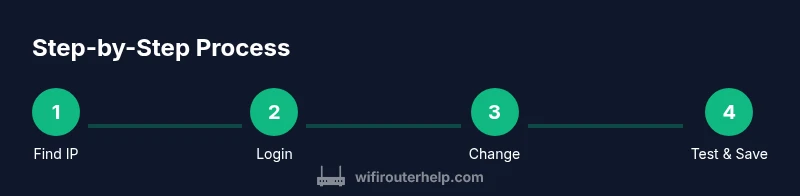
Find the router's IP address
Identify the correct local IP by checking the device label, consulting the manual, or using your computer’s network settings to locate the default gateway. This address is what you’ll type into your browser to access the admin page.
Tip: If you see multiple gateways, pick the one labeled as the router or default gateway. - 2
Connect to the admin page
Open a web browser and enter the router’s IP address. If prompted, accept any security warnings and proceed to the login screen. Prefer a wired connection during this step for reliability.
Tip: Using a wired connection reduces risk of dropouts during login. - 3
Log in with the right credentials
Enter the admin username and password. If you never changed them, check the label or manual. If you can’t recall, use the reset option on the router as a last resort.
Tip: Record the new credentials in a secure place. - 4
Update Wi‑Fi name and password
Navigate to the Wireless/Wi‑Fi section. Change the SSID to a name you recognize and set a strong, unique password. If available, enable WPA3 or WPA2‑AES and avoid mixed modes.
Tip: Choose a password that is long and includes a mix of letters, numbers, and symbols. - 5
Adjust security settings
In the Security area, verify the encryption method, enable the firewall, and review any built‑in protections. Disable WEP and open networks to reduce risk.
Tip: Enable automatic firmware updates if offered. - 6
Configure guests and device access
Set up a Guest Network for visitors and consider separate subnets for IoT devices. Disable unnecessary remote access and limit admin access to trusted devices.
Tip: Guest networks help keep your main devices separate from guests’ devices. - 7
Apply changes and reboot if required
Save or apply the changes. Some settings require a router reboot; perform the reboot to ensure changes take effect.
Tip: If a reboot is prompted, do not unplug the router prematurely. - 8
Verify connectivity
Reconnect devices and test a few activities: browse, stream, and run a quick speed test. Ensure all critical devices reconnect without issues.
Tip: If a device cannot connect, re‑enter credentials or reset the Wi‑Fi connection.
People Also Ask
Where can I find my router's default IP address?
Most routers use 192.168.0.1 or 192.168.1.1 by default. If these don’t work, check the label, manual, or your ISP’s support site.
Most routers use 192.168.0.1 or 192.168.1.1 by default; check the label or manual for your model.
What if I forgot my admin password?
Use the password reset option if available, or perform a factory reset if you’re locked out (note: this erases all settings). Re‑configure from scratch.
If you forgot the admin password, reset it via the router’s reset button if needed.
Can I access router settings from a smartphone?
Yes. Use the same IP address in a mobile browser. Ensure you’re on the home network for security.
Yes, you can access settings from a phone on your home network.
Should I enable remote management?
Unless you need remote access, disable it to reduce exposure to the internet. If you must enable it, restrict access by IP and use a strong password.
Remote management should be disabled unless you need it.
What’s the best security protocol to use?
Use WPA3 if available; otherwise WPA2‑AES. Avoid WEP and open networks; ensure the firewall is enabled.
Use WPA3 or WPA2‑AES with firewall enabled.
How do I back up router settings?
Look for an Export/Backup option; if unavailable, take screenshots of key settings and store them securely.
Use the router’s export feature if available, or save screenshots of the essential settings.
Watch Video
What to Remember
- Identify the router login page and IP address quickly.
- Back up settings before making changes.
- Use strong Wi‑Fi credentials and current security standards.
- Test connectivity after each change to catch issues early.
- Know how to revert with a backup or factory reset if needed.