Access Router Options: Step-by-Step Home Network Guide
Learn how to access router options safely, configure Wi‑Fi, security, and guest networks. This practical guide from WiFi Router Help covers login, settings, and troubleshooting for a stronger home network.


You’ll learn how to access your router’s admin interface, locate essential options, and apply changes safely. This includes finding the correct IP address, logging in, and adjusting wireless, security, and guest-network settings. You’ll also learn best practices for backups and troubleshooting to keep your home network stable. This quick guide is designed for homeowners and tech enthusiasts. It emphasizes practical steps, safety, and verifiable results.
Understanding Access Router Options
Accessing (and configuring) your router options is a foundational skill for a healthy home network. When you access router options, you control how your devices connect, how securely they communicate, and how services like guest networks and QoS behave. According to WiFi Router Help, taking a thoughtful approach to this access reduces risk and improves performance. In this guide, you'll learn how to safely reach the router's admin interface, locate the most impactful settings, and apply changes with confidence. This step-by-step journey is designed for homeowners and tech enthusiasts who want reliable, practical guidance without jargon.
How Your Home Network Benefits from Proper Router Settings
A well-tuned set of router options can deliver more stable Wi-Fi, stronger security, and better control over who uses your network. By customizing SSID names, encryption, guest networks, and parental controls, you reduce interference, limit access to sensitive devices, and simplify device management. When you take charge of router options, you can prioritize devices for gaming or work, segment traffic to prevent congestion, and monitor usage more effectively. The result is a clearer picture of your home network's health and fewer surprises at busy times. In practice, planned changes align with real-world needs—streaming in the living room, remote work in the home office, and smart devices across the house—without sacrificing security or simplicity.
Key Categories of Router Options
Modern routers expose multiple categories of settings. Core areas include: Wireless settings (SSID, password, and encryption mode such as WPA3); Security controls (admin password, HTTPS, remote management); Guest network configuration (isolated access for visitors); QoS (prioritizing latency-sensitive tasks like video calls or gaming); Parental controls (time limits and site filtering); Firmware updates (keeping software current); and WAN/Internet settings (IP mode, DNS, and failover). Understanding these groups helps you plan which changes matter most for your household. Start by documenting your current setup before making changes, so you can compare results after updates.
Preparing to Access Your Router
Before you change any settings, gather essential information and create a safe backup. Identify your router's IP address and the login credentials, typically printed on the device or in the manual. Have a device ready with a wired or wireless connection to the router, and ensure you are using a secure browser with JavaScript enabled. If you are unsure about any change, note it and test later. Creating a backup of current settings or exporting a configuration file gives you a rollback point if something goes wrong. Finally, check for any firmware updates so you know what version you are targeting before you begin.
Best Practices for Securing and Optimizing Settings
Security should be your guiding principle when accessing router options. Use a strong admin password and enable HTTPS where available; disable remote management unless you truly need it. Choose WPA3 or at least WPA2-Personal with a strong PSK for Wi‑Fi encryption. Create a separate guest network to protect your main devices, and enable client isolation to prevent guests from communicating with each other. Turn off UPnP if you do not need it, or configure it carefully to minimize exposure. Regular firmware updates are crucial because they fix vulnerabilities and improve performance. Finally, document changes and monitor connected devices so you notice unfamiliar access quickly.
Troubleshooting Common Access Issues
If you cannot access the router admin page, confirm you are using the correct IP address (common defaults are 192.168.0.1 or 192.168.1.1). Try a wired connection or a different browser, and disable VPNs that could obstruct access. If the login screen does not appear, reset your router to factory defaults as a last resort, then reconfigure from scratch. After applying changes, reboot the router if required and verify connectivity by visiting a known site or running a quick speed test. If problems persist, consult the device's manual or the manufacturer's support site for model-specific steps.
Case Scenarios: Common Home Setups
In a small apartment with simple streaming needs, a single SSID with WPA3 and a guest network is often sufficient. In a family home with multiple devices, enabling QoS for video calls and gaming, plus time-based parental controls, can maintain performance while keeping kids safe. For a home office with remote workers, prioritize wired connections for work devices and reserve high-priority wireless channels for meetings. In households with smart devices, ensure the IoT network is securely isolated from your main network to reduce exposure to threats.
Regular Maintenance and Audits
Set a recurring reminder to review router options every few months. Verify firmware versions, revisit password strength, and confirm that guest and parental controls still align with your family's needs. Periodically audit connected devices to remove unauthorized machines and monitor for unusual activity. Keeping a documented change log makes future updates safer and easier to revert if necessary. A routine review helps you maintain a resilient and user-friendly home network.
Authority Sources
For foundational guidance on router security and best practices, refer to these authoritative resources. They provide up-to-date, credible information you can rely on when making changes to router options:
- FCC: Wireless Networking Basics – https://www.fcc.gov/general/wireless-networking-basics
- NIST: Wireless Network Security Guidelines – https://www.nist.gov/topics/wireless-network-security
- CISA: Cybersecurity Information and Guidance – https://www.cisa.gov
Tools & Materials
- Computer or mobile device with a modern web browser(Chrome/Firefox/Safari; JavaScript enabled)
- Router login credentials(Admin username and password; verify if changed)
- Ethernet cable (optional)(Helpful for a stable admin connection)
- Current network details (SSID/password)(Use to verify changes)
- Firmware update information(Check for available updates before changes)
- Notebook or digital notes app(Document settings and backups)
Steps
Estimated time: 25-45 minutes
- 1
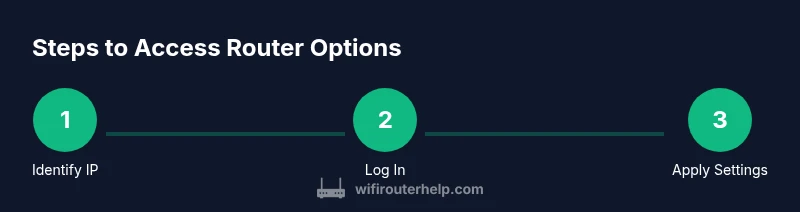
Identify the router's IP address
Most home routers use 192.168.0.1 or 192.168.1.1. To verify, open Command Prompt (Windows) or Terminal (macOS/Linux) and run ipconfig or ifconfig to locate the default gateway. Copy the address carefully; this is the URL you will use to reach the admin page.
Tip: If unsure, check the router label or manual for the exact IP. - 2
Log in to the router admin interface
Enter the IP into a web browser. Enter the admin username and password found on the router or provided by your ISP. If you forgot them, perform a factory reset, understanding that this will erase personalized settings.
Tip: Use a wired connection when possible for reliability. - 3
Navigate to wireless or basic settings
From the main menu, locate Wireless, Setup, or Network. Do not change settings outside your comfort zone; misconfiguring core options can disrupt connectivity. Take a before-shot screenshot to compare after changes.
Tip: Screenshot current pages before editing. - 4
Secure the Wi‑Fi with strong encryption
Set the encryption to WPA3 or WPA2 with a strong PSK. Create a long, unique password and avoid common phrases. If WPA3 isn’t available, use WPA2 with a robust key.
Tip: Use a password manager to generate and store the key. - 5
Secure the admin interface
Change the admin username if possible and enable HTTPS. Disable remote management unless you truly need it. These steps significantly reduce exposure to attackers.
Tip: If HTTPS isn’t available, ensure the local network remains trusted. - 6
Configure guest network and controls
Set up a guest network with its own SSID and password. Enable client isolation and, if available, parental controls or time-based access to manage usage.
Tip: Choose a distinct SSID for guests and avoid sharing your main network name. - 7
Apply changes, test, and back up
Save or apply changes. Reboot if required, then test by connecting a device and loading a page. Export the configuration when available to serve as a rollback point.
Tip: Document the exact changes and keep a backup file.
People Also Ask
What is the best way to access my router options securely?
Use a secure browser connection over the local network, ensure the admin page uses HTTPS if available, and keep your router password strong. Avoid exposing admin pages to the internet.
Access the router from a trusted device on your local network using HTTPS when possible.
Why can't I log in to my router admin page?
Common causes are wrong IP address, wrong URL, or forgotten credentials. If needed, perform a factory reset to restore defaults, then reconfigure carefully.
Make sure you’re using the right IP and, if needed, reset the router to restore access.
What should I do if I forgot my router password?
Use the reset option on the router to restore default credentials, then set a new admin password. Note that this erases personalized settings.
If you forgot the password, reset the router to regain access and set a new one.
Should I enable a guest network?
Yes. A guest network isolates visitors from your main devices and can improve security. Style and security depend on device support.
A guest network helps keep guest devices separate and secure.
How often should I update firmware?
Check for updates monthly or when you notice security advisories. Installing updates helps protect against vulnerabilities and may improve performance.
Update firmware when available to stay secure and get fixes.
Can I access router options from a mobile device?
Yes. Use the router’s web interface or a vendor app on your smartphone or tablet, keeping you within reach of your settings.
You can adjust settings from a phone or tablet using the vendor app or web interface.
What if I need advanced settings not shown in the UI?
Some models expose advanced menus or require firmware augmentation. Refer to your device’s manual or vendor support for model-specific guidance.
If you need advanced options, check the manual or vendor support.
Is UPnP safe to leave enabled?
UPnP can pose security risks; disable it if you don’t need it or configure it tightly. Use a guest network and strong firewall rules.
UPnP can be risky; disable if not needed.
Watch Video
What to Remember
- Know your router IP and login basics for fast access
- Change admin credentials and enable encryption to boost security
- Create a guest network to protect primary devices
- Back up settings before making changes and test connectivity
- Regularly audit router options to keep performance and security strong