How to Reset FiOS Router: Step-by-Step Guide
Learn how to reset a FiOS router safely, including soft resets, factory resets, and post-reset setup to restore performance and security in your home network.


This guide explains how to reset a FiOS router to restore performance and clear network glitches. You can perform a soft reset from the admin page or a factory reset using the reset button; both methods require a device connected to your network and basic access to your router’s settings. According to WiFi Router Help, choose the method that fits your situation and follow the steps carefully.
Why resetting a FiOS router helps your home network According to WiFi Router Help, resetting a FiOS router can clear misconfigurations, refresh DHCP leases, and straighten routing tables that may have drifted after firmware updates or device changes. When your network feels sluggish, connections drop briefly, or smart devices report errors, a reset is often a quick, non-destructive remedy. This is especially useful if you recently changed security settings, added new devices, or your ISP has pushed a firmware update. Understanding what a reset actually does helps you choose the right method and avoid unnecessary downtime. In a typical home, the FiOS gateway also manages the connection to the fiber network, so a reset can restore balance between the router, modem, and connected devices. The WiFi Router Help team emphasizes starting with a soft reset before moving to more drastic options.
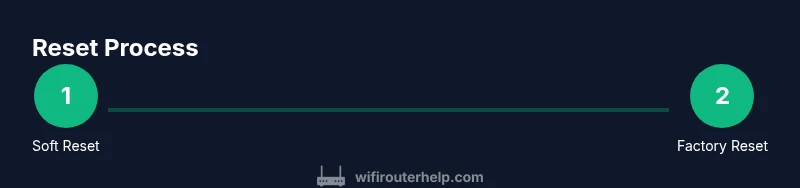
Soft reset vs factory reset: when to use each A soft reset restarts the router without returning it to factory defaults. It is ideal for transient problems like slow Wi‑Fi, stalled devices, or odd DNS lookups. A factory reset, sometimes called a hard reset, wipes all custom settings and returns the device to its original software state. Use it only after a soft reset has failed to resolve issues or when you’re preparing to reconfigure the network from scratch. Remember that a factory reset will erase your Wi‑Fi name, password, and any custom rules, so you’ll need to set these up again. WiFi Router Help recommends planning ahead and making a quick safety copy of important settings if possible.
What to do before you reset: readying yourself and your network Before altering router settings, take a moment to document your current configuration. Write down your Wi‑Fi network name (SSID) and current password, admin login, and any port forwarding or parental controls you rely on. If you have a separate modem/ONT, confirm how the devices are connected and whether the ISP allows bridges or passthrough modes. It's also wise to back up the router’s current configuration if the UI offers an export option. This preparation makes recovery smoother if you later decide to revert changes or reapply your preferred settings. The goal is to reduce downtime and avoid re-creating rules from scratch.
Soft reset via the admin interface (reboot without losing settings) Most FiOS routers support a soft reset through their web-based admin interface. Connect a device to the router, open the gateway IP in a browser, and log in with your admin credentials. Look for a menu labelled System, Maintenance, or Reboot, then choose Restart or Soft Reset. The device will reboot within a few minutes, and most client devices will reconnect automatically. Soft resets preserve your Wi‑Fi name, password, and custom rules. If the interface asks you to save changes, do so before rebooting to ensure new settings take effect.
Factory reset via the hardware button (drastic, but effective) A factory reset wipes the FiOS router’s settings and restores defaults. Locate the recessed Reset button on the back or bottom of the unit. Use a paperclip or pin to press and hold this button for 15–30 seconds, then release. Wait for the lights to cycle and the device to reboot, which can take several minutes. After a factory reset, you’ll need to re-create your WiFi name, password, and any port rules or parental controls. This step should be used only when the device is unresponsive or you’re starting fresh.
After a reset: reconfiguring your network for security and speed Once the router is back online, begin reconfiguring your network. Change the admin password to something strong, set a new SSID and a robust WPA2/WPA3 security mode, and reapply essential settings such as guest networks, QoS rules, and firewall options. If your ISP provided a separate gateway, consider whether you want bridge mode or IP passthrough to keep your own router in control. Check for firmware updates and enable automatic updates if available. Label the network so you can easily identify it in your devices, and consider disabling remote management to reduce exposure to the internet.
Common issues after a reset and how to fix them After a reset, devices may fail to obtain an IP address or fail to connect to the Wi‑Fi network. Ensure DHCP is enabled on the router and that you’re connecting to the correct SSID. If DNS resolution fails, try a quick reboot of both the router and the modem, and consider temporarily setting a public DNS like 1.1.1.1 or 8.8.8.8 to verify connectivity. If you use VPNs, some configurations may require re-installation after a reset. WiFi Router Help notes that minor lag can be resolved by simply rebooting the router and letting clients reconnect; persistent issues may indicate a line problem from the ISP.
Security considerations after resetting your FiOS router Resetting is a good chance to improve security. Change the default admin password, enable WPA3 if supported, and disable WPS if you don’t need it. Create a guest network for visitors and keep IoT devices isolated when possible. Regularly check for firmware updates and review your router’s firewall settings. For households with children or multiple smart devices, enable parental controls and keep an eye on connected devices. The practice reduces exposure to threats and helps maintain consistent performance.
When to contact support or your ISP If you can’t access the admin page after a reset, check cable connections, ensure you are connected to the router’s network, and try a second device. If problems persist, contact your ISP’s support line or your device manufacturer for guidance. In some cases, the problem is not the device but the line itself, and the ISP can run line tests or provide replacement equipment. The goal is to restore reliable service with minimal downtime and without guessing at settings you didn’t change.
Tools & Materials
- small paperclip or pin(To press recessed reset button on back/bottom of the router)
- computer, tablet, or smartphone(To access the admin interface via a web browser)
- stable power source(Keep the router plugged in during reset; avoid power interruptions)
- backup of current network settings(Optional export to make reconfiguration faster)
- Ethernet cable (optional)(Useful for a stable connection during admin login)
Steps
Estimated time: 30-60 minutes
- 1
Identify reset type
Determine whether a soft reset (reboot without changing settings) or a factory reset (restores default settings) is appropriate based on symptoms.
Tip: If unsure, start with a soft reset to minimize downtime. - 2
Prepare your equipment
Ensure you have a connected device, locate admin credentials, and consider backing up current settings.
Tip: Avoid interruptions during the process; keep the router powered - 3
Soft reset through the admin page
Log in to the router’s admin interface using the gateway IP, navigate to System or Maintenance, and select Restart or Soft Reset.
Tip: If the page times out, try another browser or clear cache. - 4
Hard reset via the recessed button
If issues persist, press and hold the Reset button for 15–30 seconds until lights indicate reset; then release and let the unit reboot.
Tip: Only perform a factory reset if you’re ready to reconfigure all settings. - 5
Wait for reboot completion
Allow 2–5 minutes for the router to fully restart after a reset. Do not power off during this interval.
Tip: Watch the indicator lights for a steady pattern signaling readiness. - 6
Reconnect and reconfigure basics
Reconnect to the network, log back into the admin page, and re-enter credentials; set a strong admin password and re-establish Wi‑Fi settings.
Tip: Use a password manager to securely store new credentials. - 7
Check for updates and security settings
Check for firmware updates and reapply security options like guest networks and firewall rules as needed.
Tip: Firmware updates can improve stability and security. - 8
Test connectivity and performance
Run speed tests on multiple devices, verify DNS resolution, and ensure all critical services work as expected.
Tip: Test with wired and wireless devices to identify client-side issues.
People Also Ask
What is the difference between a soft reset and a factory reset?
A soft reset restarts the router without changing user settings, while a factory reset wipes all custom configurations and restores defaults. Use a soft reset first for minor issues, and reserve a factory reset for persistent problems or when reconfiguring from scratch.
Soft reset restarts without changing settings; factory reset erases them and returns the device to its original state.
Will resetting delete my custom settings entirely?
A soft reset preserves settings like your Wi‑Fi name and passwords. A factory reset removes these customizations, so you’ll need to set them up again afterward.
Soft reset keeps your settings; factory reset removes them.
How long does a reset take?
A soft reset typically completes in a few minutes. A factory reset may take longer as the device reboots and you reapply settings.
Most resets finish in a few minutes; factory resets can take longer due to reconfiguration.
I can’t access the admin page after a reset. What should I do?
Check that you’re connected to the router, try the common gateway IPs, and use a different device or browser. If the page still won’t load, perform a soft reset again or contact support.
Make sure you’re on the network and try another device; if it won’t load, reset again or reach out to support.
Do I need to reconfigure Wi‑Fi after a factory reset?
Yes. A factory reset clears your custom Wi‑Fi name and password, so you’ll need to set them up again. Recreate any guest networks and security settings as needed.
You’ll need to set a new Wi‑Fi name and password after a factory reset.
Can resetting fix a service outage from my ISP?
Resetting can improve local router stability, but it can’t fix a service outage from the ISP. If the service is down, contact your provider for status updates.
Resetting won’t fix an external outage; contact your ISP for status.
Watch Video
What to Remember
- Soft resets fix most issues without losing settings
- Factory resets erase custom configurations—use cautiously
- Reconfigure security and Wi‑Fi details after reset
- Keep firmware updated for stability and protection