How to Reset AT&T Fiber Router: A Step-by-Step Guide
Learn how to reset AT&T fiber router safely, including soft resets, hardware resets, and factory resets. This guide covers admin access, backups, reconfiguring Wi‑Fi, and troubleshooting.


how to reset att fiber router: This quick guide shows you how to reset your AT&T fiber gateway safely. A soft reset reboots without changing settings, while a factory reset returns the device to defaults. According to WiFi Router Help, back up important configs before any reset, and use a factory reset only when issues persist.
What resetting your AT&T fiber router does and when you should
Resetting your AT&T fiber router can resolve many common connectivity issues, from slow Wi‑Fi to devices that won’t obtain an IP address. A soft reset (reboot) clears temporary glitches without touching your saved network name (SSID) or password. A factory reset, by contrast, restores the gateway to its original factory settings, wiping custom configurations and re‑provisioning the device from scratch. According to WiFi Router Help, you should only opt for a factory reset after you have exhausted softer fixes and backed up important settings. When in doubt, start with a reboot and test connectivity before proceeding to more drastic steps.
Soft reset vs hard reset: why it matters
Understanding the difference between soft resets, hard resets, and factory resets helps you choose the right tool for the problem. A soft reset restarts the router’s software and renews its network leases, often resolving minor issues. A hard reset (power cycle) simply cycles power and can clear transient faults. A factory reset reverts every setting to default, including Wi‑Fi name and password, firewall rules, and any advanced configurations you added. The key takeaway: start with non‑destructive resets to avoid losing your custom network preferences.
Soft reset: power cycle and reboot
To perform a soft reset via power cycle, unplug the gateway from power for about 30 seconds, then plug it back in. This forces the device to reboot and reestablish connections with your ISP. After it finishes rebooting, verify that the internet light is solid and that devices can reconnect. This method preserves your Wi‑Fi name, password, and most settings, making it a safe first step for minor issues.
Resetting via the admin console: credentials, backup, and steps
Accessing the router’s admin console is a reliable way to reset settings without physically touching the device. Open a browser on a device connected to the gateway, and enter the common local IP address (often something like 192.168.1.254). Log in with the administrator credentials, back up your current configuration if the option is available, and choose the reset option you need. If you don’t see a reset choice, you may be able to restore default settings from a dedicated tab, or you might need to perform a hardware reset as described in the next section.
Hardware reset button: use a paperclip
Many AT&T gateways include a recessed reset button on the back panel. To perform a hardware reset, insert a paperclip or similarly small tool into the reset hole and press and hold for a moment until the device reboots. This action typically restores factory defaults, erasing custom configurations. Be prepared to re‑provision your gateway afterward, including Wi‑Fi credentials and any port forwarding rules you had.
Factory reset: consequences and safeguards
A factory reset wipes all user‑configured settings on the gateway. This includes the Wi‑Fi network name (SSID), password, firewall rules, and any custom DHCP or port forwarding configurations. Before resetting, write down essential credentials (like your Wi‑Fi name and password) and note any ISP login or PPPoE details if applicable. After the reset, the gateway will boot with defaults, and you will need to re‑establish your preferred settings from scratch.
After reset: reconfiguring your network
Once the device is reset, reconnect your computer to the gateway’s default network. Access the admin interface to re‑enter your preferred SSID and password, reconfigure security settings, and re‑create any port forwards or parental controls. If your home uses a separate router or mesh system, decide whether to redeploy the AT&T gateway as the primary modem/router or place it in bridge mode if you’re using third‑party networking gear. This is a great time to document new settings for future maintenance.
Firmware considerations and updates after reset
Resetting the gateway is a good moment to check for firmware updates, as manufacturers sometimes release fixes and improvements in newer versions. Use the admin console to check the current firmware version and install any available updates. If you run a separate router or mesh system, ensure you re‑check compatibility and configuration across all devices. Keeping firmware up to date helps improve security and performance post‑reset.
Troubleshooting post‑reset: no internet or devices not connecting
If you experience no or limited internet after a reset, verify the physical connections, confirm the gateway’s internet light is solid, and check for service outages in your area. Ensure your devices are connected to the correct SSID and that the password is correct. If issues persist, consider rebooting the gateway again, releasing and renewing DHCP leases on a few devices, or performing a targeted reset of specific settings (like DNS or NAT) through the admin console.
When reset isn't solving the problem and you should call support
If resetting the gateway does not resolve the issue, it could indicate a line fault, a service outage, or a more complex network problem. Contact AT&T support to verify service status and request a technician visit if needed. In some cases, your provider may need to re‑provision your gateway or replace a faulty unit. Recording the steps you’ve taken helps support diagnose the issue faster.
Backup plan: saving configuration and documentation
To minimize downtime in the future, keep a dedicated backup document with your Wi‑Fi name, password, IP address assignments, and any custom rules. When performing resets in the future, you can restore settings quickly from your notes or a saved configuration. Regularly updating this documentation helps you recover faster and reduces frustration during troubleshooting.
Quick-start recap and best practices
Before you reset, determine whether a soft reset will fix the issue. Always back up critical settings if a factory reset is necessary. Use a wired connection for admin tasks to avoid wireless drops during configuration. After any reset, test each device and document changes to ease future maintenance.
Tools & Materials
- Paperclip or pin(For pressing a recessed hardware reset button)
- Access to the gateway admin interface(Typically via a web browser at a local IP (e.g., 192.168.1.254))
- Backup notes or configuration export(Useful to save current SSID, password, and port forwards)
- Ethernet cable (optional but recommended)(Provides a stable connection to the admin page during reset)
- Fresh credentials list(Write down new SSID, password, and admin login after reset)
Steps
Estimated time: 30-60 minutes
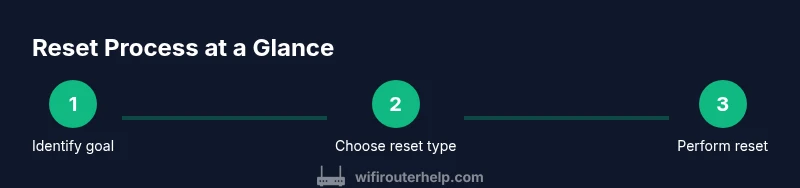
- 1
Identify reset goal
Assess whether you need a soft reset, a hardware reset, or a full factory reset. Soft resets fix minor glitches without losing data, while factory resets erase all custom settings.
Tip: Start with a soft reset first to minimize disruption. - 2
Prepare for reset
Gather the gateway, power supply, and a device to access the admin interface. If you plan a factory reset, back up important settings first.
Tip: Use a wired connection to minimize interruptions during config. - 3
Perform a soft reset (power cycle)
Unplug the gateway, wait about 30 seconds, and plug it back in. Allow the device to fully reboot and reestablish connections.
Tip: Check that the internet light becomes steady after reboot. - 4
Access the admin console
Connect a device to the gateway and open the admin page using the default local IP address. Log in with provided credentials or the ones you previously saved.
Tip: If you cannot access the page, ensure your device is on the same network segment. - 5
Back up configuration
If the option is available, export or copy current settings before making changes.
Tip: Save a note of your Wi‑Fi name and password for easy restoration. - 6
Choose reset type in console
Select the non-destructive reset option first. If issues persist, proceed to a factory reset after confirming backups.
Tip: Avoid factory reset unless you are certain it’s needed. - 7
Perform a hardware reset (if needed)
If the console offers limited options, locate the recessed reset button and press it with a paperclip until the device reboots.
Tip: Be prepared to reconfigure from scratch after a factory reset. - 8
Apply factory reset (if required)
Use the reset option to restore defaults. This will erase user settings, including Wi‑Fi credentials.
Tip: After reset, set a new strong Wi‑Fi password and record it securely. - 9
Reconfigure network settings
Re-enter your Wi‑Fi name, password, and any preferred security options. Recreate port forwards if needed.
Tip: Consider labeling your new SSID clearly to avoid confusion. - 10
Check for updates
Look for firmware updates and install them if available to improve stability and security.
Tip: Enable automatic updates if available for ongoing maintenance. - 11
Test connectivity
Test a few devices to confirm internet access and device compatibility with the new settings.
Tip: Run speed tests to confirm performance meets expectations. - 12
Document changes
Record the final settings and any changes you made for future maintenance.
Tip: Keep a simple changelog handy for quick reference.
People Also Ask
What is the difference between a soft reset and a factory reset on an AT&T fiber gateway?
A soft reset reboots the gateway without changing saved configurations, while a factory reset restores the device to its original defaults, erasing user settings like Wi‑Fi names and passwords.
Soft reset just restarts the device, keeping your settings. A factory reset wipes everything and returns the gateway to default settings.
Will resetting my AT&T gateway affect my internet service?
Resetting typically does not affect your internet service itself, but you may need to reconfigure settings afterward and potentially re‑provision the device.
Resetting usually won’t disconnect service, but you might need to reconfigure after the reset.
Do I need to reboot devices after a reset?
Yes. After the gateway resets, reconnect your devices to the network and renew IP leases so they can communicate properly with the gateway again.
Yes—reconnect devices and let them obtain new IPs after the reset.
Can I reset without losing my Wi‑Fi name or password?
A soft reset preserves the Wi‑Fi name and password, but a factory reset will erase them and require you to set them again.
Soft reset keeps your Wi‑Fi details; factory reset will reset them to defaults.
What should I do if I can't access the admin page?
Make sure your device is on the same network, try a different browser, and verify you’re using the correct local IP (often 192.168.1.254). If problems persist, use a hardware reset.
Ensure you’re on the local network and try again with the right address; if needed, perform a hardware reset.
How do I know if the reset was successful?
Check that the gateway boots normally, the internet light comes on, and you can log back into the admin page to verify settings.
Look for a steady internet light and normal admin access after reset.
Watch Video
What to Remember
- Back up settings before factory reset
- Soft resets fix glitches without data loss
- Factory reset wipes all custom configurations
- Admin console offers a safe reset path
- Test connectivity after each reset and document changes