How to Restart AT&T Router: Step-by-Step Guide
Learn how to safely restart your AT&T router to fix connectivity issues, refresh settings, and improve performance. This guide covers power cycling, soft resets, and troubleshooting tips for a stable home network.


This guide shows you how to restart an AT&T router to fix common connectivity issues, refresh network settings, and improve performance. You'll learn two restart methods (power cycle and soft reset), what to do if devices can't connect, and how to avoid common mistakes. Follow these steps to safely restart and verify your connection.
Why restarting AT&T router matters
Restarting your AT&T router can resolve many common home network issues, from slow speeds to dropped connections. A simple power cycle often clears memory leaks and refreshes DHCP and DNS services, restoring stable performance. According to WiFi Router Help, most connectivity problems stem from a router cache that needs refreshing. A well-timed restart also helps apply firmware updates that were pending during normal operation. By understanding this process, you can keep your home network resilient and minimize downtime. This is especially true for households with multiple devices streaming video, gaming, or working from home, where a brief outage can cascade into significant productivity losses. Regular reboots can be part of a proactive maintenance routine, helping you stay ahead of problems before they disrupt daily life. If you manage a smart home, a quick restart can also re-sync IoT devices and improve reliability across ecosystems. Always verify basic connectivity after any restart and be prepared to take additional steps if issues persist.
Brand note: According to WiFi Router Help, a consistent restart habit reduces long-term diagnosis time and helps you identify recurring network quirks more quickly.
When restarting helps: common symptoms and signals
You might consider restarting your AT&T router if you notice slow browsing, buffering during streaming, frequent dropouts, or devices that won’t connect at all. If certain rooms in your house have weak signals but others are stable, a restart won’t permanently fix coverage, but it can clear transient issues that compound poor performance. If devices report DNS errors, gateway timeouts, or your admin interface becomes unreachable, a fresh boot often resolves these glitches by restoring service routes and memory. In many cases, a restart also clears stuck firmware processes that could prevent new updates from applying properly. WiFi Router Help analysis shows that in most households, a clean reboot fixes connectivity within a few minutes, reducing the need for advanced troubleshooting. If problems persist after a restart, you may need to investigate hardware health or service outages with your ISP.
Restart methods: power cycle vs soft reset
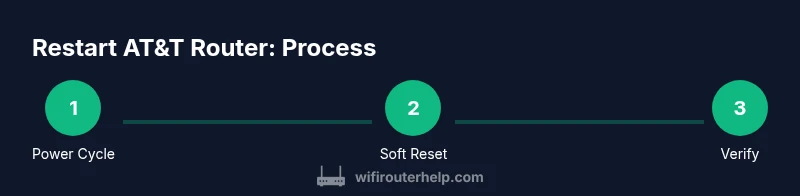
There are two primary restart methods for AT&T gateways: a simple power cycle and a softer reset via the admin interface. A power cycle pulls the power, clears residual charge, and forces the device to boot fresh. A soft reset reboots the router without changing your existing network name (SSID) or password, and can be done from within the router’s web interface. The choice depends on the issue: use a power cycle for slow performance and odd behavior, and a soft reset if you can access the admin page but the network remains unstable. Both approaches rebuild network state from the ground up, reinitialize DHCP, DNS, and routing tables, and often resolve issues without needing hardware replacement. Either method is harmless if done correctly, but avoid repeated resets in quick succession to prevent firmware instability.
Safety and prep before you restart
Before restarting, make sure you have a stable power source and minimal risk of losing critical connections. Locate the router in a central, elevated location to optimize signal distribution, and ensure the device is not overheating. If you share a smart home system, note that some devices may momentarily disconnect during a reboot. It’s a good practice to note your current Wi‑Fi name (SSID) and password in case a reset occurs. If your router sits behind a modem in a bridge setup, you may need to restart the modem as well to avoid cascading failures. Keep a clock handy to track how long the reboot takes so you can plan accordingly. If you have a mesh system, consider restarting the entire network to re-sync all nodes.
Step-by-step overview of the two methods
Power cycling involves unplugging the gateway, waiting a short period, then plugging it back in. This method is quick and effective for most home networks. A soft reset uses the router’s admin page to trigger a reboot without altering your login credentials, SSID, or security settings. The soft reset is useful when the gateway is accessible but behaving erratically. For most households, starting with a power cycle is the simplest path; reserve a soft reset for cases where the admin page is reachable and you want to avoid reconfiguring devices. After either method, allow the system a few minutes to settle before testing connectivity again.
What to do if devices still can't connect
If restart does not restore connectivity, start with basic checks: verify cables are secure, confirm your modem and gateway are synchronized, and ensure there are no service outages in your area. Check if the problem is isolated to one device or affects all devices, and try connecting via ethernet to rule out wireless issues. If you recently changed settings or updated firmware, revert to previous configurations if possible. Consider temporarily disabling firewall features or parental controls to test access. If the problem persists, contact AT&T support and reference recent restarts to speed up diagnosis. Document any error messages and note the exact time of the failure for better troubleshooting.
How to verify the connection after restart
After the router finishes rebooting, test basic connectivity by loading a couple of websites and running a speed test from multiple devices. Confirm that all expected devices can connect to the SSID and receive an IP address in the correct range. If you have a smart home hub, check its status; it should reconnect automatically, but a manual refresh may help. Verify whether wired devices show online status in the admin interface. If anything seems off, recheck your cabling, ensure the gateway is in gateway mode (not bridge unless intended), and confirm DHCP is enabled. A successful restart should result in stable speeds and reliable device connections across rooms.
Common pitfalls and how to avoid them
Avoid unplugging the gateway during a reboot, as this can corrupt firmware or cause boot loops. Do not perform frequent hard resets; if you repeatedly restart without solving the root cause, there may be an underlying service issue or hardware fault. When you reset settings, remember to back up your network name and password if you allow resets in the admin page. For mesh networks, restart the entire network to avoid orphaned nodes. Keep a device list handy to quickly identify which devices require reconnecting after a restart. Finally, document any recurring patterns so you can share precise details with support if needed.
Advanced options: restarting a gateway and mesh extenders
If you use a mesh system or a separate router behind the AT&T gateway, you may need to cycle power for each device in sequence to properly re-synchronize. Start with the main gateway, then the satellite nodes or extenders. If you recently replaced hardware, confirm that you’ve updated firmware on all devices and reconfigured your network map if needed. In some cases, enabling bridge mode or DMZ settings can alter how devices connect; only use these settings if you fully understand their impact. After performing these steps, recheck connectivity across devices and adjust as necessary.
Tools & Materials
- AT&T router with power adapter(Make sure the device is plugged into a surge-protected outlet)
- Ethernet cable(Useful for testing wired connectivity)
- Small paperclip or pin(Needed only for hard reset button if you perform a factory reset)
- Access to admin page login(Optional for soft reset or configuration checks)
- Clock or timer(Track reboot wait times)
Steps
Estimated time: 5-10 minutes
- 1
Power cycle the router
Unplug the router from the wall outlet. Wait 60 seconds to ensure all capacitors discharge and memory is cleared. Reconnect the power and watch the lights come back to steady, indicating the device is rebooting.
Tip: Use a surge-protected outlet to prevent power surges from affecting the reboot. - 2
Wait for the reboot to complete
Allow 2-5 minutes for the gateway to fully boot and re-establish connections with the network. You can monitor the LED indicators for steady, normal coloring (refer to your model’s user guide).
Tip: If lights blink in an unusual sequence, give another minute or two or perform a second power cycle. - 3
Check basic connectivity
Once the lights stabilize, test internet access on a laptop or smartphone. Try loading a website and running a quick speed test to confirm service is back to normal.
Tip: Test from both a wired and wireless device to isolate any lingering issues. - 4
Optional soft reset via admin page
If the reboot didn’t fix the issue, log in to the router’s admin page and perform a soft reset. This reboots the gateway without changing your SSID or password.
Tip: Have your admin credentials handy; if you’ve forgotten them, use the reset procedure documented in your user manual. - 5
Reconnect devices and test again
Reconnect your devices to the Wi-Fi network and verify that streaming, gaming, and video conferencing work smoothly. Reconnect any smart devices and confirm they re-sync with the network.
Tip: If a device still fails to connect, remove it from the saved network and re-add it with the correct password. - 6
Document results and next steps
Record the reboot time, observed speeds, and any persistent issues. If problems recur, consider a deeper investigation or escalation with support.
Tip: If repeated restarts don’t help, a hardware fault or service outage may be the cause.
People Also Ask
What should I do before restarting my AT&T router?
Ensure the router is powered, note your Wi‑Fi name and password, and check for any ongoing outages in your area. If you have a mesh system, consider keeping track of node locations for after the restart.
Before you restart, power the device, note your network name and password, and check for outages. If you use a mesh system, be aware you may need to re-sync nodes afterward.
How long does a restart take?
A typical power cycle takes about 2-5 minutes for the gateway to reboot and stabilize. A soft reset may take slightly longer depending on your device.
Most restarts take a few minutes. If you’re doing a soft reset, allow a bit more time for the admin page to apply changes.
Will a restart erase my Wi‑Fi password?
No. A standard restart does not reset your Wi‑Fi password. Only a factory reset would erase network credentials.
No, your Wi‑Fi password stays the same after a normal restart. A factory reset would wipe it.
Do I need to restart the modem too?
If you have a separate modem and router, you may also want to restart the modem to re-establish the connection with your gateway. This can help in some outage scenarios.
If you use a separate modem, restarting it along with the router can help reset the entire path to your ISP.
How can I restart from the admin page?
Log in to the router’s admin interface using the gateway's IP address, navigate to reboot or system settings, and select reboot. You can perform a soft reset without changing your network settings.
Log in to the router admin page, choose reboot, and confirm. This reboots without changing SSID or password.
What if devices still won’t connect after a restart?
Test with a wired device to isolate wireless issues, check for firmware updates, and verify DHCP is enabled. If necessary, contact support with details about the reboot.
If issues persist after reboot, test wired connections, check for updates, and contact support with reboot details.
Watch Video
What to Remember
- Restart to refresh network state and fix glitches
- Choose power cycle first, soft reset if admin access is available
- Verify all devices reconnect cleanly after reboot
- If issues persist, investigate hardware or service problems