How to Reset an AT&T Router: A Step-by-Step Guide
Learn how to reset your AT&T router safely, whether you need a quick reboot or a full factory reset. This guide covers soft resets, factory resets, and reconfiguration tips to restore stable home Wi‑Fi.


To reset an AT&T router, locate the reset button on the back, press and hold it for 10–15 seconds until the lights flash, then release. For a full factory reset, use a paperclip to press the recessed reset button for about 15 seconds. After reboot, you’ll need to reconfigure your network name and password.
What resetting an AT&T router does and when to do it
According to WiFi Router Help, resetting your gateway can resolve many common home-network problems without calling support. A soft reset (reboot) clears temporary faults and refreshes connections, while a factory reset returns the device to its original factory settings. Use this technique when you experience persistent slow speeds, devices that won’t connect, or if the router behaves oddly after a power outage. The WiFi Router Help team found that many households fix basic issues by starting with a simple reboot before attempting more drastic steps. In general, reset should be part of a progressive troubleshooting flow, not your first impulse for every issue. This article focuses on AT&T gateways used in typical home networks, outlining practical steps and safety checks to minimize downtime and data loss.
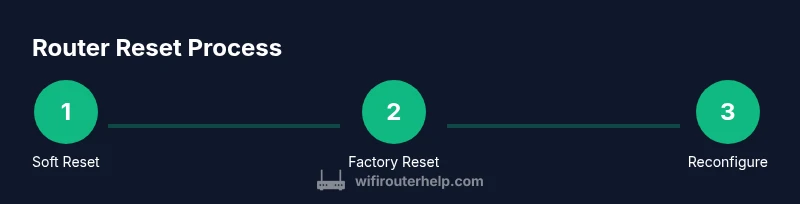
Soft reset vs factory reset: what's the difference?
A soft reset, often called a reboot, restarts the router without changing any saved settings. It clears temporary caches, renews DHCP leases, and can fix minor glitches without affecting your SSID or WPA/WPA2 keys. A factory reset, by contrast, wipes all user configurations and returns the device to its original state. After a factory reset, you must re-enter your Wi‑Fi name (SSID) and password, reconfigure security settings, and reestablish any port forwards or parental controls. If your issues are due to corrupted settings or failed updates, a factory reset is usually the most reliable cure. WiFi Router Help analysis shows that most home users should start with a soft reset and reserve a factory reset for persistent problems or after a firmware issue.
Step-by-step guide: Soft reset (reboot) for quick fixes
-
Locate the router and confirm power is stable. A soft reset can often be achieved by simply unplugging the power for about 30 seconds and plugging it back in. This short pause gives the firmware time to reset internal caches and renew connections.
-
Power cycle via the admin UI if available. If you can access the router’s web interface, use the reboot option in the system tools menu instead of a physical unplug, which preserves a cleaner shutdown sequence.
-
Allow the device to fully reboot. Give it 1–2 minutes to come back online and re‑establish connections with all devices. During this time, avoid making configuration changes.
-
Test basic connectivity. Try loading a page on a wired device first, then check a wireless device. If performance improves, you’ve likely cleared a temporary fault without touching your settings.
Step-by-step guide: Factory reset for full restore
-
Back up essential information. Before a factory reset, write down any custom settings you want to keep, including custom DNS, port forwards, and parental controls, because they will be wiped.
-
Identify the reset method. Most AT&T gateways hide a recessed reset button. You’ll need a paperclip or a similar thin tool to press it.
-
Press and hold the reset button. Using a paperclip, press and hold the recessed button for 10–15 seconds until the LEDs flash in a pattern indicating a reset. Release when you see the flash.
-
Wait for the reboot to complete. This can take several minutes. Do not power off the device during this time.
-
Reconfigure your network. After the reset finishes, connect a device to the router’s default SSID (often printed on a label) and use the default admin credentials to access the setup page. Recreate your Wi‑Fi name and password, reapply security settings, and re‑enable features like guest networks or parental controls as needed.
After reset: Reconfigure essentials
After completing a reset, the router will be in its default state. You’ll need to revisit the setup page to restore your home network. Start by renaming your network to something you recognize and setting a strong password. Update the router’s admin password to prevent unauthorized access, and enable a strong encryption standard (WPA2 or WPA3 if supported). If you use any port forwarding, static IP assignments, or a firewall profile, re-create those rules. Finally, check for firmware updates and install them if available to improve stability and security. WiFi Router Help recommends documenting your new settings for future reference to avoid repeat configurations after another reset.
After reset: Reconfigure essentials (continued)
- Re-connect devices and test network performance. After you reconfigure, test download/upload speeds on multiple devices, both wired and wireless, to confirm stability. If issues persist across devices, consider a factory reset as a last resort and recheck your network layout for interference.
Common pitfalls and troubleshooting after reset
Resetting a router can fix issues, but it can also remove useful configurations. If you cannot access the admin page after a reset, ensure you’re using the correct IP address and try a wired connection. Some AT&T gateways require you to re-enable bridging or IP passthrough if you have a separate router. If the Wi‑Fi signal remains weak in certain rooms, consider relocating the gateway or adding a mesh network. Always verify that the power supply is stable and that you didn’t accidentally unplug any cables during the reset process.
Security and privacy considerations after a reset
A factory reset clears most user data, but you should still verify that your network is secure after reconfiguration. Change the default login credentials, enable a modern encryption standard, and disable remote management if you don’t need it. Keep firmware up to date to protect against vulnerabilities and review attached devices periodically to prevent unauthorized access. Regularly back up your configuration if your router supports it.
Quick reference checklist and next steps
- Decide between soft reset and factory reset based on the issue at hand.
- Back up important settings before a factory reset.
- Reconfigure network name, password, and security settings after a reset.
- Update firmware and check for connectivity across multiple devices.
- Document changes for future reference and troubleshooting.
Authoritative sources and references
For additional guidance on router security and setup best practices, refer to authoritative sources such as the FCC and NIST. These resources provide general best practices for home networks and device hardening, which apply after any reset.
Tools & Materials
- Reset pin or paperclip(Use to press the recessed factory-reset button; avoid bending or breaking the button.)
- Stable power source(Keep the router plugged in during the entire reset process to prevent partial resets.)
- A computer or smartphone with Wi‑Fi access(Needed to access the admin page and reconfigure settings after reset.)
- Ethernet cable (optional)(Wired connection can provide a more reliable setup experience during reconfiguration.)
- Notebook or digital notetaking tool(Record default credentials, current settings, and new SSID/password after reconfiguration.)
- Access to admin interface address(Common addresses are printed on the router label; if you don’t know it, check the manual or label.)
Steps
Estimated time: 25-40 minutes
- 1
Prepare and identify reset type
Confirm whether you need a soft reset (reboot) or a factory reset. A soft reset clears temporary issues without changing settings; a factory reset wipes all user data and returns to default.
Tip: If in doubt, start with a soft reset to preserve configurations. - 2
Perform a soft reset (power cycle)
Unplug the router for about 30 seconds, then plug it back in and wait for the lights to stabilize. This resets temporary caches and renews connections.
Tip: Do not power off abruptly during reinitialization; give it time to boot fully. - 3
Attempt admin UI reboot (optional)
If accessible, navigate to the router’s admin page and choose the reboot option under system tools. This is cleaner than a physical unplug.
Tip: Have your admin credentials ready in case authentication prompts appear. - 4
Decide if a factory reset is needed
If soft reset didn’t fix the issue, plan for a factory reset. Back up settings you want to restore later.
Tip: A factory reset is most effective when there are corrupted configurations. - 5
Perform the factory reset
Use a paperclip to press and hold the recessed reset button for 10–15 seconds until LEDs flash, then release. Wait for the reboot to complete.
Tip: Keep the device powered during this entire process. - 6
Reconnect and reconfigure
Connect to the default network, open the setup page, and recreate SSID, password, and security settings. Restore essential features like guest networks if needed.
Tip: Document the new credentials for future reference. - 7
Check firmware and security
Look for firmware updates and apply them. Re‑enable any security features you value and disable unused services like remote management.
Tip: Regularly check for updates to reduce vulnerability exposure. - 8
Test connectivity and finalize
Test wired and wireless devices for speed and reliability. Confirm that all required services (VPN, port forwards, etc.) work as expected.
Tip: If a device still won’t connect, recheck its network settings or try forgetting and reconnecting to the network.
People Also Ask
Will resetting erase my data and personalized settings?
A soft reset preserves your settings, but a factory reset erases most user configurations and returns the router to its default state. You should back up essential settings before a factory reset.
A soft reset keeps your settings, but a factory reset clears most user configurations. Back up important settings first.
What is the difference between a soft reset and a factory reset?
A soft reset reboots the device to clear temporary faults, while a factory reset restores the device to its original factory configuration. Use soft reset first; factory reset only if issues persist.
A soft reset reboots to clear temporary faults. A factory reset restores factory settings and should be used when soft reset doesn’t fix the problem.
How long does a factory reset take and what should I do afterward?
Factory reset typically completes within a few minutes. Afterward, reconnect devices, reconfigure network name and password, and check for firmware updates.
Factory reset usually finishes in a few minutes. Then reconnect, reconfigure, and update firmware.
I can’t access the router’s admin page after resetting. What now?
Ensure you’re using the correct default IP address and that you’re connected to the router. If necessary, try a wired connection or consult the router’s label for the correct address.
Make sure you’re connected to the router and use the correct default IP. A wired connection can help troubleshoot admin access.
Should I always reboot before factory resetting?
Yes. A reboot often resolves issues without erasing settings. Only proceed to factory reset if problems persist after a soft reset.
Reboot first; only use factory reset if problems persist.
Watch Video
What to Remember
- Start with a soft reset to fix common issues.
- Back up settings before a factory reset.
- Reconfigure SSID, password, and security after reset.
- Update firmware to improve stability and security.
- Document changes to simplify future troubleshooting.