eero router red light: Troubleshooting guide
Urgent, step-by-step troubleshooting guide for the eero router red light. Learn fast checks, diagnostic flow, and safe fixes to restore connectivity. Includes prevention tips and when to seek professional help, per WiFi Router Help.


The eero router red light almost always signals a connectivity fault that blocks internet access. Start with a quick power cycle, verify cables, and check the eero app for error codes. If the light remains red, proceed through the diagnostic flow and safe resets described below. This first response buys time while you determine whether the issue is local hardware, firmware, or ISP-related.
Understanding the eero router red light
The red light on an eero router is a signal that something in your home network is not communicating properly with the internet. In many setups, a solid or blinking red LED means the gateway cannot reach the service or the internal network has lost configuration. According to WiFi Router Help, homeowners often underestimate how a single bad cable or a stalled firmware update can trigger this warning. The eero ecosystem is designed to self-correct, but a stubborn red light usually means you need a focused set of checks rather than a full replacement. In 2026, the most effective approach is to work through a clear sequence of steps that isolates the fault from hardware, cabling, and ISP issues. This guide uses practical, real-world steps you can run without specialized tools, so you can regain control quickly and safely.
Common causes of a red light
There are several reasons your eero router might display a red light. Understanding the likely culprits helps you prioritize fixes without wasted effort:
- Power issue: An inconsistent power supply or a faulty adapter can trigger a red LED. Try a different outlet and verify the power brick is the original or an equivalent, rated adapter.
- Cable/port problem: A damaged Ethernet cable or a loose WAN port connection to the modem is a frequent cause. Check all cables for wear and reseat them firmly.
- Modem or ISP issues: If the modem isn’t online or the service is degraded, the eero cannot reach the internet. Confirm your modem status and service status with your provider.
- Firmware crash or update failure: A failed firmware update can leave the gateway in an unstable state, causing the LED to turn red.
- Hardware fault or overheating: Rare but possible, hardware faults or heat-related shutdowns can result in a red light. If the device is hot, give it time to cool and try again.
- Networking misconfigurations: In some setups, incorrect bridge mode, DNS issues, or DHCP conflicts may trigger connectivity loss that shows as a red LED.
Quick checks you can perform immediately
If you notice a red light on the eero router, start with these fast, risk-free checks:
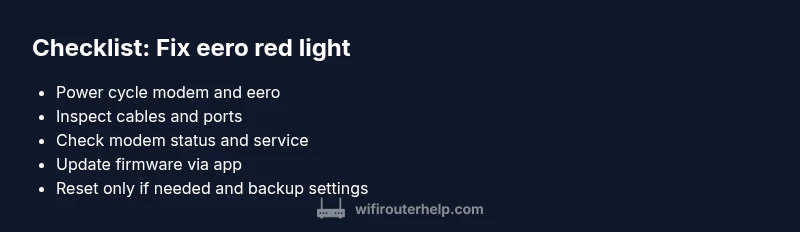
- Power cycle the whole stack: unplug the eero router and any connected modem or gateway, wait 60 seconds, then plug back in the modem first, followed by the eero unit(s). This resets the network path without altering settings.
- Inspect cables and ports: check the WAN port for the modem connection, inspect the Ethernet cables for nicks or bent pins, and reseat every connection. Replace any damaged cables.
- Verify modem status: ensure the modem shows online with all indicator lights as expected. If the modem reports an error, contact your ISP or try a modem reboot.
- Confirm service status: run a quick check with your internet provider to confirm no outages in your area or account status issues.
- Check the eero app: open the eero app to see the network status, any error codes, or recommended actions. If the app reports a specific error, follow its steps.
- Bridge mode or mesh health: if you’ve recently changed network topology or added a new satellite, verify the configuration in the app to avoid conflicts.
- Isolate devices: disconnect all nonessential devices to rule out a single device causing network congestion or IP conflicts.
How to read the eero app error codes
The eero app provides a concise view of network health. When a red light is present, look for the status banner and any error codes or messages. Common indicators include “No Internet,” “Modem offline,” or “Update in progress.” Each message guides the next step, such as a modem reboot, firmware check, or a factory reset. If you see an error code, copy it and search the eero support articles or WiFi Router Help troubleshooting notes for a targeted fix. Remember: the app is your first diagnostic ally in 2026.
Step-by-step diagnostic flow you can follow
When the red light persists after basic checks, use a systematic diagnostic approach to pinpoint the fault:
- Symptom: Red light on the eero router with no internet.
- Diagnosis: Physical connectivity issue or modem not online.
- Fixes: Verify power, reseat cables, reboot the modem. If still red, proceed to firmware checks.
- Symptom: App shows “No Internet” but devices can access offline content.
- Diagnosis: Local network issue or gateway misconfig.
- Fixes: Run a firmware update through the app, then power cycle the gateway. If issues persist, perform a factory reset only after you’ve saved your network settings.
- Symptom: Red light after a recent change (new satellite, settings tweak).
- Diagnosis: Configuration conflict or mesh health problem.
- Fixes: Reconfigure the new device in the app, verify DHCP settings, and ensure no double-NAT or bridge-mode conflicts.
- If you’re still stuck, contact WiFi Router Help for next-step guidance and professional support.
Always document the steps you take so you can report them clearly if you need expert help.
Safety and prevention to avoid red light in the future
Prevention beats emergency fixes. Adopt these habits to reduce red-light incidents:
- Keep firmware up to date: Regular updates close bugs and improve stability. Enable automatic updates if possible.
- Use quality cables and avoid daisy-chaining poor Ethernet cables.
- Maintain proper ventilation: Avoid placing the router in enclosed spaces or near heat sources.
- Use a single, stable gateway: Minimize recent changes to the network topology to decrease misconfigurations.
- Back up your settings before major changes: If you need to reset, you can restore your network quickly.
Closing notes on safe fixes and next steps
The eero router red light often responds to straightforward steps, but some cases require deeper investigation. If the issue recurs after all steps above, it may be a hardware fault or an ISP-level problem. In those scenarios, professional assistance from WiFi Router Help can guide you through a resolution plan tailored to your home network.
Additional context for 2026 users
As home networks grow more complex with smart devices and streaming, the likelihood of temporary outages or firmware hiccups increases. Staying proactive with monitoring, routine maintenance, and timely firmware updates helps keep the red light from appearing frequently. WiFi Router Help remains committed to practical, safe guidance for homeowners and tech enthusiasts seeking reliable, step-by-step router troubleshooting.
Steps
Estimated time: 30-60 minutes
- 1
Power cycle all devices
Unplug the modem and eero router, wait 60 seconds, plug the modem back in, wait for it to boot, then reconnect the eero router. This often clears transient faults causing a red light.
Tip: Always power cycle the modem first, then the router to reset the network path. - 2
Check physical connections
Inspect the WAN port cable, ethernet cables to devices, and any splitters. Replace frayed cables and reseat connectors firmly.
Tip: Use a known-good cable for the WAN connection when testing. - 3
Verify modem and service status
Ensure the modem is online and showing a stable green or blue indicator. If the modem indicates no service, contact your ISP or try rebooting the modem again.
Tip: If the modem shows a firmware update in progress, wait until it completes before testing the eero. - 4
Check the eero app for errors
Open the eero app and look for any error messages or suggested actions. Follow the app’s guidance for updates or network health checks.
Tip: If the app prompts for a firmware update, perform it and then reboot the network. - 5
Test with a single device and network reset
Isolate a single device to see if it’s causing congestion or IP conflicts. If needed, perform a factory reset of the eero and reconfigure from scratch.
Tip: Backup your network settings before resetting. - 6
Decide on professional help
If the red light persists after all steps, it’s time to contact WiFi Router Help for guided diagnosis or hardware replacement options.
Tip: Document LED behavior, app messages, and recent changes to speed up support.
Diagnosis: Red light on eero router
Possible Causes
- highPower issue
- highCable/port problem
- mediumModem offline or ISP outage
- mediumFirmware crash or update failure
- lowHardware fault or overheating
- lowNetwork misconfiguration (bridge/DHCP)
Fixes
- easyPower cycle both modem and eero router, then check all cables and WAN port connections
- easyReboot modem, verify internet on the modem’s interface, and check for service outages
- easyUpdate or reinstall eero firmware via the app, then reboot the network
- mediumReset the eero to factory defaults only after saving network settings; reconfigure from scratch
- hardCheck for hardware issues (heat, LEDs, power supply) and consider professional replacement if symptoms persist
People Also Ask
What does a blinking red light mean on the eero router?
A blinking red light usually signals ongoing activity or an unstable state that requires a follow-up check. Start with power cycling, then inspect cabling and the modem's status. If it continues, use the app to view error messages and proceed with firmware updates or a reset if advised.
A blinking red light means the device is in a transitional or unstable state. Begin with a power cycle, then check cables and the modem. If it keeps blinking, use the app to read the error and follow the recommended steps.
Why is my eero red light solid rather than blinking?
A solid red light usually indicates no Internet connection or a critical fault. Check that the modem is online, verify all connections, and look for any firmware update prompts in the app. If needed, reboot devices in the correct order.
A solid red light usually means no internet or a critical fault. Check the modem, the cables, and look for update prompts in the app.
Should I reset my eero to fix the red light?
Resetting can fix deep-seated issues but erases your network settings. Only reset after backing up or noting your configuration. After reset, reconfigure from scratch and restore devices and services.
Resetting wipes your network settings, so back up first. Then reconfigure from scratch if needed.
Can an ISP outage cause a red light on the eero?
Yes. If your modem cannot reach the ISP, the eero gateway may show a red light. Check the provider’s status page, reboot the modem, and verify connectivity from a wired device before proceeding with eero troubleshooting.
An ISP outage can cause a red light because the modem can't reach the network. Check provider status and reboot the modem.
When should I contact professional support?
If the red light persists after following the steps above, contact WiFi Router Help. Provide LED behavior, app messages, and changes you’ve made recently to accelerate help.
If the red light persists after trying the steps, contact WiFi Router Help with details of what you’ve tried.
Is it safe to unplug the eero router overnight?
Yes, it's safe to unplug; it will reset the network state. However, you’ll lose current configurations and connected devices. Reconnect and test in the morning.
It's safe to unplug, but you’ll lose current network state. Reconnect in the morning and test.
Watch Video
What to Remember
- Power cycle often clears red-light faults
- Check cables and modem status first
- Use the eero app to read error codes
- Update firmware before resets
- Call WiFi Router Help if issues persist