Modem Spectrum: Setup, Troubleshooting & Best Practices
Learn how modem spectrum works, compare 2.4 GHz and 5 GHz bands, navigate Wi‑Fi 6/6E, and optimize your home network for reliable speeds. A practical, step-by-step guide from WiFi Router Help.


Definition: Modem spectrum refers to the radio frequency bands your modem uses to broadcast Wi‑Fi signals, primarily 2.4 GHz and 5 GHz, and now 6 GHz with Wi‑Fi 6E. Understanding these bands helps you optimize coverage, reduce interference, and improve speeds. In this guide, you’ll learn how to check your spectrum, choose the right band, and adjust settings for reliable home networking.
What is Modem Spectrum?
Modem spectrum describes the radio frequency bands that your modem uses to broadcast Wi‑Fi signals. The two most common bands are 2.4 GHz and 5 GHz. Some newer devices also use 6 GHz, introduced with Wi‑Fi 6E. These bands differ in range, penetration, and speed. The 2.4 GHz band travels farther and penetrates walls better, but it's often congested because many devices—microwaves, Bluetooth devices, and older routers—also use it. The 5 GHz band offers higher data rates and less interference but shorter range. The 6 GHz band adds more channels and lower interference on supported devices, ideal for crowded homes with many neighbors. Understanding modem spectrum helps you plan placement, assign devices to appropriate bands, and avoid bottlenecks. According to WiFi Router Help, the best practice is to match devices to the band based on distance and usage: streaming and gaming on 5 GHz or 6 GHz, and browsing on 2.4 GHz when far from the router. By mapping spectrum usage, you can reduce collision, improve consistency, and extend battery life for mobile devices. This knowledge also sets the stage for smarter decisions when you upgrade to Wi‑Fi 6 or 6E hardware. References: FCC and NIST guidance cited in related materials.
The Two Main Bands: 2.4 GHz vs 5 GHz
The two dominant bands, 2.4 GHz and 5 GHz, each have their own strengths. The 2.4 GHz band covers larger areas and tends to better penetrate walls, which helps in multi‑room homes and basements. It’s also more prone to interference because many household devices share the same spectrum. The 5 GHz band supports higher speeds and experiences less crowding from neighboring networks, but its signal area is more limited and walls attenuate it more quickly. A practical approach is to assign devices by usage: keep general browsing and low‑bandwidth tasks on 2.4 GHz, and reserve 5 GHz for streaming, video calls, and online gaming. If your home has multiple floors, consider testing both bands in different rooms to identify where each performs best. WiFi Router Help’s guidance emphasizes balancing coverage with capacity to prevent bottlenecks in busy households. You can also stagger SSIDs to monitor device connections and reduce interference from unknown networks. For most homes, a dual‑band setup with careful channel selection delivers reliable performance.
The 6 GHz Frontier: WiFi 6E and Beyond
WiFi 6E introduces the 6 GHz band, offering more channels and reduced interference, which is beneficial in dense neighborhoods and homes with many devices. Not all routers or devices support 6 GHz yet, so enabling this band requires hardware compatibility. If your modem and client devices support 6E, enabling this band can provide a cleaner spectrum with higher sustained speeds for compatible workloads, such as high‑resolution streaming, large file transfers, or online gaming. When considering 6 GHz, assess device support, power requirements, and available channels in your area. The WiFi Router Help team notes that 6 GHz often shines in multi‑device environments when the other bands are congested. If you don’t own 6E devices, you can still benefit from regular 2.4/5 GHz optimization while reserving 6 GHz as future‑proofing. FCC spectrum allocations and device compatibility resources can help determine if 6 GHz is a good fit for your home setup.
How to Check Your Modem Spectrum
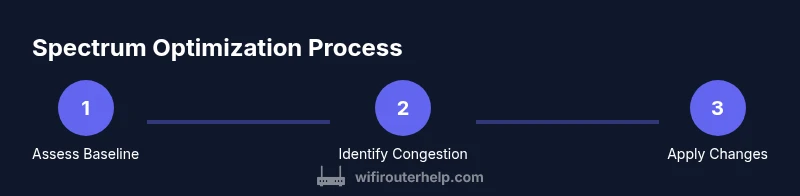
Begin by logging into your router’s admin page or mobile app. Navigate to the wireless or status section to view current bands and channel usage. Use built‑in tools to identify active channels and nearby networks, then cross‑check with a spectrum analyzer app or your router’s diagnostics. Take note of the signal strength in key rooms and any dead zones. If you’re in a multi‑story home, map performance by floor to guide band assignment. For a more comprehensive view, reference external resources from authoritative sources such as FCC guidance and Wi‑Fi Alliance recommendations. WiFi Router Help also suggests testing devices across different bands during peak and off‑peak hours to capture real‑world behavior. After identifying congestion and interference, you can plan channel changes, SSID separation, and potential hardware upgrades. Examples of trusted sources include FCC.gov and NIST.gov for spectrum basics, plus Wi‑Fi Alliance guidance for equipment interoperability.
Optimizing Spectrum for Coverage and Performance
Optimization is a balance between coverage, capacity, and interference management. Place your modem away from metal objects, large appliances, and microwaves that can disrupt signals. If you’re near a bustling urban area, consider enabling band steering or setting separate SSIDs for each band to better control device connections. When selecting channels, start with automatic selection, then test a few non‑overlapping options on 2.4 GHz (typically 1 or 11 in the US) and 5 GHz with wider channel widths if your environment supports them. Channel width choices affect speed and stability; in crowded areas, narrower widths often reduce interference. Regularly update firmware to ensure performance and security improvements are applied. WiFi Router Help recommends periodic reevaluation of settings as you add devices or undergo changes in your home environment. Pair spectrum optimization with basic QoS rules to prioritize latency‑sensitive tasks like gaming or video conferencing. External references from FCC and NIST provide additional context on spectrum management and device interoperability.
Common Issues and Quick Fixes
Common spectrum issues include crowded channels, weak signal in far rooms, and devices stubbornly sticking to the wrong band. Quick fixes include temporarily changing the channel to a less crowded option, enabling 5 GHz or 6 GHz for devices with poor 2.4 GHz performance, and ensuring your router firmware is up to date. If Wi‑Fi is unstable after a power outage or reboot, re‑check channel assignments and SSID configurations. Check for interference from neighbors’ networks and re‑position the router to improve line‑of‑sight in critical areas. For homes with thick walls or metal studs, a mesh system or range extender can help extend spectrum coverage. The WiFi Router Help team notes that keeping a stable and clean spectrum reduces dropped connections and improves overall user experience. When in doubt, revert to a simple baseline setup and reintroduce tweaks gradually to identify the exact cause of issues.
Advanced Settings for Power Users
Power users can explore advanced options such as separate SSIDs per band, QoS rules, and smart channel steering. Consider enabling a dedicated 2.4 GHz network for IoT devices and keeping faster devices on 5 GHz or 6 GHz when possible. If your router supports it, configure a specific channel width (20 MHz for 2.4 GHz, 80 MHz or higher for 5 GHz/6 GHz) to optimize throughput while monitoring stability. Band steering automatically guides devices toward the best band, but it can occasionally create instability for some devices; in such cases, manual band assignment may be preferable. Regularly back up router configurations before making bulk changes. Additional precautions include ensuring strong admin credentials and disabling remote management if not needed.
Security and Privacy Considerations When Managing Spectrum
Security matters when enabling multiple bands. Use strong, unique passwords for each network, enable WPA3 where available, and turn off WPS if possible. Keep firmware up to date to mitigate vulnerabilities in wireless protocols. Consider monitoring connected devices and setting parental controls or guest networks to protect primary devices. When configuring 6 GHz networks, ensure client devices are trusted and do not expose unintended access points. The WiFi Router Help team emphasizes maintaining a cautious approach to remote management and routinely reviewing devices connected to your networks. For broader best practices, consult FCC spectrum guidelines and Wi‑Fi Alliance recommendations.
Tools & Materials
- Smartphone or computer with web browser(Used to access the router admin page and test changes)
- Router/modem admin credentials(Current login details; back up before changes)
- Access to router admin interface (IP or app)(Typically 192.168.x.x or similar; vary by device)
- Spectrum analysis app or tool (optional)(Helpful for advanced diagnostics)
- Network performance test data/notes(Document before and after changes to track impact)
Steps
Estimated time: 45-60 minutes
- 1
Open the router admin page
Connect to your home network, open a web browser or mobile app, and enter the router's IP address or use the companion app. This step lets you access current spectrum settings and firmware state before making changes.
Tip: Keep the login credentials safe; consider exporting a backup of current settings before editing. - 2
Navigate to the wireless settings
Find the Wireless or Wi‑Fi section to view the active bands, SSIDs, and current channel assignments. This is where you decide which bands to enable or rename for easier management.
Tip: If you cannot locate the section, consult the user manual or vendor support pages for exact navigation paths. - 3
Note current spectrum bands and SSIDs
Record the SSIDs for 2.4 GHz, 5 GHz, and 6 GHz if present, along with their current channel numbers and channel widths. This baseline helps you measure the impact of changes.
Tip: Take screenshots or export a config backup for quick restoration if needed. - 4
Run a quick spectrum check
Use built‑in router tools or a separate spectrum analyzer to identify crowded channels and nearby networks. Note peak interference times (often evenings) to guide scheduling of optimizations.
Tip: Observe which channels are least used without assuming automatic selections are optimal. - 5
Create separate SSIDs for each band
Enable distinct networks for 2.4 GHz and 5 GHz (and 6 GHz if supported) to control device connections. This helps you force devices onto specific bands during testing.
Tip: Label networks clearly (e.g., Home-2.4, Home-5G, Home-6E) to avoid confusion. - 6
Set channel widths and select channels
Choose recommended channel widths (20 MHz for 2.4 GHz; 80–160 MHz on 5 GHz/6 GHz where supported) and pick non‑overlapping channels. Auto mode works, but manual tuning often yields better stability in busy environments.
Tip: Start with auto, then test a few alternatives to identify the best balance of speed and reliability. - 7
Enable QoS and guard against congestion
If available, configure QoS rules to prioritize latency‑sensitive devices or apps. Consider enabling band steering carefully, as it can occasionally misplace devices if misconfigured.
Tip: Test with a mix of devices after enabling QoS to ensure critical apps stay responsive. - 8
Test performance and adjust as needed
Run speed tests in key rooms and with typical devices. Verify video calls, gaming, and streaming performance. If issues persist, rollback to a known good configuration and retry changes more gradually.
Tip: Document results and time stamps to compare before/after states.
People Also Ask
What is modem spectrum and why does it matter?
Modem spectrum refers to the radio bands your router uses to broadcast Wi‑Fi. It matters because different bands have different ranges, speeds, and interference profiles that affect your network performance.
Modem spectrum is the radio bands your router uses. It matters because different bands behave differently in your home, affecting speed and range.
Should I use 2.4 GHz or 5 GHz for all devices?
Use 2.4 GHz for devices farther from the router or requiring simple tasks, and 5 GHz (or 6 GHz on compatible devices) for higher speeds and lower interference.
2.4 GHz is good when you’re far away; 5 GHz or 6 GHz is better for fast, nearby connections.
What if my router supports 6 GHz but my devices don’t?
If most devices don’t support 6 GHz, you can still benefit from 6 GHz by leaving it as an optional network or enabling it only for newer devices, while using 2.4/5 GHz for the rest.
If your devices don’t support 6 GHz, you can leave it as an optional network and focus on 2.4 and 5 GHz for most devices.
How do I know which channels are least congested nearby?
Use your router’s spectrum tools or a spectrum analyzer app to scan for nearby networks and choose the least crowded non-overlapping channels.
Scan for nearby networks and pick channels with the least crowding.
Is it safe to tweak advanced settings like QoS and band steering?
Yes, with caution. Make small changes, test impact, and back up your configuration. Avoid disabling essential security features.
Tweak in small steps, test, and keep backups—don’t disable security.
What should I do if changes make things worse?
If performance drops, revert to the previously saved configuration and re‑test changes one at a time to identify the culprit.
If things get worse, restore a backup and re-test changes gradually.
Watch Video
What to Remember
- Know your bands and assign devices by usage and distance.
- Separate SSIDs help manage behavior across bands.
- Test changes in real conditions to confirm benefits.
- Keep firmware updated and back up configurations.