Router vs Modem Spectrum: A Practical Guide for Home Networks
Learn the difference between a router and a modem with Spectrum, how they work together, and when you should use one or both. This guide explains configuration, common setups, and troubleshooting for reliable home Wi‑Fi.


Understanding the difference between a router and a modem, especially with Spectrum, is essential for a reliable home network. In short, a modem connects your home to the ISP and translates signal, while a router distributes that connection to devices and manages Wi‑Fi. Some Spectrum plans provide a gateway (modem-router combo), but many setups use separate devices.
Understanding the Core Roles of Modem and Router
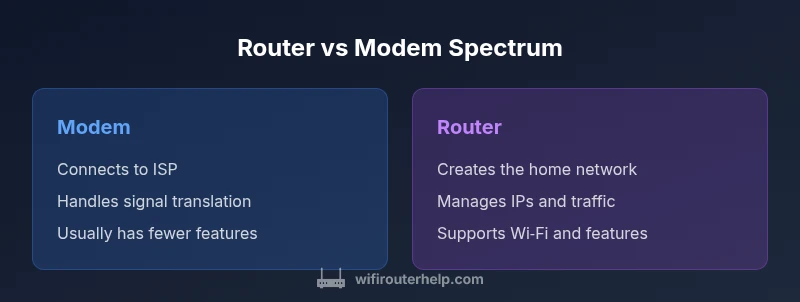
To fully grasp the difference between a router and a modem spectrum, start with the basic roles each device plays in your home network. A modem is the bridge between your home and the internet provided by your ISP. It modulates and demodulates signals, converting the data from your ISP into a form that your devices can understand. A router, on the other hand, creates the local network and manages data traffic between devices, the gateway device, and the internet. It assigns local IP addresses, routes traffic, and distributes Wi‑Fi across rooms. In practical terms, the modem is the door to the internet; the router is the hallways and rooms inside your home where devices connect. According to WiFi Router Help, understanding the nuanced roles of these two devices is crucial for choosing a setup that minimizes confusion and maximizes reliability. The phrase difference between router and modem spectrum is often used by homeowners trying to optimize their ISP experience, especially when Spectrum provides a gateway vs. separate devices. This distinction becomes even more important when you consider how filters, NAT, and firewall rules apply at the edge of your home network.
- Definitions and primary tasks
- How a gateway (modem-router combo) simplifies the setup
- Why the distinction matters for troubleshooting and upgrades
Spectrum's Gateway Approach: What You Should Know
Spectrum, like many ISPs, offers a gateway device that combines a modem and router into a single unit. This option is appealing for its simplicity and minimal cable clutter. However, it’s essential to recognize the trade-offs. A gateway may be sufficient for small homes with light browsing and streaming, but as your network grows—more devices, higher bandwidth needs, or smart home hubs—the single device can become a bottleneck. The WiFi Router Help team finds that many users experience improved performance and flexibility by separating the functions: using a dedicated modem for reliable connection and a separate high‑performance router for robust Wi‑Fi coverage. If you already own a Spectrum gateway, you can often switch to a split setup by obtaining a compatible modem from Spectrum and pairing it with a separate router. This approach makes future upgrades easier because you can replace the router without touching the modem, and vice versa.
- Gateway pros and cons
- When to consider splitting modem and router
- How bridging mode and DMZ can affect performance
Key Differences in Functionality and Performance
A modem’s core function is to handle the physical layer and protocol translation between Spectrum’s network and your home devices. A router’s core function is to create a private network, manage IP addressing, and route data efficiently. When you combine both into a gateway, you get convenience, but you may sacrifice some flexibility and advanced features. Separate devices allow for more control over QoS (Quality of Service), guest networks, parental controls, and firewall settings. They also make it easier to upgrade hardware as standards evolve (for example, upgrading the router’s Wi‑Fi standard while keeping a reliable modem). From a performance perspective, the router is usually the limiting factor for wireless speed, especially in large homes or spaces with interference. The modem’s quality matters for sustained connection reliability and speed provisioning from Spectrum. WiFi Router Help’s guidance emphasizes testing your actual speeds in real-world conditions to determine whether upgrading the router alone would meet your goals or if a new modem is warranted.
- Real-world impact of performance enhancements
- How to measure throughput and wireless coverage
- Scenarios where a gateway suffices versus a split setup
Choosing the Right Hardware for Your Space
Size and layout dictate your equipment choices. Small apartments often thrive with a gateway; larger homes benefit from a separate router placed centrally or in a high‑signal area. Consider a modem that supports the fastest plan offered by Spectrum in your area and a router with modern Wi‑Fi standards (Wi‑Fi 6/6E if available) and strong antenna design for coverage. When selecting devices, align with your priorities: speed, coverage, device density, and security features. For homeowners who value expandability, buying a separate modem (that you own) plus a high‑performance router offers a cleaner upgrade path than always relying on a gateway from Spectrum. The WiFi Router Help analysis shows that planning for future devices and IoT expansion reduces the need for frequent swaps and reconfigurations. If you’re unsure, start with a capable router and an approved Spectrum modem; you can always adjust later.
- Planning for peak usage hours
- Placement and channel selection strategy
- Firmware update considerations and auto‑updates
Bridging, NAT, and Network Topology Essentials
One of the most common sources of confusion is how NAT (Network Address Translation) and bridging work when you mix or separate devices. A gateway typically handles NAT automatically, which is fine for most homes. However, advanced users may want to enable bridge mode on the modem to bypass the router’s built‑in features and let a dedicated router manage DHCP and NAT. This can reduce double NAT issues and give you more precise control over port forwarding and firewall rules. If you choose a separate modem and router, you’ll likely run the router in router mode and the modem in bridge mode or use the modem purely as a pass‑through device. Spectrum documentation and typical configurations support these options, but you should verify compatibility and settings with your specific hardware. The goal is to ensure devices obtain IPs reliably, enjoy low latency, and avoid conflicts between devices vying for the same network resources.
- When to enable bridge mode
- Handling double NAT scenarios
- Practical steps to configure a split setup
Security and Maintenance Considerations
Security is a pivotal reason to upgrade or revise your modem/router setup. Routers with current firmware provide essential protections, including automatic security patches, firewall options, and secure guest networks. When you rely on a gateway, you benefit from integrated protection, but you lose some visibility into updates and granular controls. Owning your own modem and router can improve security by enabling you to apply updates on your own schedule and configure features such as QoS, NAT firewall, and parental controls more precisely. Regularly change default credentials, enable WPA3 (or at least WPA2) encryption, and keep firmware current. For Spectrum customers, check whether your equipment firmware is pushed by the ISP or if you should upgrade devices independently. The long‑term value lies in a secure, well‑managed network that minimizes attack surfaces while maintaining performance across devices.
- Password hygiene and device management
- Importance of firmware updates
- How to back up router configuration and reset procedures
Troubleshooting Common Scenarios
Even the best setups encounter hiccups. If you notice slow Wi‑Fi or dropped connections, start with the basics: reboot both devices, check cables and power, verify firmware versions, and confirm that you’re not experiencing interference from neighboring networks. If Spectrum provides a gateway, check the device’s status page for WAN/Internet status and ensure the correct mode is selected (router vs gateway). In a split setup, confirm that the modem is in bridge mode if you’re encountering double NAT, and verify that the router’s DHCP range does not conflict with the modem. For persistent issues, perform a clean slate reset on the router (back up configuration first) and reconfigure from scratch. Documenting times, speeds, and affected devices helps isolate whether problems are networkwide or device-specific. WiFi Router Help’s practical approach emphasizes methodical testing and incremental changes to identify the root cause quickly.
- How to test speeds accurately
- Diagnosing interference and channel choice
- When to contact ISP support
When to Upgrade: Signals You Might Need a Change
Indications you should upgrade your modem and/or router include persistent performance bottlenecks, frequent buffering on streaming, or a growing number of smart devices that strain your current setup. If your Spectrum plan has advanced features or higher speeds, ensure your equipment keeps pace. Upgrading the router often yields the most noticeable improvements in coverage and throughput, but a modern modem is also essential to avoid bottlenecks at the edge of the network. If your devices support Wi‑Fi 6/6E, upgrading the router can be a cost‑effective way to extend coverage and improve performance for modern devices. The core takeaway is to assess whether the bottleneck is the access point (router) or the entry point to the network (modem) and plan upgrades accordingly.
- Indicators for upgrading
- Cost and value considerations
- Long‑term planning for evolving standards
Practical Summary: Quick Guide to Decide
A modem handles the line from Spectrum, while a router creates and manages your local network. If you live in a smaller space, a gateway may be adequate. If you require stronger Wi‑Fi coverage, more features, or easier future upgrades, separating modem and router is often the better choice. Start by confirming your internet plan, evaluating the gateway option, and then considering a split setup if necessary. This approach aligns with best practices in home networking and reduces reliance on a single device for multiple critical functions.
- When to choose gateway vs split setup
- Consider future-proofing with a capable router
- Plan for security, updates, and maintenance
bodyBlocksEndNote
Comparison
| Feature | Standalone Modem | Standalone Router |
|---|---|---|
| Purpose | Connects to ISP and modulates signals | Creates local network and manages device traffic |
| Control | Limited settings adjusted via ISP portal | Extensive settings for QoS, guest networks, and firewall |
| Upgrade Path | Often bundled with router in gateway | Separate devices allow independent upgrades |
| Typical Setup | Modem + router integrated in one unit | Modem in bridge mode or pass-through with a separate router |
| Best For | Simplicity, small spaces, minimal setup | Performance, flexibility, long-term upgrades |
Benefits
- Clear separation of responsibilities for troubleshooting
- Easier to upgrade one device at a time
- Potentially better performance with specialized hardware
- More control over network features (QoS, guest networks, security)
The Bad
- Higher upfront cost for separate devices
- More cables and setup complexity
- Space and power consumption increase
- Potential configuration complexity for beginners
Separate modem and router usually win for performance and flexibility
If you prioritize long‑term performance and expandability, a split setup (separate modem and router) is generally the best choice. A gateway may suffice for smaller spaces or ease of setup, but upgrades and advanced features are easier with individual devices.
People Also Ask
What is the difference between a modem and a router?
A modem connects your home to the ISP and translates signals for your devices. A router creates the home network, assigns IP addresses, and distributes internet access via wired and wireless connections. Together, they enable your devices to access the internet, with the modem handling the external link and the router handling internal traffic.
A modem brings the internet to your home; the router makes the network inside your home. You usually need both for Wi‑Fi and reliable connectivity.
Can Spectrum supply a gateway or should I buy my own modem and router?
Spectrum often provides a gateway that combines modem and router in one device for convenience. If you want more control, you can opt for your own modem and a separate router, keeping in mind compatibility with Spectrum plans and potential costs for renting equipment from the ISP.
Spectrum can give you a gateway, but if you want better control and upgrades later, consider using your own modem plus a separate router.
Do I need both a modem and a router for home Wi‑Fi?
Yes, to have a local home network with Wi‑Fi, you typically use a modem to connect to the internet and a router to create and manage your home network. Some setups use a gateway that combines both functions, which is simpler but less flexible for upgrades.
Usually you need both, unless you’re using a gateway that combines them.
What is bridge mode and when should I use it?
Bridge mode disables the router functions on the modem, letting a separate router manage the network. This helps avoid double NAT and gives you full control over DHCP and port forwarding, especially in larger or more complex networks.
Bridge mode is when the modem acts only as a bridge and your router handles the network. Use it if you want full control over settings.
Will a separate router improve Wi‑Fi performance?
A modern, high‑quality router can significantly improve Wi‑Fi coverage and throughput, especially in larger homes or spaces with interference. The modem’s capability still matters, but the router is usually the main lever for performance.
Yes, a good router often boosts Wi‑Fi performance more than a basic gateway.
What should I upgrade first if my wireless is slow?
Assess whether the bottleneck is the router or modem. If you already have a decent modem, upgrading the router and optimizing placement, channels, and firmware is typically the best first step. Test speeds at various rooms to identify weak spots.
Start with the router and its location, then consider the modem if speeds don’t improve.
What to Remember
- Decide based on space, performance needs, and future upgrades
- Consider Spectrum gateway if simplicity matters
- Separate devices offer more control and scalability
- Bridge mode can reduce double NAT in split setups
- Regularly update firmware and monitor network performance
- Plan for future devices compatible with current speeds