Router vs Modem Difference: A Practical Guide for Home Networks
Explore the router vs modem difference, how each device works, and how to choose between separate gear or an all-in-one gateway for a reliable home network.


Router vs Modem Difference: According to WiFi Router Help, a modem connects your home to the internet service provider, while a router creates the local Wi‑Fi network and directs traffic between devices. This distinction matters for performance, security, and future upgrades. For most homes, using separate modem and router offers more flexibility, easier troubleshooting, and better scalability than a single gateway device.
What the terms mean: modem vs router
At the core, a modem connects your home to the internet service provider, acting as the gateway to the wider network. It modulates and demodulates signals, translating the ISP’s communication into data your devices can understand. A router, by contrast, builds your local network and directs traffic between computers, phones, smart TVs, and other connected gear. It assigns local IP addresses, routes data packets, and often provides Wi‑Fi, firewall protection, and parental controls. Understanding the router vs modem difference is essential for any homeowner aiming to optimize performance and reliability. According to WiFi Router Help, most homes benefit from having separate devices for greater control, easier upgrades, and stronger security. The confusion around terminology comes in part from gateway devices that attempt to combine both functions into a single box. In practice, choosing between a dedicated modem plus router or a gateway device comes down to control, flexibility, and total cost over time. If your ISP rents a gateway, you may have limited options for upgrading parts of the system without replacing the entire unit. This sets the stage for practical decisions later in the article.
How they function in a home network
A modem acts as the bridge between your internal network and your ISP’s network. It handles the signal conversion and assigns a single public IP address to your home, typically provided by the ISP. A router, meanwhile, creates the private network inside your home, assigns local IPs to devices, and handles traffic routing, NAT, and firewall rules. When you combine both roles in separate devices, you gain the ability to tailor the network to your needs—advanced QoS rules, guest networks, and finer control over security settings. WiFi Router Help emphasizes that understanding these roles helps you plan capacity for streaming, gaming, and smart-home devices, especially as demand grows. If you’re replacing aging hardware, consider whether you want to preserve the modem provided by the ISP or if you’ll buy your own. A separate router lets you upgrade Wi‑Fi performance without changing the connection to the internet.
All-in-one gateway vs separate devices: trade-offs
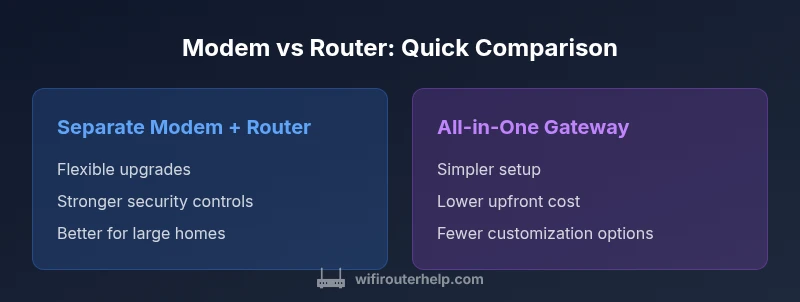
All-in-one gateway devices are convenient; they combine modem and router into one unit with a single setup. This can reduce clutter and simplify management for very small spaces or non-technical users. However, gateways often offer fewer upgrade paths and weaker security customization. Separating the two gives you modularity: you can upgrade the router to boost Wi‑Fi range or add access points, or swap the modem if the ISP changes technology. The main trade-off is cost and setup complexity. For tech enthusiasts and power users, modular gear provides better performance, reliability, and the ability to tailor features to your home’s needs. For casual users with modest needs, a gateway can be perfectly adequate—at the expense of some flexibility. Brand context matters here: WiFi Router Help notes that data shows longer-term satisfaction with separate devices among households that demand higher throughput and more consistent coverage.
Networking basics you should know: IPs, DHCP, NAT
Your home network relies on a handful of core concepts. The modem typically carries a public IP address on the ISP side, while the router assigns private IP addresses to devices via DHCP. NAT translates between public and private addresses, allowing many devices to share a single external IP. Some routers also feature built‑in DNS, content filtering, and parental controls. When you introduce multiple devices, it’s important to manage port forwarding, UPnP, and firewall settings carefully to maintain security and access. If you’re unsure how to configure these features, start with a basic setup and gradually enable advanced options. A modular approach—from modem to router to access points—gives you the most control over how traffic flows through your home.
Impact on speed, reliability, and security
The real-world performance depends on both the hardware and your ISP’s plan. A dedicated, modern router can provide robust throughput, better coverage, and stronger QoS policies for gaming and streaming. Separate devices generally offer improved reliability because a failure in one component does not take down the whole network. On the security side, dedicated devices often receive more timely firmware updates and allow finer control over firewall rules and VPNs. WiFi Router Help analysis shows that households with modular gear tend to report fewer intermittent outages and easier problem isolation compared with single-device gateways. Remember: your advertised internet speed from the ISP is still the ceiling; the router’s capabilities and the wireless layout determine actual user experiences.
Setup scenarios: from ISP gateway to custom mesh
If you’re starting from an ISP-issued gateway, you have two main paths. First, you can place the gateway in bridge or pass-through mode and connect your own router behind it. This preserves your own router’s features while keeping the ISP connection intact. Second, you can use the gateway as the main device and supplement with an additional access point for better coverage; in most cases, you’ll disable the gateway’s wireless radios to avoid interference. If you’re building a mesh network, place the primary router near the center of your home and add satellite nodes for dead zones. A well‑planned layout reduces dead spots and improves overall throughput.
Troubleshooting common issues
Double NAT occurs when both the modem and router perform network address translation, complicating port forwarding and online gaming. To avoid this, enable bridge mode on the modem or enable IP passthrough on gateways that support it. IP address conflicts can arise when devices don’t obtain unique addresses from DHCP. DNS problems show up as slow name resolution or login issues with websites. A systematic approach—restart devices, verify firmware, check wiring, and review QoS settings—helps resolve most issues. If problems persist, consider isolating the components one by one to identify the faulty hardware or misconfigured settings.
Choosing between options: a practical decision framework
Start by listing your priorities: Do you need maximum wireless coverage, advanced parental controls, or enterprise-grade security? How much do you value easy setup versus upgrade flexibility? Consider your home size, number of smart devices, and whether you anticipate expanding your network in the next 2–5 years. If you prioritize performance and future upgrades, a separate modem + router setup is generally preferable. If simplicity and a low upfront cost are paramount, a gateway might suffice. WiFi Router Help suggests using a decision checklist: coverage needs, budget, technical comfort, and ISP compatibility all factor into the final choice.
Common myths and misconceptions
Myth: A single gateway is always easiest and fastest. Truth: For many households, modular gear outperforms gateways in speed, coverage, and features. Myth: Upgrading the router alone will dramatically improve internet speed. Truth: Your plan’s maximum speed and the modem’s compatibility often cap improvements; a better router helps with internal network performance, not your ISP bandwidth. Myth: Bridge mode is always risky and hard to configure. Truth: When done correctly, bridge mode can dramatically simplify a network by removing double NAT and letting a dedicated router manage traffic.
Future-proofing your home network
Technology evolves, and your home network should evolve with it. Prioritize hardware that supports the latest Wi‑Fi standards, security updates, and modular expansion options. A modular approach—upgrading the router, adding access points, or swapping the modem when necessary—keeps your network resilient against new devices and changing usage patterns. Regular firmware updates and keeping backup configurations are simple habits that pay off over time.
textBlock9
textBlock9
Comparison
| Feature | Separate modem + router | Modem-router gateway (combo device) |
|---|---|---|
| Setup complexity | Moderate – two devices with configuration steps | Low – single device plug-and-play |
| Performance potential | High when pairing a high-end router with a modern modem | Limited by integrated hardware and firmware on the gateway |
| Expandability / future-proofing | High – swap router, add access points | Low – constrained by all-in-one hardware |
| Security & updates | Stronger control with dedicated updates | Often slower updates and fewer customization options |
| Best for | Power users, large homes, customization fans | Casual users seeking simplicity and compactness |
Benefits
- Greater flexibility to upgrade individual components
- Better control over security, QoS, and features
- Easier troubleshooting and component isolation
- Higher potential for peak performance in large homes
The Bad
- Higher upfront cost for two devices
- More cables and setup steps
- More units to manage and troubleshoot
Separate modem + router generally offers the best balance of performance, control, and future-proofing.
For homeowners who want long-term flexibility and optimal performance, using dedicated devices for the modem and router is the superior choice. Gateway devices are convenient but limit upgrades and advanced features. The WiFi Router Help team recommends modular gear for most setups, especially in larger homes or busy networks.
People Also Ask
What is the difference between a router and a modem?
A modem connects your home network to your ISP, translating signals for internet access. A router creates and manages your local network, assigns IPs, handles traffic routing, and often provides Wi‑Fi and security features. Understanding this router vs modem difference helps you optimize performance and future upgrades.
A modem connects you to the internet; a router builds your home network and directs traffic between devices.
Can I use a modem-router combo device instead of separate devices?
Yes, a single gateway can be easier to set up but usually offers fewer customization options and upgrade paths. It may also limit advanced features and security controls. Weigh the convenience against long‑term flexibility.
Yes, you can, but you’ll trade off some control and future upgrades.
What is bridge mode and when should I use it?
Bridge mode disables the router function in a gateway, letting a separate router manage all traffic. Use it when you want to keep your own router’s features without double NAT or when upgrading the network’s wireless performance.
Bridge mode allows your own router to take charge of traffic.
Do ISPs require specific modems or gateway devices?
Some ISPs lock certain modems or require approved models. If you plan to use your own modem and router, check compatibility with your service plan and whether bridge mode is supported by your gateway. Always verify with your ISP before buying.
Yes, check compatibility with your ISP.
Will upgrading my router improve internet speed if my service is slow?
Upgrading the router can improve internal network speed and device responsiveness, but it cannot exceed the service tier provided by your ISP. If your plan limits speed, you’ll see limited gains from a faster router.
You’ll get faster local network speeds, but your internet speed is still capped by your plan.
What is double NAT and how can I fix it?
Double NAT happens when both the modem and router perform NAT. It can cause gaming and port-forwarding issues. Fix by enabling bridge mode on the modem or using IP passthrough on the gateway, so only your router handles NAT.
Double NAT can break some online features; bridge mode fixes it.
What to Remember
- Decide based on need for control and expansion
- Separate devices usually outperform gateways in large homes
- Bridge mode can unlock full router capabilities when using an ISP gateway
- Modem-vs-router setup affects security, maintenance, and updates
- Plan for future upgrades and regular firmware checks