Router or Modem Difference: A Practical Comparison
Explore the router or modem difference, how each device works, and how to choose the best setup for a reliable home network with step-by-step guidance from WiFi Router Help.


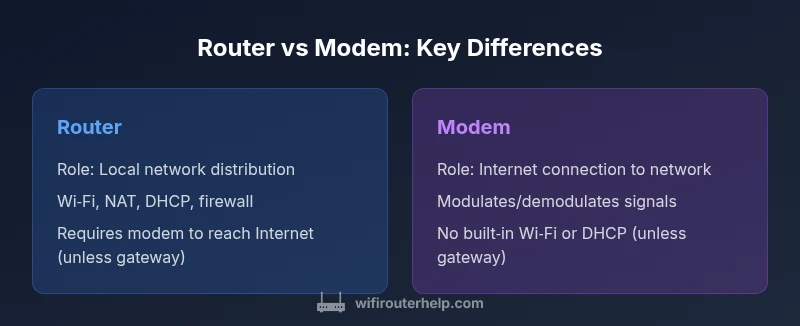
Understanding the router or modem difference is essential for a reliable home network. In most setups, a modem provides Internet access from your ISP, while a router creates and manages your local Wi‑Fi and wired connections. Some devices combine both into a gateway, but separating them often offers easier upgrades and better security. For the typical home, you will usually need both, or a gateway that can be separated later if desired.
What the terms mean: router, modem, gateway
According to WiFi Router Help, a router is a device that creates a local network by routing traffic between devices and the Internet. It assigns private IP addresses, manages data flow, and provides features such as Wi‑Fi, firewall protection, and guest networks. A modem, by contrast, connects your home network to your Internet service provider by modulating and demodulating signals. In most homes, these two devices are paired in a gateway device, but many households benefit from separating them to gain control, flexibility, and easier upgrades. Understanding these roles is the foundation for selecting the right hardware and configuring it for reliability and security.
This distinction is foundational for planning a home network, especially when choosing equipment compatible with your ISP. The WiFi Router Help team notes that most users experience smoother upgrades and clearer troubleshooting when the roles are kept separate. Budget considerations, future-proofing, and security goals all hinge on understanding the router/modem difference and how each device contributes to performance.
How modems connect to ISPs
A modem is the bridge between your home network and the provider’s infrastructure. It translates signals from coaxial, fiber, or DSL lines into a digital stream that devices can understand. Cable modems use DOCSIS technology, fiber modems connect to an Optical Network Terminal (ONT), and DSL modems interpret telephone-line signals. The modem’s job is to establish a reliable physical connection to the ISP; it does not manage local traffic routing or Wi‑Fi by itself. Some ISPs offer a gateway that combines modem and router in one box, simplifying setup but limiting upgrade paths. In all cases, ensure the modem is compatible with your service plan and connection type to avoid outages or speed bottlenecks.
How routers manage traffic and security
Once the modem delivers Internet access, the router takes control of the local network. A router assigns private IP addresses via DHCP, performs Network Address Translation (NAT), and enforces security through a built-in firewall. It also enables features such as guest networks, Quality of Service (QoS) for prioritizing traffic, and parental controls. Modern routers support multiple bands (2.4 GHz and 5 GHz) and technologies like MU‑MIMO and beamforming to improve capacity. The firmware on the router is critical for security and performance, so regular updates are important. The router’s role is to orchestrate traffic between devices—phones, laptops, smart TVs, and IoT—while keeping external threats at bay.
Common setups: separate devices vs gateway
Two widely used configurations illustrate the router or modem difference in practice. A separate modem and router offers maximum flexibility: you can upgrade the router for better wireless performance without changing the modem, or swap the modem for faster service without altering your wireless network. A gateway (modem-router combo) streamlines the experience: fewer cables and a single device to configure. However, gateways may constrain performance, complicate advanced features, and tie you to a single vendor. For many households, starting with a gateway is convenient, then migrating to separate devices as needs evolve. WiFi Router Help generally recommends planning for upgrade paths to avoid vendor lock-in and to preserve control over security settings.
When you need bridging or double NAT considerations
Bridging mode allows a second router to handle the local network while the primary device stays connected to the ISP. In a typical home, enabling bridge or AP mode on the gateway if you add a dedicated router helps avoid double NAT, which can disrupt gaming, VPNs, and port-forwarding. If you must run two routers, ensure one handles DHCP and NAT while the other acts as an access point to minimize conflicts. When in doubt, start with a simple, single-router setup and only add bridging once you’ve verified that performance and remote access tools work as expected.
Understanding IP addressing, NAT, DHCP
A standard home network uses private IP addresses (for example, 192.168.x.x). The router’s DHCP server assigns these addresses to devices, forming the LAN. NAT translates private addresses to a public address when traffic leaves the home network, enabling multiple devices to share a single Internet connection. Misconfigurations—such as two devices running DHCP or conflicting subnets—can cause IP conflicts or dropped connections. For most households, it’s simplest to designate one device as the DHCP server and keep routing and NAT on that device. More advanced layouts may segment traffic with subnets for security or performance, but that requires careful planning and documentation.
Wireless considerations: 2.4 GHz vs 5 GHz, MU‑MIMO
Wi‑Fi performance hinges on band choice and the number of spatial streams. The 2.4 GHz band travels farther and penetrates walls better but offers lower raw speeds and more interference. The 5 GHz band provides higher speeds with a shorter range. Many routers support dual-band or tri-band configurations to maximize both coverage and capacity. Features like MU‑MIMO, beamforming, and OFDMA (on newer standards) improve performance in homes with many devices. When selecting a router, consider your devices, home size, and typical usage (gaming, streaming, conferencing) to balance coverage and speed.
Wired networking and QoS
Wired Ethernet remains the most reliable connection type. A robust setup includes a router with multiple gigabit LAN ports, or a separate switch to expand ports for desktops, gaming consoles, and smart devices. QoS lets you prioritize latency-sensitive tasks such as video calls or online gaming, ensuring smoother experiences even when your Internet plan is saturated. If you frequently transfer large files or run a home lab, look for higher-speed Ethernet options and the ability to prioritize by device or application. Cable quality and distance can impact performance, so plan runs carefully and consider shielded cables for longer distances.
Troubleshooting: when things go wrong
Troubleshooting often starts with the simplest checks: verify that all cables are firmly connected, power cycle both modem and router, and confirm the ISP status. If devices fail to obtain an IP address, recheck DHCP settings and subnet ranges. Wi‑Fi issues may stem from interference or misconfigured channels; a quick reboot and channel scan can help. When VPNs or gaming are problematic, look for NAT type, bridge mode, or port-forwarding settings. If problems persist, review firmware versions and ensure compatibility with your ISP and service plan. A well-documented network map helps you diagnose issues faster and avoid repeating past mistakes.
Upgrade paths and shopping tips
Upgrading your home network doesn’t have to be overwhelming. If Internet speeds increase, upgrading the router to support newer Wi‑Fi standards (Wi‑Fi 6/6E) can yield noticeable improvements without changing the ISP hardware. If you’re renting a gateway from your provider, buying your own modem (and a separate router) can save money over time, provided the ISP supports it. Look for WPA3 security, robust guest networks, reliable QoS, MU‑MIMO, stable firmware updates, and ports for future expansion. Before buying, consult your ISP’s compatibility lists and consider whether you want a simple all-in-one unit or modular components that you can swap progressively.
ISP compatibility and future-proofing
Compatibility remains a key consideration. Cable networks require DOCSIS‑compliant modems, while fiber networks rely on ONTs and appropriate routing gear. DSL services demand gear that matches the provider’s handoff. When future-proofing, prioritize devices that support current and upcoming standards (e.g., Wi‑Fi 6/6E) and have a clear upgrade path for firmware, security, and hardware capabilities. If your goal is long-term reliability, a modular setup with a modern router paired with a compatible modem generally offers the best balance of performance and flexibility.
Best practices for home networks: a simple checklist
- Decide early whether you want separate devices or a gateway to avoid redundant equipment.
- Ensure only one device handles DHCP and NAT to prevent address conflicts.
- Position the router centrally, elevated, and away from interference sources like cordless phones and microwaves.
- Use strong, unique passwords and enable WPA3 where possible.
- Keep firmware up to date and document your network settings for future maintenance.
- Regularly reassess your needs as your Internet plan and the number of connected devices grow over time.
Comparison
| Feature | Router | Modem |
|---|---|---|
| Primary function | Distributes local network traffic, Wi‑Fi, and wired connections (NAT routing) | Provides Internet access to the network; does not route traffic by itself, unless it’s a gateway/modem-router combo |
| NAT and firewall | Acts as the network gateway with NAT and firewall features | Typically lacks separate NAT/firewall when used alone; often part of gateway devices |
| DHCP server | Runs a DHCP server to assign private IPs on the LAN | Does not generally provide DHCP when used as standalone modem |
| Wi‑Fi capability | Includes built‑in Wi‑Fi with multiple bands, guest networks, and QoS | Usually no built‑in Wi‑Fi unless it's a modem-router combo; external router needed for wireless |
| LAN ports | Multiple Ethernet ports (usually 4–8) for wired devices | Typically 0–1 Ethernet ports; external router often required |
| ISP compatibility | Designed to connect to various ISPs via Ethernet or fiber demarc | Connects to a modem; compatibility depends on the modem model with ISPs |
| Upgrade path | Easier to upgrade Wi‑Fi performance by swapping the router alone | Upgrade involves replacing modem hardware or switching ISP plan |
| Price range (consumer devices) | $50–$300 depending on features | $50–$200 depending on model; standalone modems often cheaper |
| Best use case | Home Wi‑Fi distribution, smart home networks, gaming, streaming | Bridging-to-router setups or simple Internet access without local Wi‑Fi |
Benefits
- Clear separation of roles allows easier upgrades
- More control over security and network features
- Better Wi‑Fi performance by swapping a router
- Can reuse existing modem with new router
The Bad
- Requires more devices and more cables
- Possible double NAT or bridging complexity
- Initial setup can be more complex for non-technical users
Separate modem and router is the preferred setup for most homes.
Separating hardware provides flexibility, easier upgrades, and stronger security controls. A gateway can be simpler initially, but you may trade long-term performance and customization for convenience.
People Also Ask
What is the router or modem difference?
The router creates and manages your local network, distributing Internet access to devices. The modem provides the connection to your Internet Service Provider. Understanding this difference helps you choose the right combination, whether you use separate devices or a gateway.
The router creates your home network and Wi‑Fi, while the modem connects you to your ISP. Decide if you need separate devices or a single gateway based on performance and upgrade plans.
Can I replace my ISP's gateway with my own equipment?
Yes, in many cases you can replace an ISP gateway with your own modem and router. Check your ISP’s compatibility list and confirm any required bridge mode or configuration steps to avoid double NAT and ensure service compatibility.
Yes, you can use your own modem and router, but verify compatibility with your ISP and enable bridge mode if needed.
Is double NAT a problem, and how do I fix it?
Double NAT can complicate gaming and VPNs. Disable NAT on one device by placing it in bridge/AP mode, or remove the extra router and use a single router with a gateway modem.
Double NAT can cause issues; fix it by bridging or using one router to handle NAT.
Do I need Wi‑Fi built into the modem?
Not usually. Standalone modems don’t include Wi‑Fi. If you want wireless coverage in one device, consider a gateway or a modem-router combo. For best control and performance, pair a dedicated router with a separate modem.
Usually no—you’ll want a router for Wi‑Fi or a gateway that combines both.
What is bridge mode and when should I use it?
Bridge mode turns off the router functions on a gateway, allowing a separate router to handle all routing and Wi‑Fi. Use it when you want a dedicated router for more features or better performance, especially in larger homes or busy networks.
Bridge mode is when you let your main router handle everything, and the gateway becomes a simple modem.
What to Remember
- Decide between separate devices or a gateway based on future needs
- One device should handle DHCP/NAT to avoid conflicts
- Prioritize modern Wi‑Fi standards and security features
- Plan hardware placement to maximize coverage
- Keep firmware updated for security and reliability