WiFi Router Security: A Practical Step-by-Step Guide
Learn practical, expert-backed steps to harden your home WiFi router security—from firmware updates and WPA3 to guest networks and DNS filtering. A clear, actionable guide for homeowners and tech enthusiasts.


Improve your home network by hardening WiFi router security with actions like enabling WPA3, updating firmware, changing default credentials, and isolating guest networks. According to WiFi Router Help, these fundamentals reduce attack surfaces and protect devices. A quick audit now can prevent common breaches and buyer's regrets for most home networks today. This guide covers practical steps, typical pitfalls, and timing.
Why wifi router security matters
WiFi router security matters because home networks connect multiple devices including smartphones, laptops, smart TVs, and IoT gadgets. Each device can be a potential entry point if the router is insecure. Without strong protections, attackers may exploit weak credentials, outdated firmware, or misconfigured features to access data, monitor traffic, or recruit devices into botnets. The WiFi Router Help team emphasizes that the root of most home-network breaches is easy-to-fix misconfigurations, not mysterious zero-days. According to WiFi Router Help, securing your router reduces the attack surface and protects personal information across all connected devices. Regular, practical hardening is more effective than reacting to a new threat after the fact.
In typical homes, the router is the gateway between your local devices and the internet. When it’s insecure, attackers can scan for open ports, guess weak passwords, or exploit unpatched firmware. This block breaks down why these risks matter and how a disciplined approach—combining solid configuration, routine maintenance, and informed choices—keeps your family safer online. The goal is not perfection, but a steady reduction of risk without complicating everyday use.
Core protections you should enable
To establish a strong first line of defense, enable core protections on every home router. Key actions include turning on a modern encryption standard like WPA3-Personal, disabling insecure options, and ensuring only authorized devices can connect. Start by accessing the router's admin panel with a secure browser, then apply the following essentials:
- Enable WPA3 on the primary network (and use WPA2/WPA3 mixed if WPA3 is not supported on some devices). This reduces the risk of password-guessing attacks and improves overall privacy.
- Change the default admin username and password. Default credentials are a chronic vulnerability because attackers know them. Create a unique, long password and store it in a password manager.
- Turn off WPS (Wi‑Fi Protected Setup). WPS has known weaknesses that let attackers connect with a PIN or push-button method.
- Keep firmware up to date. Firmware updates patch security flaws and improve resilience against new threats. If your router supports auto-updates, enable them; otherwise check weekly or monthly.
- Enable the router firewall and review NAT policies. A built-in firewall filters inbound traffic and helps block common exploits.
- Disable UPnP unless you need it for certain devices. UPnP can open ports automatically, creating attack surfaces; if you must use it, restrict port mapping and monitor activity.
Beyond these basics, consider network segmentation: create a guest network for visitors and keep IoT devices on a separate network. This containment limits lateral movement if a device becomes compromised. These measures, when combined, dramatically improve security without a heavy learning curve.
How to audit your network devices
A proactive security posture includes regular audits of connected devices and traffic. Start by logging into the router's admin panel and listing all connected devices. Look for unfamiliar names, unfamiliar MAC addresses, or devices that are unexpectedly online at odd times. If you see something unfamiliar, isolate that device, change your Wi‑Fi password, and re-authenticate your legitimate devices.
Use the following steps to build a current picture of your home network:
- Compare the list of connected devices to households’ known devices (phones, laptops, streaming boxes, smart speakers). Mark anything unfamiliar as a potential risk.
- Check for devices that repeatedly reconnect after password changes; this can indicate weak credentials or reconfiguration by an attacker.
- Review DNS settings, port forwarding rules, and firewall logs for anomalies.
- Create a device whitelist or use client isolation in the guest network.
By performing these audits monthly, you’ll catch unauthorized access early and keep legitimate devices functioning smoothly.
Advanced security features to consider
Many modern routers offer features that go beyond basic protections. Understanding these options helps you tailor security to your home setup.
- Guest networks: Create a separate network for visitors. This keeps your primary network private and reduces risk if a guest’s device is compromised.
- Firewall settings: Review default rules and block risky inbound connections. Consider creating a default deny policy with explicit allow rules for necessary services.
- VPN support: If your router includes a built-in VPN server or supports VPN pass-through, you can encrypt traffic leaving your home network. For most users, a client-side VPN on individual devices is simpler and more flexible.
- DNS filtering and content controls: Many routers support DoH/DoT or third-party DNS-based filtering to block malicious domains and enforce safe browsing. Enable logging where available so you can monitor events.
- Disable or restrict UPnP and port forwarding: UPnP can expose local services to the internet; if you don’t need it, disable it and rely on explicit port rules.
- Automatic security scans: Some routers offer vulnerability scanning or integration with security services. Enable these features if you can, but verify performance impact first.
- Backup and restore: Regularly export your router configuration so you can recover quickly after updates or changes. Store a copy securely.
Step-by-step hardening checklist for a typical home router
This checklist provides a concrete, repeatable process you can run every few months or after a major device change. Time estimates assume you have a computer or mobile device with network access and a wired connection for stability where possible.
- Access the router admin panel and log in with a secure account. This is the gateway to all changes; keep login credentials private.
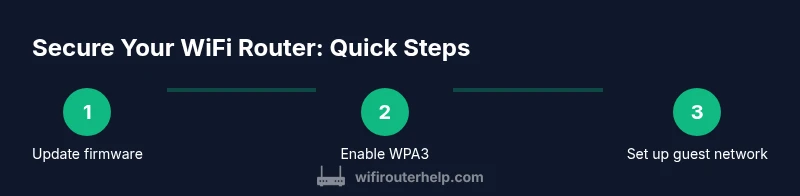
- Update firmware to the latest version released by the manufacturer. Firmware updates patch vulnerabilities and improve compatibility with newer devices.
- Change the default admin username and password. Use a long, unique passphrase and store it securely.
- Enable WPA3 on the main network; if your devices don’t support WPA3, enable WPA2/WPA3 mixed and plan to upgrade devices gradually.
- Set a strong, unique password for the Wi‑Fi network and consider separate networks for guests and IoT devices.
- Create a guest network for visitors and enable client isolation so guests cannot access your main devices.
- Review firewall/NAT settings and remove any unnecessary port forwards. Keep only essential rules.
- Enable DNS filtering or DoH/DoT where possible and monitor the logs for suspicious activity. Consider a VPN solution for added privacy on sensitive devices.
Estimated total time: 30-60 minutes depending on router UI and firmware.
Maintenance and long-term practices
Security is an ongoing process, not a one-time setup. Schedule a monthly quick check to confirm firmware is up to date, review connected devices, and verify guest network isolation remains active. Maintain a simple backup of router settings and note any changes. Use a password manager to store your admin credentials and Wi‑Fi passwords so you can rotate them quickly if you suspect a compromise. By combining routine maintenance with sensible defaults, you build resilience into your home network without becoming overwhelmed.
Tools & Materials
- Web browser-enabled device(PC, laptop, or mobile device to access the router admin interface)
- Router admin credentials(Change from default; store securely in a password manager)
- Ethernet cable (optional)(Wired connection helps during firmware updates for reliability)
- Backup of current router settings(Export or screenshot current configuration before making changes)
- Internet connection and power source(Ensure the router stays powered during updates; use a UPS if available)
Steps
Estimated time: 30-60 minutes
- 1
Access the router admin panel
Open a web browser and enter the router’s IP address (commonly 192.168.1.1 or 192.168.0.1). Log in with your admin credentials. This access point is where you’ll apply the security changes described in this guide.
Tip: Use a wired connection if possible to prevent drops during login. - 2
Update firmware to latest version
Check for and install the latest firmware from the manufacturer’s site or the router’s update feature. Keeping firmware current patches known vulnerabilities and improves compatibility with new devices.
Tip: If automatic updates are available, enable them to stay protected with minimal effort. - 3
Change default admin credentials
Create a strong, unique username and a long password. Default credentials are widely known and a frequent entry point for attackers.
Tip: Store credentials in a reputable password manager and avoid repeating passwords across devices. - 4
Enable WPA3 on the main network
Set the primary Wi‑Fi security to WPA3-Personal if available. If some devices don’t support WPA3, use WPA2/WPA3 mixed mode and plan to upgrade those devices gradually.
Tip: Avoid mixed WPA/WPA2-PSK if possible, as it reduces security strength. - 5
Protect the Wi‑Fi password and guest network
Use a strong, unique passphrase for the main network and create a separate guest network to isolate visitors from your devices.
Tip: Label networks clearly to prevent accidental sharing of the wrong password. - 6
Set up and isolate a guest network
Enable a guest network and enable client isolation so guests cannot access devices on your main network.
Tip: Disable access to local resources from the guest network if you don’t need it. - 7
Review firewall and NAT rules
Inspect existing rules, remove unnecessary port forwards, and configure a conservative default policy.
Tip: Document any needed exceptions and monitor logs for unusual activity. - 8
Enable DNS filtering or DoH/DoT
Turn on DNS filtering where available or configure a trusted DNS provider that blocks known malicious domains.
Tip: Enable logging to review blocked domains and adjust rules as needed.
People Also Ask
What is WPA3 and why should I enable it?
WPA3 is the latest Wi‑Fi security standard that provides stronger data protection and forward secrecy. Enabling it reduces the risk of password guessing and improves overall privacy on your home network. If you have mixed-device compatibility, use WPA2/WPA3 mixed mode and plan gradual upgrades.
WPA3 strengthens wireless security. If some devices don’t support it yet, use mixed mode and upgrade devices over time.
Should I use WPS (Wi‑Fi Protected Setup)?
WPS is convenient but has known vulnerabilities that can let attackers join your network without a strong password. It is generally safer to disable WPS and rely on a strong password and manual device setup.
WPS is convenient but less secure; disable it and use a strong password instead.
How often should I update router firmware?
Check for updates monthly or enable automatic updates if your router supports them. Firmware updates address security flaws and improve compatibility with newer devices.
Check monthly or enable automatic updates to stay protected.
Is UPnP safe to enable?
UPnP can open ports automatically, which may create security holes. If you don’t need it, disable UPnP; if you must use it, monitor port mappings and consider manual port forwarding instead.
UPnP can be risky; disable it unless you need it and manage ports manually.
What’s the best practice for strong router passwords?
Create long, unique passphrases for admin access and Wi‑Fi networks. Use a password manager to store them securely and avoid reusing passwords across devices.
Use long, unique passwords stored in a password manager for admin and Wi‑Fi access.
Watch Video
What to Remember
- Enable WPA3 across networks
- Keep firmware up to date
- Use guest networks and IoT segmentation
- Disable WPS and UPnP where possible
- Regularly audit devices and logs