How to Protect Your Router from Hacking: A Practical Guide
Learn proven steps to secure your home router against hackers: update firmware, strong passwords, disable risky features, and monitor for intrusions with practical, easy-to-follow guidance.


This guide shows you how to protect your router from hacking by tightening credentials, updating firmware, enabling encryption, and disabling vulnerable services. Follow the step-by-step process to create a safer home network and reduce exposure to attack vectors.
Why router security matters
According to WiFi Router Help, your home router is the gatekeeper for every connected device—from phones and laptops to smart TVs and IoT sensors. If the router is compromised, an attacker can monitor traffic, access devices, or enroll your network in a botnet. The most common entry points are weak or default login credentials, outdated firmware, and enabled services that the average homeowner rarely uses. Even features that seem convenient, such as Remote Management or Universal Plug and Play (UPnP), can open doorways if left enabled on the internet-facing side. WiFi Router Help analysis shows that many households run older firmware versions and reuse easy-to-guess passwords. The consequence isn’t just trouble on your network; it can expose personal data, slow down internet performance, and require a factory reset to recover. Security isn’t a one-and-done task—it’s an ongoing discipline: regular checkups, strong passwords, and careful feature toggling. Small changes—like turning off remote access, enabling a robust firewall, and using a guest network for visitors—can dramatically reduce risk. This section lays the foundation for a resilient home network.
Core protections you should enable
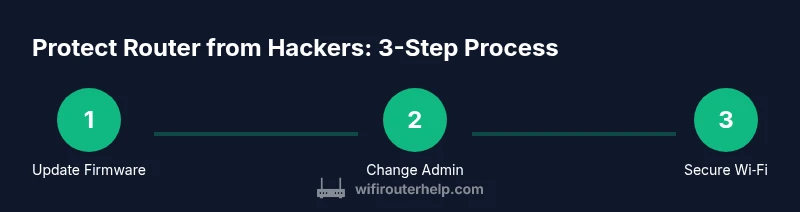
Begin with the basics that stop most intrusions. Change the router’s default admin username and password to something unique. Use a password manager to store it securely and never reuse passwords across sites or devices. Next, secure your Wi‑Fi with WPA3‑Personal if supported; if not, ensure WPA2‑AES is active. Turn off WPS, and disable Remote Management unless you need it for a specific task. Enable the built‑in firewall and set the router to block unsolicited inbound traffic. Create a separate guest network for visitors and IoT devices so they cannot access your main computers. Disable UPnP, or at least keep it turned off when not needed, and avoid port forwarding unless you truly require it. Finally, rename the SSID to avoid revealing device types and ensure remote administration is off. These steps dramatically reduce the attack surface while preserving convenience for trusted users.
Firmware updates and automatic updates
Firmware updates fix security holes and add protections against new attack vectors. Check for updates from the manufacturer’s official site or the router’s built‑in update feature. If your device supports automatic updates, enable them and monitor notices to confirm successful installations. When updating manually, download the correct firmware file from the vendor, verify the checksum if available, and follow the official upgrade procedure exactly to avoid bricking. After updating, reboot the device and re‑check your security settings, as some routers revert to defaults after a firmware change. Regular firmware maintenance is a cornerstone of ongoing router security and should be scheduled monthly or whenever a critical advisory is published by the vendor.
Network segmentation and guest networks
Segmentation helps contain breaches and limits lateral movement by attackers. Use a dedicated guest network for all visitors and smart devices that don’t need access to your main workstation or NAS. Keep the guest network isolated from your primary network, and disable access between SSIDs if your router supports it. For homes with many IoT devices, consider a basic VLAN or separate LAN segment if your equipment offers it. Always ensure the main network uses strong encryption and nondefault credentials. If your router supports it, enable client isolation so devices on the guest network cannot see each other.
Advanced settings to harden your router
Beyond the basics, there are advanced settings that further reduce risk. Disable UPnP if you don’t actively use it, and keep Remote Management off unless needed for remote support. Turn on the firewall and select its most protective mode. Configure your admin access to occur over HTTPS and, if possible, require a VPN for remote connections. Consider enabling MAC address filtering only as an extra obstacle rather than a primary defense, since it’s not foolproof. Regularly review attached devices and remove unknown clients. If your router supports a built‑in VPN server or client mode, enable it for encrypted traffic control.
Practical routine for ongoing security
Security is a habit. Schedule a monthly router check: verify firmware version, confirm auto‑updates are active, review connected devices, and test your guest network access. Maintain strong backups or notes of your configuration so you can restore quickly after a router reset. Keep a short, memorable passphrase for the Wi‑Fi network but store it securely in a password manager. If you notice unfamiliar devices or abnormal network behavior, isolate devices immediately and run a security scan or contact your vendor for guidance. Document any changes you make, including dates, so you can track what works best in your home.
Quick-start checklist
• Change default admin credentials; use a strong, unique password. • Update firmware to latest version; enable auto‑updates if available. • Enable WPA3 or WPA2‑AES on Wi‑Fi; disable WPS and Remote Management. • Turn on the firewall; create a separate guest network for visitors and IoT. • Disable UPnP unless needed; enable VPN considerations if supported. • Monitor connected devices and review security logs monthly.
Authority sources
For further reading and official guidance, consult:
- https://www.cisa.gov
- https://www.nist.gov
- https://www.ftc.gov
Tools & Materials
- Computer or smartphone with web browser(Used to access the router admin page; prefer wired connection during changes.)
- Strong admin password(Unique to your router; store in a password manager.)
- Strong Wi-Fi password (passphrase)(Use a long, random passphrase; avoid common phrases.)
- Ethernet cable (optional)(Helpful for stable admin access during setup.)
- Firmware update file (if manual)(Only if auto-update is unavailable; download from official vendor site.)
Steps
Estimated time: 45-60 minutes
- 1
Open the router admin panel
Connect your computer to the router via Ethernet if possible. Open a browser and enter the router’s IP address (commonly 192.168.0.1 or 192.168.1.1). Log in with the current admin credentials, or perform a reset if credentials are unknown.
Tip: If you can’t reach the panel, verify physical connections and ensure your device is on the same network. - 2
Change the default admin username and password
Navigate to the administration or maintenance section and replace the default credentials with a unique username and a strong password. Do not reuse passwords across devices or accounts. Save changes and log out to verify the new login works.
Tip: Use a password manager to generate and store a long, random password. - 3
Update firmware and enable auto-updates
Check for firmware updates from the vendor and install the latest version. If automatic updates are available, enable them and monitor for completion. Reboot the router after updates and re-check security settings.
Tip: Only download firmware from the official vendor site to avoid tampered files. - 4
Secure Wi‑Fi with strong encryption and passwords
Set the wireless security mode to WPA3‑Personal if supported; if not, use WPA2‑AES at minimum. Create a long, unique Wi‑Fi passphrase. Ensure guest network is available for visitors and IoT devices.
Tip: Do not share the main network password with guests; use the guest network for isolation. - 5
Harden features you don’t need
Disable WPS and Remote Management unless required. Turn on the built‑in firewall and configure it to block unsolicited inbound traffic. Disable UPnP unless you actively need it and restrict port forwarding to essential cases.
Tip: If you must enable Remote Management, restrict access by IP and enable HTTPS. - 6
Create a guest network and monitor devices
Enable a separate guest network and isolate it from your main network. Review connected devices regularly and remove unknown clients. Consider enabling client isolation on the guest network.
Tip: Keep a log of changes to quickly revert or diagnose issues later.
People Also Ask
Is changing the router's default password enough to stay secure?
Changing the default password is essential, but it’s only the first step. Combine it with firmware updates, disabling unused features, and strong Wi‑Fi encryption to significantly reduce risk.
Changing the default password is crucial, but you should pair it with updates and other protections to truly secure your router.
Should I enable WPA3 if all my devices support it?
Yes. If all devices support WPA3‑Personal, enable it for the strongest available protection. If some legacy devices don’t, use WPA2‑AES as a fallback while planning to upgrade those devices.
Enable WPA3 if possible; use WPA2 as a fallback for older devices.
Is UPnP dangerous to leave on?
UPnP can open ports automatically, which is convenient but increases exposure to attack. Disable UPnP if you don’t actively need it and manage port forwarding manually.
UPnP can be risky; disable it unless you need it for a specific app.
If I forget the admin password, what should I do?
Use the router’s reset procedure from the manual to restore factory settings, then immediately create new credentials and re‑secure the network. If possible, perform a soft reset via the interface rather than a hard reset.
If you forget the password, reset the router and set new credentials right away.
Can VPN on the router help security?
A VPN can protect traffic between your devices and the router or remote networks. Use VPN features if your router supports them to encrypt traffic and reduce exposure on public networks.
Yes, router VPN can add encryption for your network traffic.
How often should I check for updates?
Check for updates monthly or sooner if your vendor issues a critical security advisory. Enable automatic updates if the option is available.
Check for updates monthly and enable automatic updates if possible.
Watch Video
What to Remember
- Change default admin credentials immediately.
- Keep firmware up to date with auto-update enabled.
- Use WPA3 on Wi‑Fi; disable WPS and Remote Management.
- Segment networks with a guest SSID for visitors/IoT.
- Regularly audit connected devices and security logs.