How to Protect a Router: Step-by-Step Guide
Learn practical steps to protect your router from hackers, malware, and misconfigurations. From firmware updates to strong admin credentials and network segmentation, this guide helps you secure your home network.


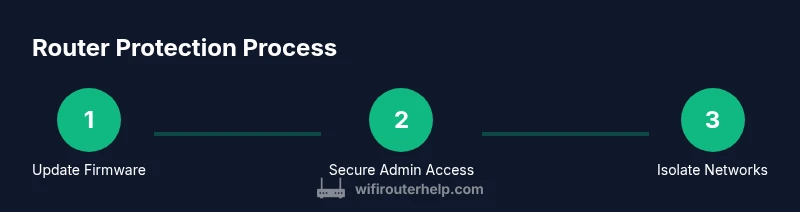
Follow these steps to protect a router: 1) Update the firmware to the latest version from the manufacturer’s site or app. 2) Change the router’s admin password to a strong, unique passphrase. 3) Enable WPA3 (or WPA2-Enterprise if available) and disable WPS. 4) Disable remote management and guest access isolation when appropriate.
Why Protecting Your Router Matters
Your home router is the gatekeeper of your entire digital life. If it is compromised, attackers can monitor traffic, access connected devices, and pivot to other targets on your network. According to WiFi Router Help, home networks rely on a secure router to keep personal data safe and maintain performance. A strong security posture reduces risk from common online threats, improves privacy, and helps prevent botnets from using your network to attack others. In practice, protection starts with a mindset: assume every device could be compromised and act accordingly. Basic hygiene—like changing default credentials, applying updates, and limiting services exposed to the internet—has a compounding effect over time. This section outlines practical steps you can take now to strengthen your router without overhauling your entire home network.
Understanding the Threat Landscape
Hackers frequently exploit outdated firmware, weak or reused passwords, exposed remote management interfaces, and misconfigured features like UPnP. IoT devices, printers, and smart speakers can become footholds if the router is lax about access control. Phishing and malware can target your router’s login page or DNS settings, redirecting traffic or stealing credentials. WiFi Router Help analysis shows that many homes stay at risk because owners expect their network to be “plug-and-play” and forget to implement ongoing maintenance. The remedy is proactive: treat your router as a critical component and routinely review settings, logs, and connected devices for anything unusual.
Start with the Basics: Firmware and Passwords
First, verify you have the latest firmware installed. Use the manufacturer’s app or web interface to check for updates, and enable automatic updates if offered. Next, replace the default admin password with a long, unique passphrase stored in a reputable password manager. Disable any default remote access options that you do not actively use. This creates a solid foundation before adding more advanced protections. Regular backups of your configuration can save time if you ever need to restore settings after an update or reset.
Harden Wireless Security: Encryption, SSID, and WPS
Set your wireless encryption to WPA3—or WPA2-Enterprise if WPA3 isn’t available. Avoid mixed modes that weaken security. Turn off WPS, which is designed for convenience but introduces vulnerabilities. Use a strong, distinctive SSID (avoid personal information) and consider hiding the SSID if your needs require additional privacy, though hiding it is not foolproof. If you must share your network, enable a guest network that is isolated from your main devices. These steps significantly reduce exposure to outsiders while preserving usability for trusted devices.
Control Remote Access: When and How
Remote management is convenient but increases exposure to the internet. If you don’t need it, disable it entirely. If you must enable remote access, restrict it to trusted IP addresses or VPN-based access. Ensure that the remote port, if visible, uses non-default values and that the management interface is accessible only via HTTPS with a strong certificate. Regularly review devices that have been granted access and remove any you no longer recognize.
Segment Your Network: Guests, IoT, and Main LAN
Create separate networks for guests and IoT devices. IoT devices should be isolated from sensitive devices like computers and printers. A dedicated guest network reduces the risk that an infected device on the guest network can access your main devices. Label networks clearly and maintain a simple map of which devices belong to which SSID. This segmentation provides a practical, scalable path to better security without compromising convenience.
Firewall, NAT, and UPnP: Fine-Tuning Your Protection
Enable the router’s firewall and ensure Network Address Translation (NAT) is active to shield devices behind the router. Disable UPnP by default unless you have a specific need, as it can allow devices to open ports automatically. If you require port forwarding, configure static, device-specific rules rather than broad or universal access. Regularly check the firewall logs for unusual or repeated attempts and tune rules accordingly.
Ongoing Maintenance: Monitoring and Backups
Security is a process, not a one-time action. Schedule periodic checkups of firmware versions, login activity, connected devices, and network performance. Keep a simple changelog of settings you adjust so you can revert if something breaks. Back up your router’s configuration after major changes and store the backup securely. Maintain an up-to-date list of the devices you own and their purposes to spot anomalies quickly.
What to Do If You Suspect a Breach
If you suspect a compromise, disconnect suspicious devices, reset the router to factory defaults, and reconfigure from scratch using fresh credentials. Change your internet account passwords as a precaution, and scan all connected devices for malware. After restoring, implement the recommended protections discussed here to prevent recurrence. The goal is to restore trust in your network while addressing the root cause of the breach.
Final Checks: Quick Verification List
Run through a quick checklist: firmware up to date, admin password changed, WPA3 enabled, WPS disabled, remote management off, guest network active, IoT isolated, firewall on, UPnP off, and a clean device map. Regularly re-run this checklist to maintain a secure environment over time.
Tools & Materials
- Stable power supply for the router(Keep the router plugged in during updates to avoid bricking the device)
- PC or mobile device to access the router's admin interface(Use a trusted device over a wired connection when performing sensitive changes)
- Strong, unique admin password(Use a passphrase 14+ characters; consider a password manager)
- Updated firmware file or reliable internet connection for updates(Check manufacturer site or app for the latest version)
- Manual or manufacturer instructions(Helpful for model-specific settings like WPS or UPnP)
- Network diagram (optional)(Helpful for labeling guests, IoT, and main LAN devices)
Steps
Estimated time: 30-60 minutes
- 1
Access the router securely
Connect your computer to the router via Ethernet if possible. Open a trusted browser and navigate to the router's IP address (commonly 192.168.1.1 or 192.168.0.1). Log in with default or existing credentials, then change them to a strong password. If you cannot access the interface, consult the manual or support site for the correct URL and login method.
Tip: Use a wired connection to prevent interference and credential interception. - 2
Update firmware to latest version
Check for firmware updates through the router’s admin interface or the manufacturer’s app. Apply any available updates, and if offered, enable automatic updates. Back up current configuration before updating in case you need to revert settings.
Tip: Back up before updating to avoid losing custom configurations. - 3
Strengthen admin credentials
Replace the default admin username/password with a long, unique passphrase. Consider enabling two-factor authentication if your router supports it, or at least store credentials in a password manager. Do not reuse passwords across devices or services.
Tip: Use a password manager to generate and store complex credentials. - 4
Configure wireless security
Switch to WPA3 encryption if available; otherwise use WPA2 with AES. Disable WPS to reduce risk exposure. Create a distinct, non-identifiable SSID and enable guest networking for visitors.
Tip: Avoid mixed security modes that weaken overall protection. - 5
Limit remote management
Turn off remote management unless you need it. If enabled, restrict access to trusted IP addresses or a VPN connection. Ensure the management interface is HTTPS and uses a strong certificate.
Tip: If possible, use a VPN for remote access instead of exposing the interface publicly. - 6
Segment networks for safety
Create a guest network for visitors and IoT devices, isolating them from your main LAN. Disable device-to-device communication where possible on guest networks.
Tip: Label networks clearly so you can quickly identify devices on each network. - 7
Tighten firewall and port rules
Enable the router’s firewall and review NAT rules. Disable UPnP by default; forward ports only with explicit, device-specific rules when needed.
Tip: Regularly review firewall logs for unusual activity.
People Also Ask
Why is it important to update router firmware regularly?
Regular firmware updates fix known vulnerabilities, improve stability, and add protections against new threats. They should be applied promptly when available through the manufacturer’s site or app.
Regular firmware updates fix vulnerabilities and improve stability; apply updates when offered by the manufacturer.
Should I disable WPS and remote management?
Yes. WPS has known security flaws and remote management expands exposure to the internet. Disable both if you don’t need them and use manual configuration or VPN access if remote administration is necessary.
Yes—disable WPS and remote management unless you have a strong, specific need.
What counts as a strong admin password?
A strong admin password is long (14+ characters), unique, and combines upper and lower case letters, numbers, and symbols. Do not reuse passwords across services.
Use a long, unique passphrase with mixed characters; don’t reuse passwords.
What’s the best wireless security setting today?
Aim for WPA3 or WPA2-Enterprise with AES encryption. Avoid mixed modes and default SSIDs that reveal device models or owners.
Use WPA3 if you can; otherwise WPA2 with AES. Avoid mixed modes.
How can I verify devices on my network?
Check the router’s admin page for a list of connected devices. Block unfamiliar devices, rename them if needed, and remove any you don’t recognize.
Review connected devices in the router and remove anything unfamiliar.
What should I do after a suspected breach?
Power down affected devices, reset the router to factory settings, reconfigure with strong credentials, and run malware scans on connected devices. Then re-establish security best practices.
If you suspect a breach, reset the router and reconfigure with strong credentials, then scan devices.
Watch Video
What to Remember
- Protect admin access with a strong, unique password
- Keep firmware up to date and enable auto-updates if possible
- Use WPA3 or WPA2-AES, disable WPS, and limit remote management
- Isolate guests and IoT devices on separate networks
- Regularly review connected devices and router logs