What Is ZTE Router Password: Find, Change, and Secure Your Network
Learn what the ZTE router password is, where to locate it, how to reset it when forgotten, and best practices to secure your home network. A clear, step-by-step guide from WiFi Router Help.


The ZTE router password is the credential used to access the router's admin interface. It varies by model and can be the default printed on the device label or included in your manual. If you can't locate it, check the bottom or back label, try common defaults like admin/admin or admin/password, or reset the router to factory settings and reconfigure securely.
What is the ZTE router password?
In practical terms, the password is the credential you use to access the router's admin interface, where you configure Wi‑Fi settings, firewall options, and device access controls. The exact password varies by model and firmware version. In many cases, the device label on the bottom or back lists the default username and password. If you inherit a router from a service provider, the initial password may be the one they assigned for remote management. For the home user, this password is also a security key—changing it is one of the simplest, most impactful steps to protect your network. According to WiFi Router Help, the password security landscape is model-specific, so always verify against the exact model you own.
Over time, many users forget this credential or inadvertently change it to something you cannot recall. That is why understanding where to find it and how to reset it safely is essential for maintaining a resilient home network. This article focuses on ZTE devices but the core principles apply to most consumer routers: locate the label, consult the manual, and if necessary, perform a reset to regain control while preserving network continuity.
Default credentials vs. changed passwords
Default credentials are convenient but risky. When a router ships with a default password, anyone who knows or finds the model can potentially log in and alter settings. The WiFi Router Help team found that most ZTE devices share common default formats (such as admin/admin or admin/password), but there is no universal universal credential across all models. Your best practice is to assume the password is unknown and proceed as if you will need to set a new one. Once you gain access, create a unique password that you can remember but that would be difficult for others to guess. A strong password typically combines uppercase and lowercase letters, numbers, and symbols, and avoids obvious patterns related to your personal information.
From a security perspective, changing the default password is non-negotiable. The longer and more complex your password, the more resilient your router is to brute-force attempts and credential stuffing. Some ZTE models allow you to generate a random password from the admin interface; others require you to type a phrase you can remember. Either way, do not reuse passwords across devices or services. Security is not a one-and-done task—it requires ongoing attention as your network evolves.
How to locate the password on physical devices
Physically inspecting the router is often the fastest way to confirm the credential. Look for a label on the bottom, back, or side of the unit. Most modern ZTE routers include a QR code with quick setup details and a small box containing the default username and password. If there is no label, check the original packaging or the service provider’s setup guide. If you cannot locate any credentials, you should not attempt to guess endlessly; instead, proceed to reset the device safely.
If you suspect the password has been changed, but you still cannot log in, ensure you are connected to the correct network. Sometimes there are separate credentials for the guest network vs. the admin interface. In many cases, you will need to connect to the LAN port with a wired connection to access certain admin screens. If you are using a service provider-provisioned unit, the credentials may differ from the default manufacturer ones. In those cases, the provider’s documentation or customer support is your most reliable path to recovery.
Steps to change or reset your ZTE password
Begin by logging into the admin interface using the current password, if you have it. Navigate to the security or wireless settings area and locate the password field. Replace the old password with a new, strong one that you can remember, and save your changes. If you cannot recall the current password, you will need to reset the router to factory defaults and reconfigure. The reset is typically done by holding a pinhole button on the back or bottom of the device for 6–15 seconds. After the reset, you will need to reconnect using the default credentials printed on the label and immediately change them.
For many ZTE devices, the admin login URL is http://192.168.1.1 or http://192.168.0.1. Your browser will prompt for username and password. If the login screen appears but refuses entry, double-check for caps lock and ensure you are connected to the router’s network (not a neighbor’s). After changing the password, consider updating your Wi‑Fi network name (SSID) and enabling encryption like WPA2/WPA3 to reinforce protection.
What to do after resetting or changing a password
After a reset or password update, you’ll need to reconfigure your network settings. Recreate the Wi‑Fi name and password, and rejoin devices. If you have a guest network, decide whether to preserve that separate access or deactivate it; in many homes, keeping a guest network is valuable for keeping IoT devices isolated from main devices.
Document the new credentials in a secure password manager and avoid writing them in plain text. If you maintain a list of network configurations for multiple devices, use a dedicated note that is encrypted and stored safely. For households with many smart devices, consider enabling features like guest networks, parental controls, and firewall settings to maintain a balance between convenience and security.
Security best practices for home networks
Protecting your home network starts with securing the router itself. Change the default password immediately after setup, and pick a long, unique passphrase for the admin account. Enable WPA2/WPA3 encryption for Wi‑Fi and disable remote management if you don’t need it. Regularly check for firmware updates from ZTE or your ISP to patch vulnerabilities. Use strong, unique passwords for device login and for any systems that administer network security or parental controls. Finally, consider enabling logging or monitoring features to detect unusual login attempts and protect your family’s devices from a wide spectrum of online threats.
Troubleshooting common password issues
If you encounter login errors, verify you are connected to the correct network and that you are using the right port (some admin interfaces are only accessible via wired connections). Clear your browser cache or try a different browser if the login page fails to respond. If you forget the password, perform a factory reset and reconfigure from scratch. If you are unable to reset due to hardware faults, contact the device manufacturer or service provider for assistance. Always back up your configuration after successful changes so you can recover quickly if you need to reset again.
Quick reference checklist for ZTE router password
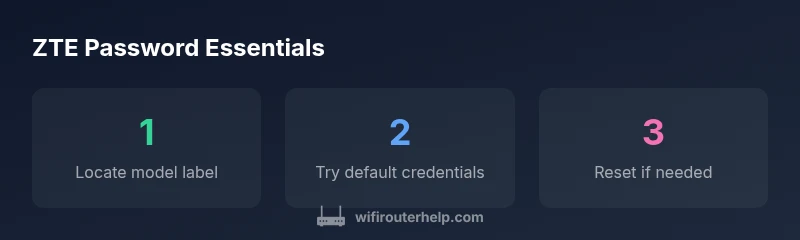
- Locate the model label on the device for default credentials.
- Try common defaults, but do not rely on them—reset if necessary.
- After login, immediately change the default password and update Wi‑Fi settings.
- Enable security features like WPA2/WPA3 and consider a guest network for visitors.
- Document credentials securely and back up your configuration.
- Regularly check for firmware updates and monitor login activity for unusual events.
Quick reference: locating or resetting ZTE router password
| Topic | Action | Location |
|---|---|---|
| Default password | Check device label; consult manual; attempt admin/admin or admin/password | Router label/back of device |
| Lost password | Reset to factory defaults; reconfigure | Reset button on device/back panel |
| Security best practice | Change password, enable WPA2/WPA3 | Admin interface |
People Also Ask
Where can I find the ZTE router password?
Check the label on the bottom or back of the router, consult the manual, or contact your ISP if the unit was provided by them. These sources usually list the default username and password.
Check the router label or manual; if needed, contact your ISP for the correct admin credentials.
What if the default password doesn’t work?
The model may have a different default, or someone changed it. Use the official reset process to regain access and then set a new password.
Try the reset to regain control, then set a new password.
How do I reset a ZTE router to factory defaults?
Hold the reset button for 6–15 seconds until the lights flash. Reconnect and use the default credentials, then immediately change them and reconfigure.
Press the reset button, reconnect, then change the password.
Is it safe to reset via the reset button?
Yes, it’s safe, but you’ll lose all settings and must reconfigure. Backup configuration if your device allows it.
Resetting is safe, but you’ll need to reconfigure settings afterward.
Should I use the web interface or a mobile app to reset?
Both are possible on many ZTE models. The web interface is traditional and often more flexible for passwords and settings.
Both options work; choose whichever you find easier for password changes.
“Changing the router password is one of the simplest yet most effective steps for securing a home network.”
What to Remember
- Change the default password immediately after setup
- Check the device label or manual for credentials
- Use a strong, unique password and enable WPA2/WPA3
- If forgotten, reset to factory defaults and reconfigure
- Document passwords securely in a password manager