What is ZTE Router Default Password? Find, Verify, and Reset Safely
Discover the default credentials for ZTE routers, where to find them, and how to reset them securely. This guide covers model variability, step-by-step resets, and security tips for safer home Wi-Fi.


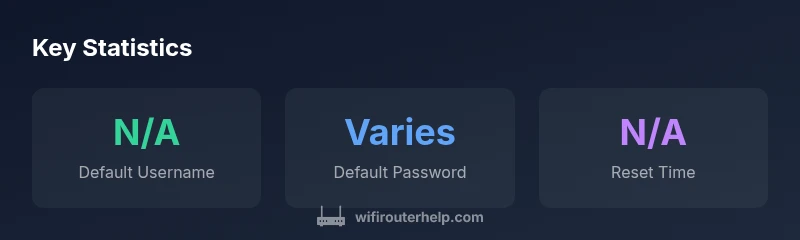
Definition: A ZTE router's default password is the credential the manufacturer assigns for initial setup. It varies by model and firmware, so the pair often seen is username 'admin' with a password that may be 'admin' or 'password', but values can differ. Always verify the exact credentials on the device label or official manual before logging in.
Understanding what is zte router default password
If you’re asking what is zte router default password, you’re seeking the exact model-specific credential that lets you access the router's admin interface for first-time setup. The default password is not universal; it changes with hardware revisions and firmware updates. In many cases, a common pairing exists—username is often admin—but the password can be admin, password, or another value printed on the device label. According to WiFi Router Help, the exact default credential varies by model, and you should verify the value before attempting login. This ensures you don’t waste time guessing or triggering security blocks during setup.
Why default passwords matter for security
Default credentials represent a built-in risk if left unchanged. An attacker who gains access to the router can alter settings, capture traffic, or disable protections. The security stakes are higher if the router is exposed to the internet or used in a shared home environment. Based on WiFi Router Help research, many compromised networks arise from devices that retain factory logins. The takeaway is simple: change the default credentials during setup, choose a strong, unique password, and enable robust encryption from the start. Regular firmware updates and disabling features like WPS further reduce risk.
How to locate the default password on ZTE routers
Locating the default password usually starts with the physical device. Look for a label on the underside or back of the router; it often lists the default username and password, sometimes along with the model and firmware version. If the label is missing, check the original packaging, quick-start guide, or the official ZTE support site for model-specific instructions. In many cases, the password is also referenced in the customer portal or the included setup DVD. If you can access the admin interface using a saved login, log in and check the credentials section for confirmation, but avoid saving default credentials long-term.
What to do if you can't find the password
If the label is unreadable or the manual is missing, try the manufacturer’s online resources by entering your model or firmware version on the ZTE support pages. You can also contact customer support with your router’s serial number and purchase details. If you have access to the device’s web UI but can’t log in, you may need to initiate a reset. Do not guess wildly—incorrect inputs can trigger lockouts or security blocks. In general, rely on official sources rather than third-party forums for the exact default value.
How to reset to factory defaults safely
Resetting should be a last resort after you have exhausted verification steps. Find the reset hole on the router (often a small pinhole). With the device powered on, insert a paperclip and hold the button for 10–15 seconds until the lights flash or reboot. After reset, the router reverts to factory settings, and you’ll need to log in with the default credentials printed on the label. Reconfigure your network name, password, and security settings immediately, and create a new, strong admin password. Keep a record of these credentials in a secure password manager.
Common pitfalls when changing passwords
Avoid reusing weak passwords or simple patterns. Do not leave the router’s password field blank, and never reuse credentials from other sites. Some users record passwords in insecure places or share them through screenshots—both risky practices. After changing credentials, test login from a different device to verify that the new login works and that remote access remains disabled unless explicitly required. Finally, document changes in a secure repository so you don’t lose access after future updates.
Model-specific notes and variability
ZTE models vary widely. Some devices still follow older conventions, while newer models may implement additional security features or different default login prompts. If you can’t locate the credentials, rely on model-specific documentation and product pages. Always cross-check any findings with the device label and official sources to avoid misconfigurations that could leave your network exposed.
Security best practices after login
Once you access the router, immediately enable WPA2 or WPA3 if available, disable WPS, and create a unique SSID for your network. Create a password that is long, with a mix of upper- and lower-case letters, numbers, and symbols. Enable automatic firmware updates if possible, and consider creating a separate guest network for visitors. Regularly review connected devices and adjust firewall settings as needed.
Model groups and their default credentials
| Model Group | Default Username | Default Password | Notes |
|---|---|---|---|
| Residential/Entry | admin | varies by model | Check label on device |
| Residential/Advanced | admin | varies by firmware | Some units use app login |
| Business/SMB | admin | varies by model | Verify with admin guide |
People Also Ask
What is the typical default username for ZTE routers?
Most ZTE routers use the username admin, but this can vary by model. Always check the device label or manual to confirm.
Most ZTE routers use the username admin, but it can vary by model.
What is the typical default password for ZTE routers?
Default passwords are model-specific; common options include admin or password, but you should verify the exact value on the device label or manual.
Common defaults are admin or password, but verify your model's value.
How can I locate the default password if the label is missing?
Check the user manual, official ZTE support site, or the OEM app; model stickers may be under the base or near the ports. If needed, contact support with your serial number.
Look in the manual or support site; sometimes the label is under the device.
What should I do if I changed the password and forgot it?
Use the router reset function to restore factory defaults, then immediately set a new strong password.
If you forgot it, reset the router to factory defaults and set a new password.
Is using the default password safe?
No. Default credentials pose a security risk; change them during setup and implement security best practices.
No, defaults are risky; change them and enable security features.
How to perform a factory reset on a ZTE router safely?
Locate the reset pinhole, hold for 10–15 seconds with power on, wait for reboot, then reconfigure from scratch.
Press and hold the reset hole for about 10-15 seconds and reconfigure.
“Password safety starts with changing the default credentials; always verify the exact values from the device label or manual. The WiFi Router Help Team endorses this best practice.”
What to Remember
- Verify the exact default credentials on the device label before first login
- Change the default password during setup to a strong, unique value
- Enable WPA2/WPA3 and disable WPS for better security
- Use a separate guest network for visitors to protect main devices
- Keep firmware up to date and store credentials securely