What's My Router Username and Password: Find, Change, and Secure
Discover what's my router username and password, where to locate them, how to reset if needed, and best practices to keep your home network safe.


Your router username and password are typically set by the device manufacturer and can be changed later. Start by checking the label on your router or logging in to the admin page to view or update them. If you’ve forgotten them, use a reset as a last resort. This quick step saves you from unnecessary support calls.
what's my router username and password
According to WiFi Router Help, your router username and password are the keys to your home network. They are not the same as your Wi‑Fi password; one set governs admin access to the device itself. In most cases, the username is an account created on the device, and the password is a string you set. The exact values vary by brand and model. The good news: you don’t need to memorize every model; you only need to locate the credentials once and keep them secure. This article will walk through how to find, verify, and change them, plus best practices to prevent unauthorized access.
Where to locate current credentials
Start with the easiest sources first:
- Check the sticker on the router’s bottom or back for default login info and model details.
- Consult the manual or the manufacturer’s support site for model-specific defaults.
- If you’re using an ISP-provisioned device, log in to the router’s admin page or the accompanying mobile app to view or change credentials.
- If you still can’t locate them, check your password manager for stored router entries or contact your ISP for guidance. Once you gain access, update both the username and password to strengthen security.
The security risk of leaving defaults unchanged
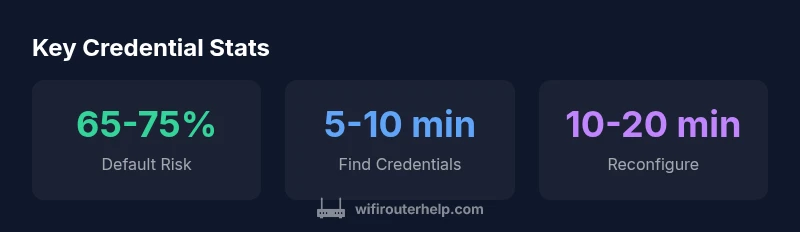
Leaving default credentials in place is a common risk. Default usernames and passwords are widely documented and can be discovered quickly by intruders, giving them control over your router and home network. When defaults remain active:
- Anyone nearby could access your admin settings and alter configurations or forward ports.
- Your network could become vulnerable to malware or unauthorized devices.
- You increase exposure to data breaches if management interfaces are reachable from the internet. Prioritize changing defaults promptly after setup and regularly review access.
How to change your credentials: step-by-step
Follow these steps whenever you gain admin access:
- Open the router’s admin interface via a connected device. The URL is typically a gateway address such as 192.168.1.1 or similar; consult the label or manual for the exact address.
- Log in with the current admin username and password. If you’ve never changed them, try the default credentials found on the device label or manual.
- Navigate to the administration or account section. Look for options like “Account,” “Admin,” or “Management.”
- Change the username to a unique value and set a strong password. Consider a passphrase rather than a single word.
- Save changes and log out, then log back in to verify the new credentials work.
- Update any saved credentials in your password manager and note the new info somewhere secure. If you enable remote management, ensure it’s disabled unless you actively require it.
Choosing strong credentials and storage
A strong router credential combines length, complexity, and uniqueness. Use a long passphrase with mixed case, numbers, and symbols. Avoid common phrases and reusing passwords from other accounts. For storage, rely on a reputable password manager rather than handwritten notes. If your router supports two-factor authentication (2FA) via a companion app, enable it. Regular firmware updates should accompany credential changes to close security gaps.
Forgot your credentials: recovery options
If you’ve forgotten both the username and password, start with the router’s reset process. A factory reset restores default settings, including the original credentials, but erases custom configurations. After resetting, reconfigure your network name (SSID) and security settings, then immediately create new admin credentials. If a reset is not feasible, contact your ISP or router manufacturer for recovery alternatives tied to your account.
Best practices for sharing credentials safely
Limit who can access admin credentials. Use a separate guest network for visitors and share admin access only with trusted household members. Disable remote management if you don’t need it, keep firmware current, and monitor devices connected to your network. Consider segmenting IoT devices on a separate network and using strong, unique credentials for each device or service where supported.
Common login problems and fixes
Typical issues include being connected to the wrong network, entering the wrong URL, or browser cache interfering with the login page. Ensure you are on the home network, use the correct gateway URL, and clear browser cookies if necessary. If VPNs or security software interfere with the session, temporarily disable them. Finally, a failed login after multiple attempts may trigger a lockout; a reset may be required.
Additional considerations for smart home networks
Smart homes rely on reliable admin credentials to protect multiple devices. Create a distinct admin account for the router and enable a separate, strong password. For IoT devices, use a guest network or a dedicated VLAN if your equipment supports it. Keep devices updated, disable unused services, and review port mappings regularly to minimize exposure.
Overview of where to find and manage router credentials
| Credential Aspect | Where to Look | Notes |
|---|---|---|
| Default username | Router label or manual | Defaults vary by model; verify on device label first. |
| Default password | Router label or manual | Commonly 'admin' or 'password'; change immediately. |
| Current username | Admin interface | Review or update once logged in. |
| Current password | Admin interface or password manager | If forgotten, reset to regain access. |
People Also Ask
What is the typical default username and password for routers?
Defaults vary by model, device, and firmware. Check the router label or manual for exact values, then change them immediately to secure access.
Defaults vary; check the label or manual, then change them.
How can I find my current router login details if I can't remember them?
Try logging into the router's admin page from a connected device; if that fails, use the reset option or contact your ISP for guidance.
Try the admin page or reset.
Will resetting erase my network settings?
Factory reset returns the router to default settings, which wipes custom configurations; you will need to reconfigure Wi‑Fi name, password, and any port forwards.
Yes, a reset clears settings; you’ll need to reconfigure.
Is it safe to share my router password with family members?
Share only with trusted users; consider guest networks for visitors and avoid sharing admin credentials; set up separate admin accounts if possible.
Be careful; use guest networks.
How often should I change router credentials?
Change when you suspect a breach or after a reset; routine updates are good practice, but align with your security policy.
Change when compromised or on a schedule.
“Your router credentials are the first line of defense for your home network; changing the defaults is essential for security.”
What to Remember
- Check your device label first to locate credentials.
- Never rely on default admin passwords for long.
- Change credentials immediately after setup.
- Use a password manager to store login details securely.
- If you forget, reset only as a last resort.