What Is the ZTE Router IP Address and How to Find It
Learn what the ZTE router IP address is, how to locate it on your model, and steps to change it safely. Includes common defaults, device-specific tips, and troubleshooting for WiFi networks.


ZTE routers typically use a private login address such as 192.168.1.1 or 192.168.0.1. The exact IP depends on your model and ISP. To confirm, check the router label, the manual, or your device’s network settings for the gateway. If the page won’t load, ensure Ethernet/Wi‑Fi is active and try both http and https.
Understanding IP addresses and the ZTE router login
An IP address is the numeric label that identifies devices on a local network and serves as the gateway to your router's admin interface. For home networks, the gateway IP is typically a private address, not the public Internet address. When you type the gateway IP into a browser, you’re directed to the ZTE router's configuration page where you can review and adjust settings like Wi‑Fi name, password, parental controls, and security features. According to WiFi Router Help, knowing your router IP address is the first step toward diagnosing connectivity problems, applying security best practices, and performing routine maintenance. Understanding this address helps you gain control over your home network without guessing or risking misconfiguration.
How to locate the default IP address on ZTE routers
Locating the IP address for a ZTE router is straightforward if you know where to look. Start with the device itself: flip the router and scan the label for a gateway or IP address. If the label is missing, consult the manual that accompanied the device or the model’s online support page. On a connected computer or mobile device, you can view the gateway IP in the network settings. For Windows, open Command Prompt and run ipconfig; for macOS, use System Preferences > Network and view the Router field; iOS and Android show the gateway in the Wi‑Fi details. These steps ensure you identify the correct login address and avoid trying random IPs that could point to the wrong device.
Common default IP addresses used by ZTE routers and how to verify
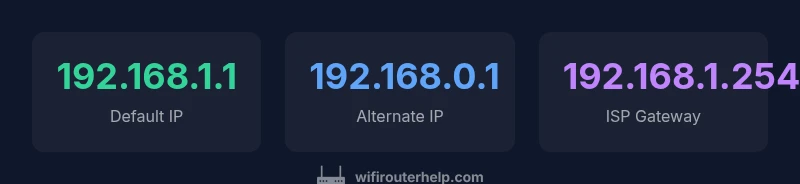
The most common private gateway addresses for ZTE devices are 192.168.1.1 and 192.168.0.1. Some models or ISP-provided gateways may use 192.168.1.254 or 192.168.0.254, so it’s important to verify rather than guess. Verification can involve checking the router’s sticker, the user manual, or the ISP’s documentation. If you recently received a replacement from your ISP, the gateway address may be updated to a different private IP. When in doubt, perform a quick scan from a connected device to identify the active gateway.
How to determine your ZTE router IP address on different devices
Windows: open Command Prompt and enter ipconfig; look for the Default Gateway under your active network adapter. macOS: go to System Preferences > Network, select your active connection, and read the Router value. iOS/Android: tap the connected Wi‑Fi network and inspect the IP address or gateway. If you are using a VPN or multiple networks, disconnect them temporarily to avoid misreporting. These cross‑device checks help you confirm the exact login IP for your model.
Troubleshooting access to the admin interface
If the admin page isn’t loading, start by confirming you’re connected to the router’s network (not a guest network or another device). Try both http and https in the browser URL, and clear browser caches if needed. Disable any VPNs or firewall rules that may block local IP access. If the page still won’t open, verify you’re using the correct IP from one of the verification methods above and consider powering the router off for 30 seconds before retrying. When the gateway IP is correct but access fails, you may have a browser extension interfering or a device‑level block that needs adjustment.
Changing the router IP address or admin login method
Access the admin interface once you’ve confirmed the current IP. Navigate to LAN settings or similar sections to adjust the router’s internal IP address or the LAN IP range. If you change the LAN IP, remember to re‑connect your devices to the new address. After modifying IP settings, save changes and reboot the router. Some ISPs bind the login to a specific gateway, so changing the address may require re‑authenticating or updating DHCP reservations on connected devices. Always back up configuration before making changes.
Practical tips for different scenarios and ISP setups
In typical home networks, using a private IP like 192.168.1.1 provides a straightforward setup. If you are on a fiber or fixed wireless connection with an ISP‑provided gateway, the router IP could be different or managed via your ISP’s portal. In such cases, you can keep your ZTE device as a secondary access point by placing it in bridge mode, or you can use it as the primary router with proper DHCP settings. Reserve IPs for critical devices to avoid address churn, and document your chosen login IP for future reference.
Understanding IP changes after resets and ISP configurations
Factory resets return the router to its original state, including default IPs. However, some ISPs preserve a managed gateway that might override the local IP address, especially on new equipment or when a bridge mode isn’t enabled. If you see a gateway IP that isn’t one of the common defaults after a reset, check the label again, review the manual, or contact your ISP’s support line for guidance. This proactive check helps prevent confusion when reconfiguring security settings or reconnecting devices.
Authoritative sources for router IP address information
For further reading and official guidance, consult these sources:
- https://www.fcc.gov/consumers/guides/routers-and-wi-fi
- https://www.cnet.com/how-to/find-your-router-ip-address/
- https://www.techrepublic.com/article/how-to-find-your-router-ip-address/
Typical ZTE router IP address scenarios
| Scenario | Default IP | Verification Method | Notes |
|---|---|---|---|
| Home router | 192.168.1.1 or 192.168.0.1 | Check router label or admin page | Model-specific; may vary by ISP |
| ISP gateway (managed) | 192.168.1.254 or 192.168.0.1 | ISP documentation or device status | Carrier-managed gateway; IP can differ |
People Also Ask
What is the default IP address for a ZTE router?
Most ZTE routers use a private gateway like 192.168.1.1 or 192.168.0.1. Check the device label or manual for your exact model. If you cannot locate it, use the connected device’s gateway as a confirmation method.
Most ZTE routers use 192.168.1.1 or 192.168.0.1 as the login IP. Check the label or manual for your exact model.
How can I find the ZTE router IP address if I can't access the admin page?
Connect a device to the router, view the gateway in network settings (ipconfig on Windows, network preferences on macOS, or Wi‑Fi details on mobile). If needed, try common defaults and verify with the router label. A factory reset should be a last resort.
Connect to the router and check gateway in your device's network settings. If needed, verify with the label or manual.
Can the router IP address change after a factory reset?
Factory reset usually restores the default IP, but some ISP configurations may override this with a managed gateway. After reset, re-check the label and manual, then reconfigure as needed.
After reset, check the label and manual. Some ISPs may override the IP with a managed gateway.
Why can't I reach the admin page even though I'm connected?
Possible causes include using the wrong IP, being on a guest/VPN network, browser cache issues, or a firewall blocking local addresses. Ensure you’re on the same network, try alternate IPs, and disable VPNs temporarily.
Make sure you’re on the right network and try another IP if needed; disable VPNs briefly.
What should I do if my IP address is not 192.168.1.1?
Try 192.168.0.1 or 192.168.100.1 if available. If unsure, check the device label or run a gateway discovery from a connected device.
If 192.168.1.1 doesn’t work, try 192.168.0.1 or others listed on the device; verify with the label.
“Understanding your router IP address is the first step to securing and optimizing your home network.”
What to Remember
- Identify the correct login IP by checking the router label and device manual.
- Start with the common defaults 192.168.1.1 or 192.168.0.1, but verify for your model.
- If you can’t load the admin page, confirm your connection and try http and https.
- After changing IP settings, re-connect devices and back up configurations.