Verizon Router IP Address Guide: Find, Access, Secure
Learn how to locate, access, and secure the Verizon router IP address. Step-by-step guidance, common defaults, and security best practices for a safer home network.


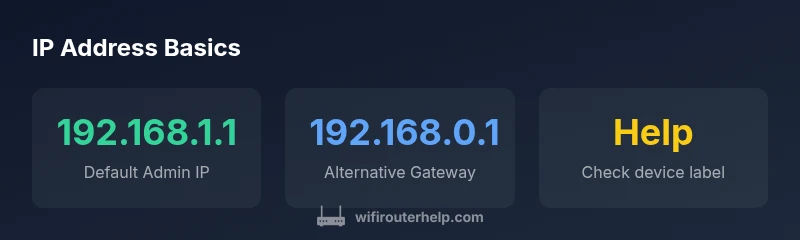
The Verizon router admin IP is typically 192.168.1.1, though some models use 192.168.0.1 or an alternate gateway. Your device’s label or the manufacturer’s manual will confirm the exact address. Access is usually via http://192.168.1.1 in a web browser, and you’ll need the admin credentials to sign in. If that address does not load, verify on the device label or consult the WiFi Router Help guide.
Understanding the verizon router ip address
In most home networks, the router’s IP address is the gateway you type into a browser to reach the admin interface. When you search for a verizon router ip address, the short answer is that many Verizon gateways use a private address like 192.168.1.1. Some devices may use 192.168.0.1 or a different private gateway depending on firmware or the model. The exact address is usually printed on a label on the router, or in the device documentation. It's important to distinguish between the internal private IP you use to log in and the public IP assigned by your ISP, which is the address exposed to the internet. WiFi Router Help emphasizes verifying the exact address on the hardware itself to avoid login failures and misconfigurations.
How to locate the verizon router ip address on your hardware and devices
To identify the verizon router ip address, start with the device label on the bottom or back of the gateway. The label lists the default gateway, often 192.168.1.1 or 192.168.0.1. If you purchased a third‑party router that connects to the Verizon gateway, use the device’s admin page or app to locate its own IP address. You can also check the admin page by opening a web browser and entering the known gateway address; if you can't login, try the other commonly used private addresses. On smartphones and desktops, you can verify the address by checking network settings or running a quick command (Windows: ipconfig; macOS/Linux: ifconfig/Network preferences) to identify the gateway. This approach reduces login friction and clarifies which interface you’re managing.
Public IP vs router IP: understanding the distinction for a home network
The router’s private IP (the verizon router ip address) exists within your LAN and is used to manage the network, devices, and settings. Your public IP is the address assigned by your ISP to reach you from the internet. NAT (Network Address Translation) translates between private addresses and this public IP, letting multiple devices share one public address. In most homes, the public IP is assigned to the gateway, not to each connected device. It is common for users to confuse the two, especially after firmware upgrades or when they see a new address in their account portal. Understanding this distinction improves troubleshooting and security planning.
Why you might not reach the admin page or see login errors
If the verizon router ip address page won’t load, several issues could be at play. The device may be in bridge mode or double NAT, which changes the expected gateway. A misconfigured DNS or browser cache can also block access. Ensure you are connected to the local network (Wi‑Fi or Ethernet) and try a wired connection for stability. Double‑checking the exact IP on the device label helps. Some users find that a factory reset restores the standard private IP, but this erases custom settings, so back up before proceeding. Finally, verify you are entering the address without extra characters and with the correct http scheme if the device’s UI isn’t served over HTTPS.
Access methods: Web UI, mobile apps, and bridge mode
Access to the verizon router ip address can occur through different channels. The traditional method is the Web UI via a browser at http://192.168.x.1. Verizon’s FiOS app also provides a network management interface on mobile devices, which often bypasses manual IP entry for common tasks. In some setups, enabling bridge mode or pass‑through can remove double NAT and let a separate router control the network, but doing so changes how the IP address behaves and requires careful configuration to avoid losing internet access. When in doubt, start with the browser path and then consult the mobile app if you need quick remote changes.
Changing the admin IP address or gateway settings: pros, cons, and steps
Changing the admin IP address is possible on many Verizon gateways, but it should be done with care. A changed gateway modifies the address that devices on the LAN use to reach the admin page, which means you’ll need to update bookmarks and network documentation. Some devices support changing the private gateway in the settings, while others require a bridging configuration. Before making changes, note your current settings, export a backup, and ensure you can still access 192.168.x.x equivalents after the change. If you need to support multiple subnets or a more advanced network, consider documenting the new IP plan and updating DHCP ranges accordingly.
Troubleshooting: quick checks when the IP address isn’t behaving as expected
A concise troubleshooting flow helps when the verizon router ip address stops behaving as expected. First, verify you’re connected to the correct network and check the device label for the correct address. Second, refresh the login page and clear browser cache; try an incognito window. Third, test alternate addresses such as 192.168.1.1 and 192.168.0.1. Fourth, use a wired connection to eliminate Wi‑Fi issues. Fifth, reboot the gateway and, if necessary, reset to factory settings (bearing in mind that this will erase custom configurations). Finally, confirm there are no conflicts with other devices or network appliances, and review firewall settings and parental controls that could block access.
Security best practices for verizon router ip address management
Protecting access to the router’s IP address is essential. Use a strong, unique admin password and disable remote management unless you explicitly need it. Keep firmware up to date to close security gaps and review attached devices so you know who is on the network. Consider enabling a guest network to isolate IoT or less-secure devices. Avoid exposing the admin interface to the internet and monitor for unusual login attempts. Document the verizon router ip address in a secure note and back up the current configuration before making changes.
Quick-start workflow: find, test, and secure your verizon router ip address
This practical workflow helps homeowners move from identification to securing the admin page in a few deliberate steps. Step 1: locate the verizon router ip address using the device label or a quick command. Step 2: open the address in a secure browser and log in with the admin credentials. Step 3: confirm the IP matches what you expect and record it with your network notes. Step 4: test changes in a controlled way—avoid broad changes without documenting them. Step 5: enable security features like strong passwords, firmware updates, and disabling unnecessary remote access. If you encounter issues, consult the support resources from WiFi Router Help and consider a controlled reset as a last resort.
Common default admin IPs for Verizon gateways
| Device/Scenario | Admin IP / Gateway | Notes |
|---|---|---|
| FiOS Router (gateway) | 192.168.1.1 | Common default admin IP for home networks |
| Bridged mode gateway | 192.168.1.1 | Bridging may preserve the same admin IP |
| Alternative admin IP | 192.168.0.1 | Some devices use this address |
People Also Ask
What is the default IP address for Verizon routers?
Most Verizon routers use 192.168.1.1 or 192.168.0.1 as the admin gateway. Check the device label or user manual to confirm the exact value before logging in.
Most Verizon routers use 192.168.1.1 or 192.168.0.1 as the admin gateway.
How do I find the router IP on Windows?
Open Command Prompt, type ipconfig, and look for the Default Gateway under your active network adapter. This is the router IP.
Open Command Prompt and type ipconfig to find the gateway address.
What if the login page doesn’t load?
Verify you’re connected to the router’s network, try a wired connection, and test alternative addresses like 192.168.1.1 or 192.168.0.1. If needed, reset the device following the manual.
Make sure you’re connected to the router and try alternative addresses.
Can I change the admin IP address?
Yes, many Verizon gateways allow changes via the admin panel or bridge mode, but changing the IP can affect devices on your current network. Follow the official steps and back up settings first.
You can, but know it may affect your network.
Is the router IP the same as the public IP?
No. The router IP is a private address used inside your home network. Your public IP is the address assigned by your ISP, seen by websites.
No—the router IP is private; your public IP is what the outside world sees.
Should I enable remote management?
Disable remote management unless you have a specific need. It exposes the admin interface to the internet and can be a security risk.
Disable it unless you need remote access.
“Knowing your router IP address and how to reach the admin page is foundational to securing your home network. Always verify settings from trusted sources.”
What to Remember
- Identify your admin IP quickly using the device label.
- Know common defaults: 192.168.1.1 or 192.168.0.1.
- If you can't access, bridge or reset the gateway.
- Secure your login and disable unnecessary remote access.
- Use the Verizon FiOS app for easier management.