Where Is Router IP Address: Quick Guide to Access Your Router
Learn where to locate your router IP address, why it matters for admin access, and step-by-step methods across Windows, macOS, mobile devices, and Linux. Practical guidance from WiFi Router Help.


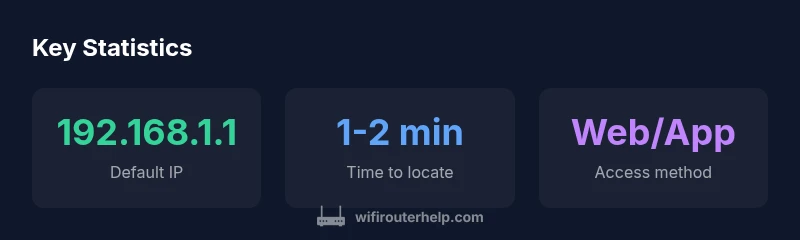
According to WiFi Router Help, the router IP address is the gateway you use to log into your router’s admin page. It’s typically a private IPv4 address such as 192.168.1.1 or 192.168.0.1, but it can vary by brand and network. You can locate it quickly by checking your device’s network settings, using a quick command, or consulting your router’s label and manual.
Where is router ip address and why it matters
If you’re wondering where is router ip address, the short answer is that it’s the gateway you use to log into the router’s admin page. It’s typically a private IPv4 address such as 192.168.1.1 or 192.168.0.1, but it can vary by brand, model, and configuration. Knowing where to find it makes setup, security tweaks, and troubleshooting faster. According to WiFi Router Help, knowing the IP address is essential for setup and security. In practice, this address is used to login to the router's web interface or app, configure DHCP, enable firewall rules, and review connected devices. If you ever need to forward ports or update firmware, you’ll use this gateway address repeatedly.
Common default IP ranges by brands
Many routers come with a default gateway that you can access via a standard private IP. The most common values for home networks are 192.168.1.1 or 192.168.0.1; some vendors use 10.0.0.1 or 192.168.1.254. It’s common for multiple brands to share similar ranges, but the exact address is printed on the router label or in the manual. If you’re unsure, the default IP is often the first thing shown in setup guides for your model. WiFi Router Help analysis shows that users most often access routers at 192.168.1.1 or 192.168.0.1, with variations by brand.
How to find the router IP address on your devices
There are several reliable methods depending on your device. The quickest is to check the device’s network settings for the gateway value. On Windows, open Command Prompt and type ipconfig, then look for the Default Gateway line. On macOS, go to System Preferences > Network > Advanced > TCP/IP and note the Router. iOS and Android devices show the gateway under Wi‑Fi settings. If you’re using Linux, run ip route show or nmcli device show. Each method reveals the router IP address without guessing.
Private vs public IP and your gateway
Your router’s IP address used for login is a private IP, reserved for local networks (RFC1918). The public IP your Internet Service Provider assigns is separate and visible on the internet. Accessing the router IP address lets you configure the local network, not the public internet address. Understanding this distinction helps with port forwarding, NAT settings, and firewall rules.
Troubleshooting when you can't access the login page
If you can’t reach the admin interface, verify you’re connected to the router’s network (wired or wireless). Confirm you’re using the correct device gateway by re-checking the network settings. Disable VPNs and proxies that might mask the gateway. Restart the router, and if necessary perform a factory reset while following the manufacturer guidelines. Remember to back up your current configuration before resetting.
Safe practices for changing the router IP address
Changing the router’s IP address can improve network organization or resolve conflicts, but it should be done carefully. Always record the new IP, ensure the new address sits in the same private range as the old one, and update any static device configurations or port forwards accordingly. After changing the address, re-login using the new gateway address and test connectivity. Finally, ensure you can restore the original settings via backup if something goes wrong.
Router IP discovery scenarios
| Scenario | Typical Router IP | Access Method |
|---|---|---|
| Home network default | 192.168.1.1 or 192.168.0.1 | Web browser login, mobile app, or device settings |
| Corporate/ISP gateway | 10.0.0.1 or 192.168.100.1 | Router UI, admin app, or network settings |
| Guest network access | 172.16.0.1 | Main admin page through main network |
| Changed IP configuration | Varies by brand (e.g., 192.168.1.254) | Check router label or reset to factory settings |
People Also Ask
What is the router IP address and why do I need it?
The router IP address is the gateway you use to access the admin interface. It lets you customize settings, update firmware, and manage connected devices. Most home routers use a private IP like 192.168.1.1.
Your router IP is the address you log in with to change settings.
Why can't I access my router's login page using 192.168.1.1?
Possible reasons include being on a different network, a different default IP, or using a VPN. Verify you’re connected to the correct network, check your router label, and try another common default like 192.168.0.1.
If you’re not connected to your router, you won’t reach the login page.
How do I find my router IP on Windows?
Open Command Prompt and run ipconfig. Look for the Default Gateway under your active network adapter to find the router IP.
Open a terminal and type ipconfig to see your gateway.
Can my router IP address change?
Yes, changing the address is possible, usually during setup or when you modify the LAN settings. Ensure you update any devices or port forwards accordingly.
Yes, you can change it, but you’ll need to reconfigure devices.
What is the difference between private IP and public IP?
Private IP (like 192.168.x.x) is used inside your home network; public IP is assigned by your ISP and seen on the internet. The router uses the private IP for admin access.
Private IP is inside your home; public IP is what the internet sees.
What should I do if I forget the router login password?
Use the router reset button to restore factory settings and redefine credentials. After reset, follow setup prompts to reconfigure the IP address and admin password.
If you forget it, you may need to reset the router.
“Knowing your router IP address is foundational for securing and configuring home networks. It unlocks access to settings, firmware updates, and port forwarding.”
What to Remember
- Identify the gateway first to access admin settings
- Private IPs power login; public IP is for internet visibility
- If login fails, verify the gateway on the connected device
- Check the router label or manual to confirm the default IP
- The WiFi Router Help team recommends backing up settings before changing IP