Where to Find Your Router IP Address: A Practical Guide
Learn exact steps to locate your router's IP address across devices. Find the local gateway quickly via router label, admin page, or system settings—perfect for beginners and enthusiasts alike.


To find your router IP address, check the label on the router for the default gateway, or log into the router’s admin page and view the LAN settings. If you’ve changed the login gateway, open a browser and enter the most common router IPs (192.168.1.1 or 192.168.0.1). Alternatively, view the IP directly in your computer or mobile device’s network settings. This address is usually private to your home network.
Understanding why you need the IP address
A home network relies on a local IP address (often called a private or LAN IP) for devices to reach the router and communicate with each other. The exact address can vary by manufacturer (Linksys, Netgear, Asus, TP-Link) and by how you’ve configured your network. Knowing the local IP helps you access the router’s configuration page to change settings, update firmware, or troubleshoot connectivity. When we ask where to locate the IP, we’re really looking for the router’s gateway on your private network. Even if you already connect to Wi‑Fi, the router’s IP is the key to admin access and network visibility. According to WiFi Router Help, having this address ready reduces setup time and prevents misconfigurations that hinder performance.
Quick tip on terminology
The terms Local IP, Private IP, and LAN IP refer to the same concept in most home networks. The public IP address is a different address assigned by your internet provider and is not what you’ll use to log into your router. Throughout this guide, we’ll use “router IP” to mean the local gateway on your home network and enumerate the common methods to find it.
Step-by-step overview
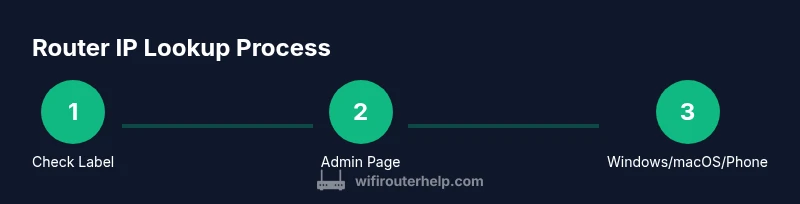
This guide walks you through multiple methods to locate the router IP: checking the device label, logging into the admin interface, and confirming the IP on Windows, macOS, and mobile devices. Each method has its own benefits depending on your setup, the router model, and whether you recently changed the gateway IP. Remember to verify the address on at least one device to ensure consistency across the network.
Step 1: Check the router’s physical label
Most routers print the default gateway address on a label on the bottom or back of the device. This label often includes the default IP, admin username, and password. If your router was provided by an ISP, the label might also show the specific public IP and DNS settings. Note that if you or your ISP changed the gateway, the address on the label might not be current for your network. Still, it’s a good starting point and a quick sanity check. The phrase where can i find my ip address on my router often comes up in beginner guidance and the label is your first stop for confirmation.
Step 2: Access the router’s admin interface
Open a web browser on a connected device and enter the gateway IP you found (commonly 192.168.1.1 or 192.168.0.1). If the login screen appears, you’re at the right place. If you see a page that asks for credentials, enter the router’s username and password (often printed on the label). Once authenticated, you’ll land on the dashboard where the LAN or Network settings display the router’s IP address. If you’ve recently changed the login IP, use the new value instead. The main goal here is to confirm the private IP your devices reference when communicating with the router.
Step 3: Find the local IP on the admin page
Within the admin interface, navigate to sections labeled Status, Network, LAN, or DHCP. Look for terms like Gateway, Router IP, or LAN IP Address. This value is your router’s IP on the local network. Some interfaces show both the private and the WAN/public IPs. If you see multiple addresses, ensure you’re reading the LAN IP (the private address used on your home network). This step is often the fastest way to confirm the current router IP.
Step 4: Find the IP address on Windows
If you’re using Windows, open Command Prompt (cmd) and type ipconfig. Look for the entry under your active connection labeled Default Gateway or IPv4 Address. The value shown next to Default Gateway is the router IP. You can also open Network & Internet settings, select your network, and click Properties to see the IPv4 address labeled as Gateway. This method is reliable even if the admin page isn’t accessible, and it confirms the correct local IP.
Step 5: Find the IP address on macOS
On a Mac, go to System Preferences > Network, select your connected network (Wi‑Fi or Ethernet), and click Advanced > TCP/IP. The Router field shows the local IP address for your router. Alternatively, you can open Terminal and type ifconfig | grep 'inet ' or ipconfig getifaddr en0 (or en1 for wired connections). The displayed address is your router IP on the local network and will guide you to the admin page as needed.
Step 6: Find the IP address on iPhone and Android
On iPhone, go to Settings > Wi-FI, tap the connected network, and read the Router field to reveal the router IP. On Android, open Settings > Network & Internet > Wi‑Fi, tap your network, and look for Gateway or IP address. Some manufacturers label the router IP differently, but the idea is the same: the IP shown in the Wi‑Fi details is the local gateway for your device.
Step 7: Distinguish private vs public IPs
Your router’s local IP (private) is different from the public IP shown by websites or online tools. The private IP is what devices use to access the router’s admin page on your local network. The public IP is assigned by your ISP and is visible to the internet. In most home networks, the local IP is 192.168.x.x or 10.0.x.x. Knowing this distinction helps you avoid confusion when troubleshooting connectivity.
Step 8: Troubleshooting common issues when locating IP
If you can’t find the IP on the label, or the admin page isn’t loading, try power-cycling the router, using a different browser, or temporarily disabling VPNs or firewalls that could block access. If the IP changes after a reset, note the new value after you reconfigure the router. If DHCP is disabled, static addressing could alter how devices discover the gateway. When in doubt, consult the manufacturer’s support resources.
Step 9: Security considerations after locating the IP
Always protect the router’s admin credentials and network access. Change default usernames and passwords, enable encryption (WPA2/WPA3), and update firmware to reduce exposure. Remember that the router IP itself isn’t sensitive, but accessing the admin interface is; store the address in a secure note or password manager and avoid sharing it publicly.
Step 10: Next steps after locating your IP address
With the IP in hand, you can log into the admin interface to review connected devices, set up parental controls, adjust QoS, or update firmware. If you’re expanding your network, the local router IP is essential for adding mesh nodes or additional access points. Keeping a record of your router IP simplifies future networking tasks.
Tools & Materials
- Computer, tablet, or smartphone(Used to access the router or run commands)
- Active network connection(Wi‑Fi or Ethernet to reach the router)
- Router manual or model number(Helpful if the label is missing)
- Pen and paper or digital note(Jot down the IP address and any changes)
Steps
Estimated time: 20-30 minutes
- 1
Gather devices and locate the router
Collect a connected device (phone, tablet, or PC). Find the router physically on your desk or shelf and inspect the label for the default gateway IP. This gives you the first data point to verify later.
Tip: If the label is illegible, proceed to the admin interface as your next step. - 2
Open the router’s admin page
In a browser, enter the gateway IP from the label (or common defaults like 192.168.1.1). If prompted, enter the admin credentials printed on the label. This page is your control center for IP verification and configuration.
Tip: Use a wired connection if the wireless network is unstable during login. - 3
Find the LAN/IP address in the admin panel
Navigate to sections labeled Status, Network, LAN, or DHCP. Identify the IP listed as Router IP, LAN IP, or Gateway; that is your router’s local address. Cross-check with the label to confirm consistency.
Tip: Document the IP in case you need to revert any changes later. - 4
Check Windows IP via command line
On Windows, open Command Prompt and type 'ipconfig'. Look for Default Gateway under your active connection; that value is the router IP. This confirms the address without relying on the admin page.
Tip: If you see multiple adapters, use the one connected to your router. - 5
Check macOS for the Router IP
On macOS, go to System Preferences > Network, choose your active network, and view the Router field. You can also use Terminal with 'ifconfig' or 'ipconfig getifaddr en0' to extract the IP.
Tip: If you’re using Ethernet, try en0; for Wi‑Fi, try en1 if en0 doesn’t show the IP. - 6
Check iPhone and Android
On iPhone: Settings > Wi‑Fi > [your network] and read the Router. On Android: Settings > Network & Internet > Wi‑Fi > [your network] and check Gateway/IP address. These show the local IP your device uses to reach the router.
Tip: Some OEM skins present settings differently; look for 'Advanced' in the Wi‑Fi details if needed. - 7
Differentiate private vs public IPs
Remember the private router IP is for local network management; the public IP is what websites see. Do not confuse the two when following steps to access the admin page or diagnosing issues.
Tip: Use online tools only for public IP checks; rely on your admin page for private IPs. - 8
Troubleshoot if you can’t locate the IP
If you don’t see a clear IP, try rebooting the router, clear browser cache, or reset network settings on the device. If the IP changes after a reset, re-login with the new address and adjust settings accordingly.
Tip: Factory resets should be a last resort; note the steps to reconfigure before doing this.
People Also Ask
What is my router's IP address?
Your router’s IP address is the local gateway your devices use to talk to the router. It’s commonly 192.168.1.1 or 192.168.0.1, but may vary by model. Check the router label or admin page to confirm.
Your router’s IP is the local gateway, usually 192.168.1.1 or 192.168.0.1; check the label or admin page to confirm.
How do I find the IP address on Windows?
Open Command Prompt and type ipconfig. Look for Default Gateway under your active connection. The value shown is your router IP.
On Windows, use ipconfig and read the Default Gateway to get your router IP.
How do I find the IP on macOS?
Go to System Preferences > Network, select your network, click Advanced > TCP/IP, and read the Router field. You can also use Terminal commands to reveal the IP.
On a Mac, check the Router value in Network settings or use Terminal to reveal it.
What if the IP shown is not the same as the label?
The address on the label is the default gateway. If you changed it, the admin page should reflect the current IP. Verify on multiple devices to confirm the actual router IP.
If the label shows a different IP, check the admin page—the current IP is what matters.
Can I change my router’s IP address?
Yes. In the router’s admin interface, you can adjust the LAN IP address. Be mindful that changing it can disrupt connections unless you reconfigure DHCP and device static routes accordingly.
You can change it in the admin interface, but plan to update connected devices.
Is my public IP the same as my router IP?
No. The public IP is what each site sees on the internet, while the router IP is your private gateway on your local network. They usually differ unless you’re bridging devices in special configurations.
No—the public IP is the address seen on the internet; your router IP is private.
Watch Video
What to Remember
- Identify the router IP using multiple verification methods
- Private IPs are for local administration, not public access
- Windows, macOS, and mobile devices provide quick IP checks
- Keep credentials secure and document changes
- Verify IP consistency after admin changes or resets