How to Get Your Router IP Address: A Practical Guide
Learn how to find your router IP address across Windows, macOS, iOS, and Android. This educational guide provides device-specific steps, quick checks, and troubleshooting tips to locate your gateway and access the router settings confidently.


How to get router ip: You can locate your router IP address in seconds by checking your device’s network settings or the router’s label, then validating it in the router’s web interface. On Windows, macOS, iOS, and Android, it’s typically listed as the gateway or default route. This guide covers quick, device-by-device steps to find the IP safely and confidently.
What is a router IP address and why it matters
A router IP address, often called the gateway address, is the local address that lets devices on your home network talk to the router itself. It is usually a private IPv4 address like 192.168.0.1 or 192.168.1.1, and in many homes it’s also the address you type into a browser to reach the router’s admin page. In IPv6 environments, you may see a global or link-local address as well. Knowing your router IP is essential for tasks such as changing Wi‑Fi settings, updating firmware, enabling parental controls, and troubleshooting connectivity problems. Understanding the distinction between the router’s private IP and your public IP helps you diagnose network issues more accurately and prevents confusion when using VPNs or attempting router configuration.
What is a router IP address and why it matters
A router IP address, often called the gateway address, is the local address that lets devices on your home network talk to the router itself. It is usually a private IPv4 address like 192.168.0.1 or 192.168.1.1, and in many homes it’s also the address you type into a browser to reach the router’s admin page. In IPv6 environments, you may see a global or link-local address as well. Knowing your router IP is essential for tasks such as changing Wi‑Fi settings, updating firmware, enabling parental controls, and troubleshooting connectivity problems. Understanding the distinction between the router’s private IP and your public IP helps you diagnose network issues more accurately and prevents confusion when using VPNs or attempting router configuration.
How the router IP fits into your home network
Your router IP acts as a hub: devices communicate with the router using this address, and the router then routes traffic to other networks, including the internet. The IP is typically on the device’s label or in the admin interface. When you configure features like port forwarding, guest networks, or firmware updates, you will interact with this address. If your devices show different IPs, it usually means you’re looking at device IPs rather than the router’s gateway address. Keeping a note of your router IP helps you quickly regain control when network settings drift or you need to troubleshoot outages.
How the router IP relates to NAT and DHCP
Network Address Translation (NAT) allows multiple devices to share the same public IP address. The router’s private IP is what devices use on the local network, while the ISP assigns a separate public IP. DHCP assigns the private IPs to devices automatically, but the gateway you access in a browser remains the router IP. Understanding this relationship helps you diagnose why a device can’t reach a specific service and how to adjust DHCP settings if you need to reserve addresses or limit lease times.
Practical takeaway
Keep a record of your router IP and ensure you know where to find it on both the device and the router. This knowledge reduces downtime during setup, firmware updates, or security audits, and it makes troubleshooting faster and less frustrating for homeowners and tech enthusiasts alike.
Tools & Materials
- Device with network access(Windows PC, Mac, iPhone, or Android device)
- Active Wi‑Fi connection(You must be connected to the network you want to inspect)
- Router label or manual(Look for the default gateway/IP address and admin URL)
- Access to router admin interface(Be prepared to enter credentials if prompted)
- Pen and paper or note app(Optional for recording the IP after you find it)
Steps
Estimated time: 15-25 minutes
- 1
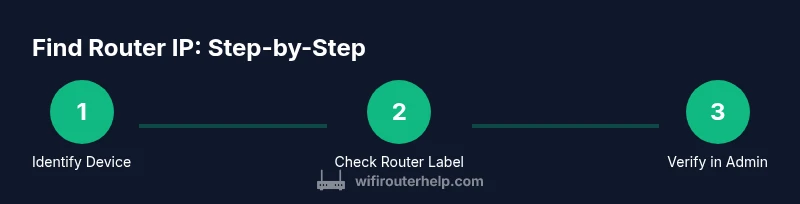
Identify your device and network
Decide which device you will use to locate the router IP. Having a specific device in mind prevents multitasking errors and ensures you follow the correct steps for Windows, macOS, iOS, or Android. This first step sets the foundation for accurate results.
Tip: Pick the device you are currently using to avoid switching devices in the middle of the process. - 2
Check the router label for the gateway address
Most routers print the default gateway or LAN IP on a label on the back or bottom. This is a quick sanity check you can perform before diving into device menus. If you see a 192.168.x.x or 10.0.x.x address, note it down as a candidate for your router IP.
Tip: If there’s a password or admin URL on the label, write it down so you can test the login after you confirm the IP. - 3
Windows: find the IP via Command Prompt
Open Command Prompt and type ipconfig. Look for the Default Gateway under your active network adapter; that value is typically the router IP. This method works even if you don’t know the router login credentials.
Tip: If multiple adapters appear, ensure you’re checking the one connected to your home network. - 4
macOS: locate the gateway from Network settings
Open System Preferences > Network > Advanced > TCP/IP. The Router line shows the gateway address, which is your router IP. This is a reliable method when you’re near a Mac.
Tip: If DHCP is disabled, the IP shown may be static; verify with your network administrator if needed. - 5
iOS/Android: view IP in Wi‑Fi settings
On iOS, go to Settings > Wi‑Fi, tap the active network, and read the Router field. On Android, go to Settings > Network & Internet > Wi‑Fi, tap the connected network, and look for the Gateway or IP entry. The value displayed is typically the router IP.
Tip: Some devices hide advanced details behind a troubleshooting menu; expand the section to reveal the router IP. - 6
Confirm by logging into the router admin page
Enter the discovered IP into a web browser. If the page loads, you’ve found the router IP. If credentials are required, use the router’s default login or those on your documentation. Successful access confirms the IP address and lets you verify settings.
Tip: If login fails, try the common default credentials listed on the router label or reset procedures if you are authorized. - 7
Document and test
Record the IP in a safe place and run a quick test by reconnecting a device to the network and verifying access to the admin page again. This ensures changes don’t disrupt devices relying on the gateway.
Tip: Keep a note of any changes you make to avoid lockouts during future maintenance.
People Also Ask
What is a router IP address and why is it important?
A router IP address is the gateway address used by devices on your network to reach the router. It’s essential for configuring settings, diagnosing connectivity, and accessing the router’s admin page.
A router IP is the gateway address for your network, used to reach the router’s admin page and manage settings.
Will the router IP be the same on every device?
Typically yes, most devices show the gateway address as the router IP. Some devices display different internal IPs, but the gateway commonly remains constant.
Usually the gateway IP is the same across devices, though device IPs differ.
How can I change my router IP address?
You can change the LAN IP from the router’s admin page, often under LAN or DHCP settings. This is more advanced and may temporarily interrupt connected devices.
You can change the LAN IP from the router’s settings, but expect a brief disruption.
What if I can’t access the router admin page?
Ensure you are connected to the correct network and using the gateway IP. If needed, reset credentials or consult the router’s documentation for default login details.
If you can’t access the admin page, check your connection and credentials, and try default logins if appropriate.
Can third-party apps help find my router IP?
Yes, some network utilities can detect gateway IPs, but using built‑in OS network settings is typically more reliable and safer for beginners.
There are tools that can find the IP, but built‑in settings are usually best.
Why does my router IP appear different from my public IP?
Your router IP is a private address on your local network, while your public IP is assigned by your ISP to your router’s outward interface. They are different by design.
Private router IP is for your network; public IP is what the internet sees.
Watch Video
What to Remember
- Identify the router IP using device settings or the router label
- Verify the IP by loading the router admin page
- Record the IP for quick future access
- Understand the gateway role within NAT and DHCP contexts