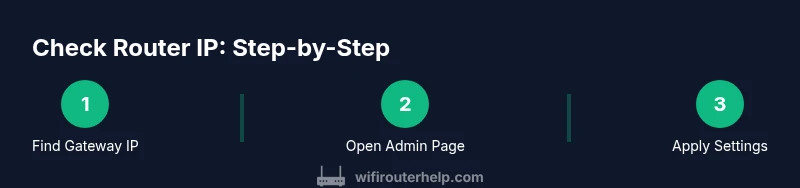
How to Check Your Router IP
Learn how to check your router IP address across devices, access the admin page, and verify IP schemes with safe, practical steps. This guide covers Windows, macOS, Android, and iOS for reliable home-network management.


By the end of this guide, you will know how to check your router IP address on Windows, macOS, Android, and iOS, and how to access the router admin page using that IP. This quick answer covers device-specific paths, plus safety tips to protect your network during setup and troubleshooting. Knowing your gateway IP is essential for diagnostics and firmware updates.
Why Checking Your Router IP Matters
According to WiFi Router Help, knowing your router IP is essential for configuration, diagnostics, and keeping devices secure. The WiFi Router Help team found that most home networks rely on a gateway IP such as 192.168.1.1 or 192.168.0.1, though variations exist depending on the router brand and network design. In practical terms, your router IP is the address you use to reach the device’s admin page, adjust settings, update firmware, and monitor connected clients.
Understanding your router IP is the first step in many common tasks: installing a new router, changing the network password, setting up guest networks, or enabling features like firewall rules or parental controls. If you want to know how to check router ip, you’ll use device-specific methods to locate the gateway address and then access the router’s web interface. This knowledge makes future troubleshooting faster and reduces guesswork when devices misbehave or when you need to verify which device is occupying a specific IP.
From a security perspective, never share your gateway IP publicly and avoid leaving the admin page open in an untrusted environment. In this guide, you’ll learn reliable methods to find the IP across popular operating systems and mobile devices, with clear steps and safety tips so you stay in control of your home network.
How to Find Your Router IP on Your Computer or Phone
There are multiple paths to the same gateway. The most reliable route is to locate the IP address directly from the device you are using, so you have the exact value that your network currently uses. The following sections cover Windows,
Accessing the Router Admin Page Using the IP Address
Once you have the gateway IP, paste it into your web browser’s address bar and press Enter. The login page appears if the router is configured to expose its admin interface over the LAN. Enter the correct username and password—these are often printed on the device label or found in the manual. If you haven’t changed them, try common defaults like admin/admin or admin/password, but do not leave default credentials in place for long.
From here, you can view connected devices, update firmware, alter network names (SSIDs), enable guest networks, and configure security settings such as firewall rules. If the login fails, clear the browser cache, try a different browser, or verify you’re connected to the router’s network. In some cases, the router’s admin interface may be accessible only via a wired connection, or you might need to log in with a device that’s directly connected to the router.
Essential safety: log out after making changes, use strong, unique passwords, and disable remote administration unless you need it. These steps protect your network from unauthorized access.
Understanding Common Router IP Schemes and What They Mean
Most home networks use private IP addresses that are not reachable from the public Internet. The gateway, or router IP, is the address your devices use to reach the router locally. Common private ranges include 192.168.0.0/16 and 10.0.0.0/8, with the gateway usually ending in .1 or .254, though this varies by brand and firmware.
Understanding the scheme helps with planning IP assignments and troubleshooting. If your router IP is 192.168.1.1, the rest of your devices usually receive 192.168.1.x addresses. When you encounter a different pattern, consult the admin interface or the router’s documentation to confirm the exact range. Some routers also operate in 172.16.0.0/12, but this is less common in consumer gear.
Note that some networks use multiple subnets or guest networks with distinct gateways. When you set up devices manually or configure port forwarding, ensure the IP you use matches the correct subnet. If you change your network’s IP range, remember to update DNS and device leases accordingly to avoid conflicts and address exhaustion.
Troubleshooting Common Issues When Finding or Accessing the IP
If you cannot locate the gateway, first confirm you are connected to the correct network and not a neighboring SSID. A misconnected device can show a different IP address from the router. If the gateway address is not visible in your OS, try alternate commands or methods described here.
Other frequent problems include IP conflicts (two devices showing the same gateway), wrong network profile settings, or a router with multiple WAN connections that complicate the gateway. Always ensure your device’s firewall or security software is not blocking access to the admin page. If the admin page is unreachable, try a reboot of your router and modem, and verify the LAN cable connections if you use a wired setup.
For mobile users, switching from cellular data to Wi‑Fi can reveal the gateway IP more reliably. If you still cannot reach the admin page, use a wired device or consult your router’s documentation for reset procedures, but only as a last resort.
Security Considerations and Best Practices
Access to the router IP and admin page should be treated with care. Use strong, unique passwords for the router admin account and enable encryption on your wireless network. Disable remote administration unless you need it, and consider enabling guest networks to isolate devices. Regularly update firmware to address vulnerabilities, and back up your current configuration before making changes.
Whenever you check the router IP, ensure you are on a trusted device and network. Be mindful of phishing attempts or fake login pages that imitate router interfaces. If a new device requires access, verify its IP address within the admin console rather than blindly trusting pop-ups or prompts. By following these best practices, you protect your home network from common threats.
Quick Verification Checklist
- Confirm you are connected to your router’s network (not guest or public wifi)
- Locate the gateway IP using device-specific steps
- Access the admin page using a trusted browser
- Change default credentials and enable Wi‑Fi security features
- Note the IP scheme in use for future reference
What If Your IP Changes After a Hardware Reset
A hardware reset returns the router to factory defaults, including IP settings. After reset, the gateway IP often reverts to the default address printed on the label or in the manual, typically 192.168.0.1 or 192.168.1.1. Reconfigure your network to assign a stable IP range and secure credentials. If you use a modem-router combo, you may need to re-enter your internet settings and verify bridge modes if you are using complex setups. Always document your new settings to avoid losing access after future resets.
Tools & Materials
- Computer, smartphone, or tablet(Any device connected to the router's network)
- Web browser (Chrome, Edge, Safari, etc.)(Up-to-date and allowed to run scripts on local network pages)
- Router login credentials(Admin username and password; default or previously changed)
- Router label or manual(Default IP, credentials, and model-specific notes)
Steps
Estimated time: 10-20 minutes
- 1
Find the gateway IP on your device
Identify the gateway address shown in network settings or via a quick terminal/command prompt command. This is the IP you will use to reach the router’s admin page.
Tip: If you’re unsure which interface to inspect, start with the active Wi‑Fi connection. - 2
Windows: locate the Default Gateway
Open Command Prompt, type ipconfig, and note the Default Gateway value under your active network adapter. This is your router IP.
Tip: Use a wired connection for more stable results when possible. - 3
macOS: find the gateway on the network
Open Terminal and run netstat -nr | grep default or route -n get default. The IP listed as gateway is the router IP.
Tip: If you see multiple entries, focus on the active service (usually en0 or en1). - 4
Android & iOS: check Wi‑Fi details
On Android, go to Settings > Network & internet > Wi‑Fi > [your network] > Advanced; on iOS, Settings > Wi‑Fi > [your network] > Router. The displayed number is the gateway IP.
Tip: If you don’t see details, connect to the network again and refresh the page. - 5
Open the admin page in a browser
Enter the gateway IP into a web browser’s address bar and load the login page. If you don’t reach it, try another browser or a wired connection.
Tip: Ensure you are connected to the router’s LAN, not a guest or public network. - 6
Log in and review essential settings
Enter your admin credentials, then view connected devices, update firmware, and verify security options. Always log out after changes.
Tip: Change default credentials immediately and enable strong wireless security.
People Also Ask
What is my router IP address?
Your router IP is the gateway address your devices use to reach the router on your local network. It’s usually a private address like 192.168.x.1 and varies by model. You use it to access the admin page for configuration.
Your router IP is the gateway address on your local network. It’s usually something like 192.168.x.1 and is used to reach the router’s settings page.
Why can’t I see the gateway address on my device?
If the gateway isn’t visible, ensure you are connected to the correct network, disable VPNs, and try alternative methods described in the guide. Sometimes the gateway is shown under advanced settings or in the router label.
If you don’t see the gateway, make sure you’re connected to the right network, disable any VPNs, and try another method like checking the router label.
Is my router IP the same as my public IP?
No. The router IP is a private address used inside your home network, while your public IP is the address seen on the internet. They are different by design to segment internal and external traffic.
No. Your router IP is private and used inside your home, while your public IP is what your internet service shows to the world.
What should I do if I can’t access the admin page after finding the IP?
If login fails, double-check credentials, reset to factory settings if necessary, and verify you’re not on a network that blocks the admin interface. Use a wired connection if possible and avoid public networks.
If you can’t access the admin page, verify credentials, try a reset if needed, and ensure you’re on a trusted network with a wired connection.
How often should I update router firmware?
Check for updates regularly and apply them when available. Firmware updates address security vulnerabilities and performance issues and should be done from the official admin interface.
Check for updates regularly and apply them when available to keep your router secure and efficient.
What to Remember
- Identify the gateway IP from multiple devices quickly
- Access the router admin page safely using the gateway IP
- Understand common private IP schemes to troubleshoot
- Securely manage credentials and firmware updates