How to Get My Router IP: A Step-by-Step Guide
Learn how to get my router IP across Windows, macOS, iOS, Android, and Linux. This educational guide covers browser methods, command-line checks, and troubleshooting to access your router’s admin panel quickly and securely.


What is a router IP and why it matters
A router IP, often called the default gateway, is the address you use to access your home network's administration panel. Knowing this address is essential for tasks like updating firmware, adjusting security settings, or diagnosing connectivity issues. For many home networks, the router IP is the first hop to reach the device that routes traffic between your local network and the internet. Understanding how to locate it empowers you to manage devices, apply parental controls, and troubleshoot slow Wi‑Fi. When you ask how to get my router ip, you’re usually trying to reach the router’s web interface or to confirm the gateway address used by your devices. This knowledge also helps if you’re setting up a new router, configuring a guest network, or simplifying access for family members who need to view network status. As you follow these steps, remember that the exact IP can vary by manufacturer and by network topology, but the method remains the same across platforms.
Common default IP addresses and NAT basics
Most home routers use private IP ranges defined by RFC 1918. The most common gateways you’ll encounter are 192.168.0.1, 192.168.1.1, and 10.0.0.1. Some vendors use 192.168.2.1 or 192.168.178.1 (widely used by certain ISPs and hardware bundles). If you’re connecting behind a modem-router combo, the address you see on your device’s gateway may point to the modem rather than the router, so it’s important to verify which device is managing your local network.
NAT (Network Address Translation) is the mechanism that lets many devices share a single public IP. When you locate the router IP for administrative tasks, you’re identifying the device that performs NAT for your home network. If you’re in a larger setup (mesh systems or business-grade gear), the gateway may be a mesh hub or a dedicated router with its own management interface.
Quick browser methods to locate your router IP
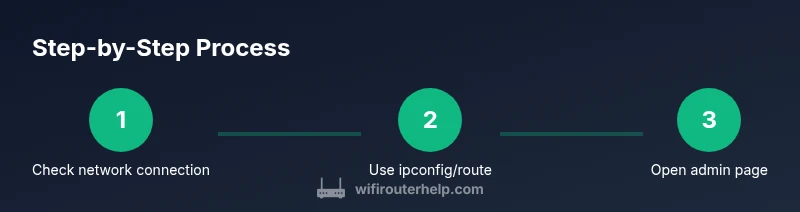
A fast way to find the router IP is to check the browser’s address bar while connected to your network. In many cases, typing one of the common gateway addresses (for example, 192.168.1.1 or 192.168.0.1) into the browser will load the router’s login page. If the page loads, you’ve found the IP. If not, try another address from the list of defaults or confirm the exact model by inspecting the device label on the router itself. This approach is universally accessible and doesn’t require special software.
If your router uses a different gateway, you can verify the IP by confirming your device’s default route in the network settings. This approach is especially helpful if you’re unsure which device is handling NAT or if you’ve recently changed network equipment. Always ensure you’re connected to the correct network to avoid mixing up the gateway address with a neighbor’s network or a guest network.
Windows: find your router IP using Command Prompt
On Windows, open Command Prompt and type ipconfig, then press Enter. Look for the entry labeled Default Gateway under your active network adapter. This value is typically the router’s IP. If you’re connected via Ethernet, search the Ethernet section; for wireless, search the Wireless LAN adapter section. If you see a gateway like 192.168.x.1 or 10.0.0.1, that’s your router IP. This method works even when a browser cannot reach the login page.
If ipconfig shows multiple adapters, ensure you’re checking the one connected to your network. In some cases, VPNs or virtual adapters can display a gateway address that isn’t the router’s; disable VPN briefly to confirm.
macOS: find your router IP via System Settings or Terminal
Mac users can locate the router IP from the Network panel. Go to System Settings (or System Preferences) > Network, select your active connection, and open Details or Advanced. The router field shows the IP address. Alternatively, you can use Terminal and enter route -n get default or netstat -nr | grep default to display the gateway. If you see a value like 192.168.1.1, that’s your router IP. This approach is reliable even on newer macOS versions with updated UI layouts.
iOS and Android: locating the router IP on mobile devices
On iOS, open Settings > Wi‑Fi, tap your current network, and look for Router. The number shown is the router IP. On Android, go to Settings > Network & internet > Wi‑Fi, tap the connected network, and view Advanced. The Gateway or Router field displays the IP. Mobile methods are convenient when you’re away from a computer and need quick access to your admin page.
Troubleshooting when you can’t see the gateway
If you can’t locate the IP using standard methods, verify you’re connected to the correct network and not to a guest or neighbor’s. Disable any VPNs or proxy settings, reconnect to Wi‑Fi, and retry. Some routers use nonstandard IPs or require you to log in via a smartphone app. If you still can’t find the IP after these steps, check the router’s label for a default address, or consult the model’s documentation. Resetting the router should be a last resort and will restore default settings, potentially disrupting devices if not prepared.
Security and privacy considerations when accessing your router
Accessing your router admin page should be done only on trusted devices. Use a strong admin password, enable HTTPS where offered, and disable remote management unless you need it. If you share your network with guests, consider creating a separate guest network and changing credentials periodically. Remember that your router IP is a gateway to sensitive settings, so keep the details private and secure.
How to use the IP you find: logging in and making changes safely
With the router IP identified, open a browser and enter the address to reach the login page. Use the credentials printed on the router label or provided by your ISP. Once logged in, navigate to sections like Wireless Settings, LAN, DHCP, or Security to customize your network. Always save changes and reboot if required. Document changes in a secure note to avoid future confusion when you need to access the admin interface again.
What to do if your network uses double NAT or a modem-router combo
Some setups involve a separate modem and router or a gateway from the ISP. In those cases, the gateway address you see on devices may belong to the modem, not the router. If you’re unsure, check both devices: the modem’s IP (often 192.168.100.1) and the router’s IP (commonly 192.168.1.1 or 192.168.0.1). If you need to access the router, place the appropriate device in bridge mode or configure the network accordingly to avoid double NAT issues.