How to Get Router IP Address and MAC
Learn safe, repeatable methods to find your router's IP address and MAC address across Windows, macOS, iOS, and Android. This WiFi Router Help guide covers labels, admin interfaces, and command-line checks for quick network troubleshooting.


By the end of this guide, you’ll know how to get your router IP address and MAC address from any device on your network. Start by connecting a computer or phone, then check the device’s network settings, inspect the router label, or log into the router’s web interface or official app. The process is safe, repeatable, and works across Windows, macOS, iOS, and Android.
What you’re looking for: IP address vs MAC address
If you’re asking how to get router ip address mac, you’re not alone; understanding both addresses is essential for setup, security, and troubleshooting. An IP address is the logical address a device uses to communicate on your local network. The MAC address is a unique hardware identifier assigned to the router’s network interface. This distinction matters because routers use IP routing to forward traffic while MAC addresses ensure devices on the same network segment are identified. According to WiFi Router Help, grasping these addresses helps you manage access, diagnose issues, and keep your home network secure. In practice, you’ll often need the IP address to log into the admin page, and the MAC address to whitelist devices or locate a piece of hardware physically. The goal here is to give you multiple reliable methods that work across common operating systems, manufacturers, and router models.
Methods to find the router IP address
There are several reliable ways to discover the router’s IP address. The simplest is to look at the device label on the router itself, typically near the back or bottom. The label usually lists the default gateway in human-friendly terms or shows the management URL. If the label is unreadable or you’ve changed settings, you can check a connected device’s network configuration:
- Windows: Open Command Prompt and run ipconfig. Look for the Default Gateway under your active network connection. This value is your router’s IP.
- macOS: Open System Preferences > Network, choose your connection, and click Advanced. Under TCP/IP, the Router field shows the IP address. You can also run netstat -nr | grep default in Terminal.
- iOS/Android: In the Wi‑Fi settings, tap the connected network and look for the router/gateway entry.
Additionally, many routers provide a web-based admin interface. Enter the discovered IP into a browser’s address bar to load the login page. If needed, try common addresses like 192.168.0.1 or 192.168.1.1, but refer to the model’s manual or the manufacturer’s site if those fail.
Methods to find the router MAC address
The MAC address is often printed on a label on the router, alongside service provider branding, model numbers, and default credentials. If the label is worn, you can also retrieve the MAC by examining the router’s admin UI:
- Access the router’s web interface using the IP address you found above. Look for sections like Status, LAN, Wireless, or Device List to identify the router’s MAC (often labeled as WAN MAC or LAN MAC).
- On a computer, you can query the ARP table after sending traffic to the router. On Windows, use arp -a in Command Prompt; on macOS or Linux, run arp -a in Terminal. The MAC addresses listed include the router’s interface in the local network segment.
- For a mobile device, some apps display connected device details, including the router’s MAC address, in the network or device list.
Remember: MAC addresses are displayed as six groups of two hexadecimal digits (e.g., 01:23:45:67:89:AB). If you’re troubleshooting, cross-check the MAC you see in the UI with the hardware label to ensure you’re identifying the correct interface.
Special cases: multiple networks and captive portals
Some setups create multiple network profiles (2.4 GHz and 5 GHz), each with its own MAC under the same router. Others might assign a separate admin interface for guest networks. In these cases, you may need to check both the device label and the admin UI to identify all relevant IPs and MACs. If your network uses a captive portal (common in public or guest networks), you may not reach the router’s admin page until you connect to the primary network or disable the portal for a moment—for security reasons only do this on trusted networks.
Verifying accuracy and security implications
After you identify the router IP and MAC, document them in a secure note for quick reference. Use the IP to log into the router’s admin panel and the MAC to authenticate devices or configure MAC-based access controls if your router supports them. Do not share admin credentials or IP addresses publicly. If you detect unfamiliar MAC addresses on your network, consider changing the router admin password and reviewing connected devices. This practice helps prevent unauthorized access and supports ongoing network health.
Tools & Materials
- Computer, tablet, or smartphone(A device connected to the router’s network (Wi‑Fi or Ethernet))
- Web browser(Any modern browser to access the router’s admin interface)
- Router label or manual(Physical label or model manual for default IP/URL)
- Network command access(Administrative access to run commands like ipconfig/arp/netstat)
- Notepad or digital wallet to store addresses(Keep a secure record of IP and MAC)
Steps
Estimated time: 25-40 minutes
- 1
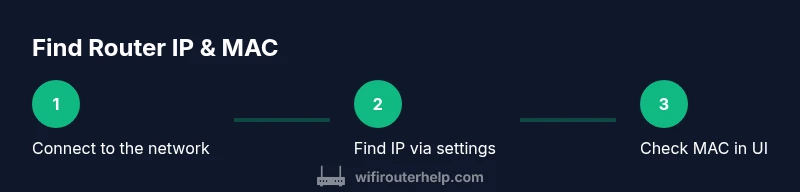
Connect to the network
Ensure your device is connected to the router’s network via Wi‑Fi or Ethernet so you can query network information from a known path.
Tip: If possible, use a wired connection to reduce packet loss when pinging the router. - 2
Find the router IP with your device
Open your system’s network settings and locate the Default Gateway (Windows/macOS/Linux) or the gateway/address shown in the Wi‑Fi settings on mobile.
Tip: On Windows, run ipconfig in Command Prompt and read the value next to Default Gateway. - 3
Alternative: check the router label
Look on the router’s underside or back for a label listing the default IP/URL for admin access and possibly the MAC address.
Tip: Labels may show both the IP and a direct URL (e.g., http://router). - 4
Log into the router admin page
Enter the found IP address in a browser to load the login page. Use the default credentials if you haven’t changed them; otherwise, enter your custom username/password.
Tip: If you don’t know the password, check the label or reset instructions from the manufacturer. - 5
Find the MAC address via the UI or command line
In the router’s admin panel, navigate to Status/LAN/Device List to locate the MAC address. Alternatively, use arp -a after pinging the router.
Tip: Cross-check the MAC address shown in the UI with the one on the device label. - 6
Verify and document
Record both IP and MAC in a secure location. Consider enabling features like MAC filtering or static DHCP if your network requires it.
Tip: Store passwords and addresses securely; do not leave them in plain text. - 7
Troubleshooting: cannot access the router
If you can’t reach the admin page, try a different device, reboot the router, or temporarily disable VPNs that may block local network access.
Tip: Never perform factory resets unless you’ve exhausted other options; it may erase custom settings.
People Also Ask
What is the difference between a router IP address and MAC address?
The IP address is a logical address used for routing traffic inside a network, while the MAC address is a hardware identifier tied to the router’s network interface. The IP helps devices locate the router; the MAC helps identify the router on the local network.
An IP address is used for routing within your network, while the MAC address is the hardware ID of the router’s network interface.
How can I find my router IP address on Windows or Mac?
On Windows, open Command Prompt and run ipconfig to see the Default Gateway. On macOS, open System Preferences > Network > Advanced > TCP/IP to view the Router (gateway) address.
On Windows, check the Default Gateway with ipconfig; on a Mac, check the TCP/IP router field in Network settings.
Where do I find the MAC address of my router?
The MAC address is usually printed on the router’s label. You can also find it in the router’s admin interface under Status or Device List, or by checking the ARP table after pinging the router.
Look for the MAC on the router label or inside the admin page’s status section; ARP can help verify.
What if I can’t access the router’s admin page?
First, ensure you’re connected to the router’s network. Try a different device or browser. If needed, reboot the router or use the default credentials listed on the label. If you’ve changed credentials and forgotten them, you may need to reset the router.
Make sure you’re on the network, try another device, or reboot. If you forgot credentials, you might need a reset.
Can I find IP and MAC addresses for devices on guest networks?
Guest networks may have separate IP ranges or isolation settings. Address discovery works similarly, but the admin access for guest networks might be restricted. Check the main network’s settings for the router’s primary IP/MAC.
Guest networks can have their own IPs; use the main network’s settings to locate the router’s primary address.
Why should I know my router IP and MAC?
Knowing the IP helps you access the router’s admin page to manage settings. The MAC helps with device identification and security controls like MAC filtering. It also helps troubleshoot connectivity issues more effectively.
IP gets you into the admin page; MAC helps you identify devices and apply security rules.
Watch Video
What to Remember
- Know the difference between IP and MAC addresses and why each matters
- Use multiple methods to locate the router IP and MAC to avoid dead ends
- Always verify admin access safely and securely
- Document addresses for future troubleshooting
- If access fails, don’t reset blindly—follow a structured, device-specific approach