How to Find Your Router IP Address: A Step-by-Step Guide
Learn practical methods to locate your router IP address on Windows, macOS, iOS, and Android, plus safe steps to access the admin page and manage settings efficiently.


Learn how to find router ip address quickly to access the admin page, adjust settings, or troubleshoot. This guide covers Windows, macOS, iOS and Android, and also shows how to read the router label. According to WiFi Router Help, knowing your gateway address is a foundational networking skill.
Why knowing your router IP address matters
Knowing your router IP address is foundational for quick access to the admin page, firmware updates, and security tasks. The IP address identifies the gateway that routes traffic to and from your home network. When you know how to find router ip address you can customize settings, review connected devices, and diagnose connectivity problems without confusing device IPs. This knowledge helps you verify that you are contacting the correct device on your network and reduces the risk of accidentally changing settings on someone else device. According to WiFi Router Help this skill is a building block for safer and more reliable home networks. Regularly confirming your gateway address is part of good network hygiene and a habit that pays off during troubleshooting or when you need to port forward or adjust parental controls.
For home networks with multiple access points, the router ip address typically stays the same even if clients connect to different access points. Keeping track of it prevents you from chasing the wrong device when you need to log in to the admin panel. If you have guests or a smart home hub, knowing the router ip address helps you supervise traffic and maintain quality of service. The process is straightforward and works across popular operating systems and devices.
Common places to find your router IP address
The easiest starting point is the router itself. Most devices print the default gateway address on a label on the bottom or back, which is usually the same as the router IP. If your router has been updated, the IP might have changed from the factory setting, so consult the label and any user manual as your primary reference. You can also locate the gateway via software on your connected device. In Windows, macOS, iOS, and Android, the gateway is typically shown as the Default gateway or Router in network details. This is precisely what you are after when learning how to find router ip address. For households with multiple access points, the gateway address helps you identify the main router even if your devices connect to a satellite node or extender. Finally, you may check the manufacturer app or the router’s web interface for the gateway address if you prefer a graphical method over command lines.
How to find the IP address on Windows
To locate your router IP on Windows, start by ensuring your computer is connected to the network. Open a Command Prompt or PowerShell window and type ipconfig. Look for the section labeled Default Gateway under your active network adapter. The value shown is the router IP address you will use to log into the admin interface. If you are connected via a VPN or virtual network, disconnect it temporarily to read the correct gateway. This method is reliable for most home networks and is a standard part of how to find router ip address on Windows. If you don’t see a Default Gateway, verify your network adapter is active and that you are connected to the correct network. In some cases, using Get-NetIPConfiguration in PowerShell provides an equivalent result.
How to find the IP address on macOS
On a Mac you can find the router IP without third party tools. Open System Preferences and go to Network. Select your active connection (Wi‑Fi or Ethernet) and click Details or Advanced, then TCP/IP. The router field shows the gateway address, which is the router IP address. If you are connected to a guest network or a VPN, disconnecting these may be necessary to view the correct gateway. This workflow aligns with the general steps for locating an IP address on macOS and is a common part of the how to find router ip address process across devices. If you use macOS Ventura or Monterey, you may access the same information via the Network pane’s Advanced options.
How to find the IP on iOS and Android
Mobile devices can reveal the gateway address in the Wi-Fi settings. On iOS, go to Settings > Wi‑Fi, tap the connected network, and view the Router field which lists the gateway IP. On Android, you may need to go to Settings > Network & Internet > Wi‑Fi, tap the connected network, and check the Gateway or Router entry. These steps are handy when you want to confirm the router ip address while on the move. Remember that some devices show an abbreviated field name, but the value is the same gateway IP used to reach the admin interface. If you have multiple networks, be sure you are connected to the correct one when you perform these checks.
What to do after you locate the IP address
With the gateway IP identified, you can begin logging into the router admin page by entering http://<gateway IP> into your browser. You will typically need the admin username and password; if you never changed these, they may be printed on the router label. If you suspect the credentials were changed, use the manufacturer’s reset procedure to restore default settings, then log in and reconfigure. Knowing the router ip address also helps you confirm firmware update status, review connected devices, and adjust settings like DNS or port forwarding. The gateway IP is the key to reach the router interface quickly and securely.
Troubleshooting when you cant find the IP
If the gateway address is not obvious, start by rechecking the connection and guaranteeing you are on the correct network. A common pitfall is being connected to a guest network or a different router entirely. If ipconfig or Network Preferences show nothing, try restarting the router and your device, then rechecking. On Windows, using the command arp -a can help reveal devices on your network and identify the address that acts as a gateway. If you still cannot locate the IP address, consult the router handbook or manufacturer site for the default gateway for your model. Finally, consider performing a factory reset as a last resort, then reconfigure securely.
Security and best practices after finding your IP address
After you locate the router ip address, you should secure the admin interface by using a strong password and enabling automatic firmware updates. Never share your router ip address publicly, and limit admin access to trusted devices or your local network. Consider enabling features like a guest network to isolate IoT devices and applying a firewall if available. Regularly scanning for connected devices and auditing port forwarding rules keeps your network safer. Remember that the gateway IP is a sensitive piece of information; treat it as you would other credentials and document it only in secure storage. WiFi Router Help emphasizes routine checks as part of responsible home network care.
Tools & Materials
- Device with a web browser(Phone, tablet, or computer connected to your router)
- Active network connection(Wi Fi or Ethernet connected to the router)
- Router login credentials(Admin username and password if you plan to log into the admin page)
- Notebook or digital note(Record the IP address and login details securely)
- Router model label or manual(Helpful for confirming default gateway values)
Steps
Estimated time: 10-15 minutes
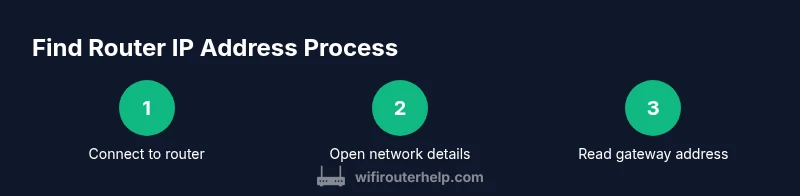
- 1
Connect to the router network
Ensure your device is connected to the router either via Wi Fi or Ethernet. A stable connection is essential for reliably reading the gateway address. If you are on a VPN, disconnect it to avoid masking the local gateway.
Tip: Use the main Wi Fi network and avoid guest networks when gathering IP information. - 2
Open network details or a terminal
On Windows open Command Prompt or PowerShell and type ipconfig. On macOS open System Preferences > Network and view the details. On mobile devices open Wi Fi settings for the connected network. The aim is to locate the Default Gateway value.
Tip: If you see multiple adapters, identify the one associated with your current network connection. - 3
Identify the gateway address
Look for the field labeled Default Gateway or Router. The value shown is the router IP address you will use to access the admin interface.
Tip: Double check that the IP belongs to your home network range like 192.168.x.x or 10.0.x.x. - 4
Cross verify with the router label
If the gateway is unclear, compare with the IP printed on the router label on the bottom or back of the device.
Tip: Use this as a cross reference to avoid mistaking another device on the network. - 5
Try the gateway in a browser
Enter http://<gateway IP> in your browser address bar. If prompted, enter the router admin username and password.
Tip: If credentials were changed, use the reset procedure documented by the manufacturer. - 6
If you can’t access the admin page
Confirm you have the correct network and try another device. Resetting the router should be a last resort and requires reconfiguring all settings afterwards.
Tip: Avoid factory resetting unless you are locked out and have a recovery plan.
People Also Ask
What is the router IP address and why do I need it?
The router IP address is the gateway address used to access the router’s admin page. It helps you login, update firmware, and configure settings. Knowing it is essential for managing your home network.
The router IP address is the gateway you use to log into your router's settings. It's important for login and updates and adjusting network features.
Can I find my router IP address without internet access?
Yes. If you are connected to the router locally, you can read the gateway value from your device's network settings even without internet access. You just need a connected device.
Yes, you can read it from your device's network settings when connected to the router, even without internet.
What if the gateway address is 192.168.x.x but I still cannot login?
Verify you are using the correct URL by typing the gateway IP into a browser. If credentials are unknown, try the default password from the router label, or perform a factory reset as a last resort.
Make sure you are using the gateway IP in your browser and check credentials; reset if you must, but only as a last resort.
Is the router IP the same as my device IP?
No. The router IP is the address of the gateway device on your local network. Your device IP is assigned by the router for its own network interface.
No, the router IP is the gateway address. Your device has its own IP assigned by the router.
Should I change my router IP address?
Typically you should not change the gateway unless you need to adjust your subnet or avoid conflicts. If you do, document the new address and update any configured port forwarding or DHCP settings.
You usually should not change it unless needed for network organization, and always keep track of the new address.
How can I learn more about router security after finding the IP?
After discovering the IP, enable strong admin passwords, update firmware, and consider enabling a guest network to isolate IoT devices. Regular audits help maintain security.
After you find it, secure the admin page with a strong password and keep the firmware updated.
Watch Video
What to Remember
- Identify the router gateway address on every device you use.
- Use the Default Gateway to reach the admin interface safely.
- Cross check with the router label for accuracy.
- Document IP and credentials securely for future use.
- Follow security best practices after discovering the IP address.