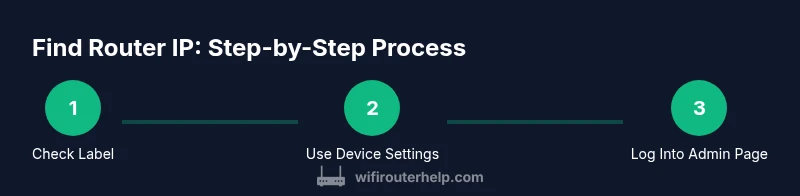
How to Get an IP Address from Your Router: Step-by-Step
Learn how to locate your router's IP address across Windows, macOS, iOS, and Android. This educational guide explains common defaults, private vs public IPs, and safe access to the admin page, with practical steps and troubleshooting tips.


You will learn how to locate your router's IP address quickly by checking the device label, using built-in network settings, and logging into the router's admin page. This guide covers Windows, macOS, iOS, and Android, explains common default addresses (e.g., 192.168.0.1/192.168.1.1), and clarifies the difference between private and public IPs.
What is a router IP address and why you might need it
For most home networks, the router acts as the gateway between your devices and the internet. According to WiFi Router Help, the router’s IP address is the key to reaching the device’s admin interface and applying network settings. The WiFi Router Help team found that knowing this address helps with quick troubleshooting, setting up port forwards, enabling parental controls, or updating firmware. In practice, the router IP is a private address on your local network, distinct from your public IP shown to external sites. Knowing this address allows you to access the router’s configuration page, review connected devices, adjust Wi‑Fi settings, and verify that your NAT and DHCP settings are functioning as intended.
Typical home routers use a private IPv4 address in the 192.168.x.x family. The exact number depends on the manufacturer and your network’s configuration, but common defaults include 192.168.0.1 and 192.168.1.1. Some devices may use 10.0.0.1 or a similar private range. Keep in mind that the private IP is local to your home network; your public IP is the address seen by websites and services on the internet and can be different from the router’s private IP. If you’re dealing with VPNs, guest networks, or mesh systems, the IP arrangement can vary, so it helps to know where to look and which address to use in different scenarios.
tip–1_type":"pro_tip","tip–1_text":"Note that some routers show both the private (gateway) IP and the LAN IP on the same label or in the admin interface; check both if you’re unsure which is the gateway for your devices."
tip–2_type":"note","tip–2_text":"If you’re using a mesh system or multiple routers, each unit may have its own IP address; don’t assume a single gateway address covers all nodes."
Tools & Materials
- Device with a web browser (PC, laptop, tablet, or phone)(Access to a browser like Chrome, Edge, Safari, or Firefox.)
- Router login credentials (admin username and password)(Sometimes printed on a label on the router or provided by the ISP.)
- Active connection to the router’s network(Wi‑Fi or a wired Ethernet connection.)
- Paper and pen to document IP addresses(Helpful for keeping a record of multiple addresses.)
- Ethernet cable (optional)(Useful if you’re troubleshooting a flaky Wi‑Fi connection.)
Steps
Estimated time: 10-15 minutes
- 1
Identify your device and ensure network access
Power on your device and connect to your home network. If you’re using Wi‑Fi, make sure you’re connected to the correct network—the one provided by your router. This step ensures you’re querying the right gateway and avoids stale cached data.
Tip: Use a wired connection when possible for reliability during the lookup. - 2
Check the router label for quick clues
Flip the router over or look at the back to find a sticker with the default IP address, login URL, or both. Some stickers also include the default username and password. If you spot an IP like 192.168.x.x or 10.0.x.x, that’s a strong hint it’s the gateway you’ll use in a browser.
Tip: Write down the address you see and confirm it against other methods. - 3
Find the default gateway in Windows
Open Command Prompt and type ipconfig, then press Enter. Look for the line labeled Default Gateway under your active network adapter; the value is the router’s IP. If multiple adapters appear, focus on the one connected to your network.
Tip: If you don’t see a Default Gateway, ensure you’re connected to the router’s network and try ipconfig /all. - 4
Find the router IP on macOS
Go to System Settings/Network, select your active connection, and click Advanced, then TCP/IP to view the Router field. The number listed there is your router’s IP. This is the gateway address you’ll use in a browser.
Tip: If you’re on Ethernet, the router IP will usually be the same as for Wi‑Fi. - 5
Check iPhone/iPad or Android for the gateway
On iOS, open Settings > Wi‑Fi > [Your Network] and look for the Router field. On Android, go to Settings > Network & Internet > Wi‑Fi > gear icon > Advanced > IP settings or Gateway. The shown value is the router’s IP.
Tip: Some devices hide the exact gateway behind different menu names; search for “Router” or “Gateway” in the network settings. - 6
Log into the router’s admin page
Open a web browser and enter the router’s IP address in the address bar. You’ll be prompted to enter the admin credentials. Once logged in, you can view the status, connected devices, and settings.
Tip: If you get a certificate warning, it’s often safe to proceed; avoid using public networks for login. - 7
If you can’t access from the IP you found
Double-check that you’re using the correct IP for the router—some devices have multiple gateways for guest networks or mesh nodes. Try the alternative common defaults (e.g., 192.168.0.1 vs 192.168.1.1) or reset network settings on the device if necessary.
Tip: Avoid repeatedly guessing; perform a quick scan of the network to identify active gateways. - 8
Document and secure your gateway information
Record the router IP, login URL, and credentials in a secure place. After confirming access, consider updating the firmware and reviewing security settings like admin passwords, remote management, and firewall rules.
Tip: Change default passwords and disable unnecessary remote access to improve security. - 9
Repeat for additional routers or mesh nodes
If your home uses multiple routers or a mesh system, each unit may have its own IP address. Repeat the steps for each device to ensure you know every gateway on your network.
Tip: Keep a simple map of which IP belongs to which device to simplify future maintenance.
People Also Ask
What is the router IP address and why do I need it?
The router IP address is the gateway to your home network’s admin page. Knowing it lets you configure settings, monitor connected devices, and troubleshoot connections. Most devices use a private IPv4 address such as 192.168.x.x or 10.0.x.x.
Your router IP is the gateway to its settings. It helps you manage your network and fix issues by logging into the router’s admin page.
How can I find my router IP on Windows, macOS, iOS, and Android?
On Windows, run ipconfig and look for Default Gateway. On macOS, check System Settings > Network > Advanced > TCP/IP. On iOS, open Settings > Wi‑Fi > [Your Network] > Router. On Android, Settings > Network > Wi‑Fi > advanced options > Gateway.
Use the network settings on each device to locate the gateway or router IP.
What if the IP shown isn’t the right gateway?
Some setups have multiple gateways (guest networks or mesh nodes). If the first IP doesn’t work, try common defaults like 192.168.0.1 or 192.168.1.1, or check the label for alternate addresses.
If one address doesn’t work, look for other gateway addresses or consult the router’s label for alternatives.
Can I access the router admin page over public Wi‑Fi?
Accessing the router admin page over public Wi‑Fi is not recommended due to security risks. Use a trusted home network or a wired connection to log in safely.
Avoid logging into your router on public networks to protect your credentials.
What’s the difference between private and public IP addresses?
Private IPs (like 192.168.x.x) are used inside your home network. The public IP is assigned by your ISP for devices on the internet. Accessing the router uses the private IP; your public IP is visible to websites.
Private IPs are for your local network; public IPs are what sites see on the internet.
Should I change my router’s IP address?
Changing the router’s IP is optional and may be needed for network customization. If you do, update all devices with the new gateway address or set the router to a familiar private range.
Only change the IP if you have a specific need and you know how to reconfigure connected devices.
Watch Video
What to Remember
- Know the router IP to reach the admin page
- Use device network settings to confirm the gateway
- Use the admin page for configuration and security updates
- Different devices and networks may show multiple gateways
- Keep a record of gateway IPs for future reference